iPhone 16 Pro Front Camera Assembly Replacement
This document details the procedure for substituting the front camera module within an iPhone 16 Pro.
- A replacement camera component might be necessary.Consider camera replacement if photographic or video recordings appear out of focus, are entirely non-functional, or Face ID functionality is unavailable.Should these symptoms manifest with the rear camera(s), consult an alternative repair instruction.The front camera module incorporates the front-facing camera and
- Face ID system components.
These elements are integrated into a single unit, possessing a unique pairing with the device's logic board.Upon completion of this repair process, calibrate a genuine Apple front camera module utilizing the Repair Assistant application.To finalize this repair, replacement back glass adhesive is essential.
The front camera assembly is a complex component requiring careful handling to avoid further damage.
Ensure all tools are compatible with the iPhone 16 Pro to prevent accidental component breakage.
Step 1 | Prepare the phone for disassembly


- To mitigate safety risks associated with charged lithium-ion cells, permit the phone's battery to discharge to a level below 25 percent capacity.
- Disconnect all connected cables from the device prior to proceeding with the repair.
- Simultaneously depress the power button and either volume button, then utilize the sliding mechanism to deactivate the phone.
Step 2 | Tape over any cracks
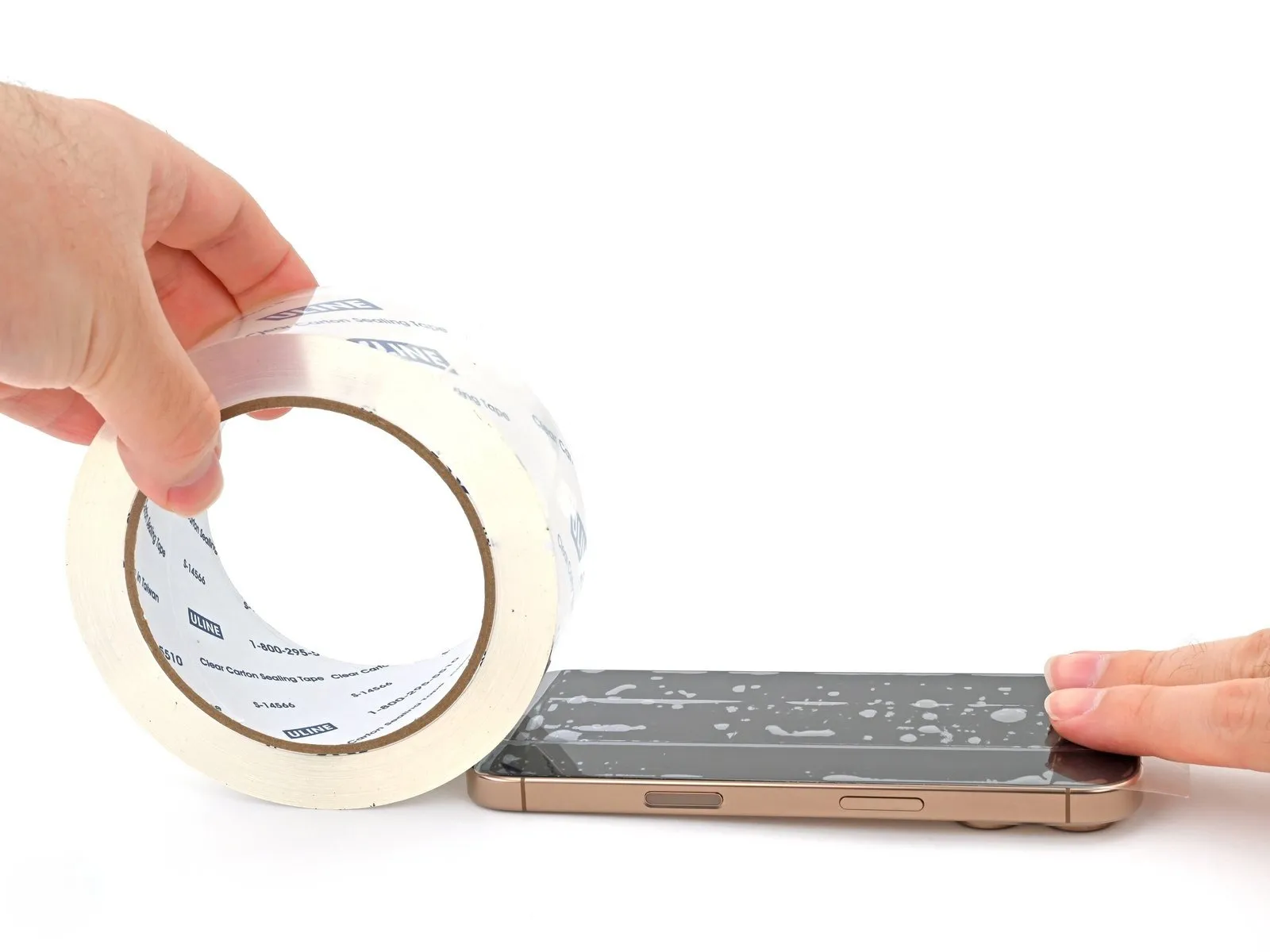
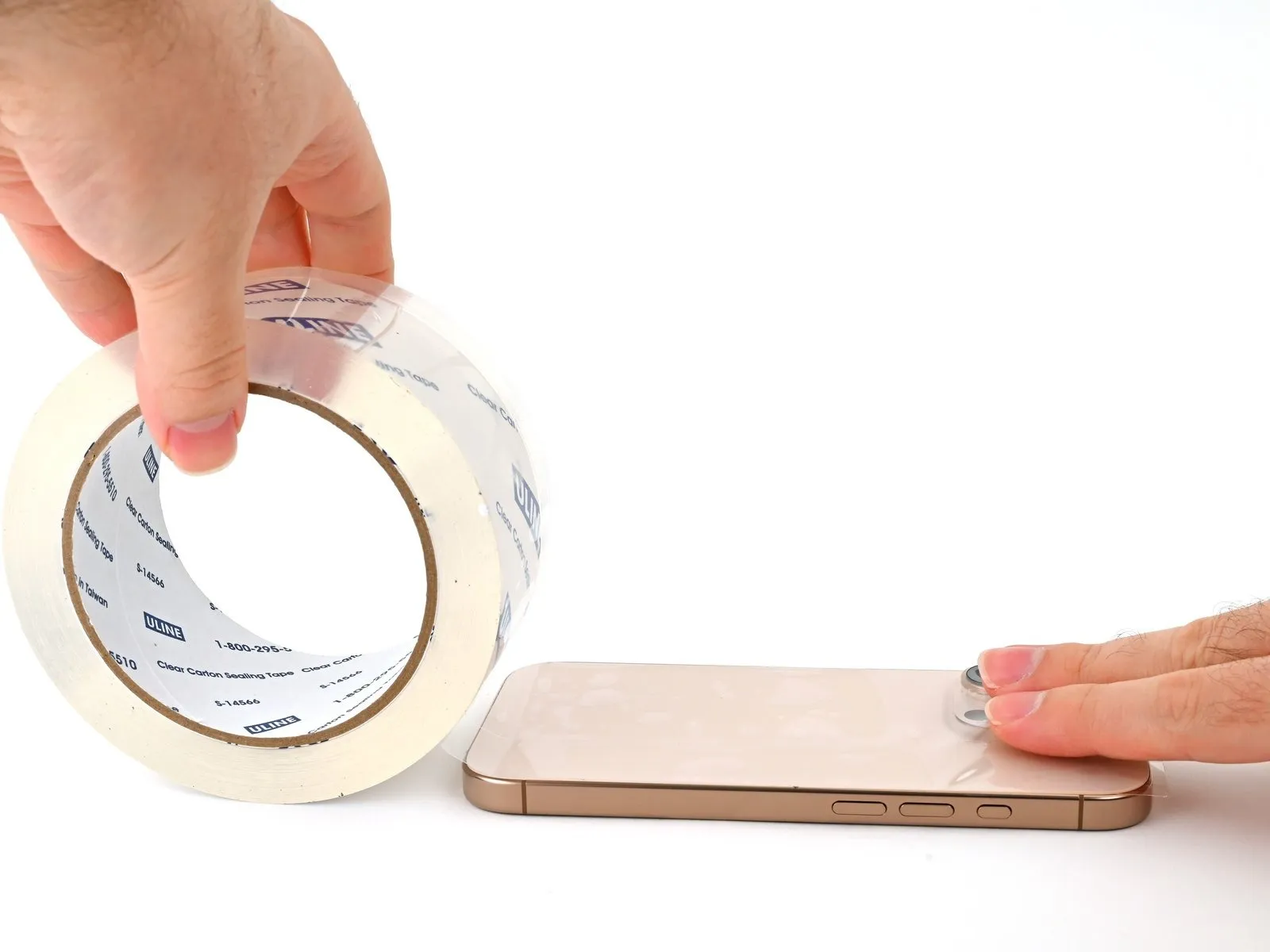
- To prevent injury and simplify the subsequent separation process when the display or rear glass exhibits severe cracking, apply multiple layers of adhesive packing tape, ensuring they overlap, across the damaged surfaces.
- Confirm the presence of a sufficiently sized, uninterrupted surface area adjacent to the lower edge, capable of providing adequate adhesion for a suction cup.
Step 3 | Mark your opening picks


- Excessive insertion of a pick can potentially harm the device; therefore, it's crucial to implement a marking procedure to avoid such incidents.
- Using a measuring tool, determine a distance of3 millimetersfrom the pick's leading edge and clearly indicate this point with a durable, permanent marker.
- For enhanced precision, consider marking the pick's other corners with varying measurement values.
- As an alternative method, affix a coin to the pick's shaft, positioning it3 millimetersaway from the tip.
Step 4 | Remove the pentalobe screws
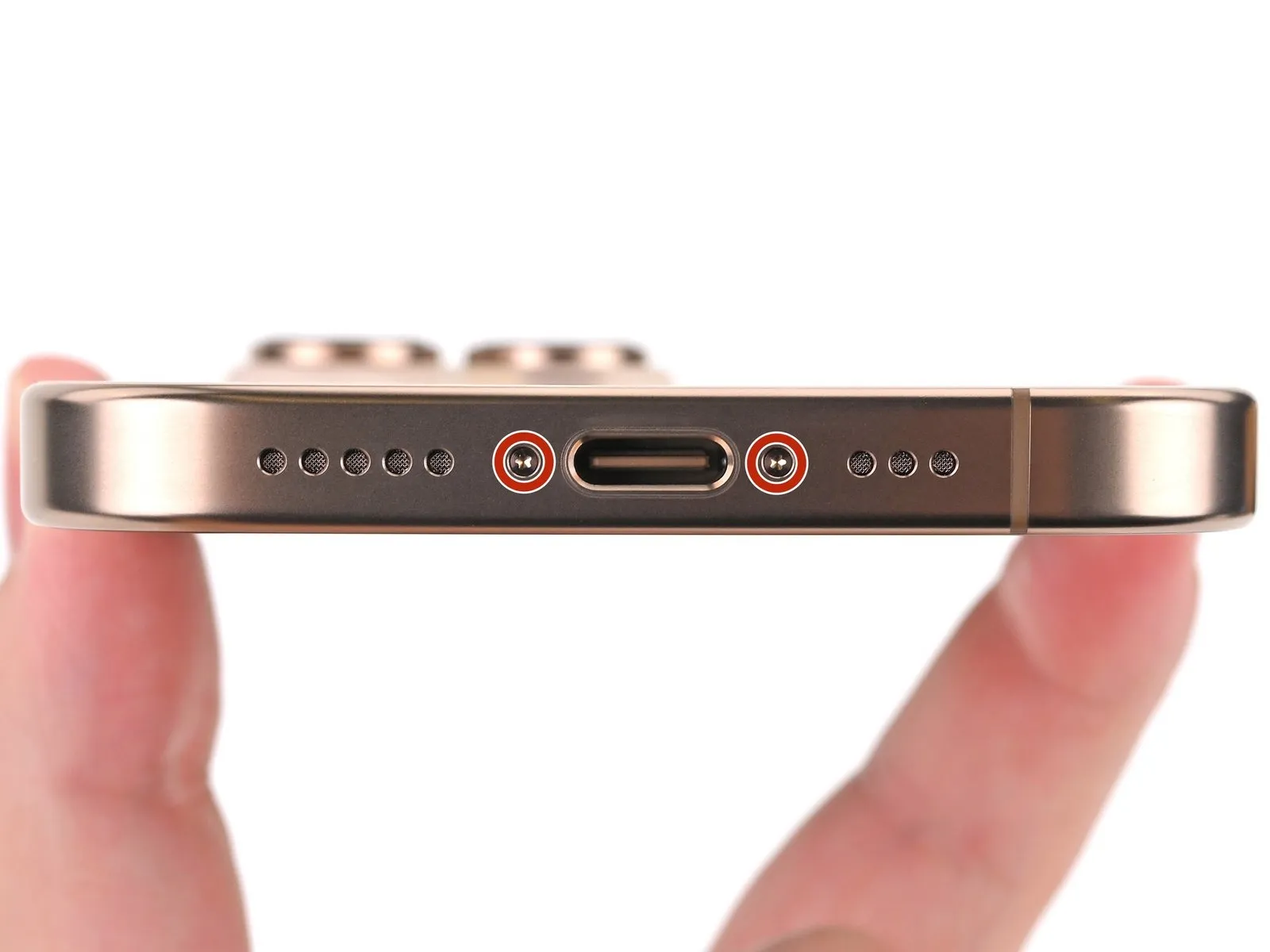

Employ a P2 pentalobe screwdriver for the removal of the two screws, each measuring 7.4 mm in length, situated on both sides of the USB-C port.The screws securing the device near the USB-C port require a P2 pentalobe screwdriver for their disassembly, with each screw having a length of 7.4 mm.To detach the screws flanking the USB-C port, a P2 pentalobe screwdriver is necessary, as these fasteners are 7.4 mm long.
Step 5 | Heat the bottom edge
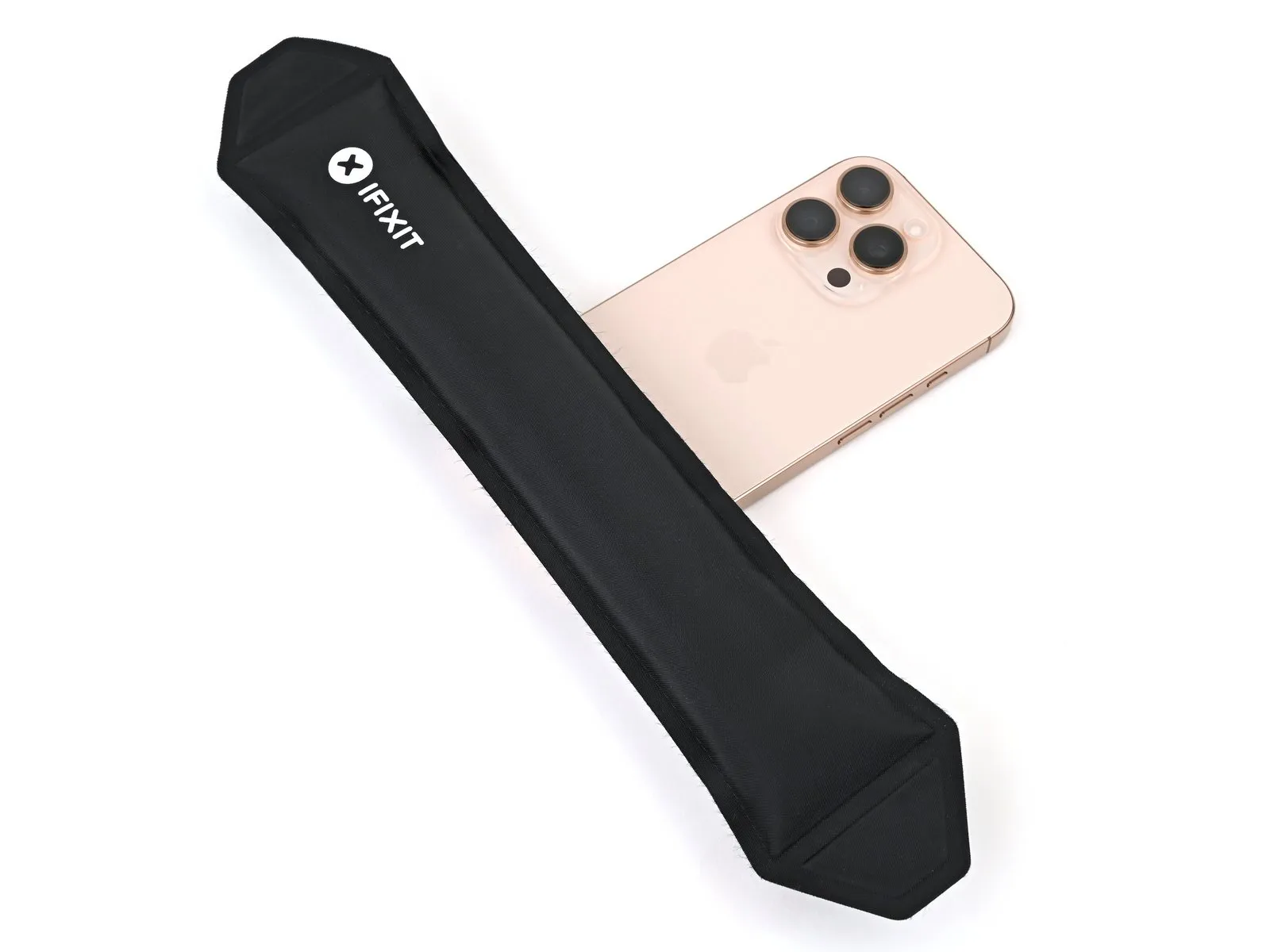
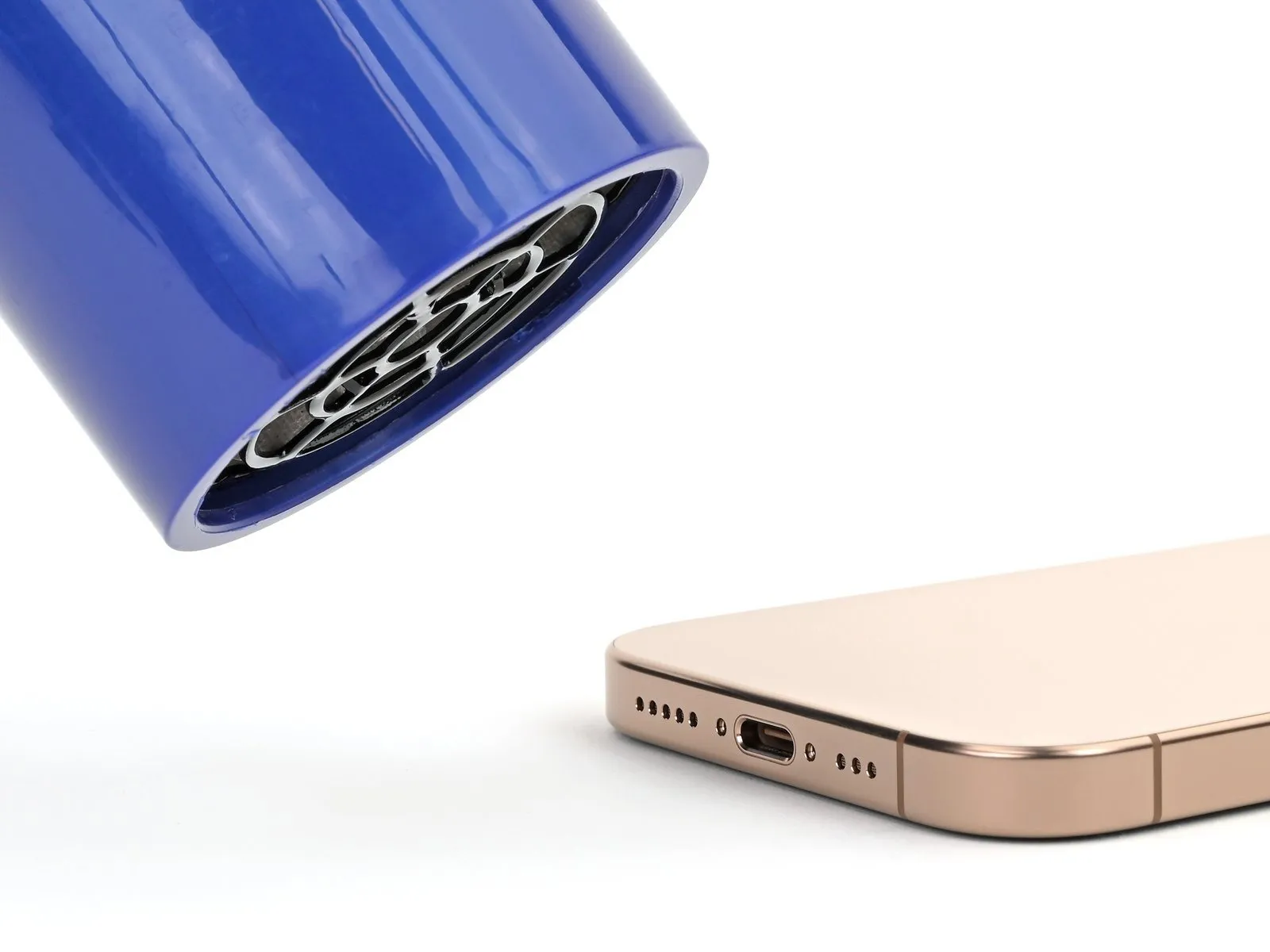
- Utilize a heated iOpener on the lower perimeter of the rear glass panel, maintaining the application for a duration of two minutes.As an alternative method, a hair dryer or heat gun can be employed to warm the lower edge of the back glass until it reaches a comfortably warm temperature.Exercise caution to prevent overheating the device, as the internal battery is vulnerable to thermal degradation.
- The battery's sensitivity to excessive heat necessitates careful temperature regulation during this process.
- Prolonged or intense heat exposure could compromise the battery's structural integrity and operational lifespan.
Step 6 | Insert an opening pick
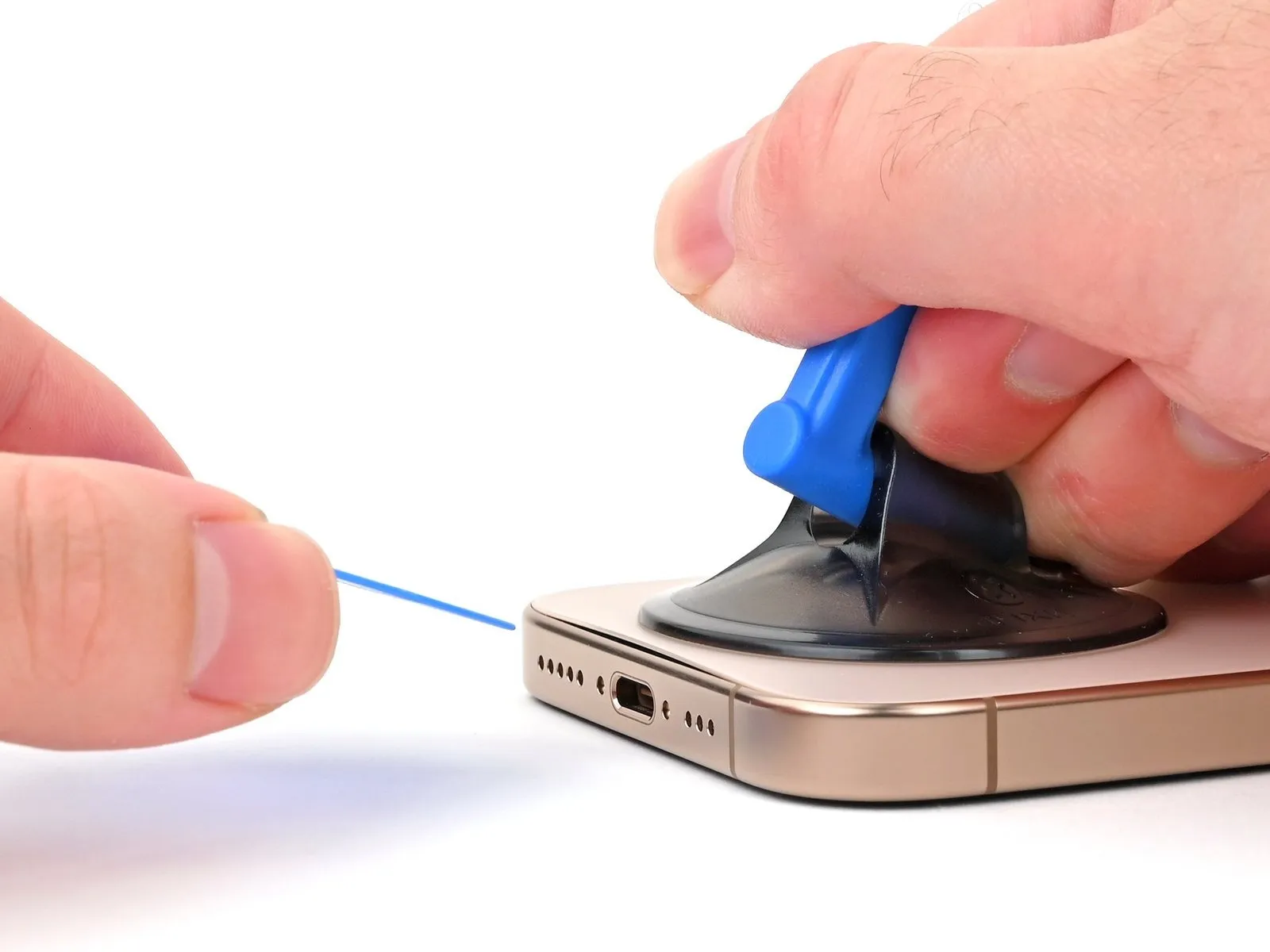
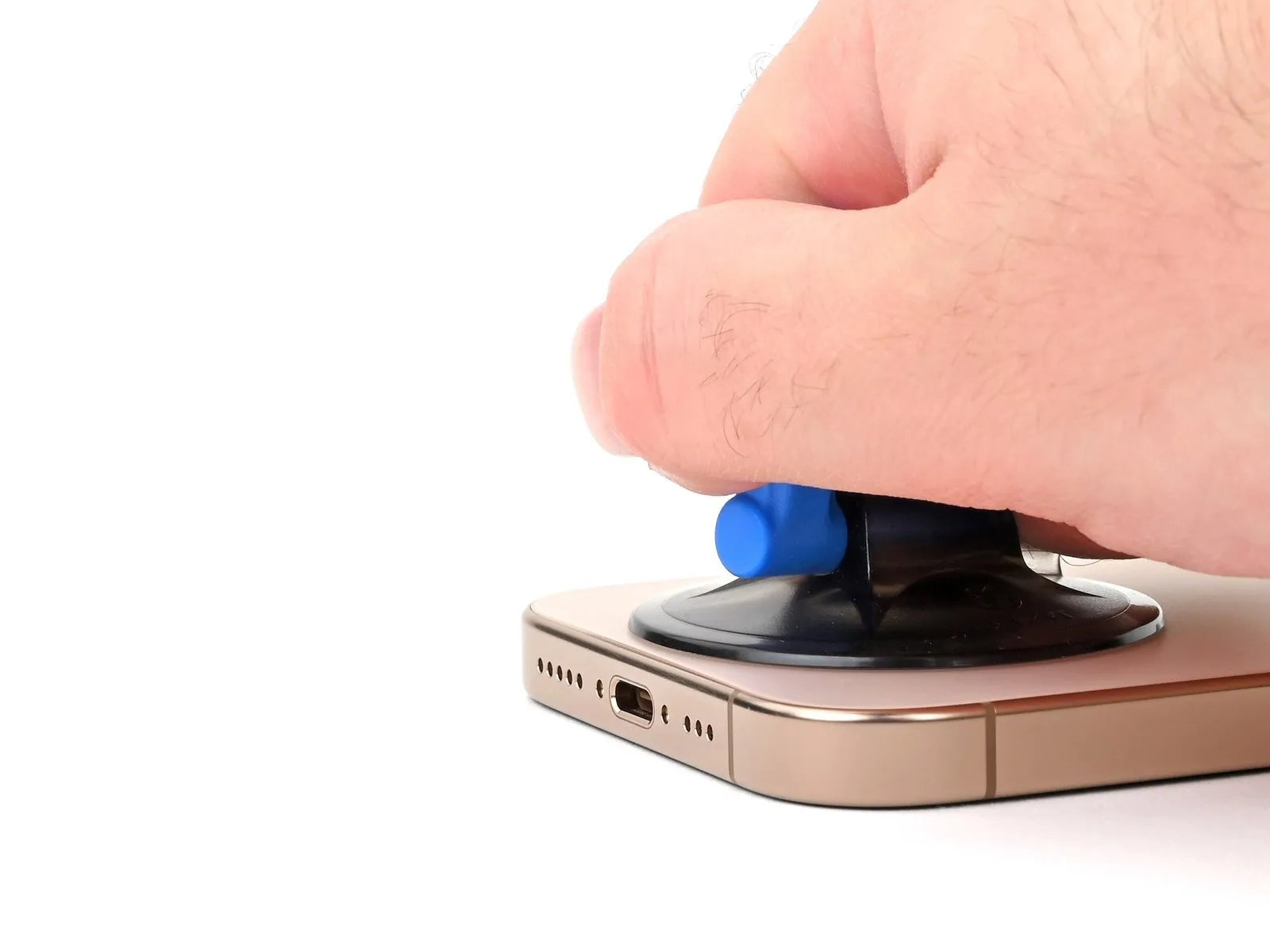

- Securely attach a suction handle to the lower perimeter of the rear glass, positioned directly over the USB-C connector.
Exert a consistent and considerable upward pull on the suction handle to generate separation between the rear glass assembly and the device’s frame.
Carefully introduce the pointed end of a specialized opening tool into the newly formed space.
Step 7 | Back glass information
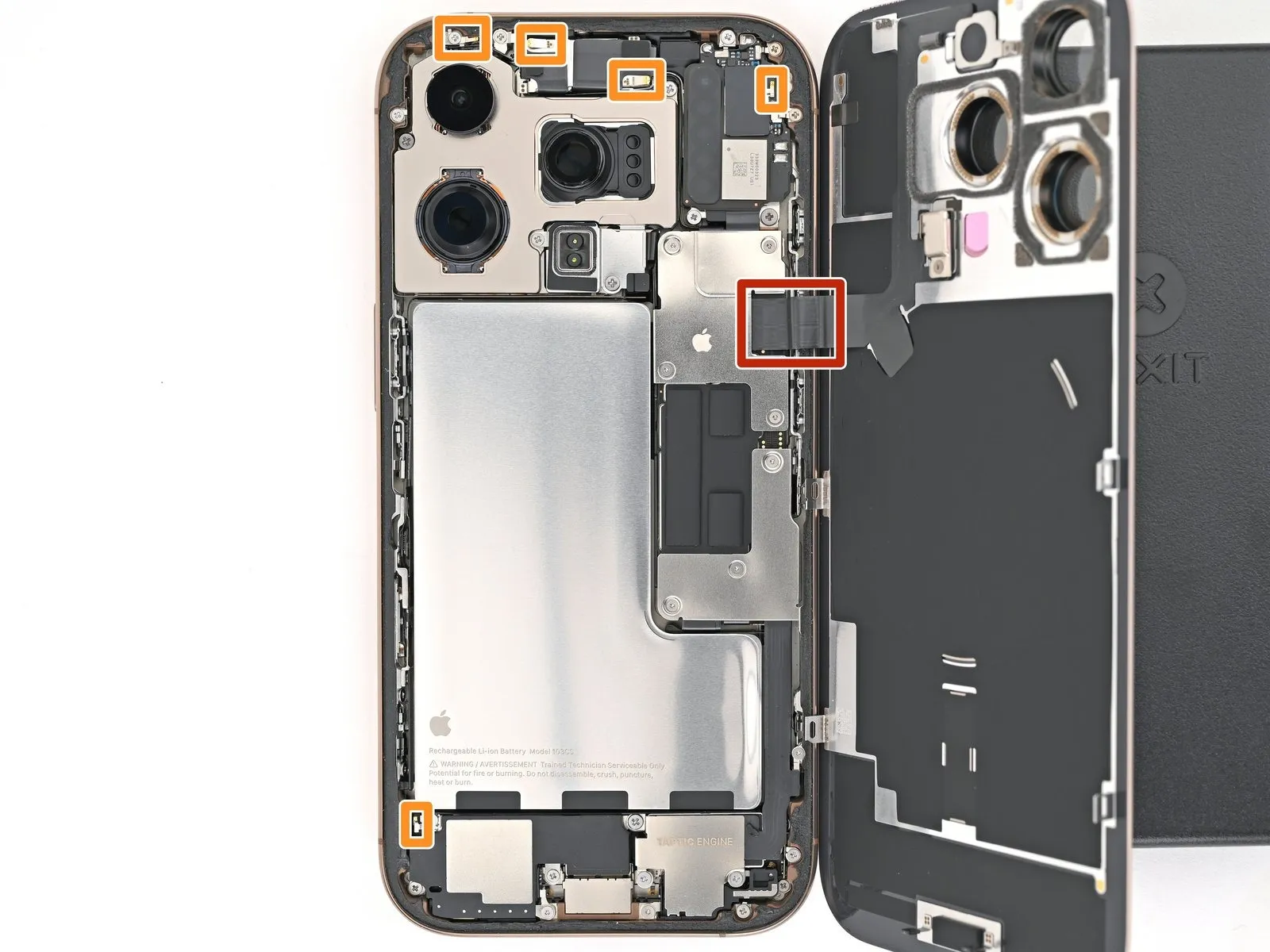
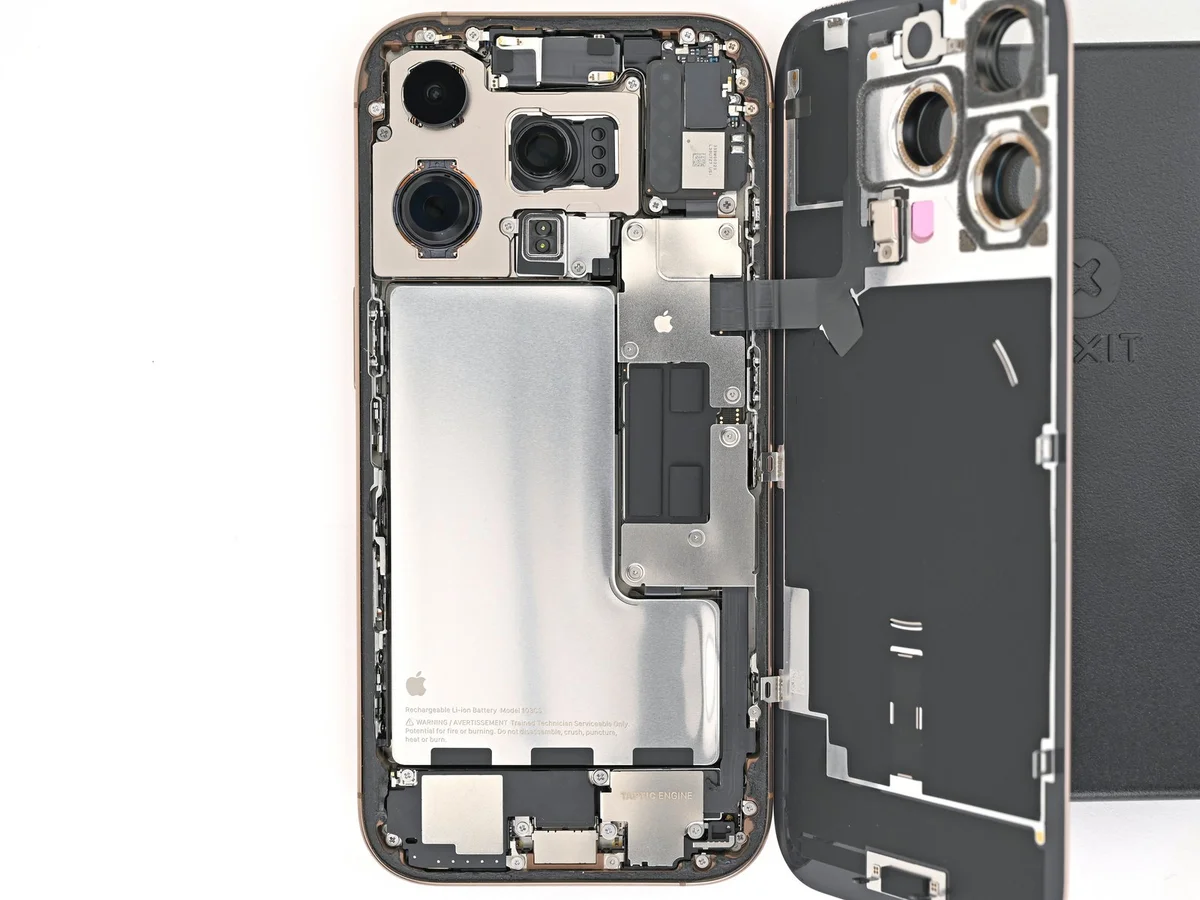
- During the process of separating the rear glass with a slicing tool in the subsequent procedures, exercise caution regarding specific zones.
A fragile cable, responsible for communication between the rear glass and the device's internal components, is situated close to the volume up button; therefore, prevent tool insertion in this region to preclude cable damage.
Numerous spring contacts are positioned along the phone's edges, necessitating careful tool placement, restricting insertion depth as directed in each step to prevent deformation.
Should the spring contacts become bent, restoration can be achieved by carefully manipulating them back into alignment with their corresponding gold contact points on the rear glass, utilizing a spudger or opening pick.
Step 8 | Separate the bottom edge adhesive

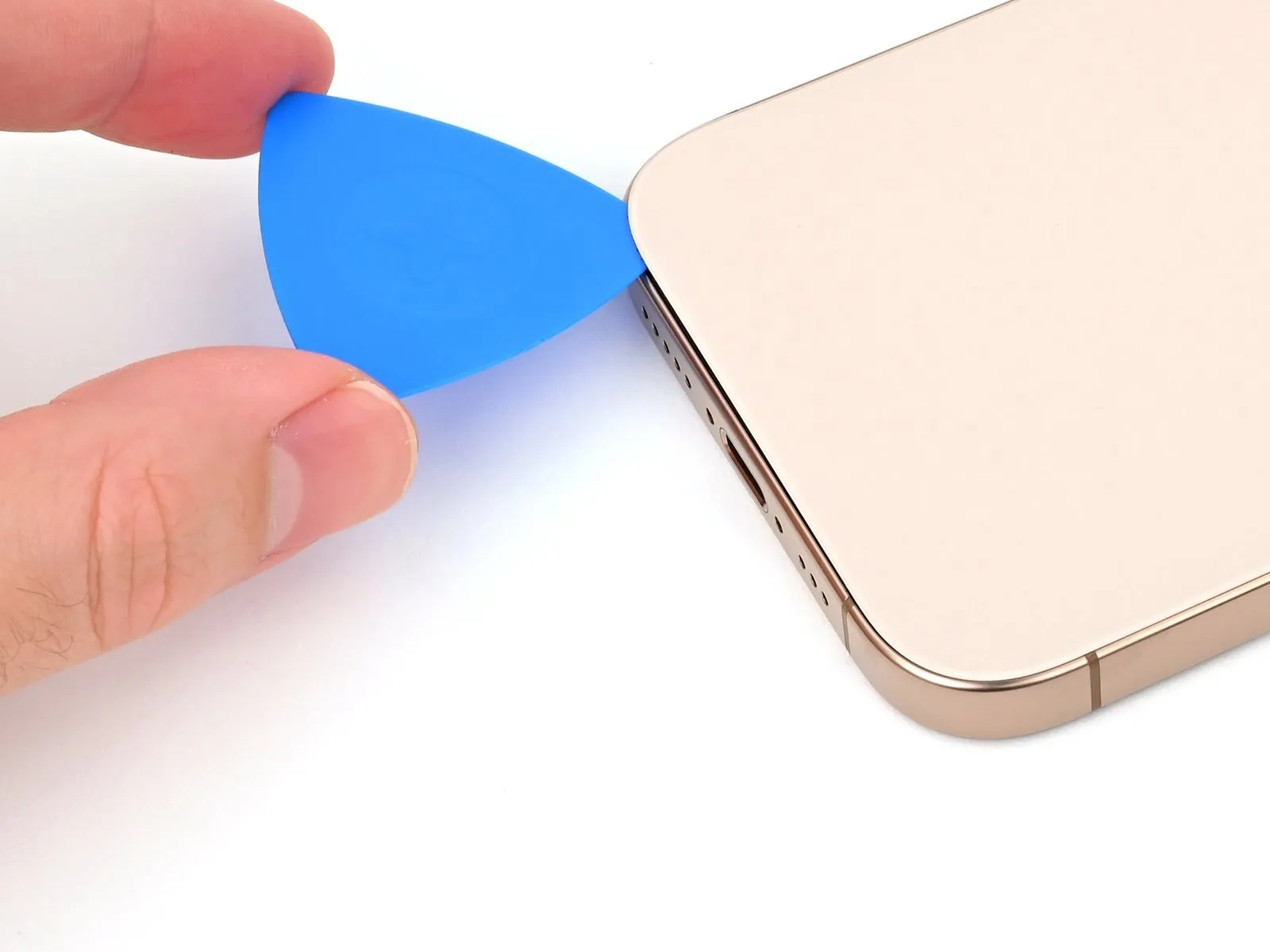
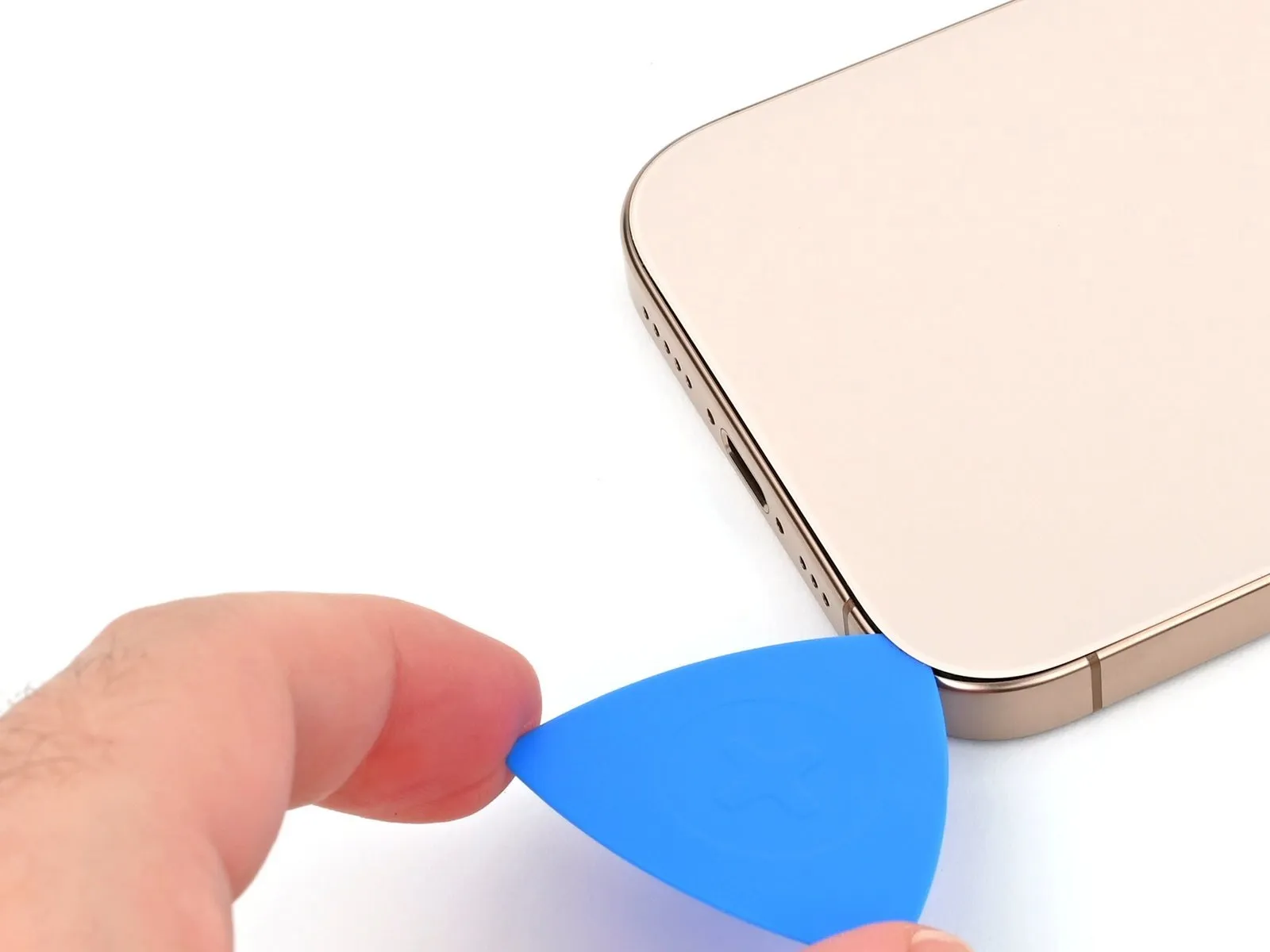
To prevent damage to the spring contact, ensure the pick's insertion depth does not exceed 5 mm along the lower edge.Employ a back-and-forth motion with the pick across the lower edge to effectively release the adhesive bond.Maintain the pick's position within the lower-right corner to inhibit the adhesive from re-adhering.
Adhesive separation is achieved through oscillating the pick's movement along the bottom edge.
A maximum insertion depth of 5 mm must be observed when using the pick at the bottom edge to safeguard the spring contact.
Step 9 | Heat the right edge

Apply warmth to the right-hand perimeter of the rear glass panel, continuing until surface temperature is sufficient for tactile perception.Elevate the temperature of the back glass's right side to a point where it can be felt as warm upon contact.
Step 10 | Separate the bottom right corner adhesive
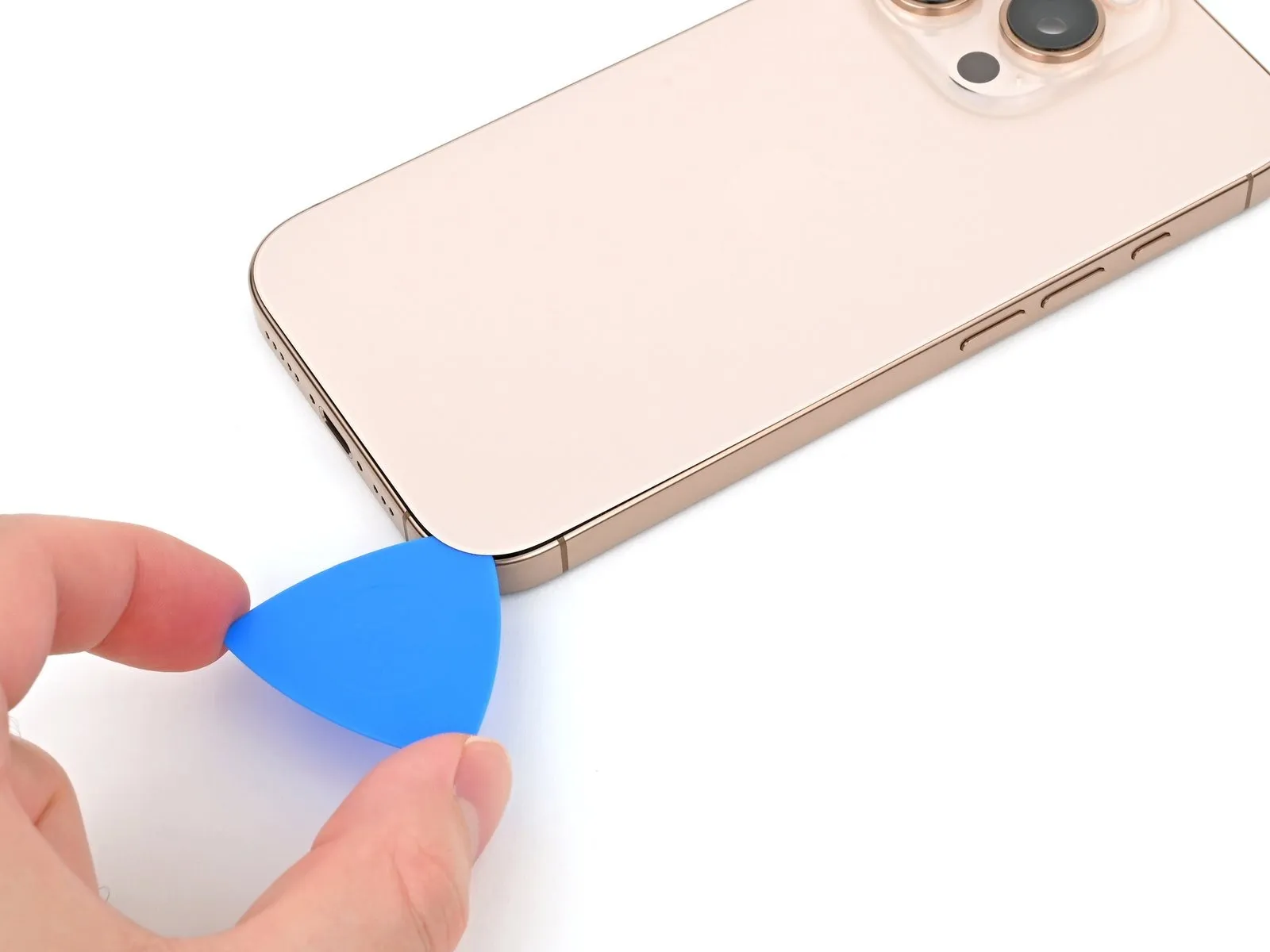

- Employ a prying tool along the lower-right perimeter, extending upward approximately halfway along the right side, stopping when resistance is encountered at the retaining clip for the rear glass assembly.
Exercise caution during separation to maintain clearance from the volume controls, as these are in close proximity to the wireless charging and camera flash interconnect cable.
Maintain the pick's position within the separation gap to inhibit the adhesive layer from re-bonding.
Step 11 | Heat the left edge

Apply heat to the left side of the rear glass panel, ensuring it reaches a temperature where it is noticeably warm to the hand.Elevate the temperature of the left vertical edge of the back glass component to a point where tactile sensation indicates warmth.
Step 12 | Separate the left edge adhesive
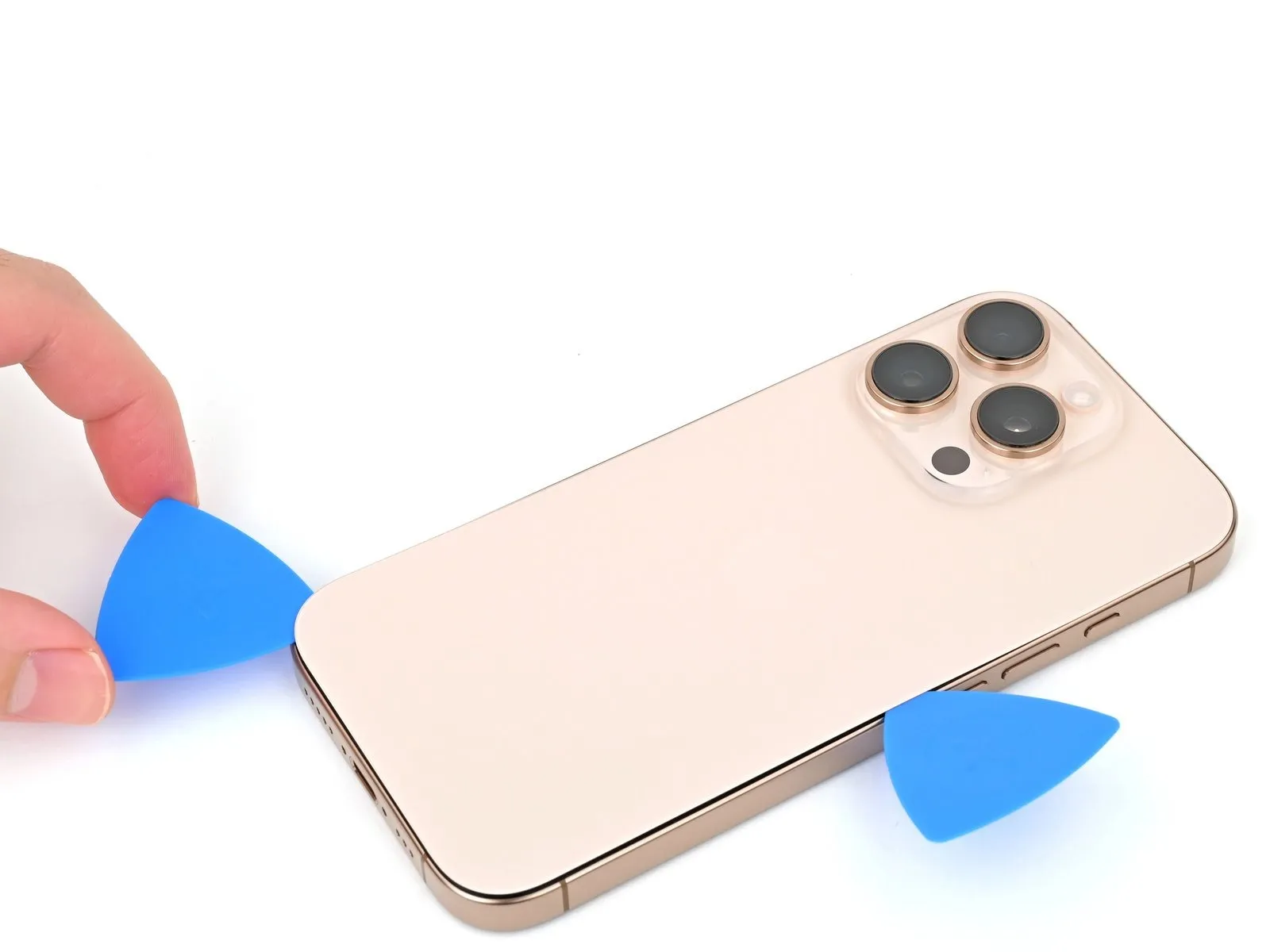

- Introduce a supplementary opening tool into the gap located at the device's lower boundary.
Maneuver the second tool along the lower-left corner and the left side of the display to detach the adhesive layer and disengage the securing metal clips.
Audible and tactile confirmation of the metal clip disengagement will occur during this separation process.
Maintain the position of this tool at the upper-left corner to inhibit adhesive re-bonding.
Step 13 | Heat the top edge

Step 14 | Separate the top edge adhesive


- To prevent harm to the spring contacts, ensure the insertion depth of your tool remains no greater than 3 millimeters near the upper boundary.Employing a sliding motion, maneuver your opening tool across the upper perimeter, progressing to the top right corner in the vicinity of the volume up button, to sever the adhesive bond.Audible and tactile clicks will indicate the disengagement of the uppermost two retaining clips during this separation process.
- The release of these clips is accompanied by a distinct clicking sensation and sound, signifying a successful separation of the adhesive.
Step 15 | Swing open the back glass
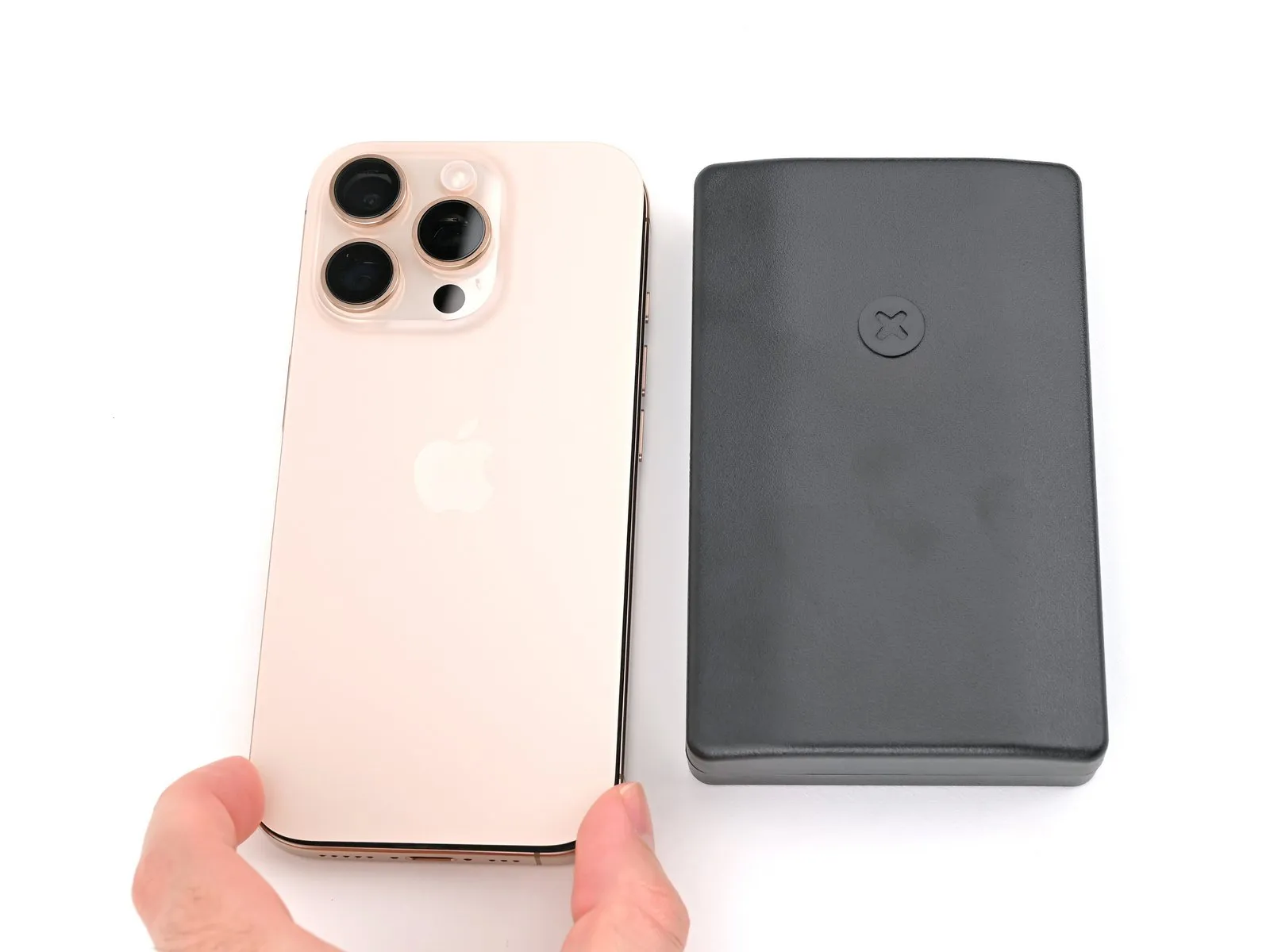
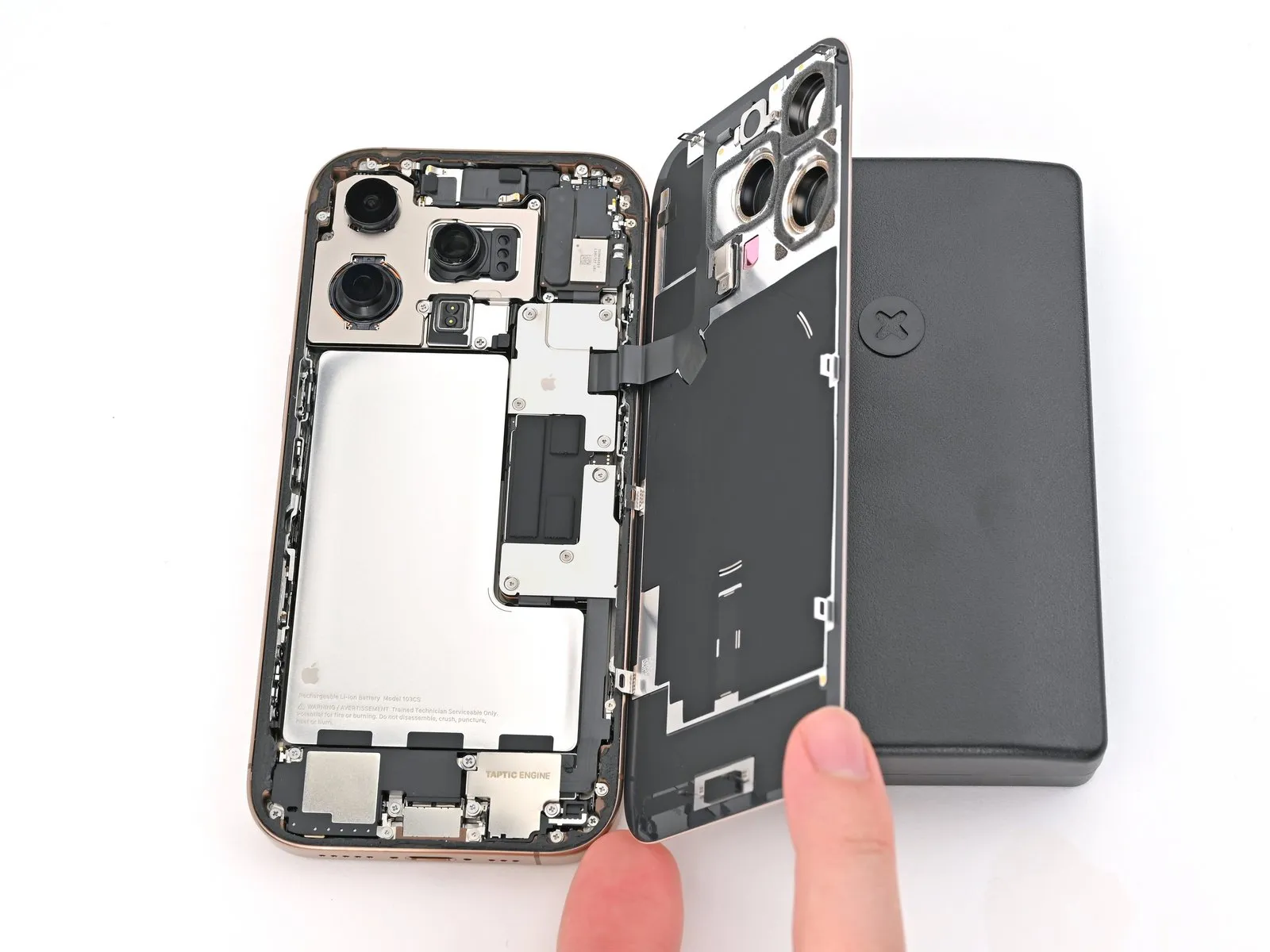
- Refrain from completely detaching the rear glass panel at this stage, as it remains connected via a fragile ribbon cable; proceed with the subsequent instructions to ensure safe separation.
- Should the rear glass panel resist easy movement, avoid applying excessive force; instead, re-examine the edges with your tool to identify any remaining adhesive or obstructed clips.
- A slight vertical elevation of the rear glass panel may be necessary prior to swinging it open, facilitating complete clip disengagement.
- Carefully pivot the rear glass panel towards the area of the volume controls.
- Provide support for the rear glass panel using a stable, non-abrasive item, such as a small box, to minimize stress on the cable.
- Extract the opening tools from the device.
- To safeguard the rear camera lenses during internal work, it is advisable to apply polyimide tape; exercise caution and avoid pressure on the lenses to prevent damage to their sensitive stabilization components.
Step 16 | Disconnect the battery
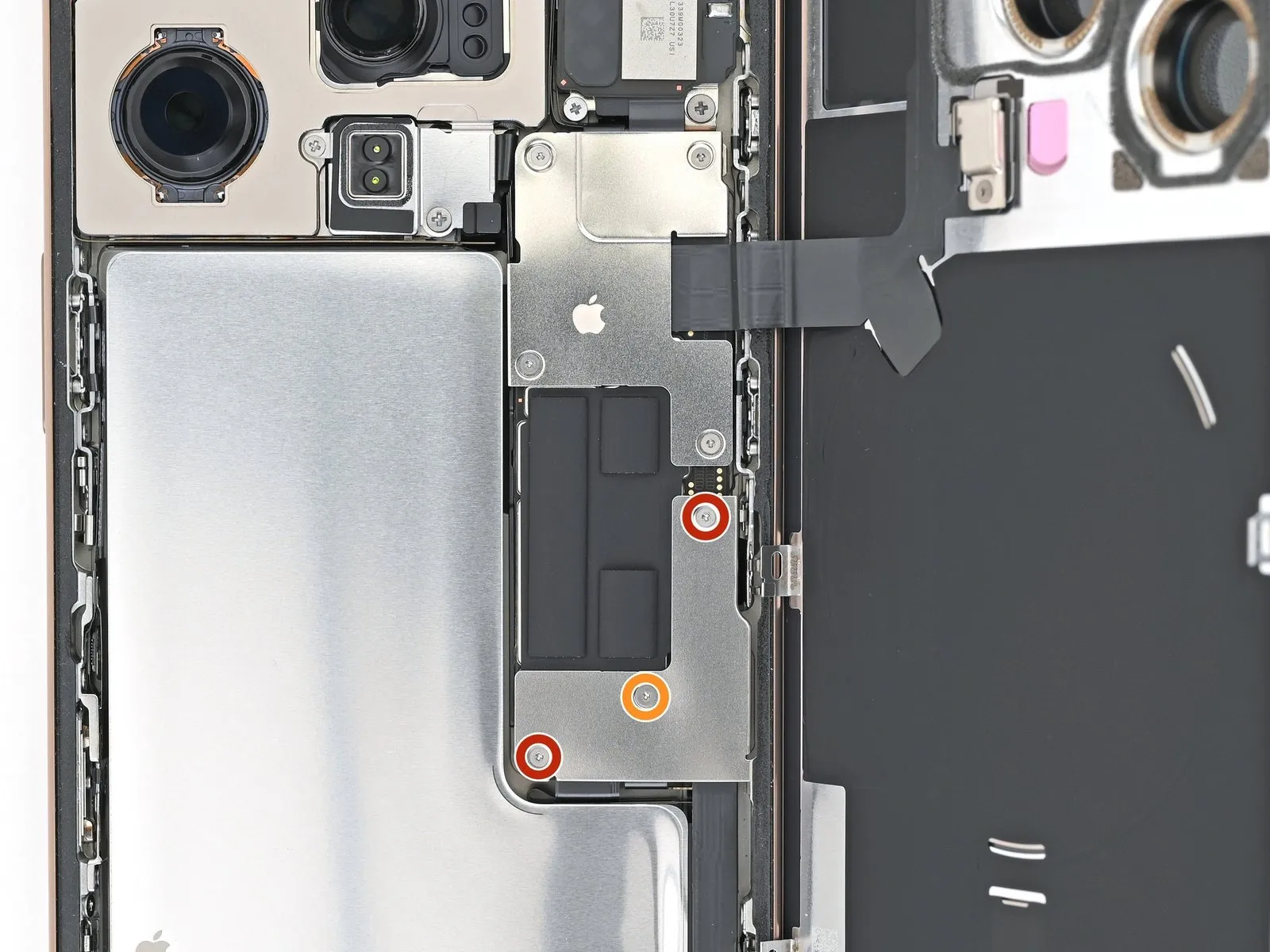
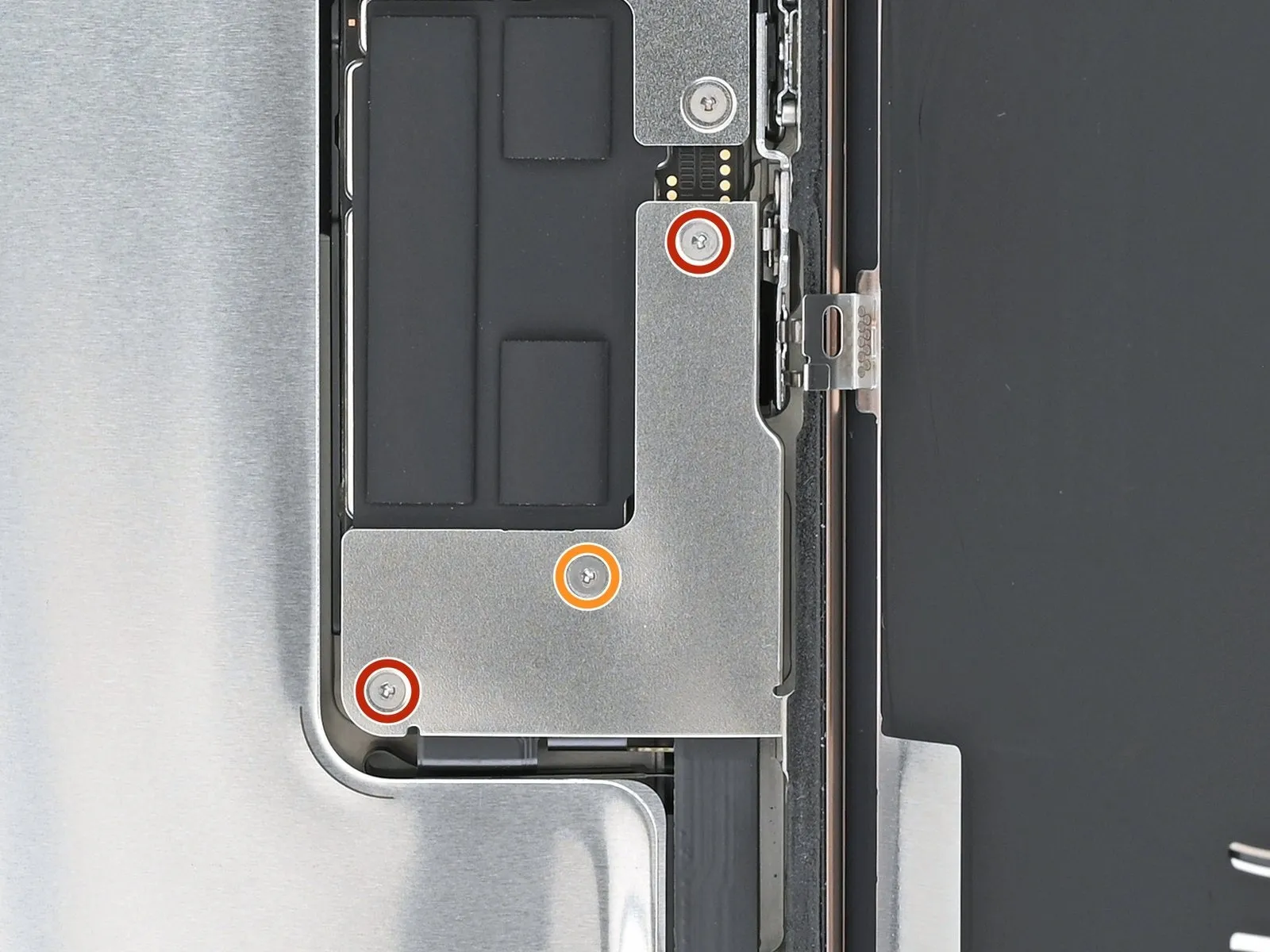
- Employ a tri-point Y000 screwdriver for disassembly.The lower connector cover is fastened with three screws, requiring a tri-point Y000 screwdriver for removal.Specifically, two screws measuring 1.2 millimeters in length are utilized.
- Additionally, a single screw with a length of 1.0 millimeters is present.The screws holding the lower connector cover in place necessitate a tri-point Y000 screwdriver for their extraction.Two screws, each 1.2 mm in length, secure the lower connector cover.
- A single screw, measuring 1.0 mm in length, is also used to hold the connector cover.To detach the lower connector cover, a tri-point Y000 screwdriver is essential for unscrewing the securing fasteners.The fasteners consist of two 1.2 mm screws and one 1.0 mm screw, all requiring a tri-point Y000 screwdriver for removal.
Step 17
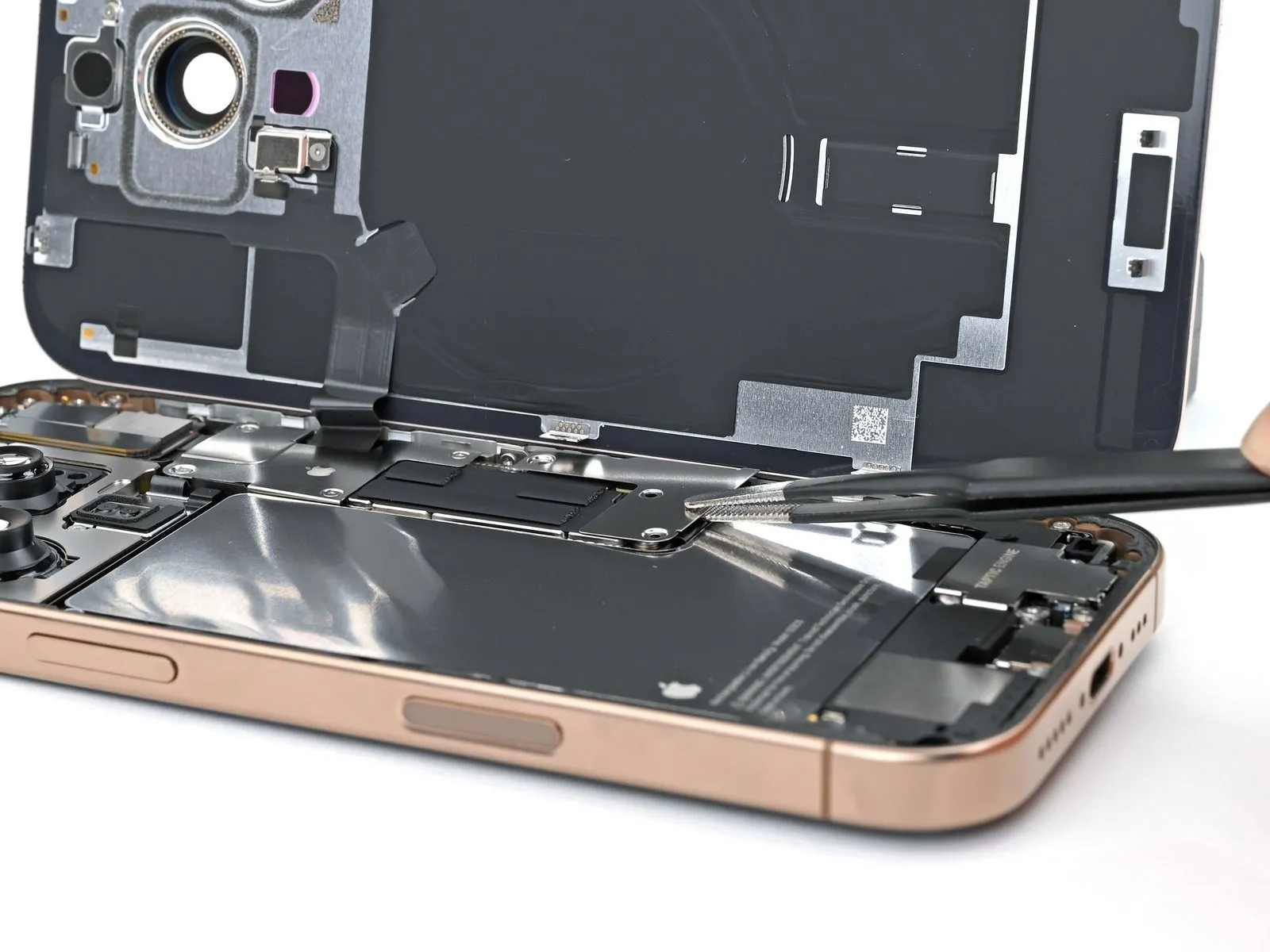
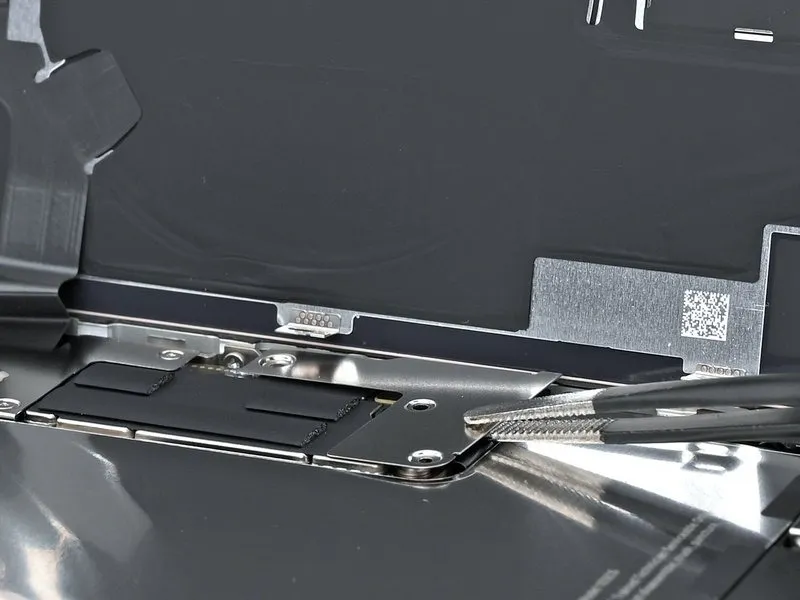

- Employing either tweezers or direct manual manipulation, detach the lower connector cover.The lower connector cover can be dislodged using tweezers for precision or by hand.To facilitate removal, grasp the lower connector cover with tweezers or your fingertips.Carefully extract the lower connector cover by utilizing tweezers or your fingers for manipulation.Removal of the lower connector cover is achieved through the application of tweezers or manual dexterity.
Step 18
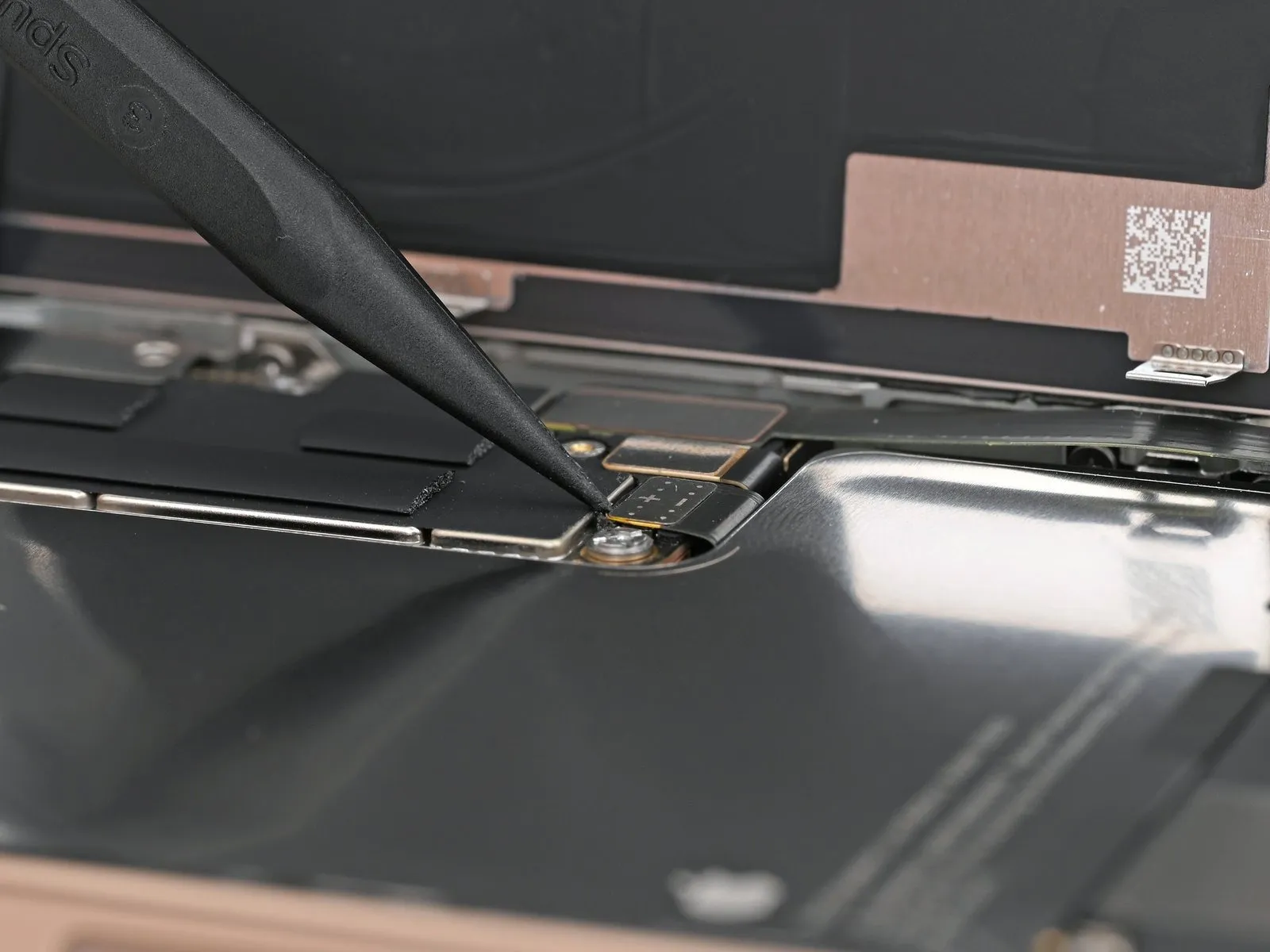
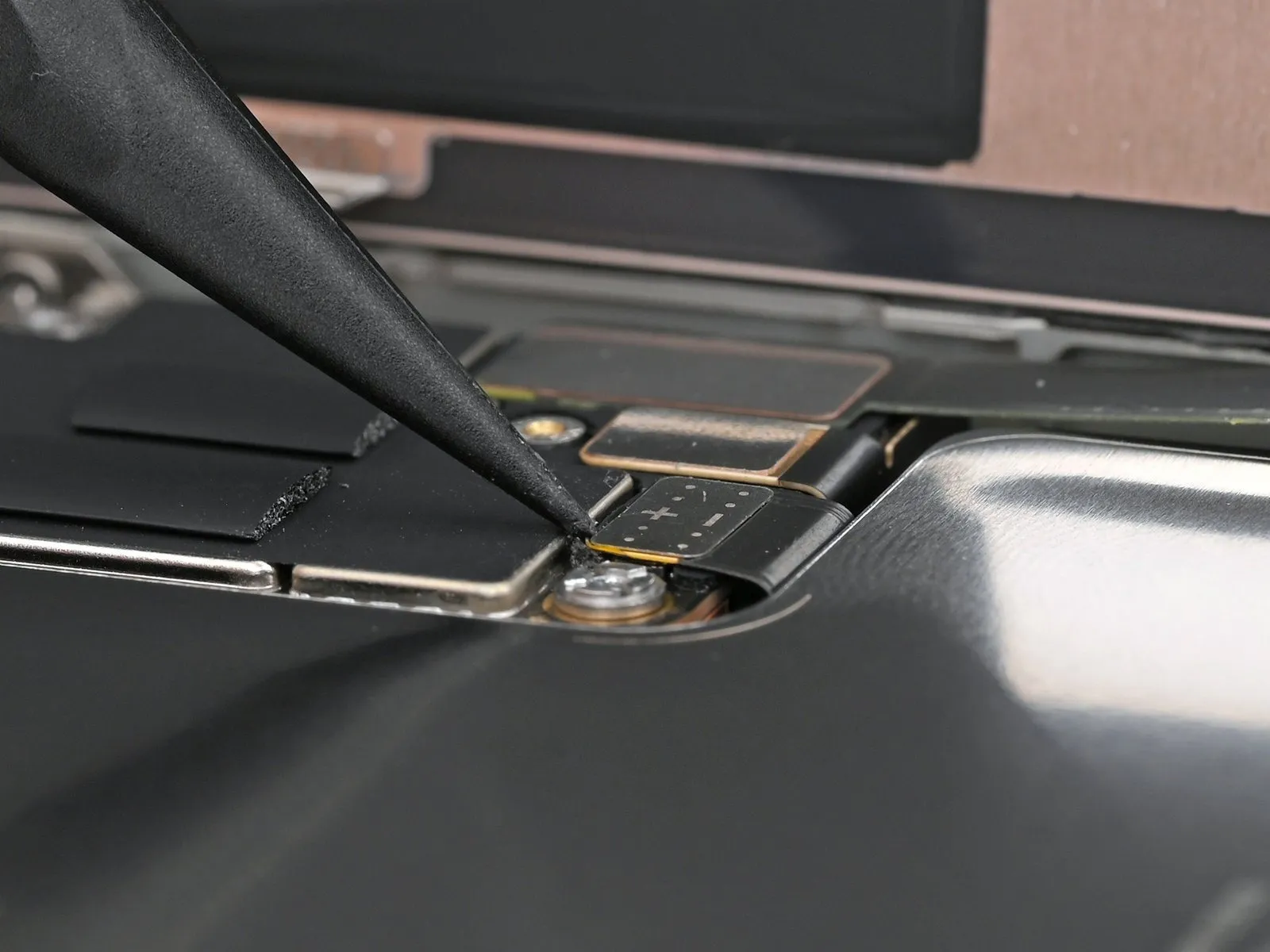
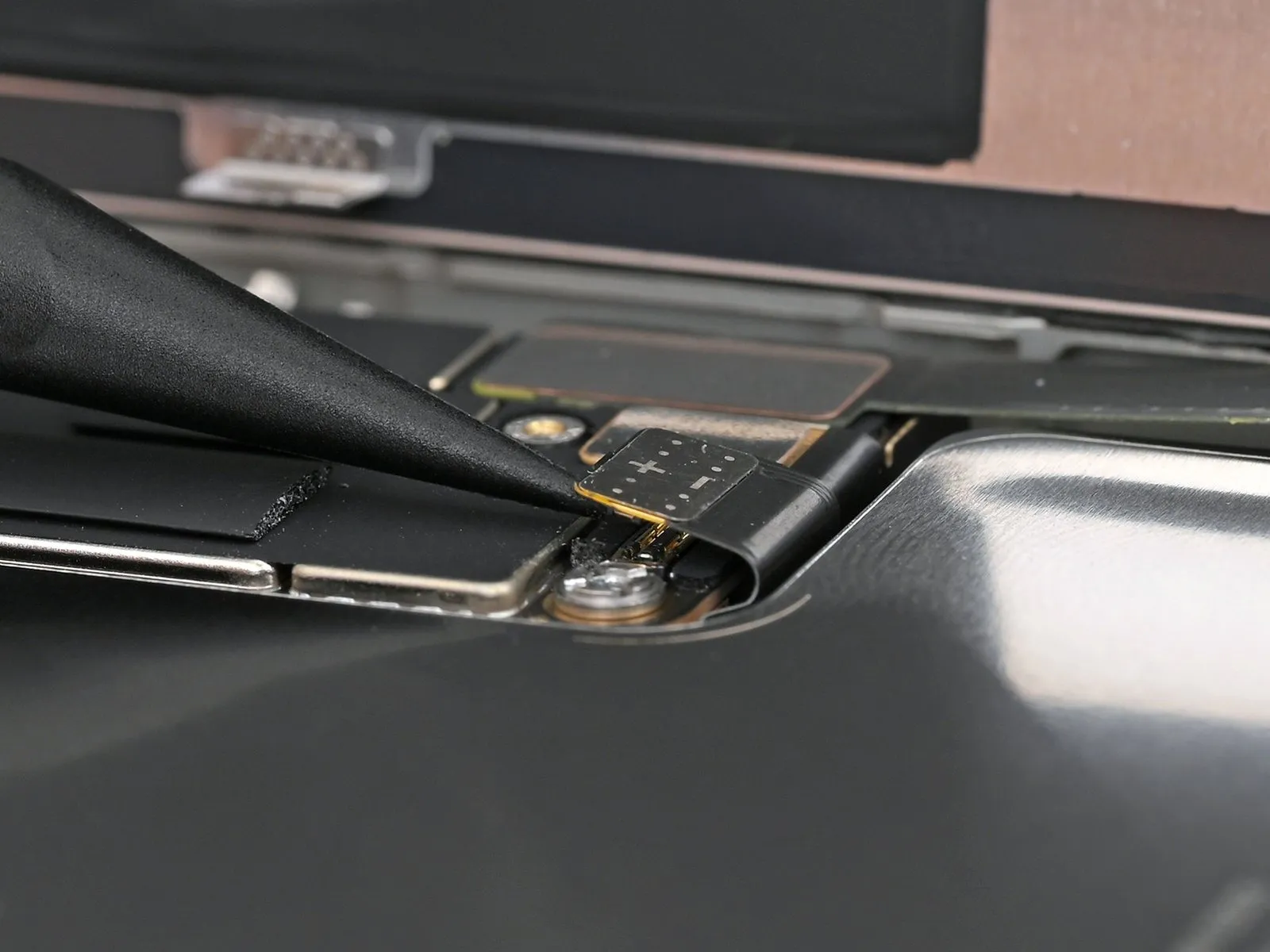
- Employ the tip of a spudger to carefully lift and detach the battery press connector.A spudger's pointed end facilitates the separation of the battery press connector from its socket.To release the battery press connector, utilize a spudger, applying force to its pointed tip.
Step 19 | Disconnect the back glass

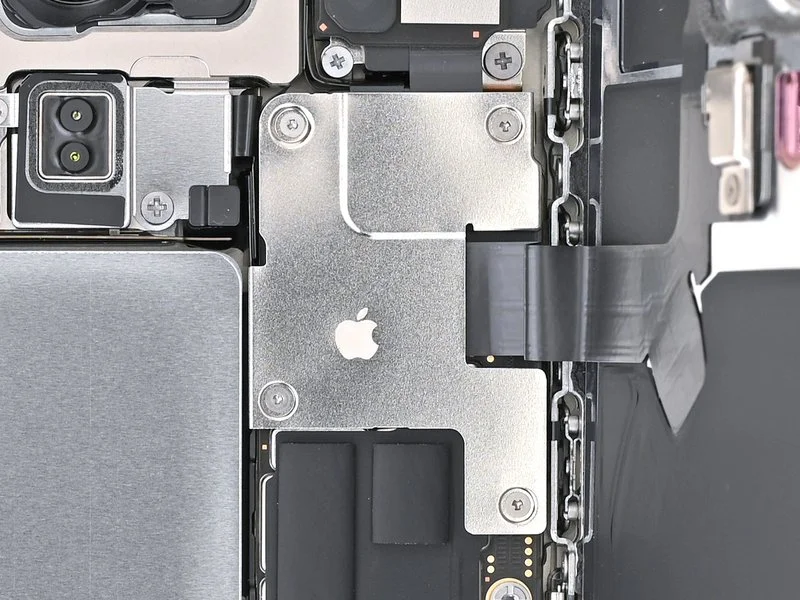
- Employ a tri-point Y000 screwdriver for the disassembly of the four screws that fasten the upper connector cover in place.
- A quantity of two screws, each measuring 1.0 millimeters in length, are present.One screw, with a length of 1.2 millimeters, is also required.Additionally, a single screw exists, extending 1.6 millimeters in length.
- The upper connector cover is held in position by a series of fasteners.Carefully unscrew the fasteners using the appropriate screwdriver.The Y000 tri-point screwdriver is specifically designed for these screw types.
- Ensure the screwdriver head fully engages with the screw head to prevent stripping.Note the lengths of the screws for accurate reassembly.Properly securing the upper connector cover necessitates the correct screw lengths.
Step 20
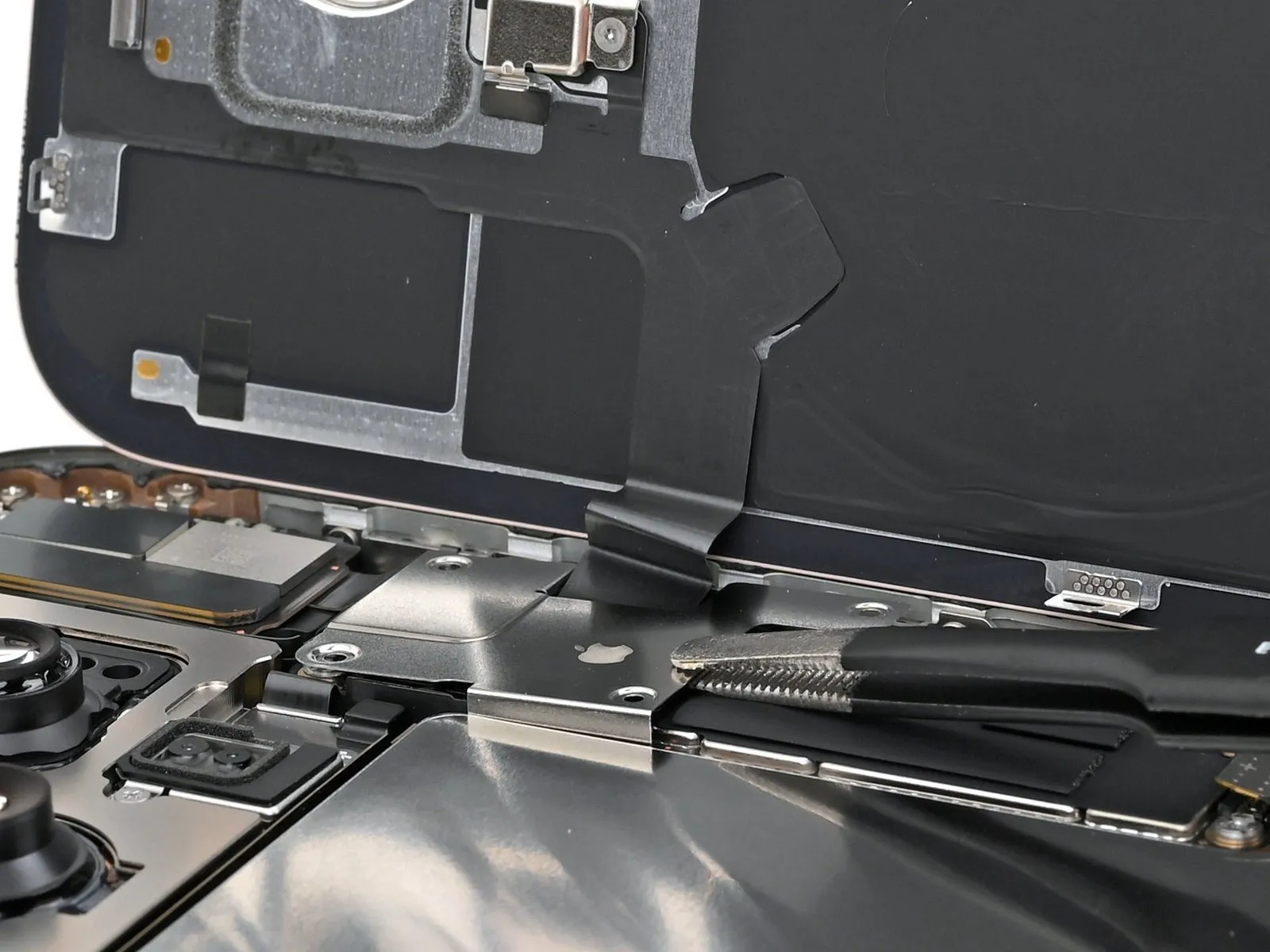

- Employing either tweezers or direct manual manipulation, carefully detach the upper connector cover.The upper connector cover can be dislodged using tweezers for precision or by grasping it directly with your fingers.To facilitate removal, utilize tweezers or your fingertips to lift and extract the upper connector cover.For the purpose of removing the upper connector cover, select either tweezers or your fingers as the appropriate tool.Carefully lift and remove the upper connector cover, which can be accomplished with tweezers or by hand.
Step 21
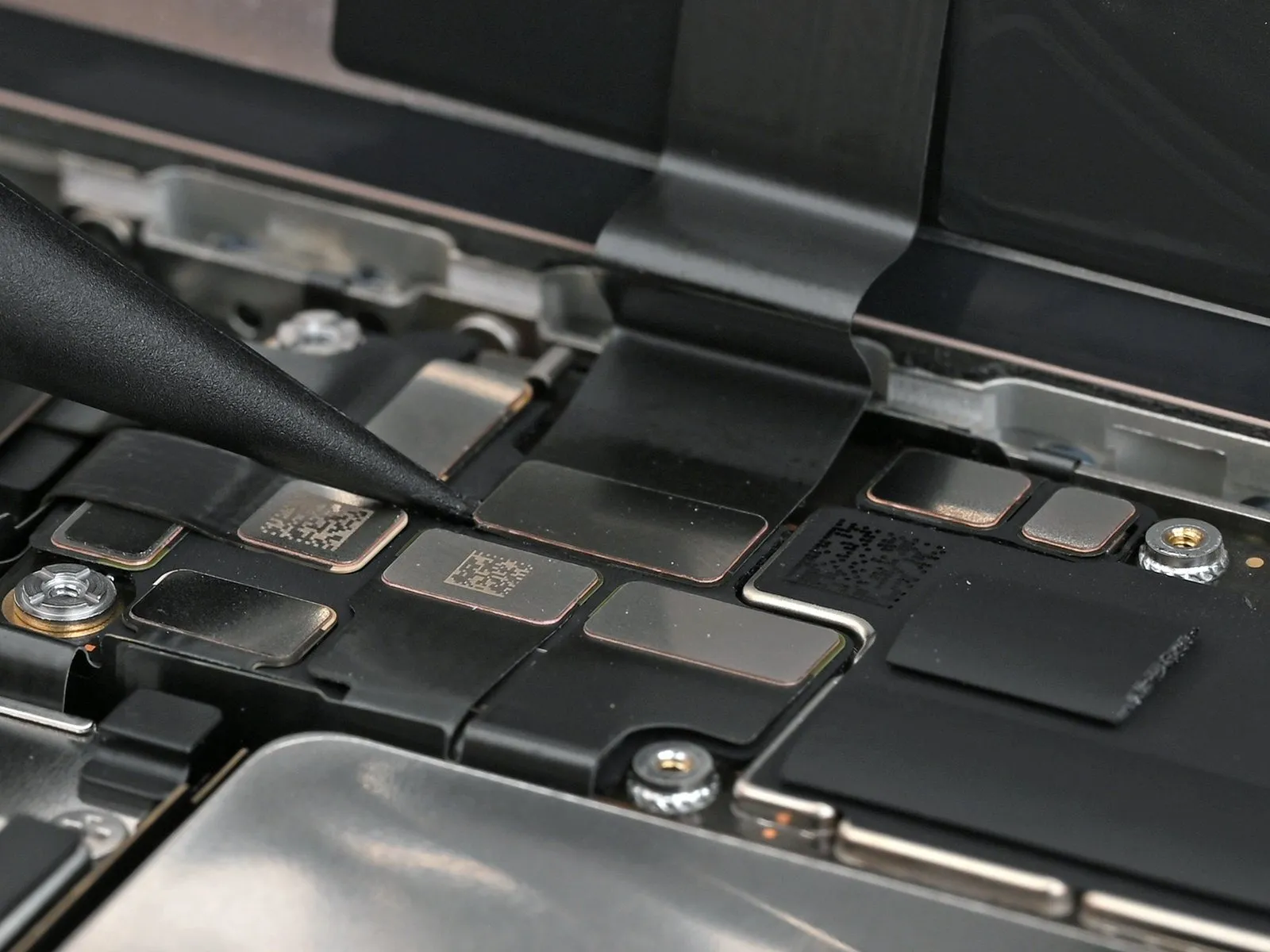
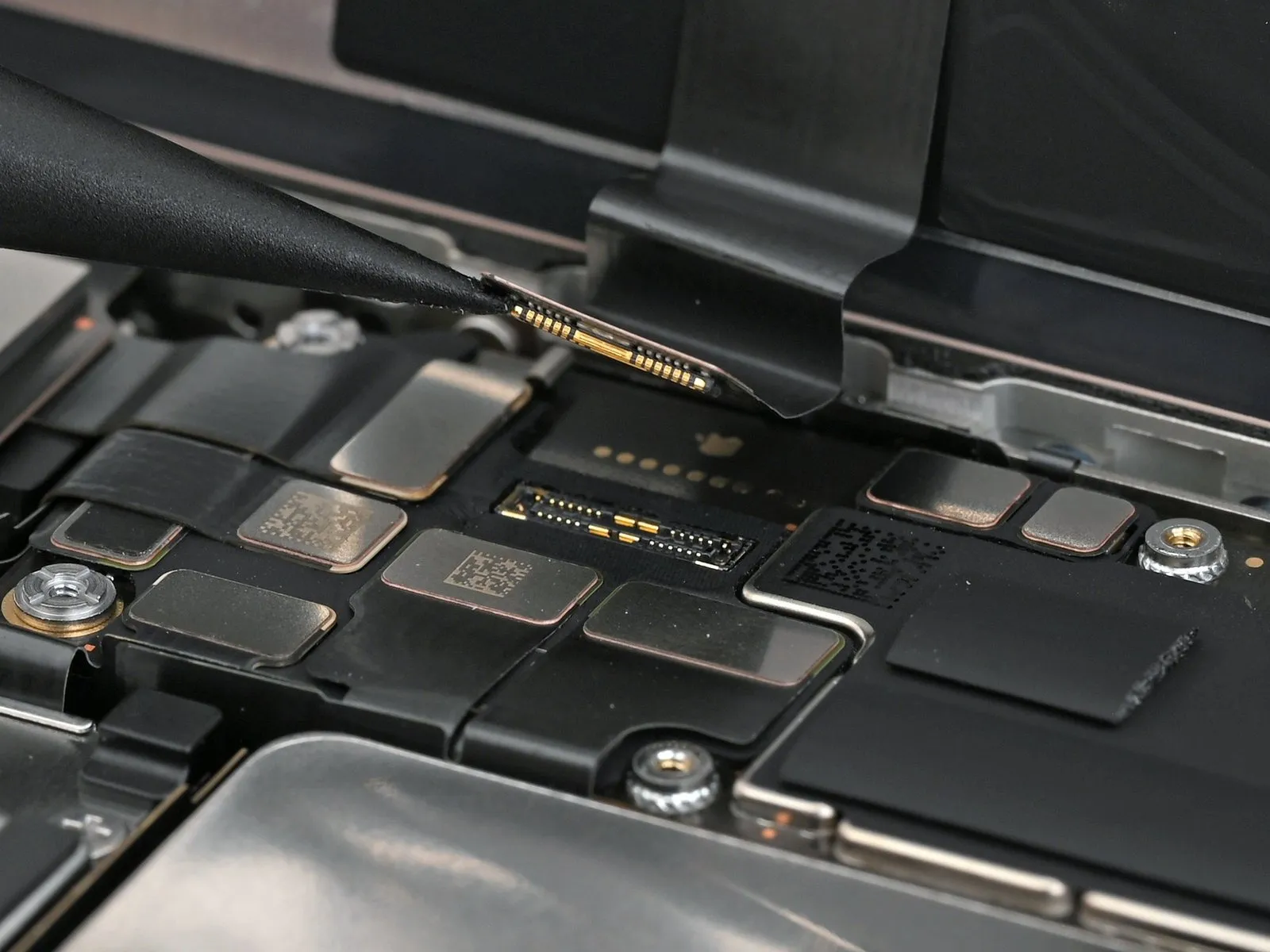
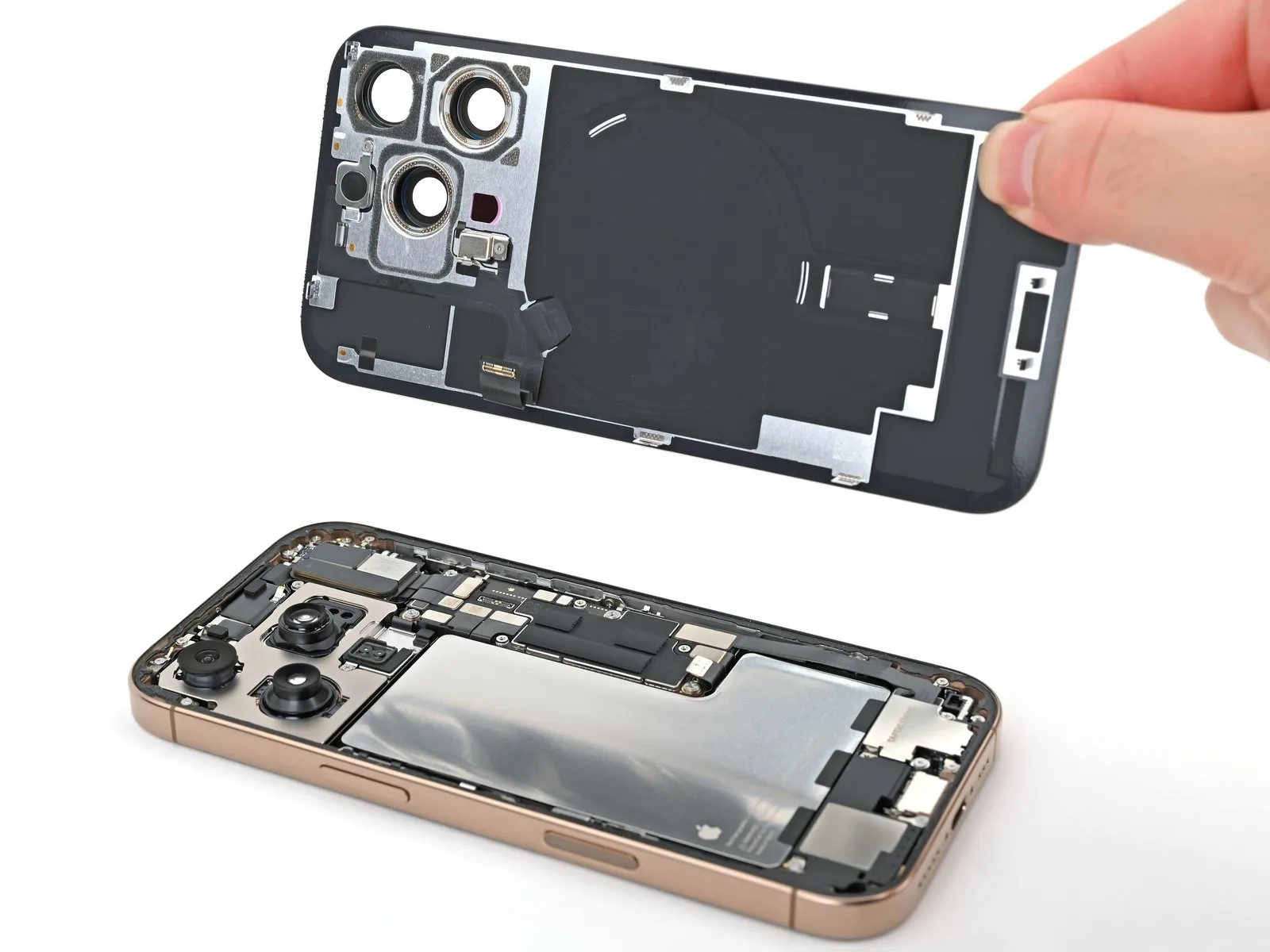
Step 22 | Remove the back glass

Step 23 | Disconnect the earpiece speaker
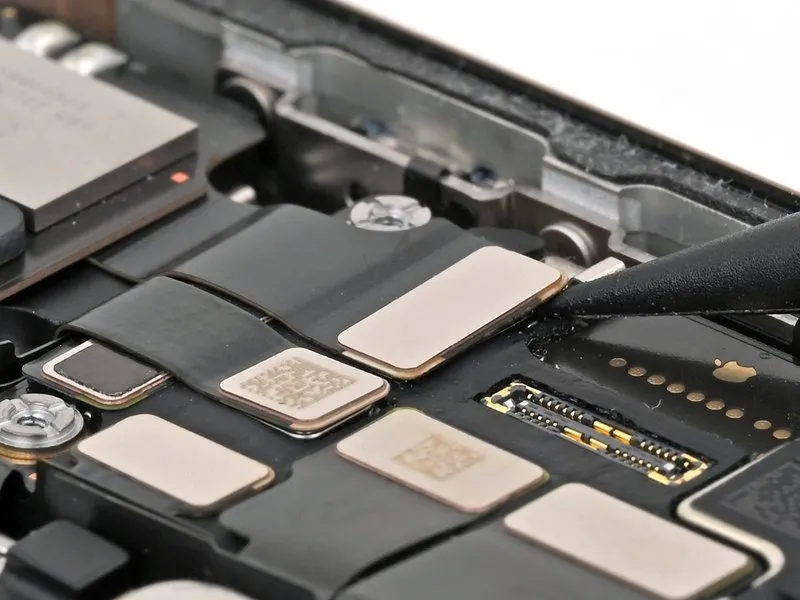

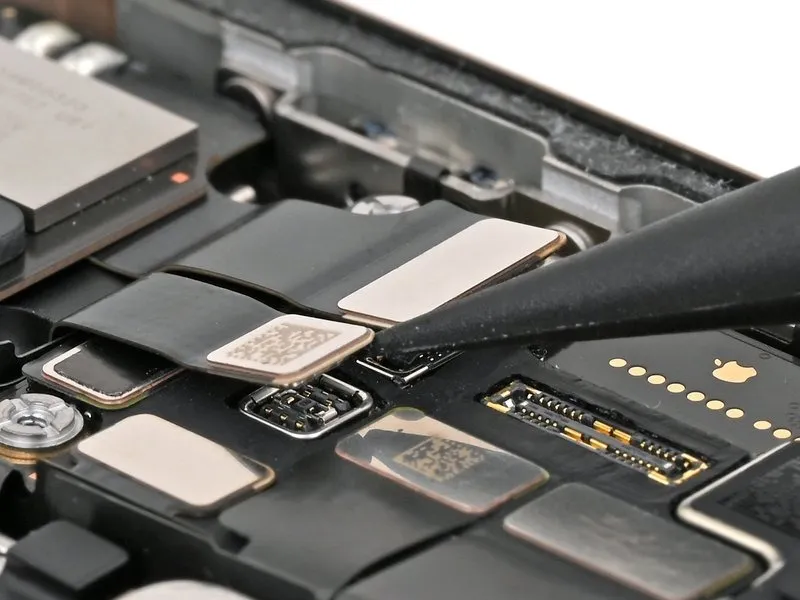
- Employ the tip of a spudger to carefully lift and detach the connectors associated with the earpiece speaker and the 5G mmWave antenna.These connectors are situated in the upper-right quadrant of the logic board.Applying focused pressure with the spudger facilitates separation of the connectors.
- Disconnection of these components requires precise manipulation to avoid damage to surrounding components.
Step 24 | Disconnect the front camera assembly

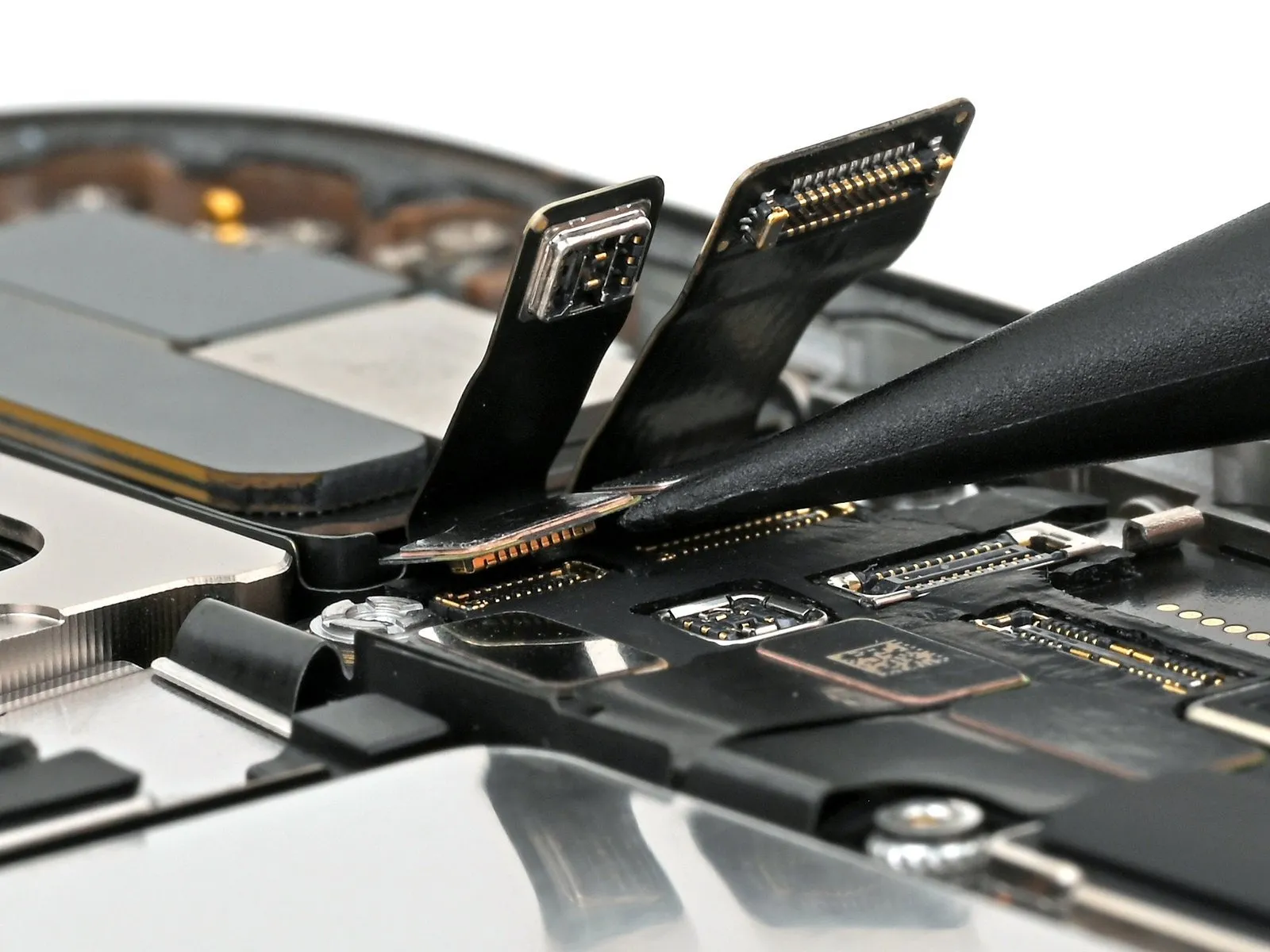
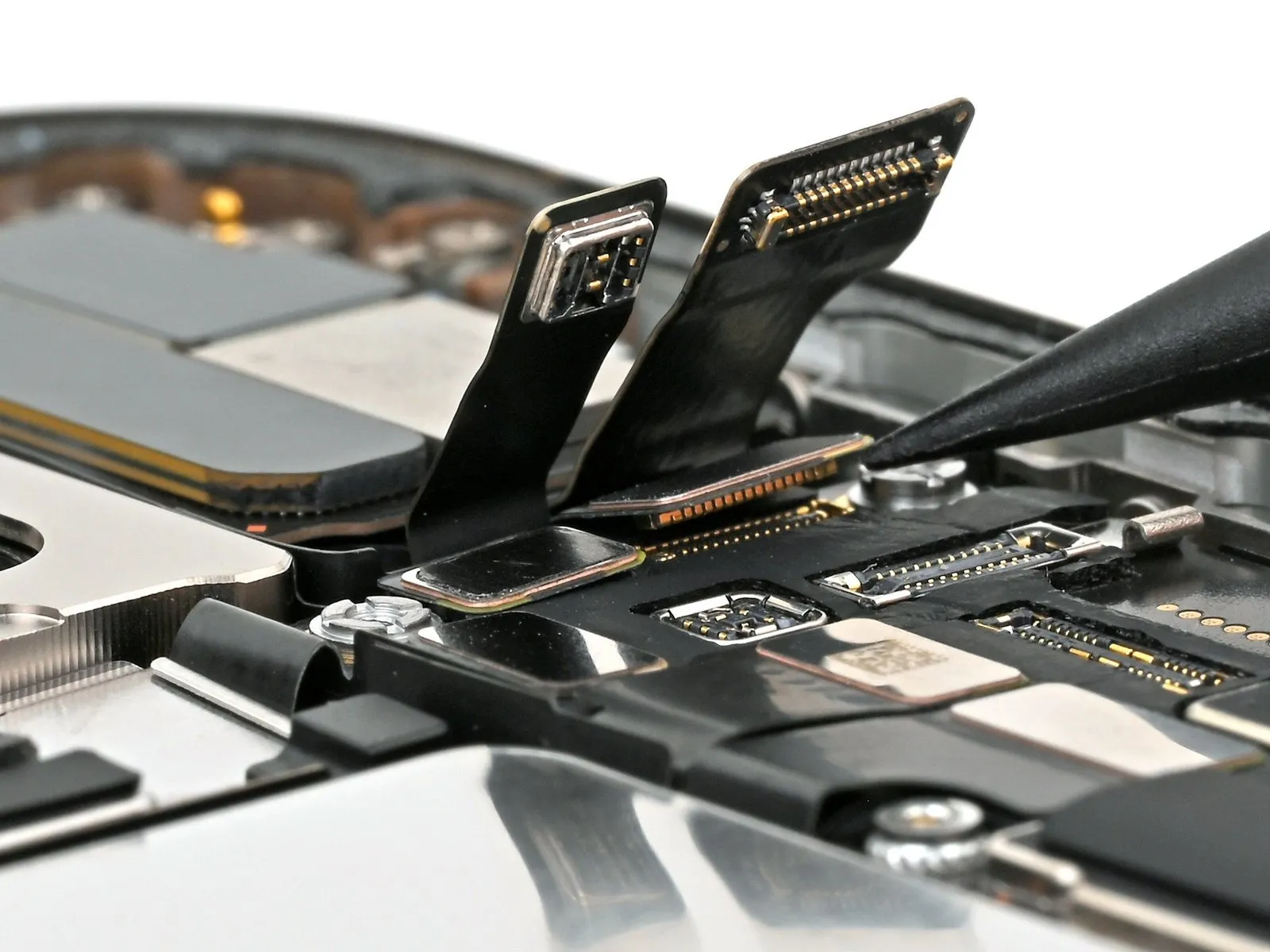
Step 25 | Remove the front camera assembly
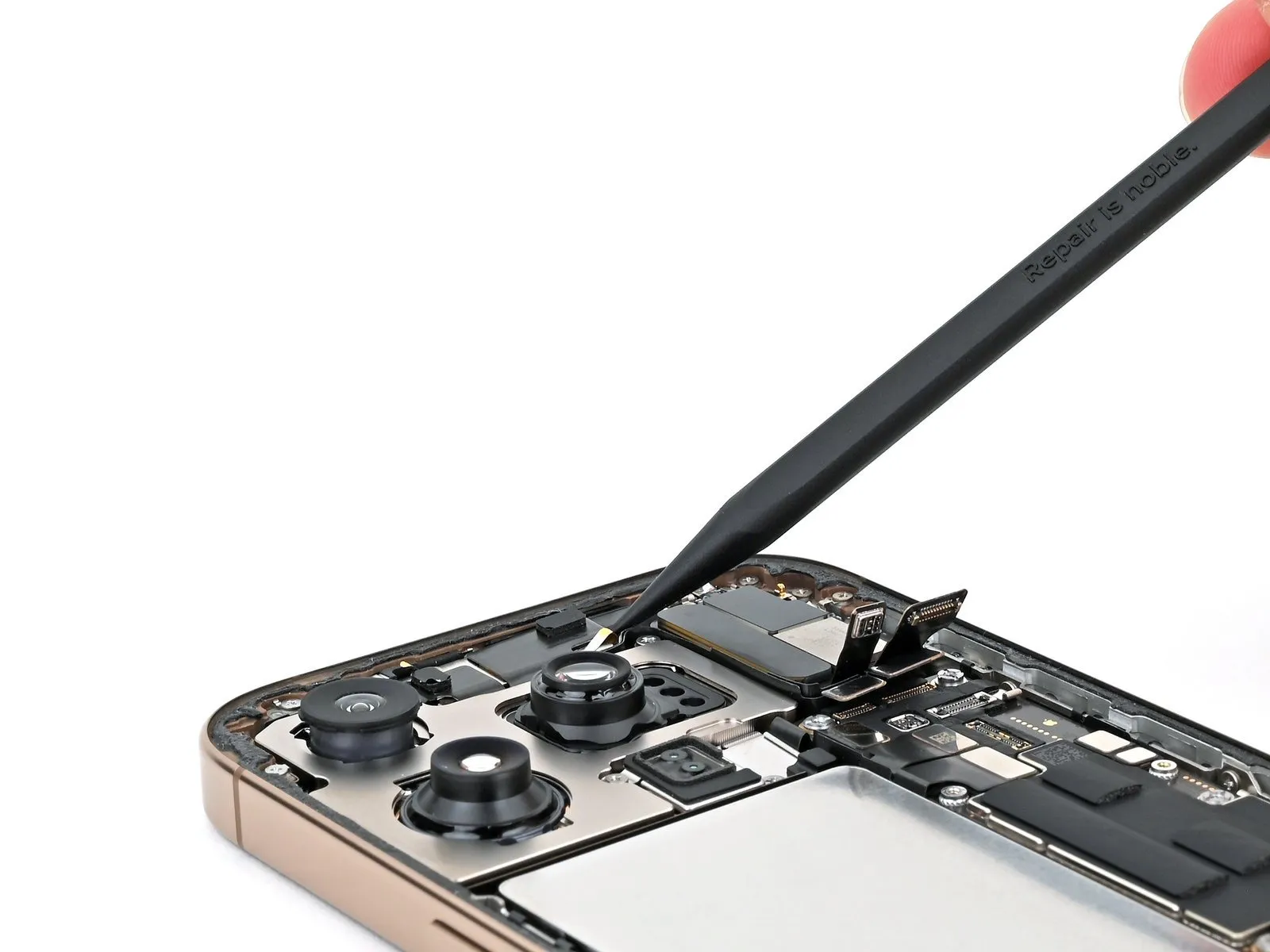
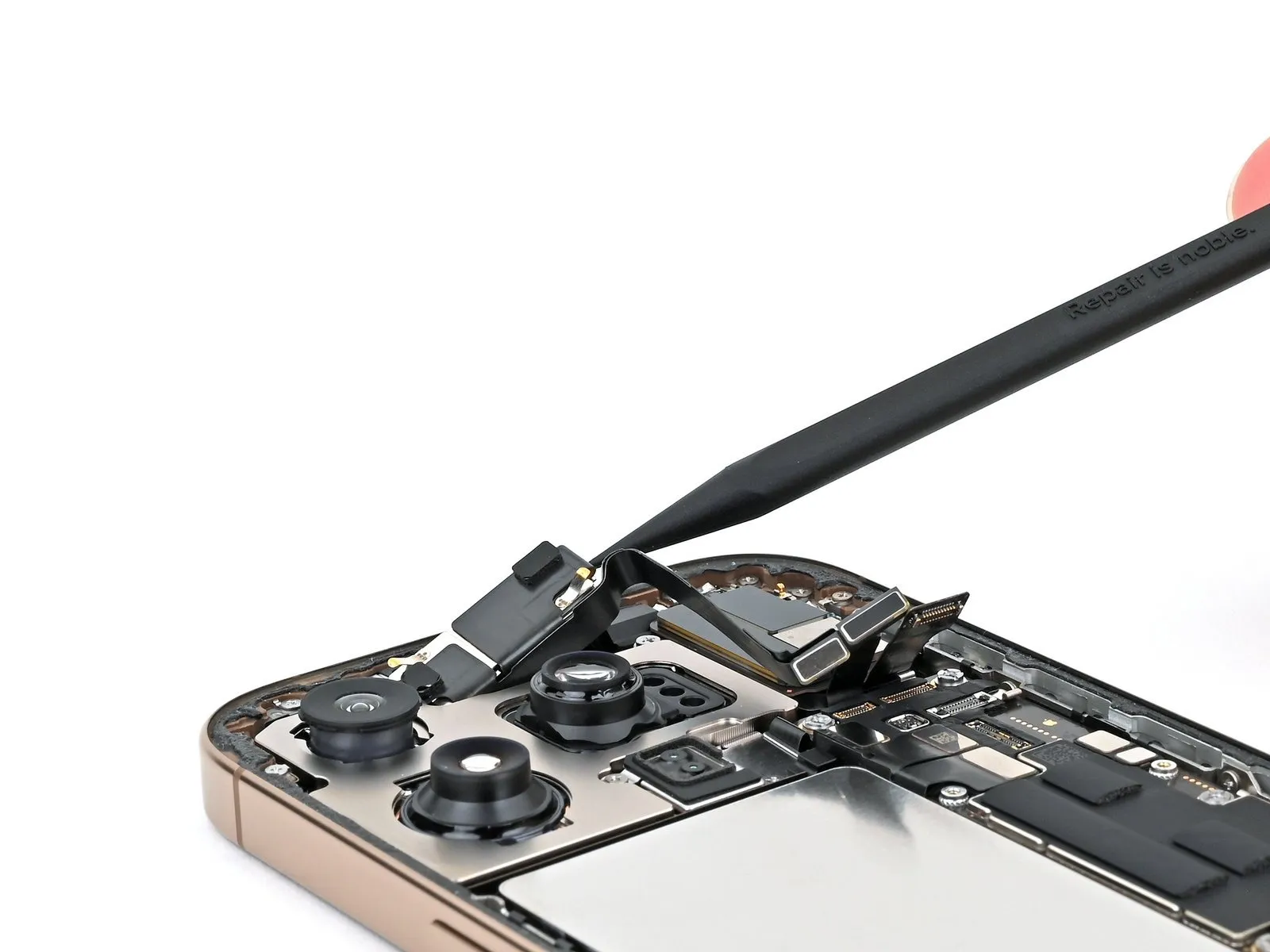
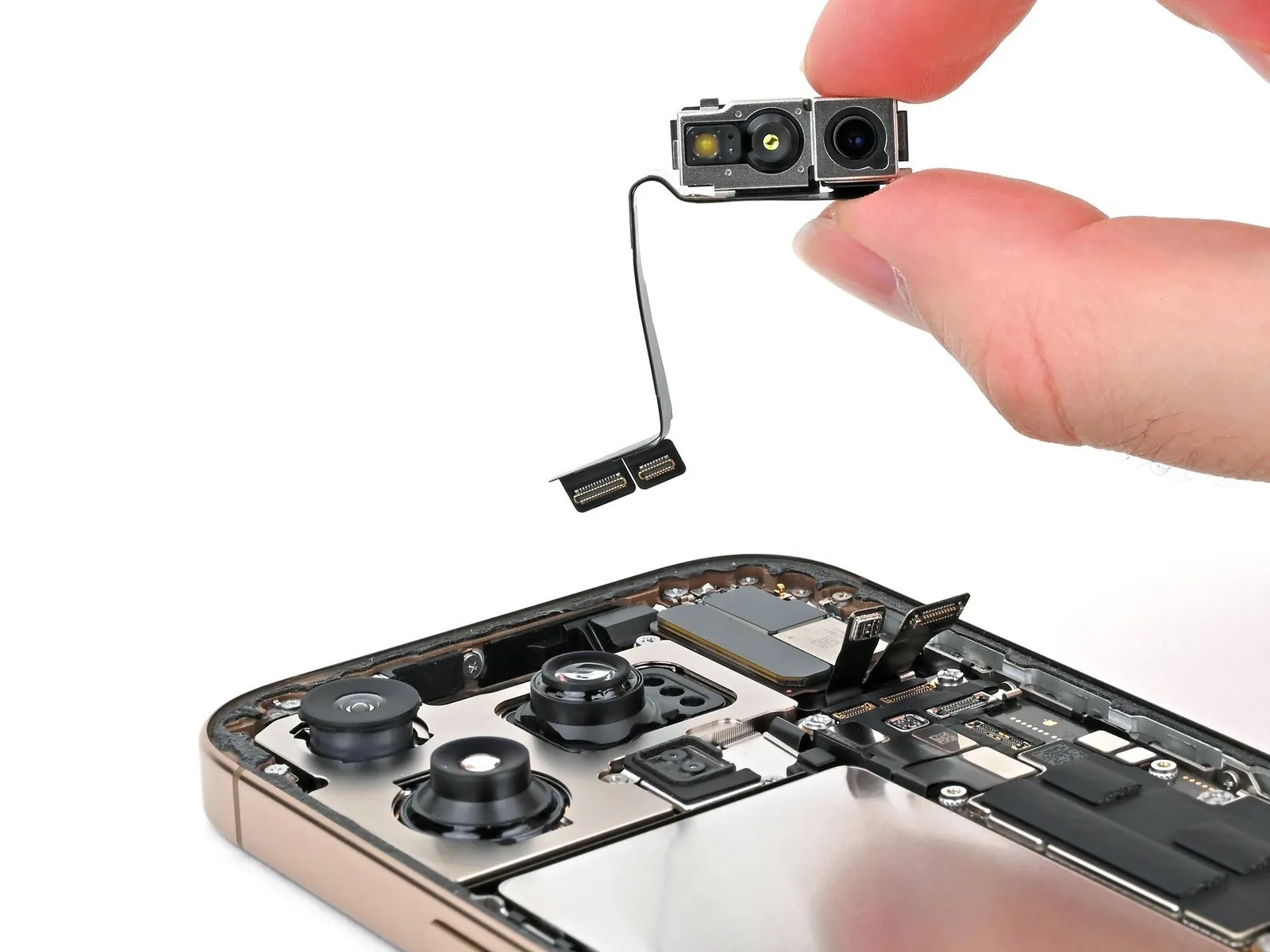
Step 26 | Disassembly complete
Step 27 | Install the front camera assembly
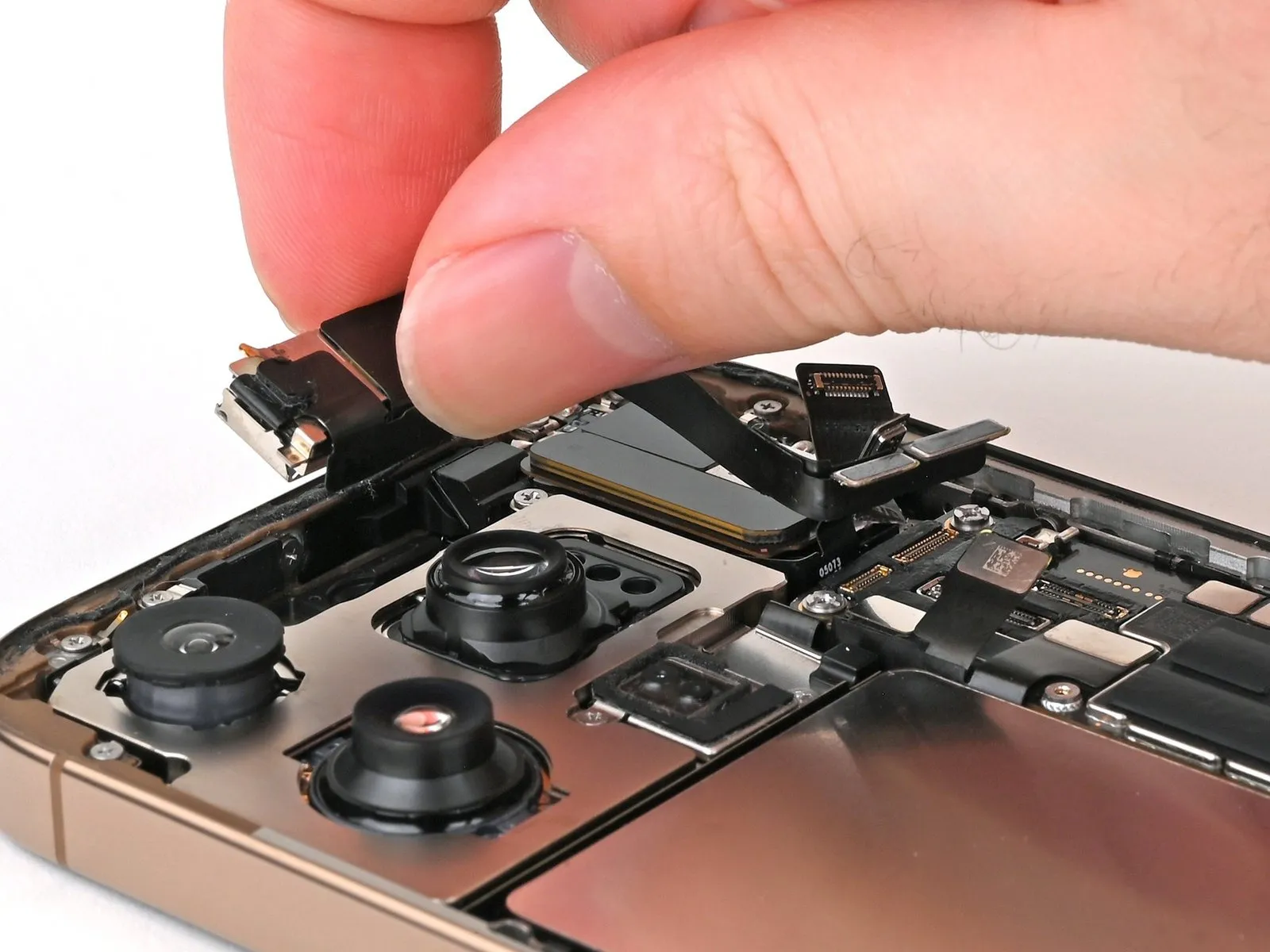
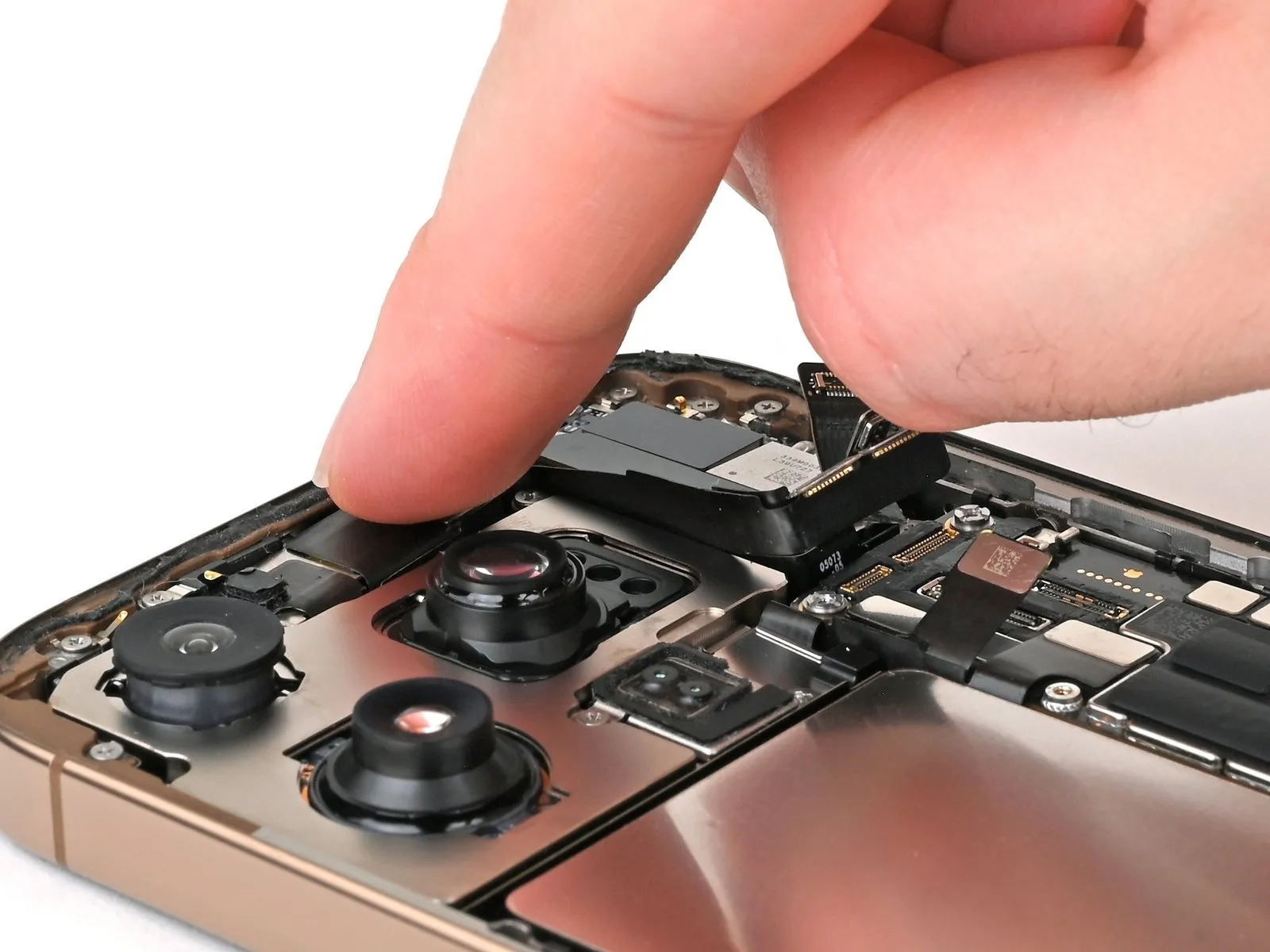
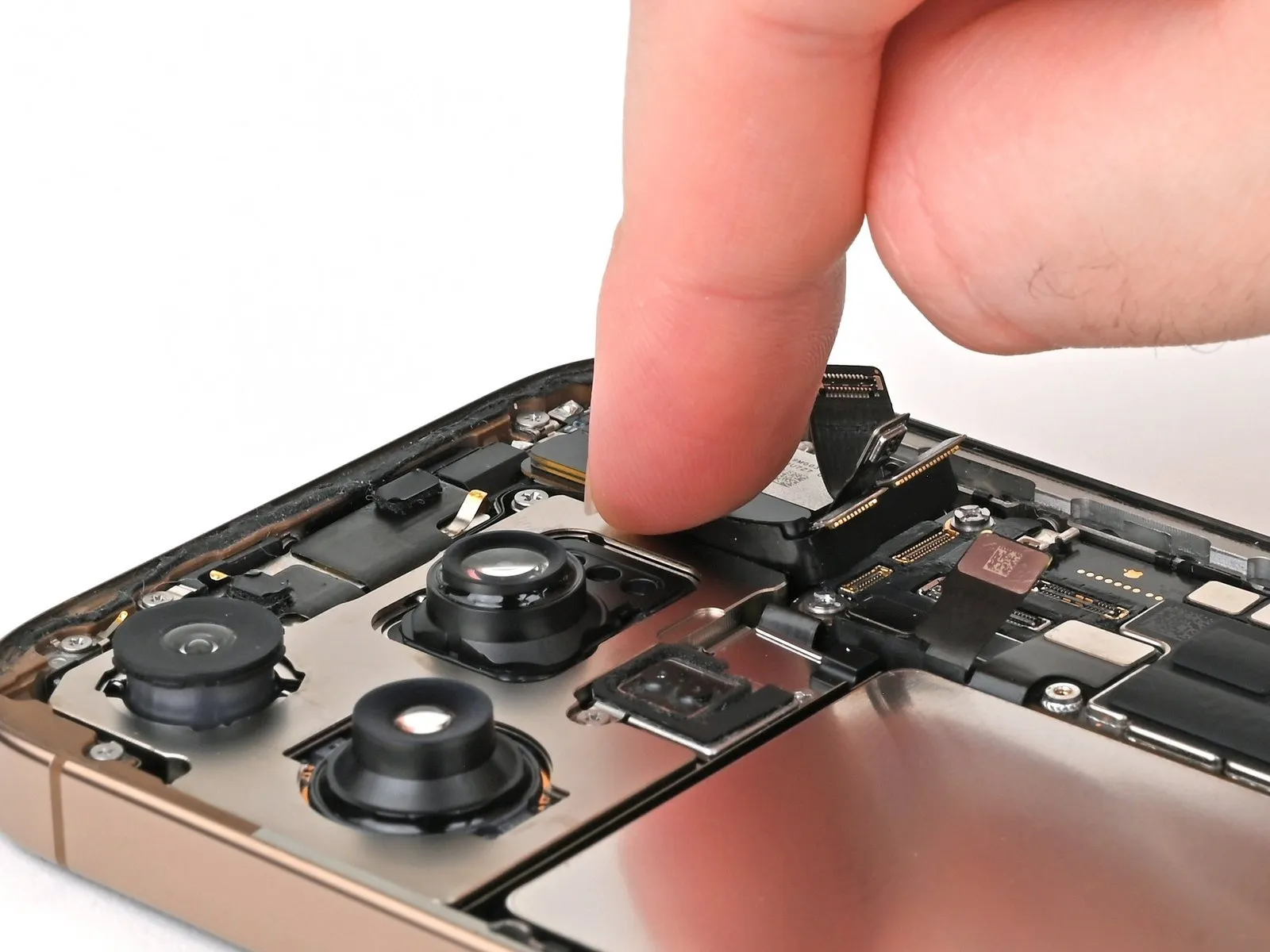
- Position the front-facing camera component within its designated cavity.
- Carefully guide the flexible camera cable connectors into the space separating the rear camera module and the earpiece speaker.
Step 28

Step 29 | Connect the front camera assembly

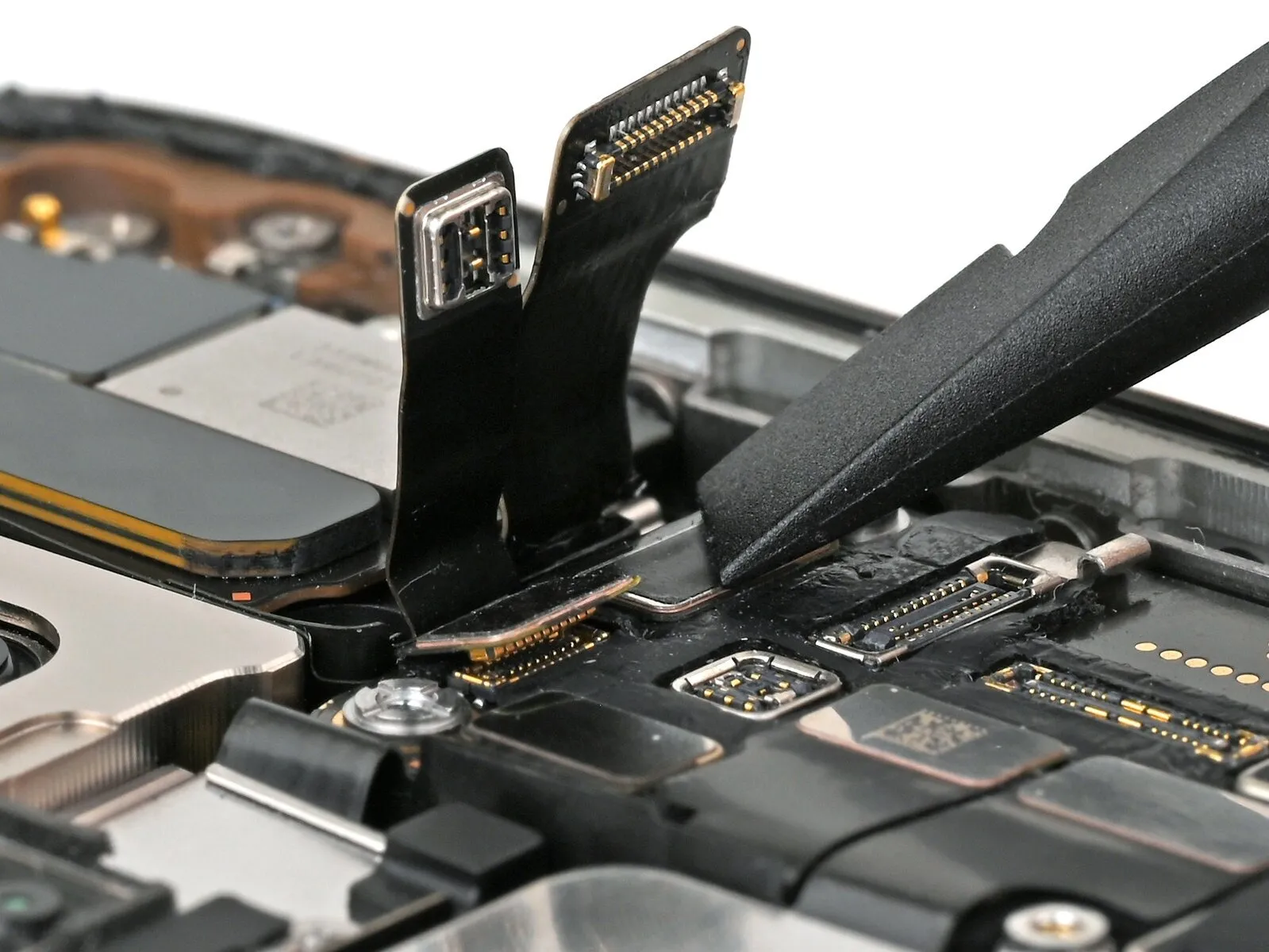
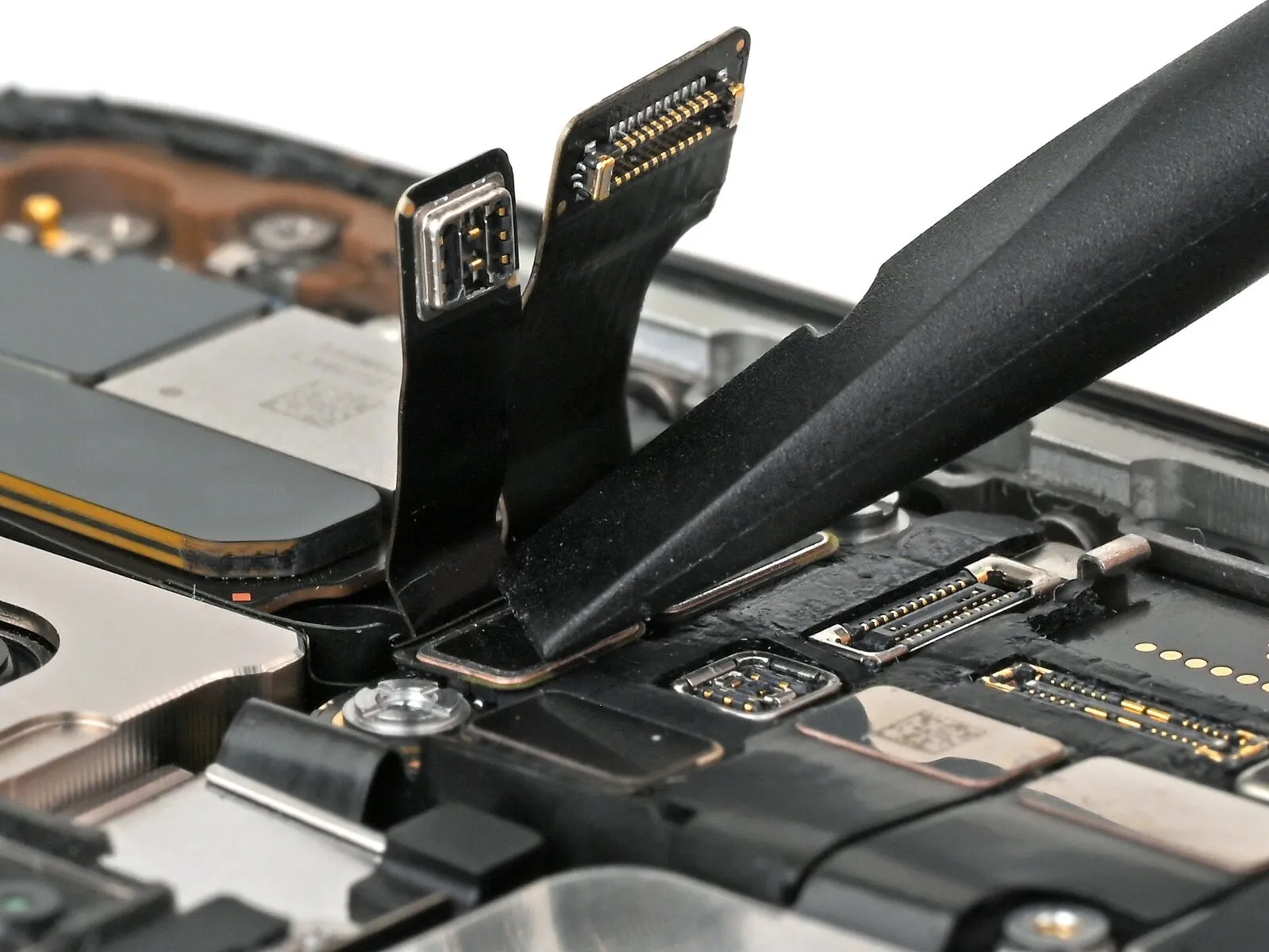
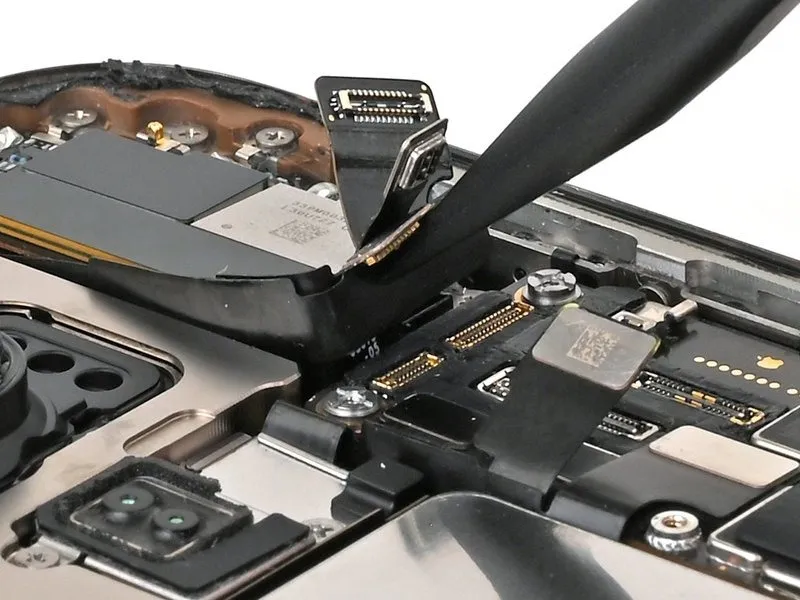
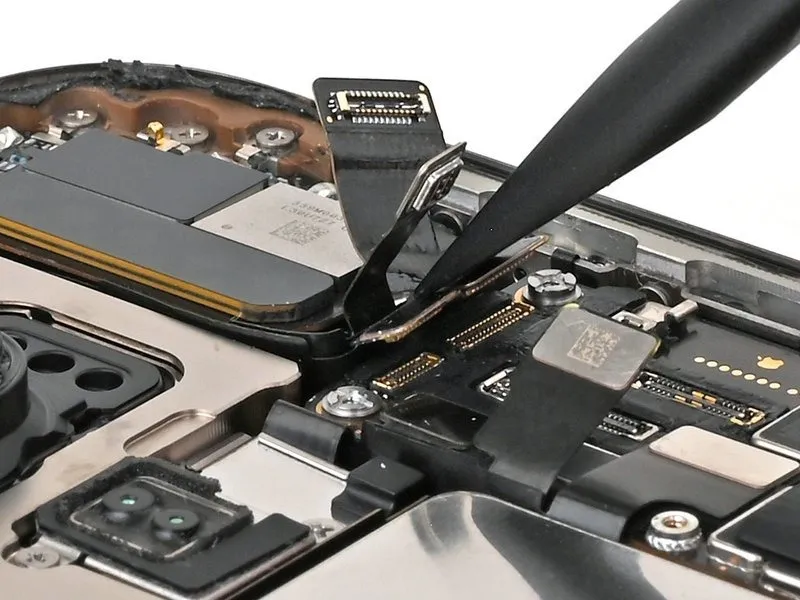
- To disengage the two press connectors securing the front camera assembly to the logic board's upper edge, employ either a fingertip or a spudger tool.
Step 30 | Connect the earpiece speaker


- To establish a connection between the earpiece speaker and the 5G mmWave antenna—exclusive to United States models—employ either a fingertip or a spudger, ensuring secure engagement of the connectors situated in the upper-right quadrant of the logic board.
Step 31 | Remove the leftover adhesive

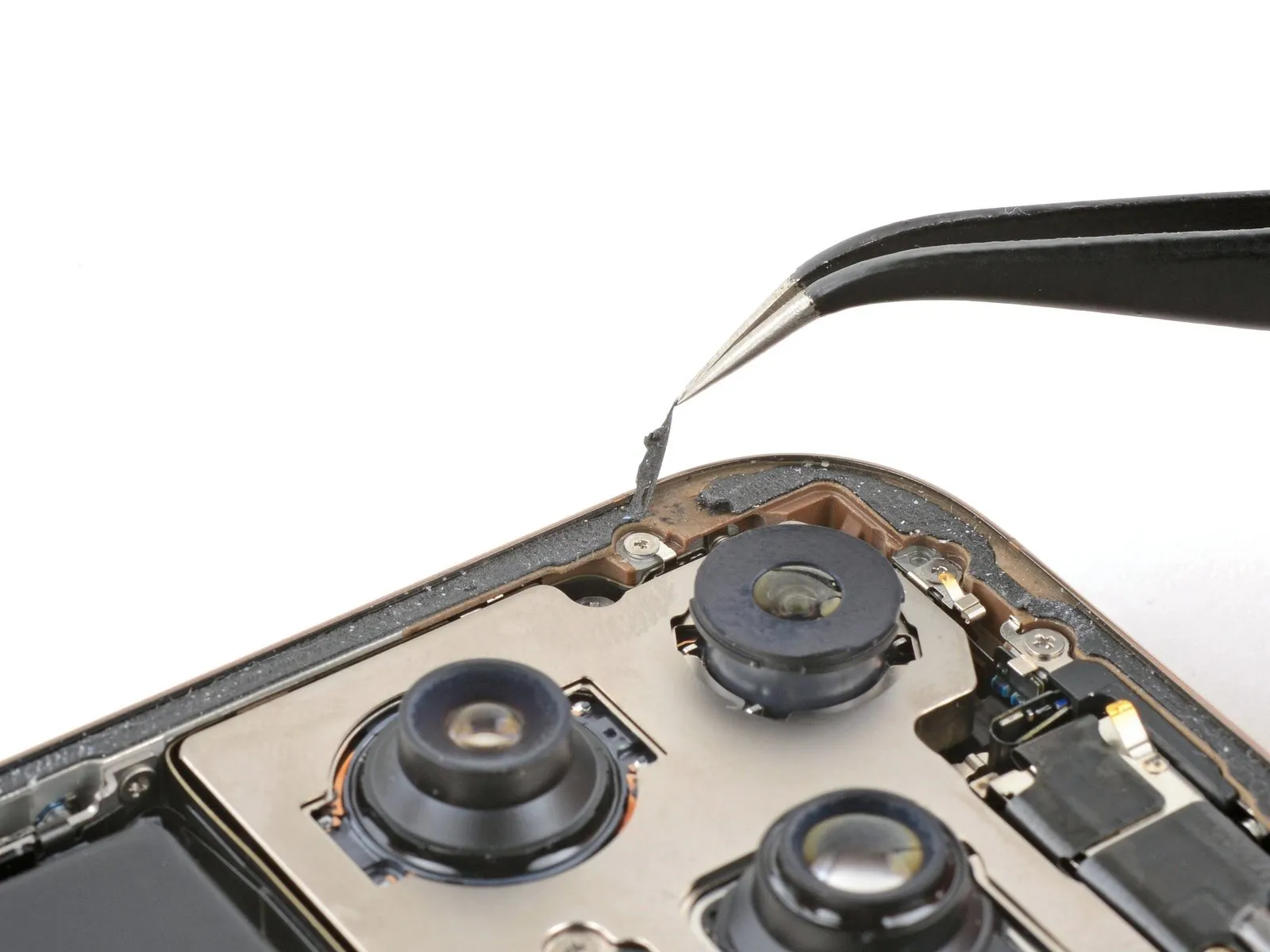

- Should a grounding clip become displaced, carefully restore its original shape using finger manipulation or tweezers.
- Employ blunt-nose tweezers or your fingers to detach sizable adhesive fragments from the frame's edges.
- Employ a spudger to eliminate remaining adhesive residue adhered to the frame's surface.
- For adhesive that resists removal, apply warmth with a hair dryer or heat gun, then attempt removal once more.
Step 32 | Clean the back glass
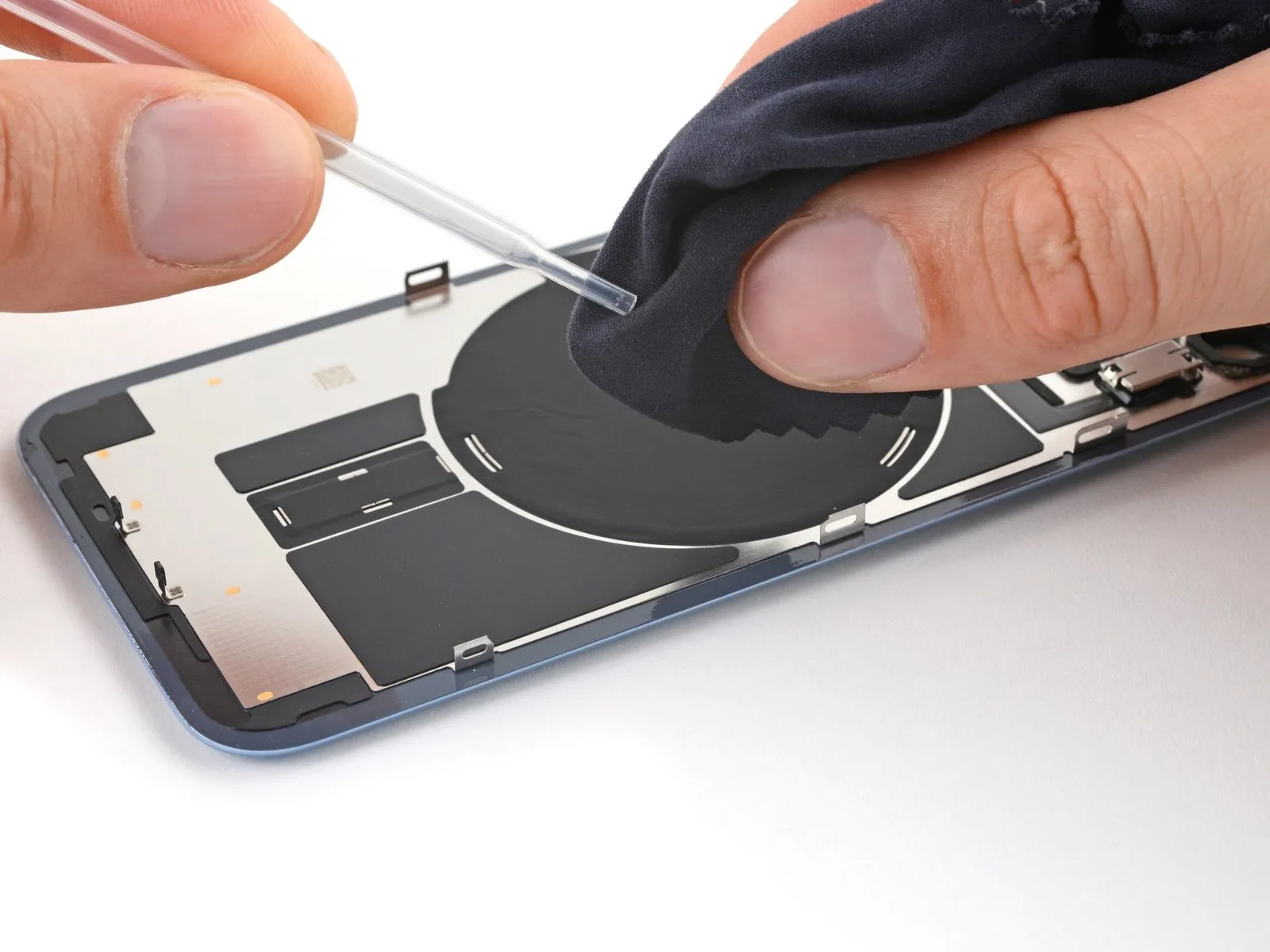
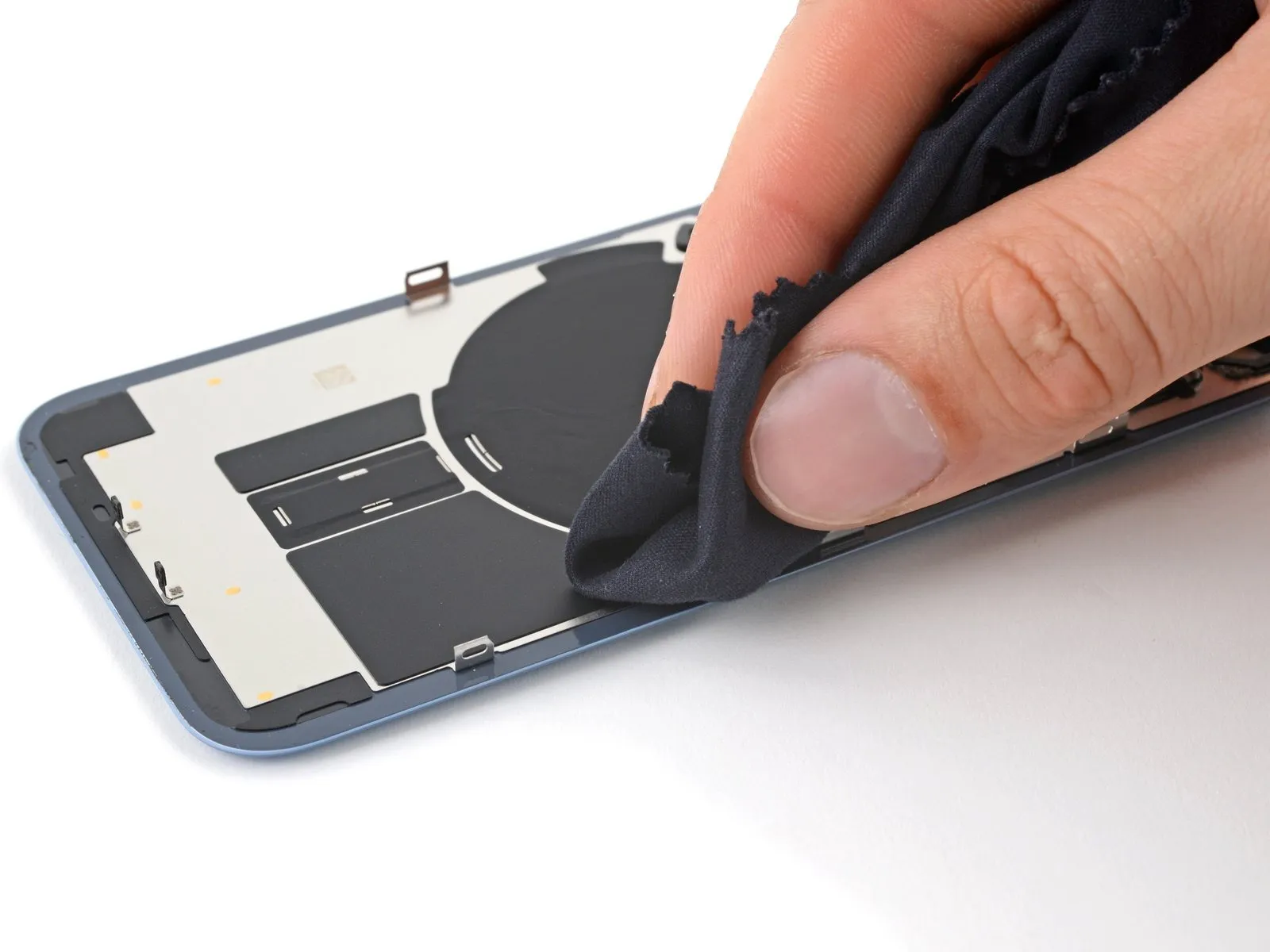
- To facilitate bonding, a perimeter cleaning of the back glass, should it be repurposed, is required utilizing a microfiber or lint-free cloth saturated with a few drops of isopropyl alcohol with a purity level greater than 90 percent.
Step 33 | Clean the frame
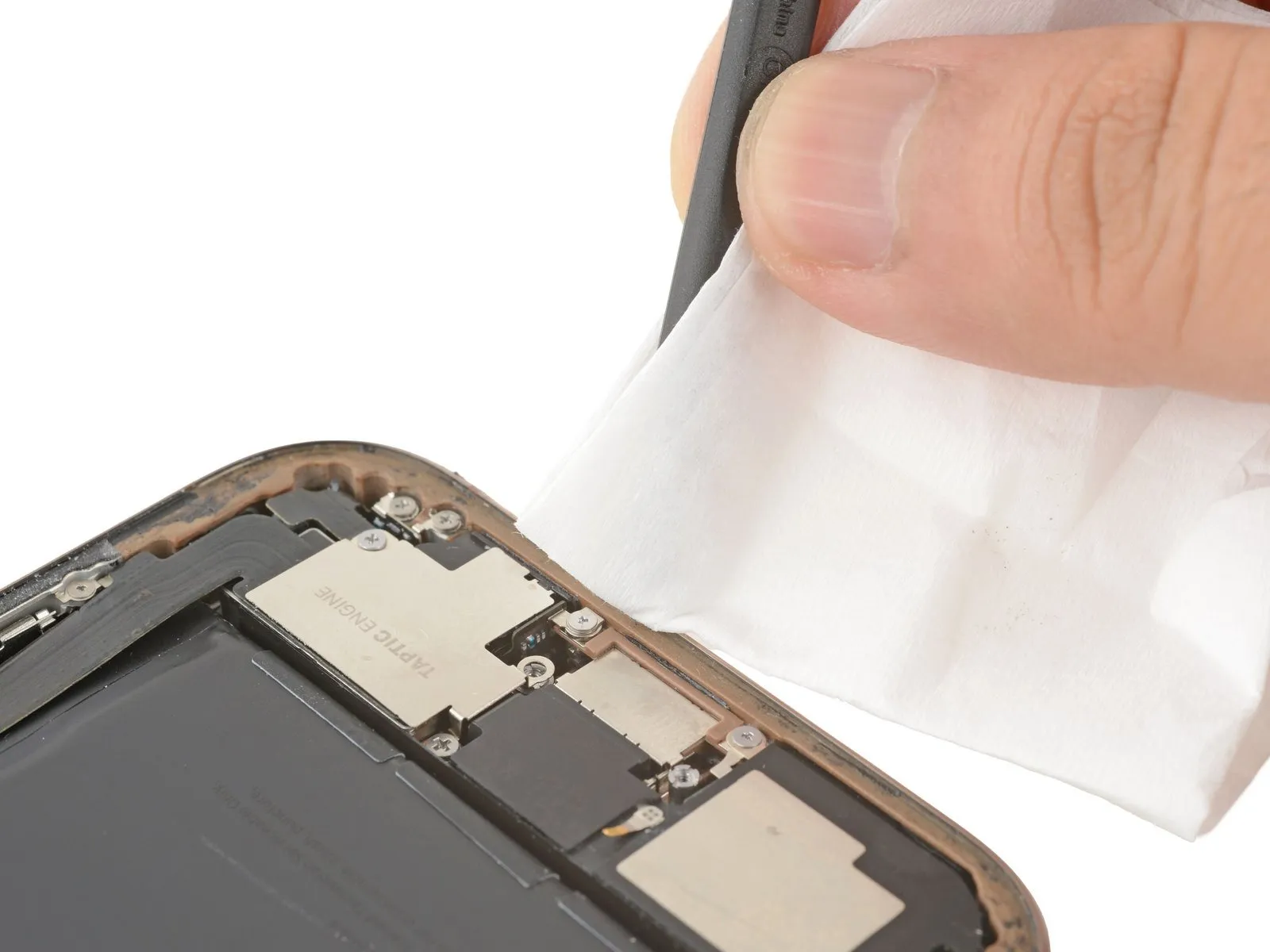
- To prevent scratching, cover the spudger's tip with a clean, lint-free cloth or a coffee filter, then dispense a small amount of isopropyl alcohol with a concentration exceeding 90 percent onto the covering.
- Using a single direction, carefully clean the frame's edge to remove any remaining adhesive.
- Execute this process deliberately, as a pristine frame facilitates uniform adhesive application and a stronger seal.
Step 34 | Apply the replacement adhesive

- Employ frame characteristics, including the camera aperture and indentations situated on the upper and lower borders, to assess the adhesive's intended placement.
- Visual confirmation of adhesive positioning within the frame is achieved by referencing the camera opening and the corresponding notches along the frame's top and bottom.
Step 35
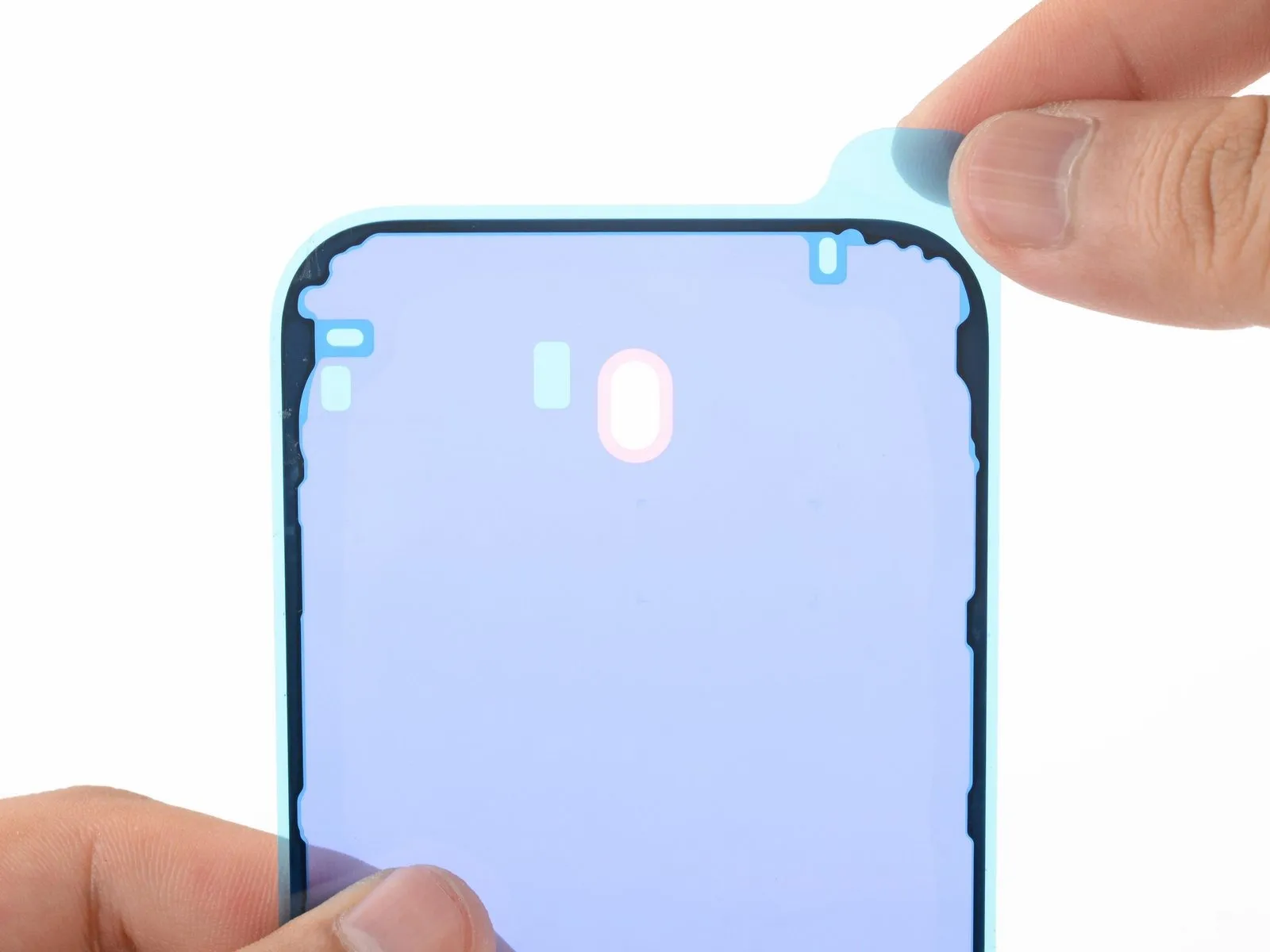
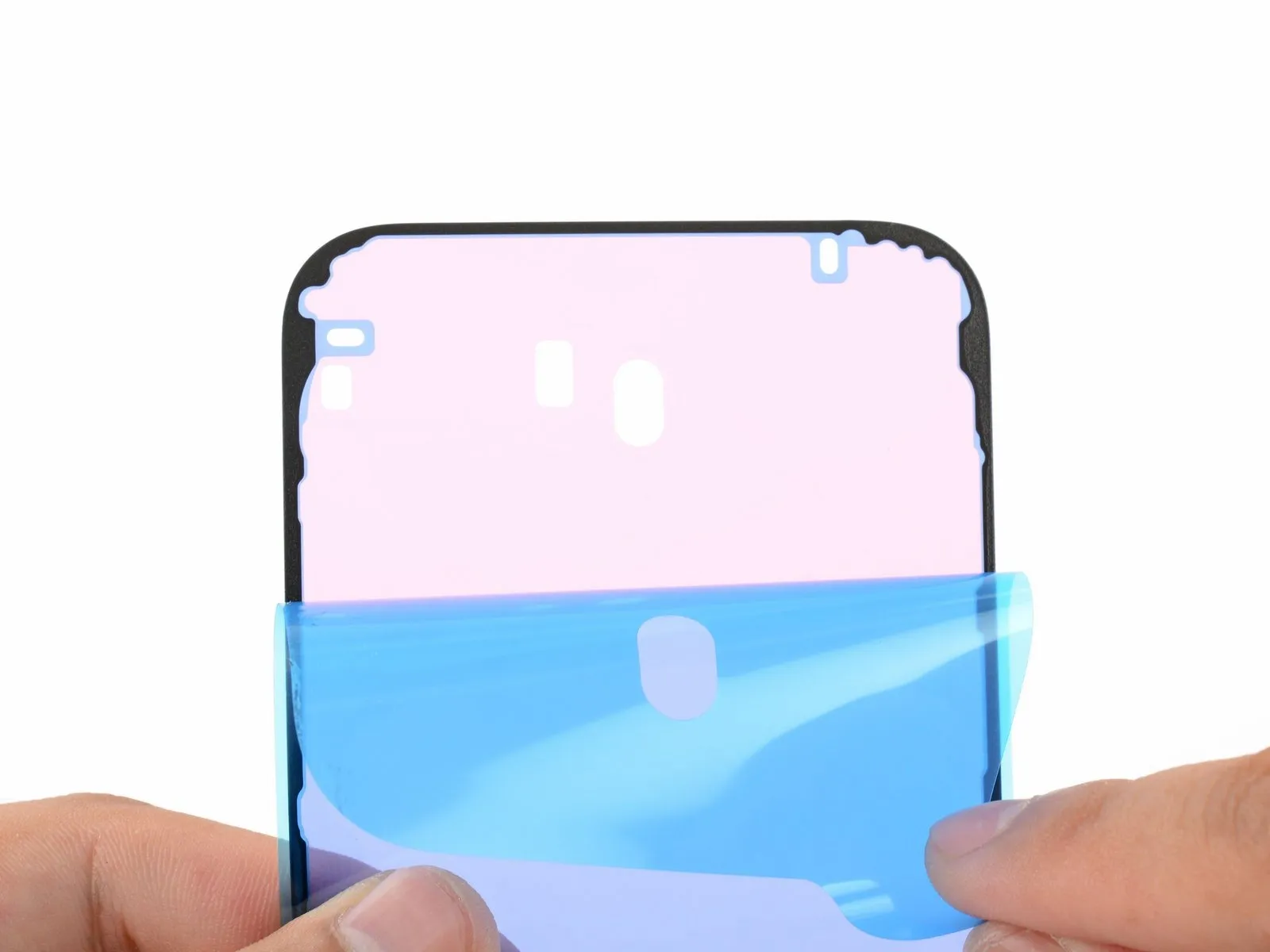
- To reveal a portion of the adhesive, carefully lift the corner tab of the adhesive sheet and detach one-third of the liner.
- Exercise caution, as the newly exposed adhesive possesses a high degree of tackiness; prevent unintended contact with surfaces until application to the frame is prepared.
- Should your adhesive incorporate several liners, remove only the uppermost liner to expose the surface intended for frame adhesion.
Step 36


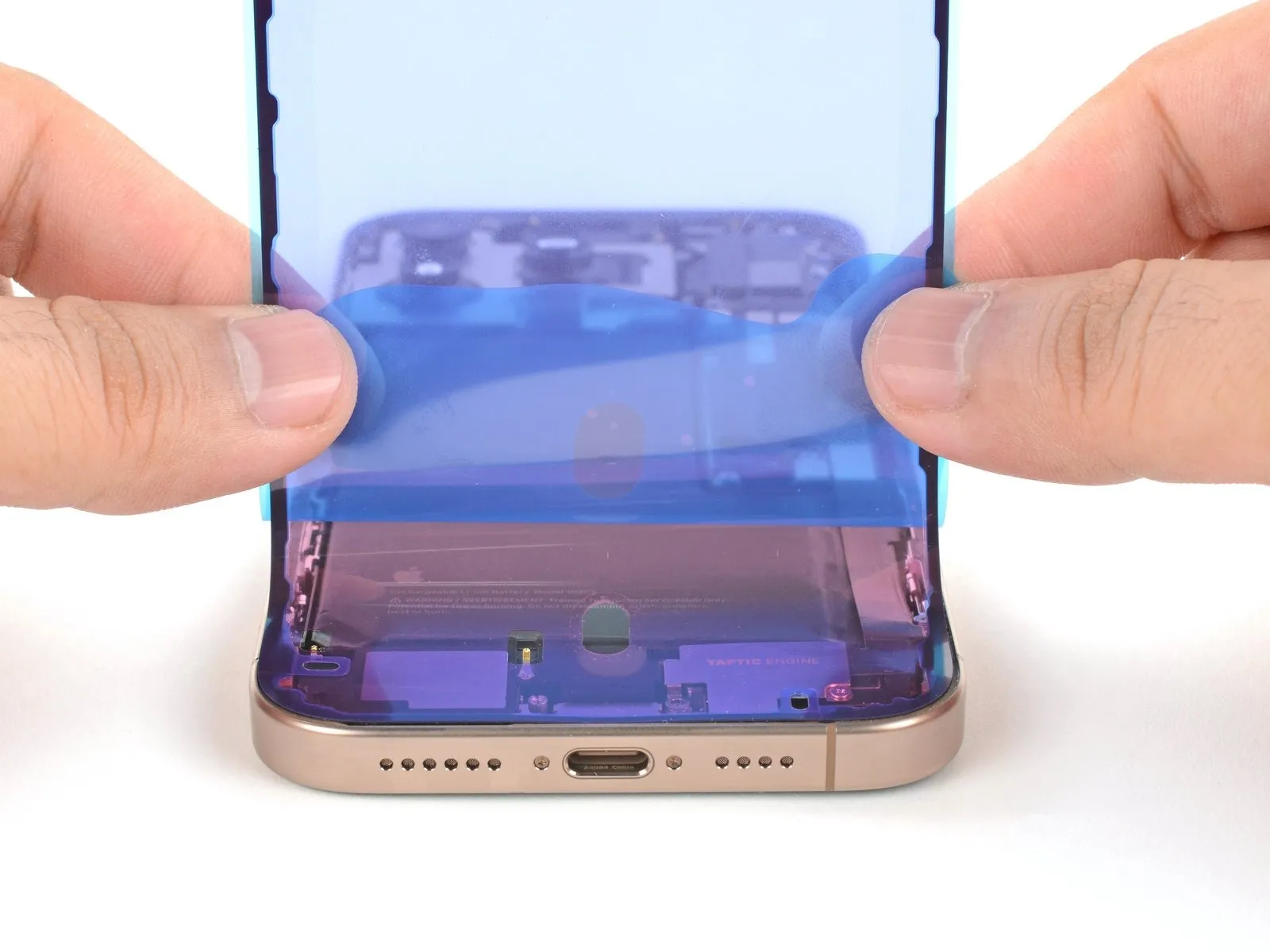
- Ensure the visible perimeter of the adhesive strip is precisely matched to the matching edge found on the iPhone's chassis.
Because the adhesive will bond immediately upon contact, repositioning is impossible; any misalignment necessitates removal and replacement with a fresh adhesive strip.
After confirming correct alignment, apply gentle pressure to secure the exposed adhesive strip to the iPhone's frame.
Step 37
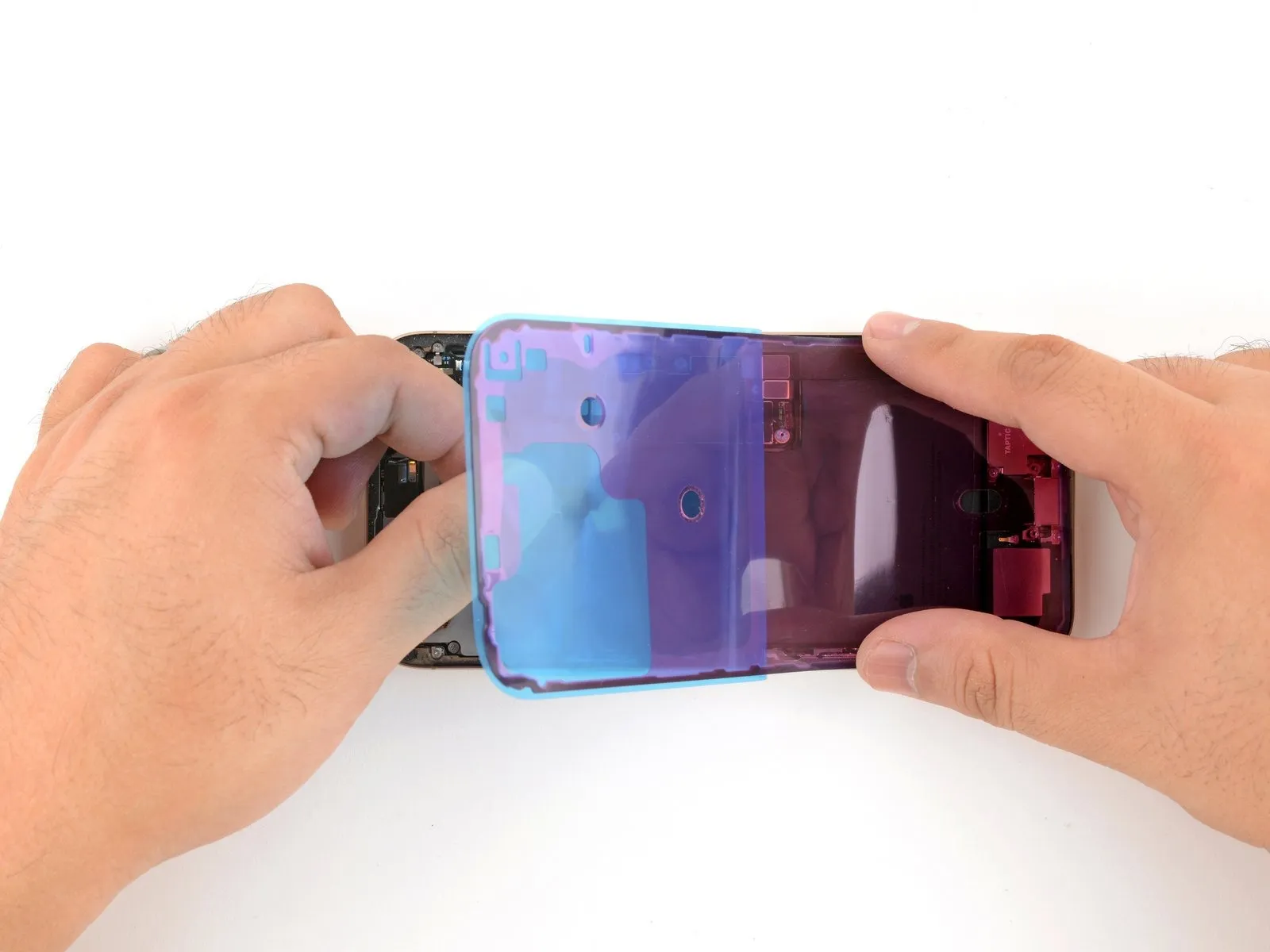

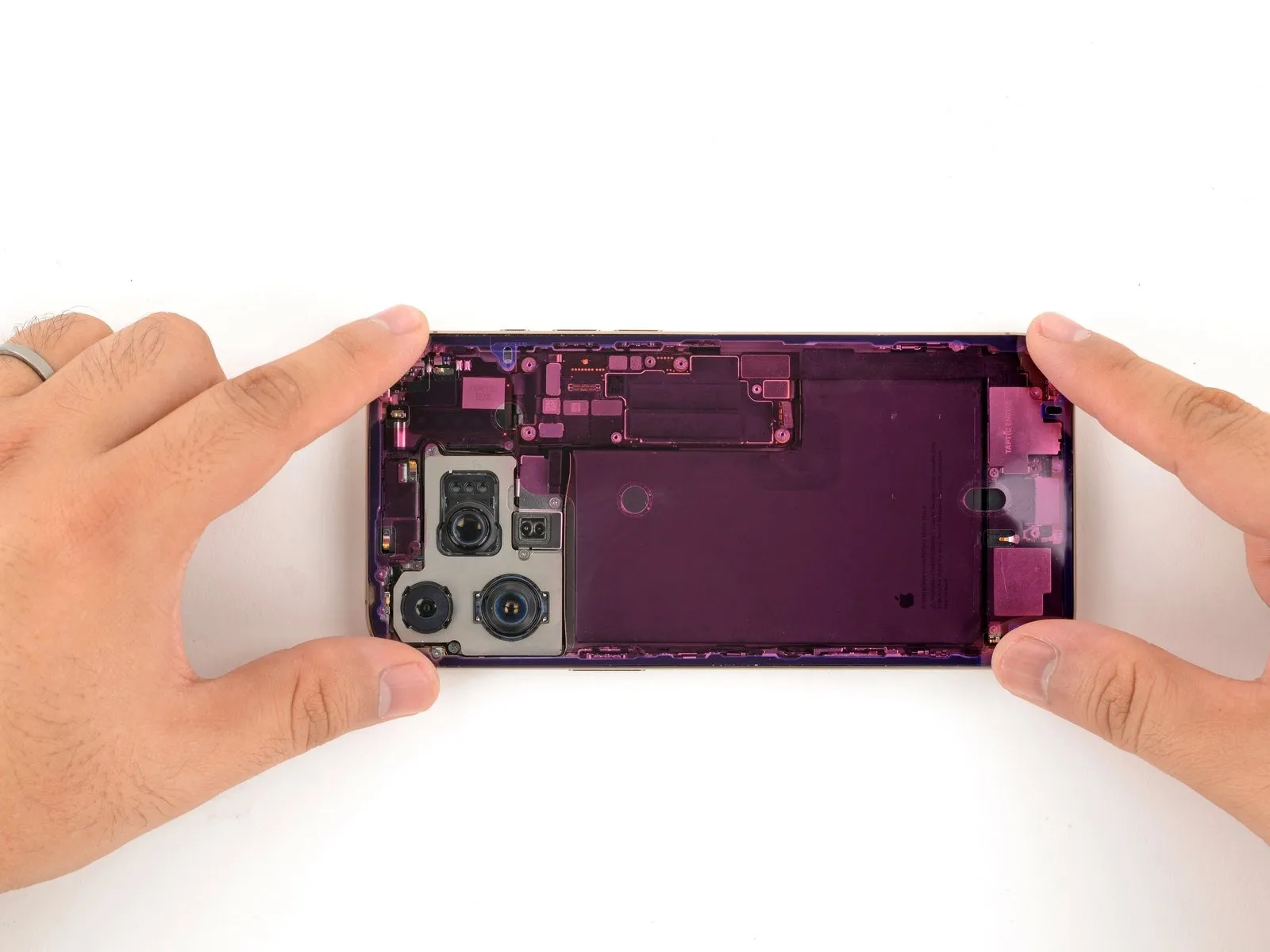
- Carefully remove the adhesive backing while applying even pressure to ensure proper contact.
Successful alignment of the adhesive is indicated by a seamless fit along the borders.A precise positioning of the adhesive results in the borders settling neatly within the device's frame.
Should the adhesive not be perfectly aligned, use a gentle pulling motion on the extended sides to realign it with the frame.If folds or wrinkles appear in the adhesive material, discard it and apply a new section.
The iPhone can be assembled and used temporarily without adhesive; however, be aware that water resistance will be reduced.The adhesive's secure placement is achieved by gradually pressing it down as the liner is removed.
Properly positioned adhesive will naturally conform to the frame's contours, ensuring a flush fit.
Step 38


Employ a spudger to apply pressure to the adhesive securing the iPhone's edges.
Exercise caution near the delicate grounding clips; should one become displaced, carefully restore it to its original position using your fingers or tweezers.
Avoid excessive force, as this could distort and overextend the adhesive layer.
Step 39

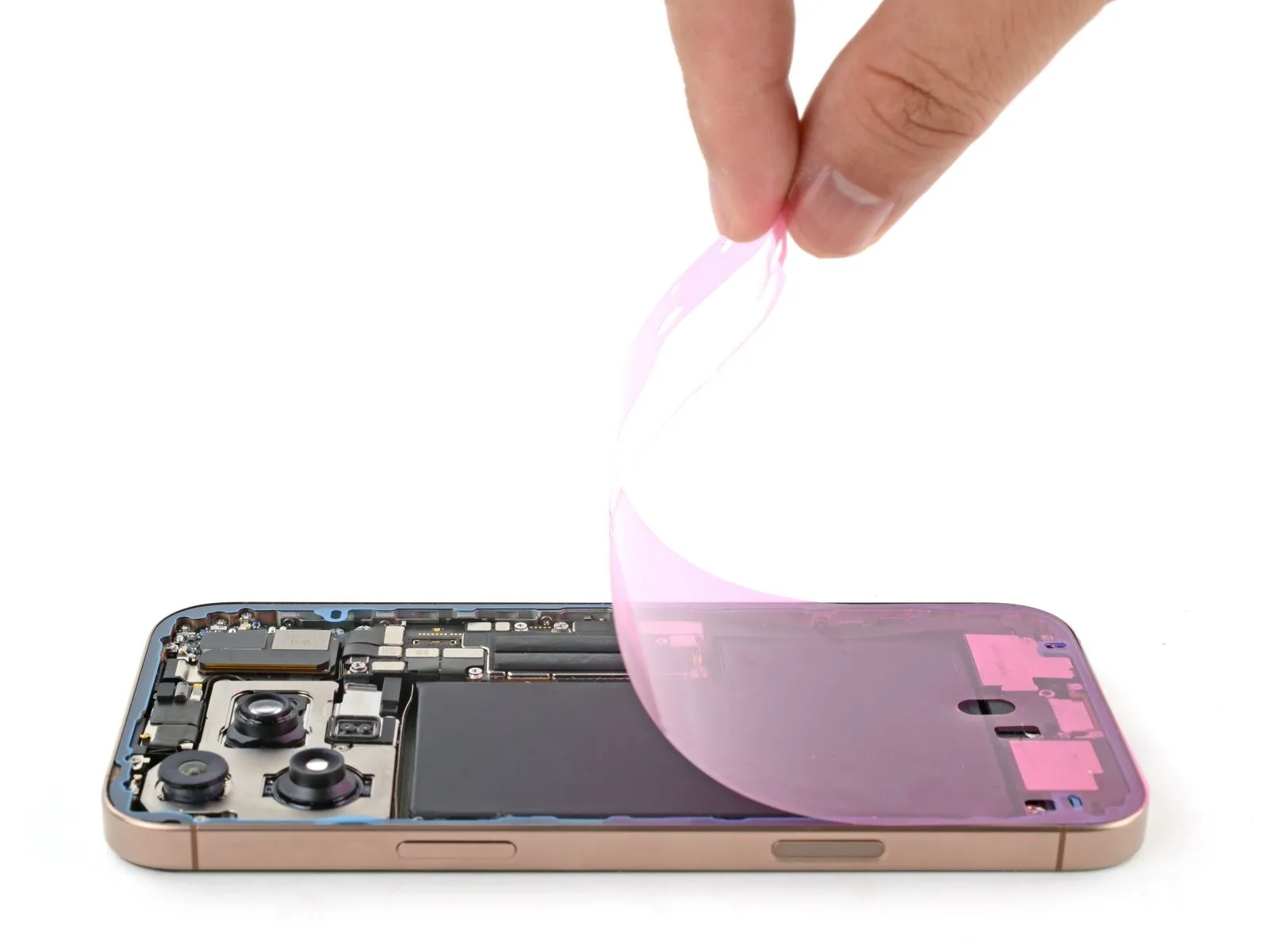
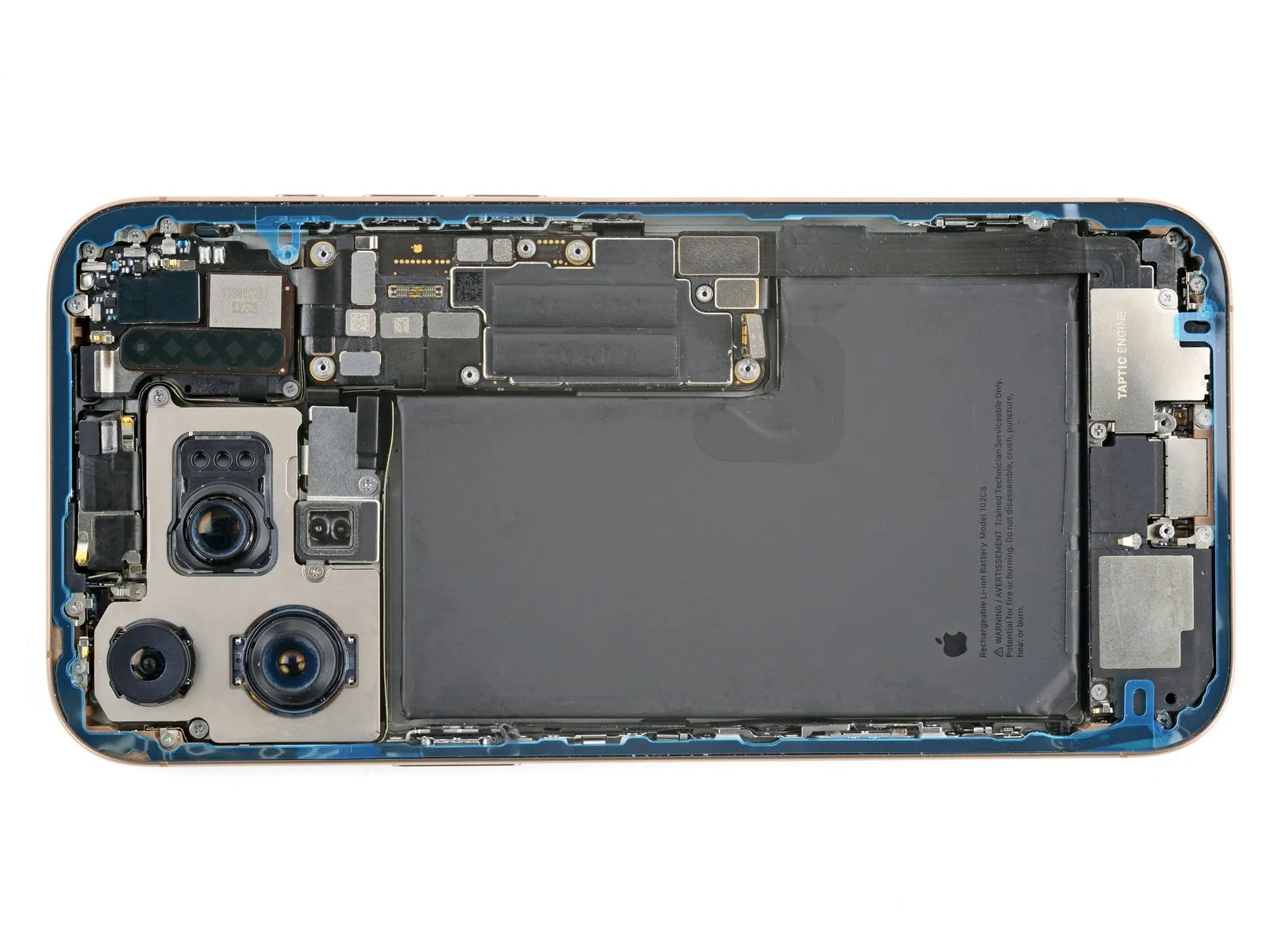
- Employ a spudger tool or your fingertips to detach the pull tab affixed to the extensive front liner, typically located within a corner.
Utilize the pull tab to carefully separate the large front liner from the adhesive backing.
Remaining perimeter liners are present to safeguard the adhesive surface during reassembly; refrain from removing these smaller release liners at this stage.
Step 40 | Connect the back glass

To facilitate access, carefully support the rear glass component by applying pressure along its right-hand perimeter on the iPhone.
Step 41
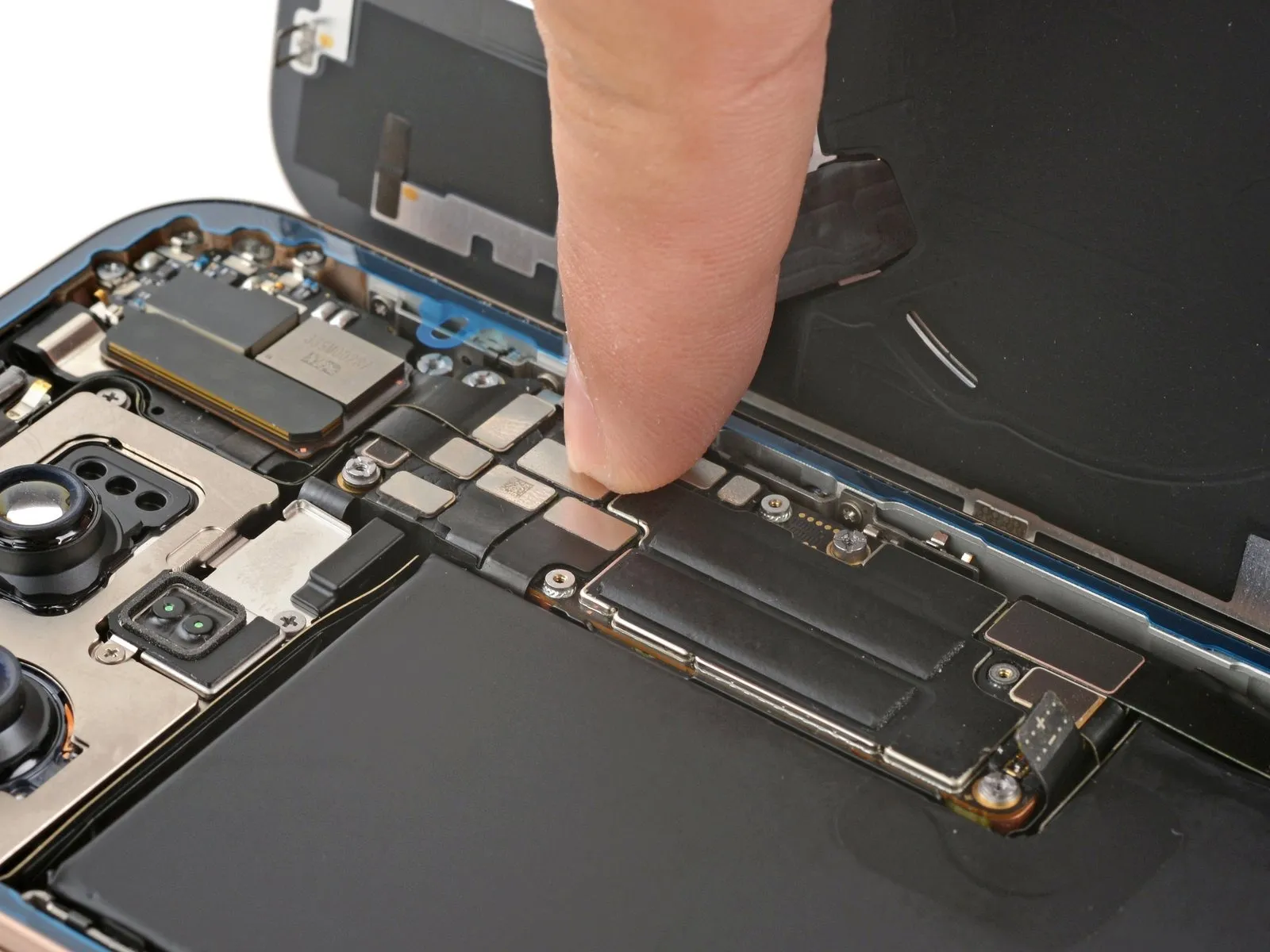
Employing either a fingertip or the planar edge of a spudger tool, establish a secure connection between the rear glass connector and the logic board by applying pressure.The back glass connector’s interface must be firmly seated against the logic board to ensure proper electrical contact.Carefully apply force to the connector, ensuring alignment, to avoid damaging the delicate components on the logic board.
Step 42 | Connect the battery

- Employ either a fingertip or a spudger to firmly secure the battery press connector to the logic board by applying pressure.Before finalizing the iPhone's reassembly, it's advisable to verify the repair's functionality; initiate the device and confirm its expected operation, then deactivate it to proceed.Should the iPhone fail to power on initially, establish a connection to a power source and attempt the startup sequence once more.
- In situations where a logic board replacement has occurred and the display remains inactive, consult the dedicated screen repair guide to perform a manual connection of the display connector.
- Ensure the battery press connector is properly engaged with the logic board by applying consistent pressure with a spudger or your finger.
- To confirm the repair's success prior to final closure, activate the iPhone and verify all functions operate normally, subsequently powering it off for continued reassembly.
Step 43 | Install the connector covers

Position the back glass connector cover so that the screw apertures are aligned, then set it down.
Step 44
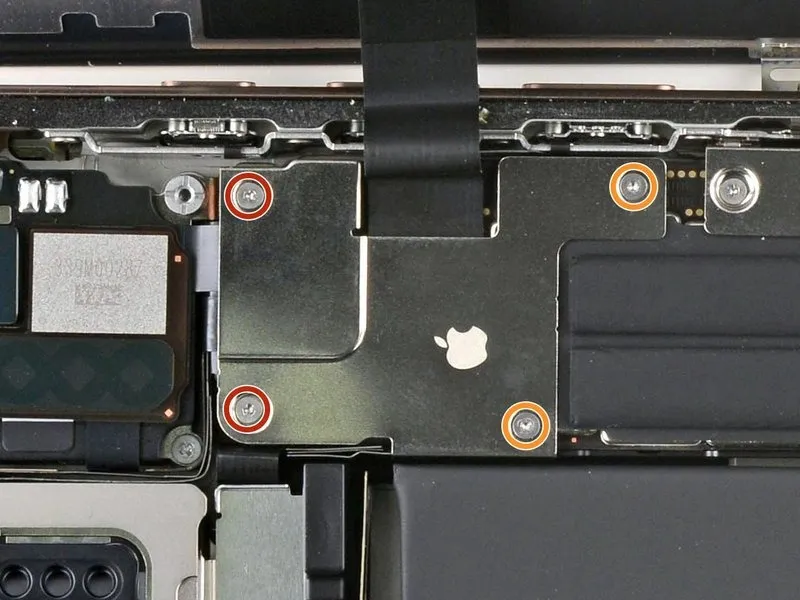
Employ a specialized tri-point Y000 driver for the installation process.The required tool is a tri-point Y000 driver, essential for this task.Four screws are fastened to the back glass connector cover, necessitating their removal with a tri-point Y000 driver.
- A total of two screws, each measuring 1.3 millimeters in length, are present.Two screws, with a length of 1.0 millimeters, are also part of the assembly.
- The back glass connector cover is held in place by a combination of two 1.3 mm screws and two 1.0 mm screws.Securely fasten the cover using a tri-point Y000 driver to install the four screws.
Step 45
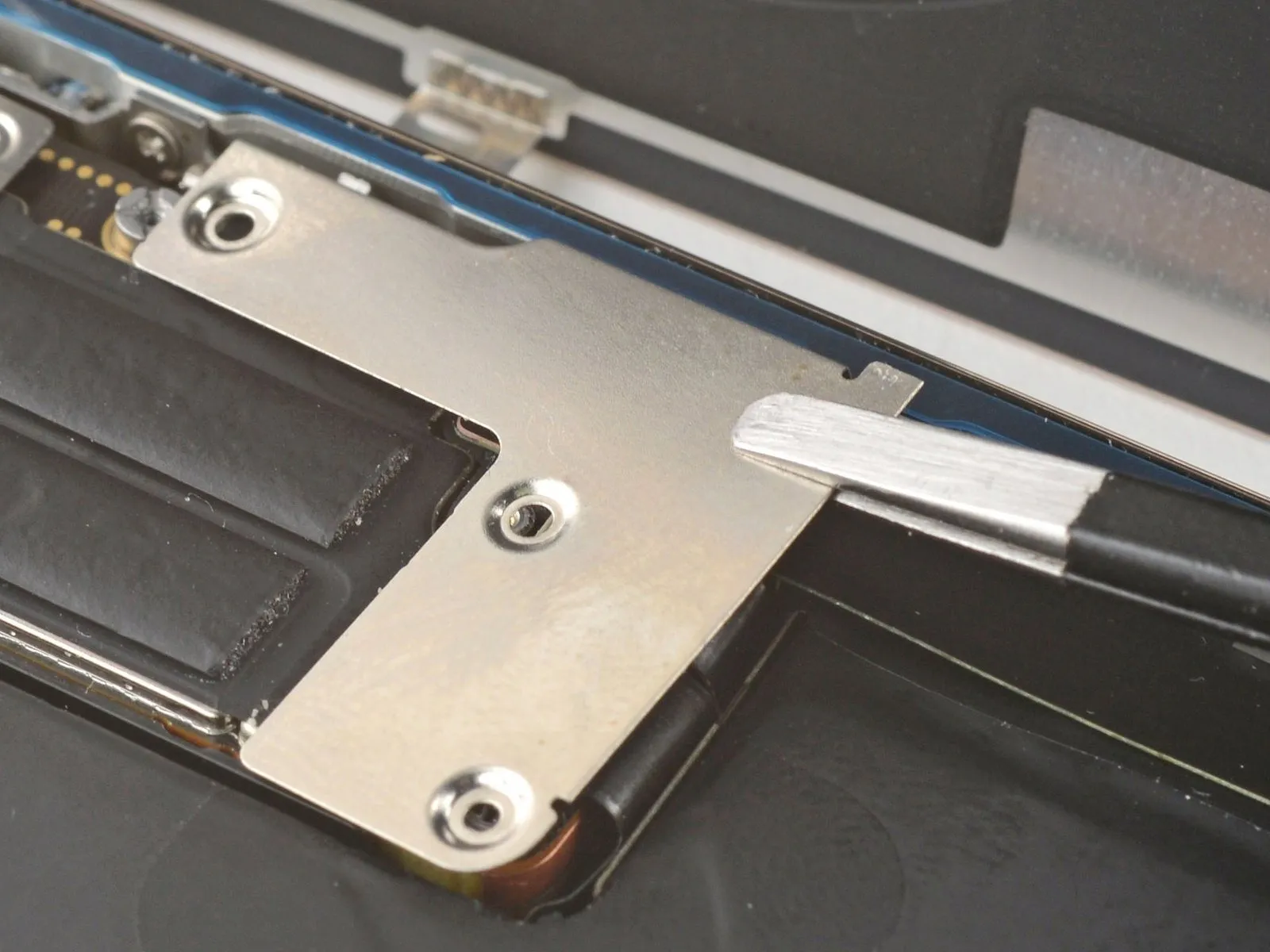
Position the battery connector cover so that the screw apertures are aligned, then set it down into its designated location.
Step 46
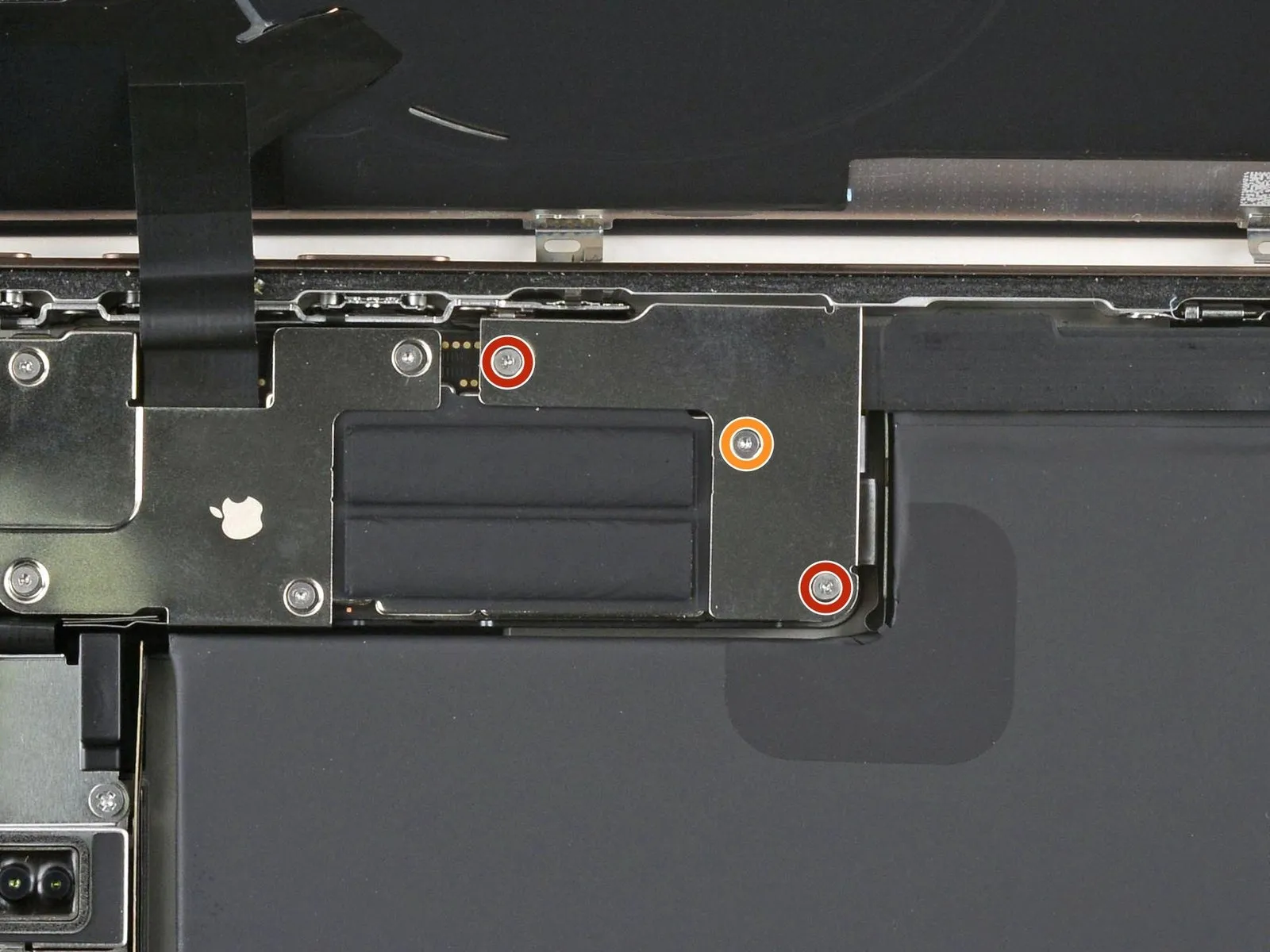
- Employ a specialized tri-point Y000 driver for the installation process.The battery connector cover is fastened with three screws requiring a tri-point Y000 driver for removal and installation.Two screws, each measuring 1.3 millimeters in length, are used to secure the cover.
A single screw, with a length of 1.0 millimeters, is also part of the fastening mechanism.Ensure the correct driver is utilized to prevent damage to the screw heads during manipulation.
The screws holding the battery connector cover are small and delicate; handle with care.Properly securing the battery connector cover is essential for maintaining device integrity.
Step 47 | Remove the final adhesive liners

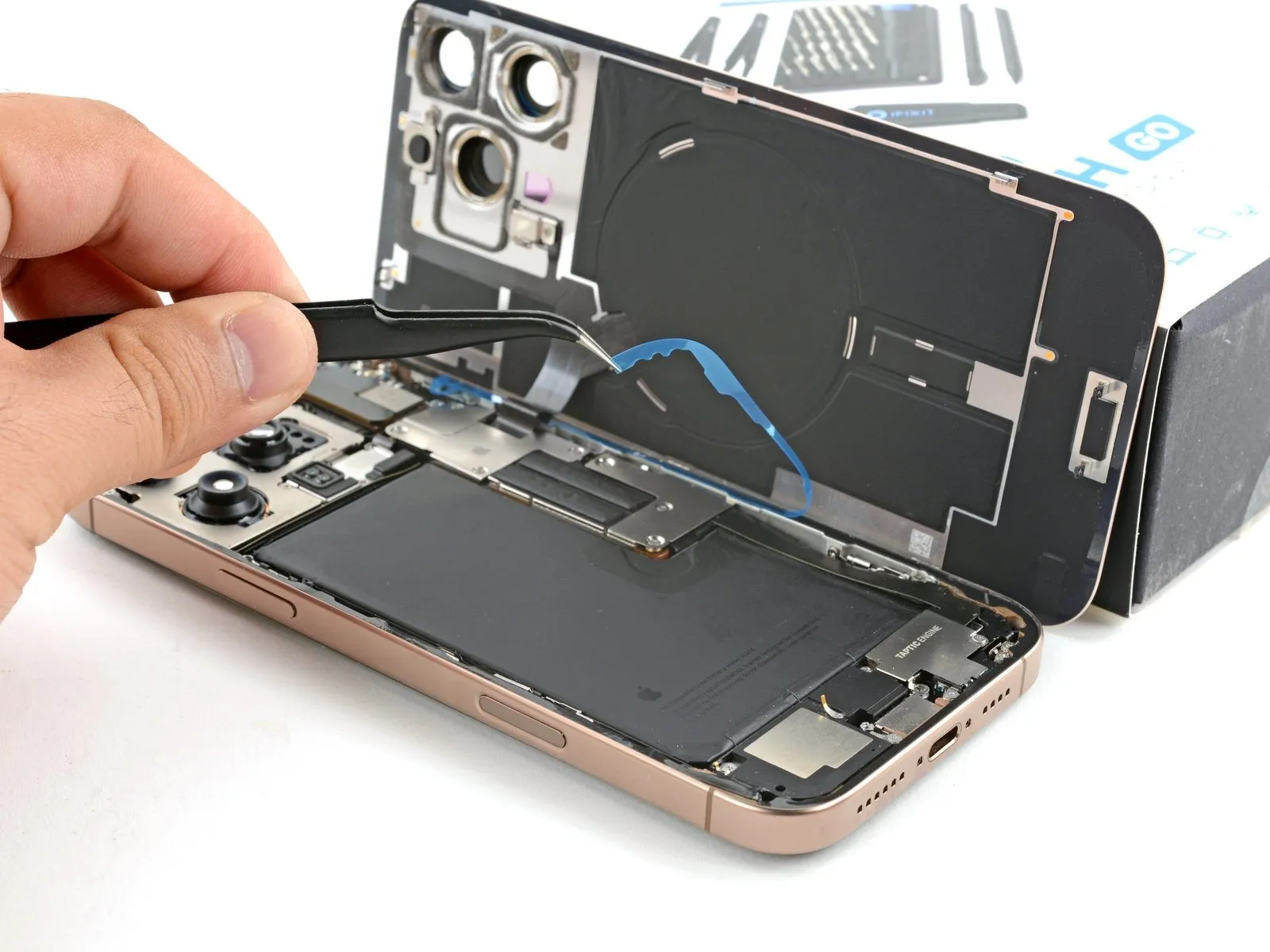
- Employing either your fingertips or a spudger, carefully separate the surrounding adhesive protective layers to reveal the adhesive.
During liner removal, prevent any contact between surfaces and the newly exposed adhesive to maintain its bonding capability.
Thoroughly inspect both the frame and rear glass assembly, eliminating any detached liner fragments to guarantee complete adhesive exposure.
Step 48 | Install the back glass


- Position the rear glass component onto the device frame, initiating the placement with the uppermost border.
Should you encounter opposition during installation, a surrounding retaining clip might be deformed and compressed by the frame; carefully examine the area of resistance and delicately realign any bent clips.
Apply even pressure across the iPhone's borders to ensure the rear glass makes complete contact with the frame.
Step 49 | Apply heat to the perimeter
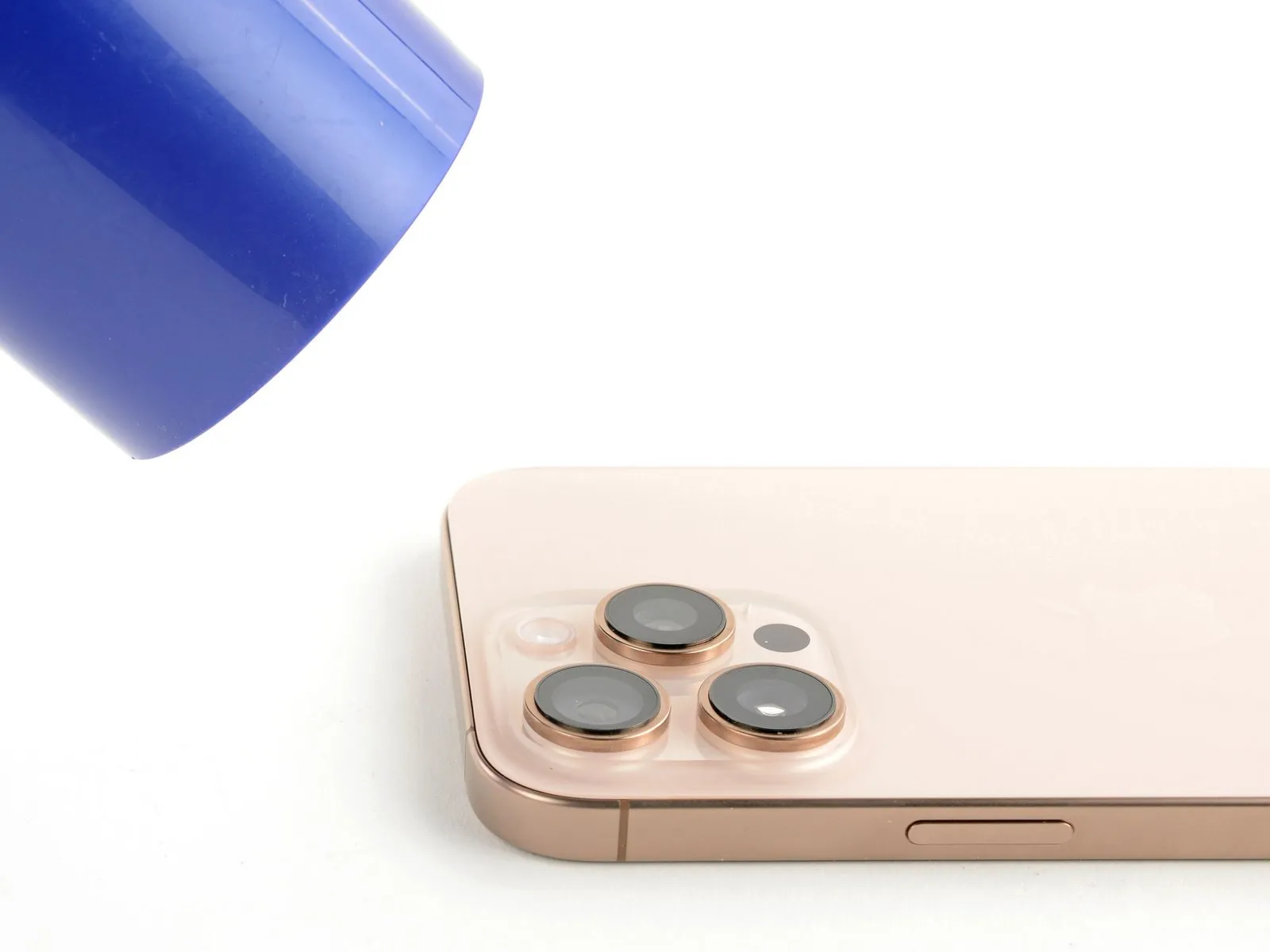
Employ a hair dryer, heat gun, or iOpener to warm the edges of the rear glass.Continue applying heat until the surface temperature becomes uncomfortable to the touch.This thermal process reduces the adhesive's viscosity.The softening action facilitates a stronger re-bonding during reassembly.
Increased warmth allows for improved adhesion when reattaching the rear glass.
Step 50 | Apply pressure to the perimeter

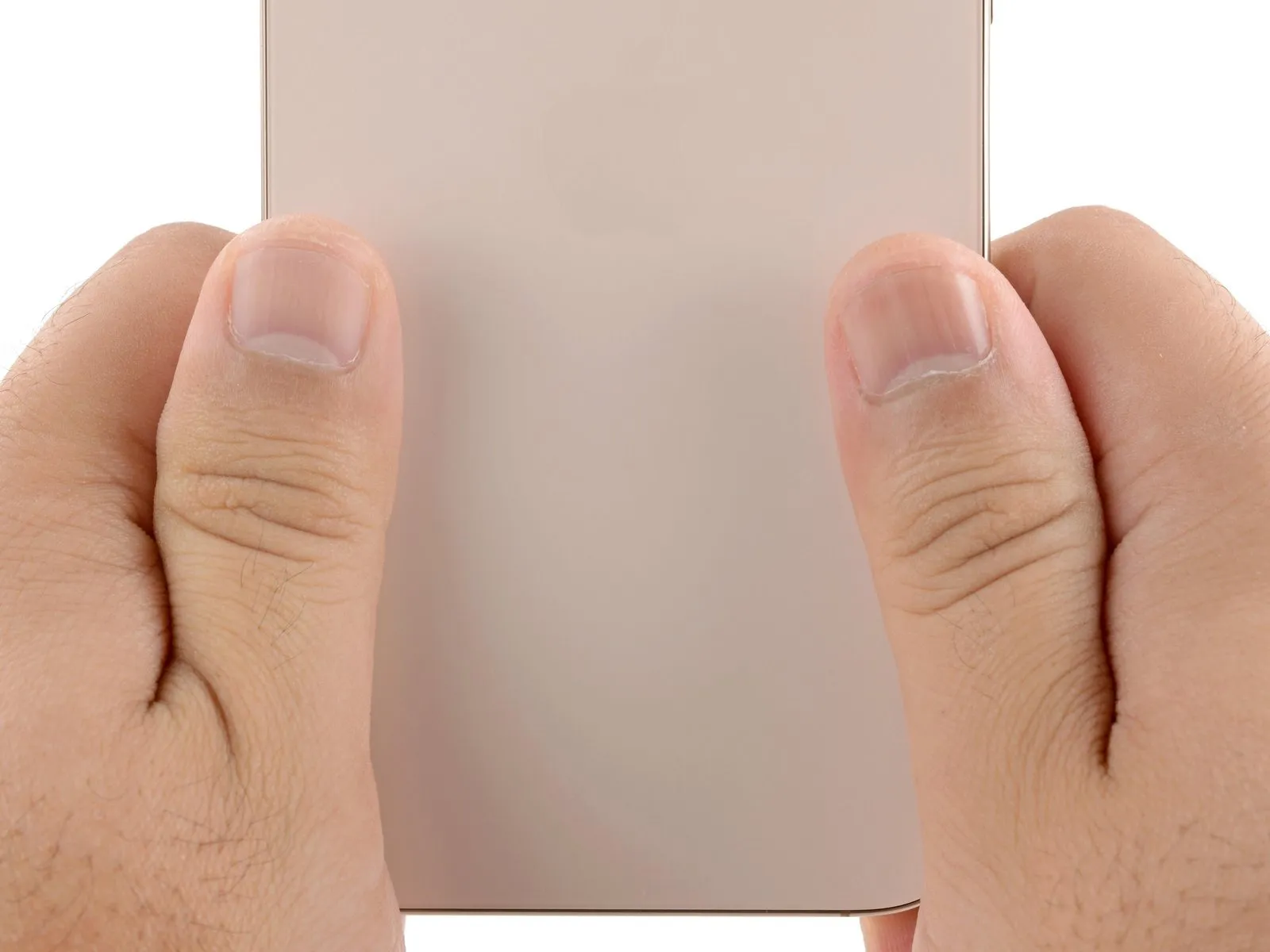
- Apply firm, circumferential pressure around the iPhone's edges using your fingertips.
Step 51
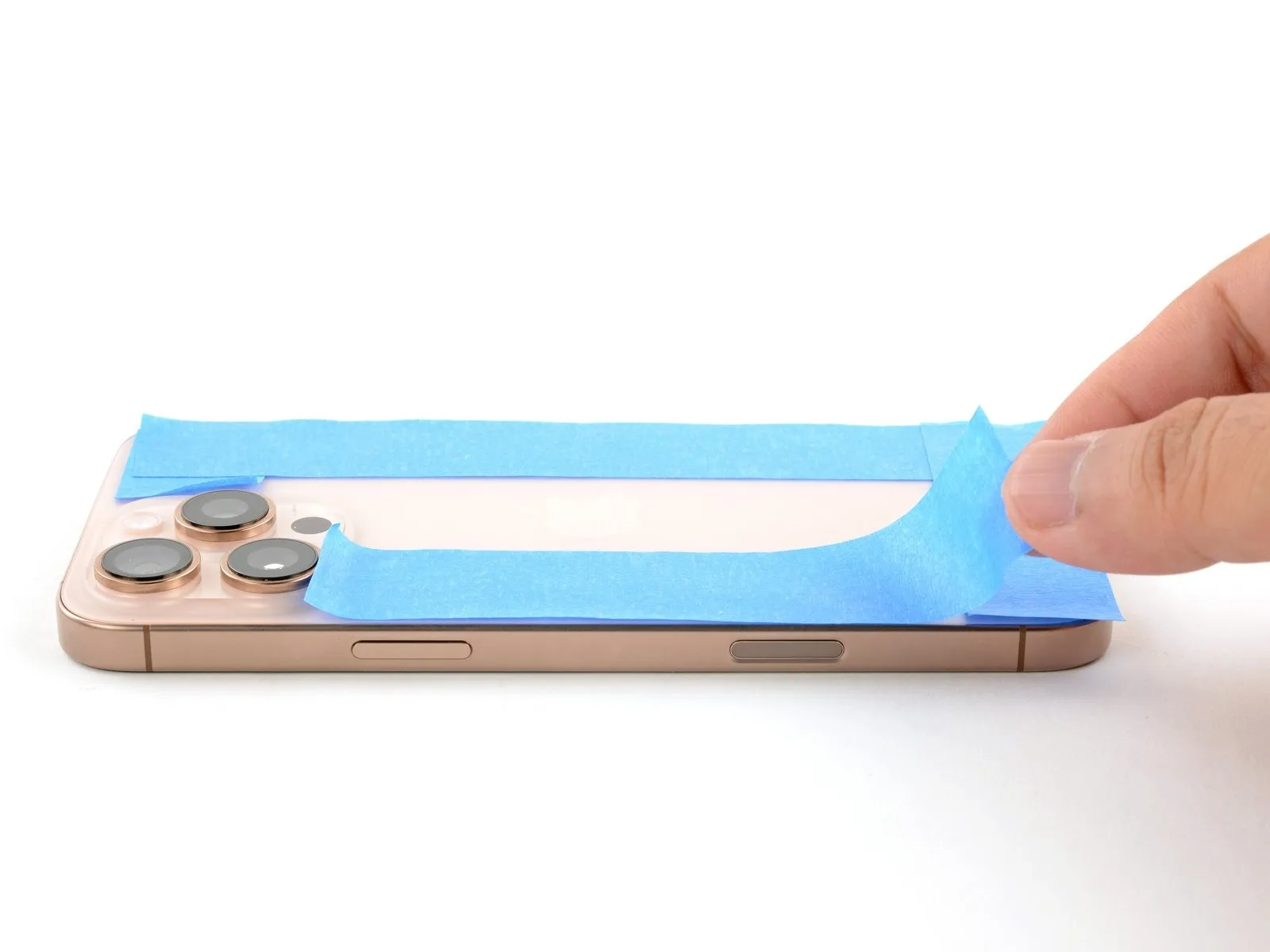

- Position the iPhone with its screen facing downwards onto a pristine, level workspace.
Apply a continuous strip of adhesive tape along the edges of the rear glass to prevent cosmetic damage.
Arrange a circular stack of coins along the back glass's edge, constructing a barrier that matches the height of the rear camera lenses’ projections.
As an alternative method, secure the device within vise clamps around its perimeter to establish a fresh adhesive seal.
Step 52
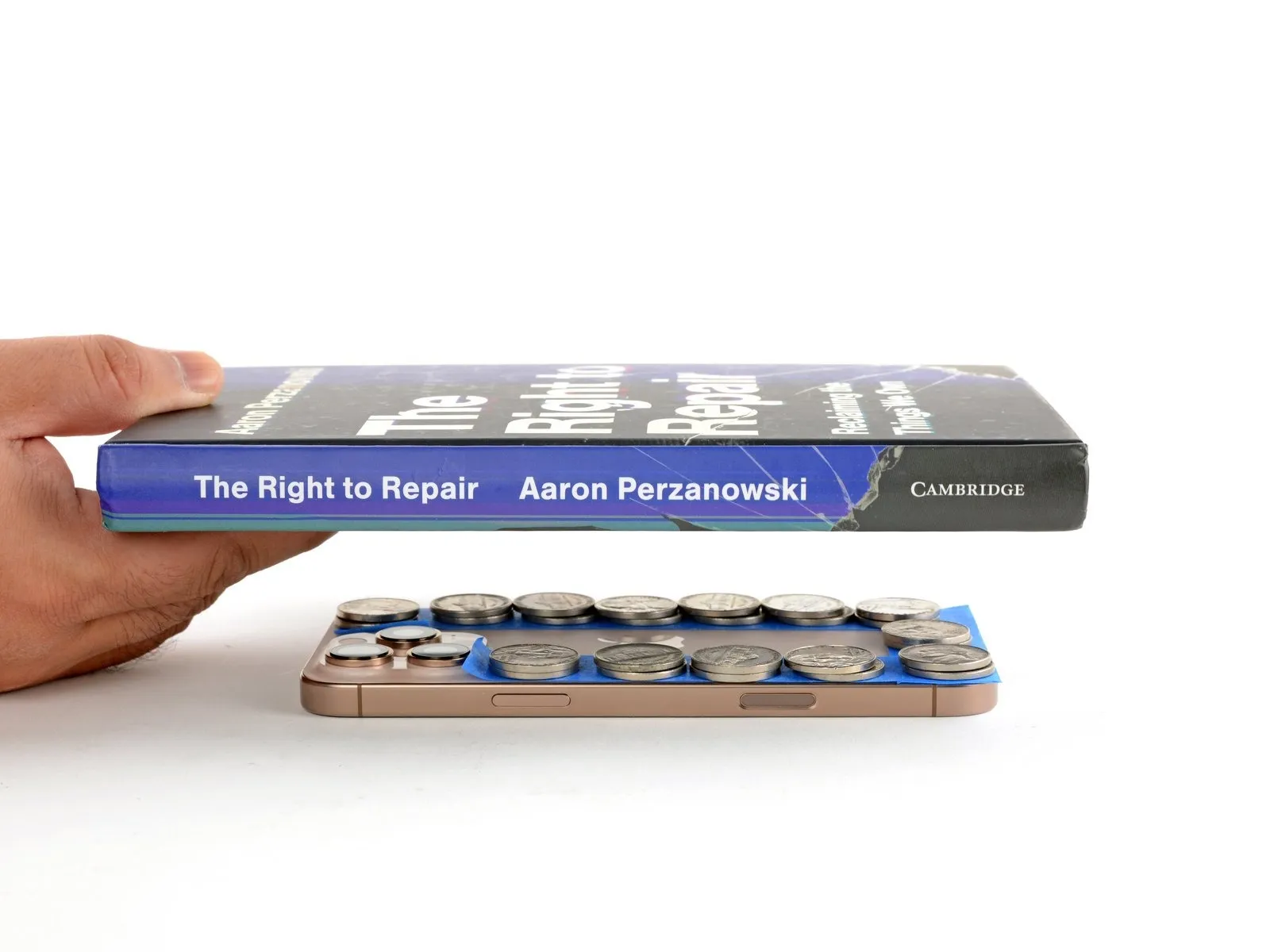

- To apply even pressure, position four to five substantial volumes directly atop the iPhone’s surface.
Because the weight can create minor indentations, avoid utilizing valuable books that might be damaged.
Maintain the applied pressure by keeping the books in their position for approximately half an hour.
This sustained force facilitates the bonding of the adhesive material.
Step 53 | Install the pentalobe screws
Employ a P2 pentalobe screwdriver for the installation process.The required tool is a P2 pentalobe screwdriver.Two screws, each measuring 7.4 millimeters in length, must be affixed.Secure the two 7.4 mm screws to the device's chassis.Position the screws on both lateral aspects of the USB-C connector.