iPhone 17 Pro Rear Camera Assembly Replacement
This document details the procedure for removing and substituting the rear camera module on an iPhone 17 Pro.
Blurry images or focusing issues with the rear cameras may indicate a need for component replacement.The iPhone 17 Pro's three rear camera lenses—the main, ultrawide, and telephoto—are integrated into a single, replaceable unit.Because the rear cameras are a combined assembly, a complete replacement is necessary if any individual camera malfunctions.Following the repair process, it is essential to perform camera calibration utilizing the Repair Assistant application.The rear camera assembly incorporates the main camera, ultrawide camera, and telephoto camera.A malfunctioning camera, such as the main, ultrawide, or telephoto, necessitates the replacement of the entire rear camera module.Should image quality degrade or focusing become problematic, the rear camera assembly may require replacement.
- To ensure optimal camera performance post-repair, utilize the Repair Assistant application to calibrate the rear camera system.
Step 1 | Safety precautions


To mitigate fire hazards associated with compromised lithium-ion cells, ensure your iPhone's battery level drops below 25% prior to commencing the repair procedure; a fully charged battery presents a heightened risk of ignition upon physical damage.
- Disconnect all connected cables from the device to prevent electrical interference during the repair process.
- Initiate a power-down sequence by simultaneously pressing the power button and either volume button, subsequently releasing them and sliding the power-off indicator.
Step 2 | Cracked glass preparation

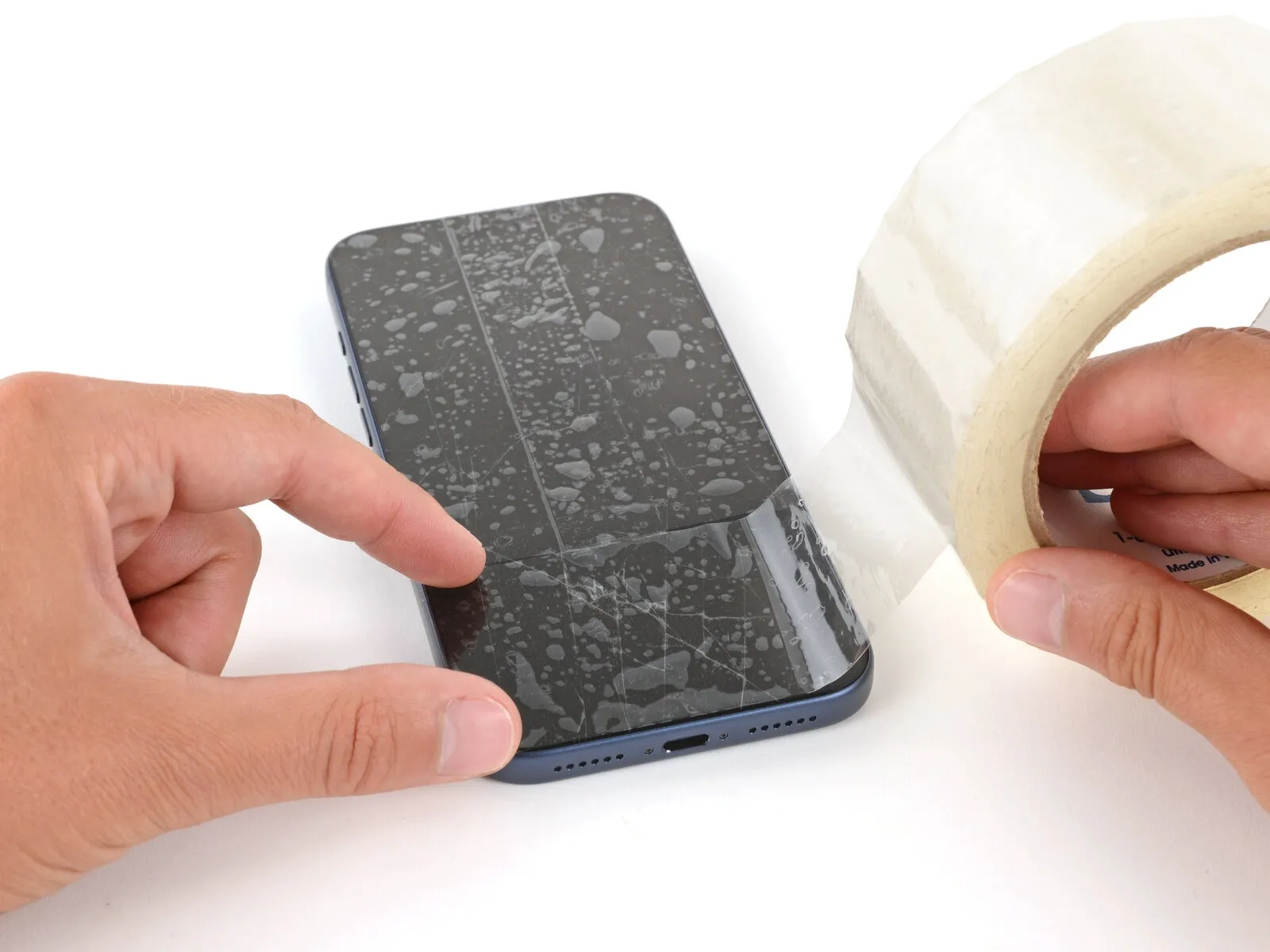

Important safety note: Fragments of broken glass present a risk during the repair process and may lead to physical harm.Should your device's display be fractured, proceed with the following procedure with utmost care.
- To prevent glass dispersal and facilitate secure suction cup attachment, affix packing tape strips across the damaged glass surface, ensuring complete coverage.
- A solitary strip of tape, devoid of overlaps, must be positioned along the lower edge, providing sufficient area for suction cup placement.
- Confine tape application exclusively to the glass portion; avoid adhering it to the surrounding frame.
Step 3 | Remove the pentalobe screws

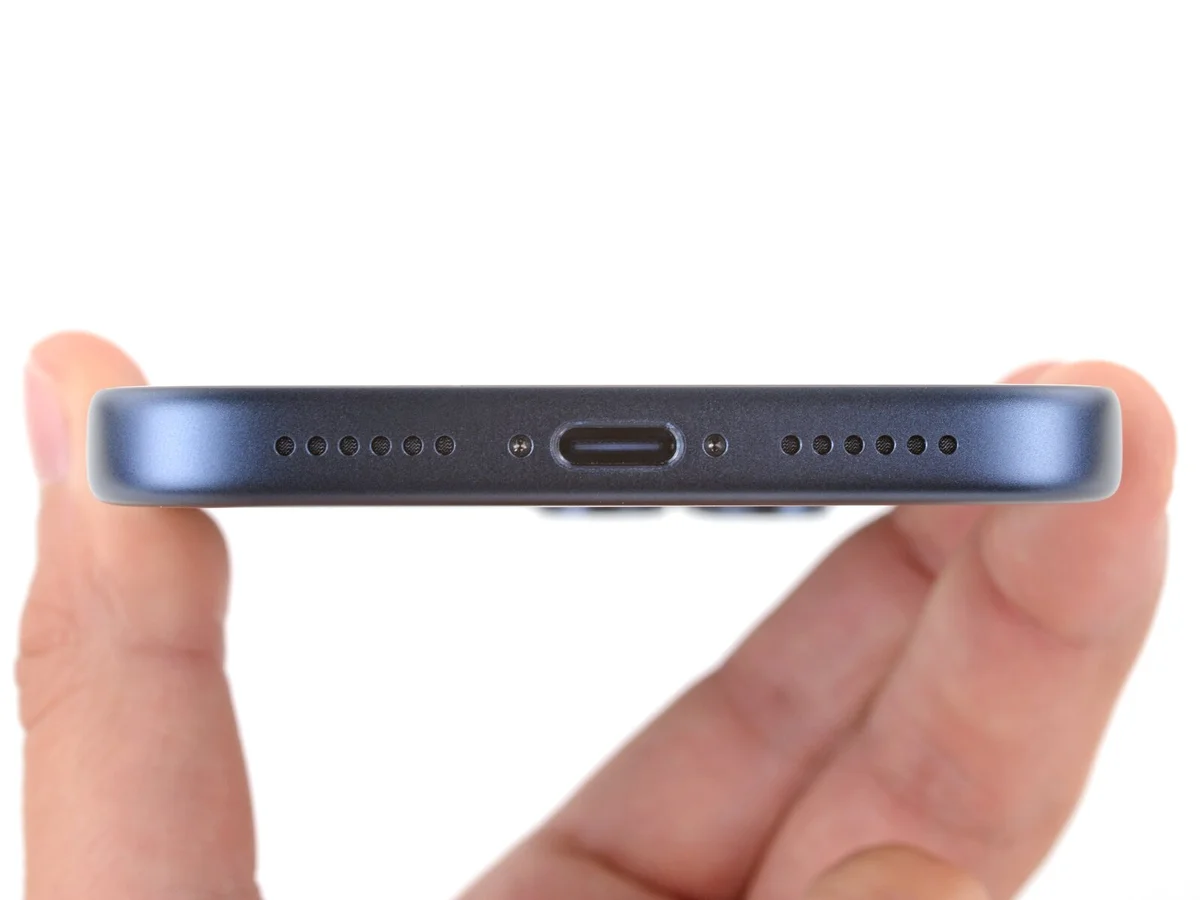
Employ a P2 pentalobe screwdriver to detach the two screws, each measuring 7.5 mm in length, located on both sides of the charging port.The two screws securing the device near the charging port must be unscrewed using a specialized P2 pentalobe screwdriver.For disassembly, a P2 pentalobe screwdriver is required to loosen the pair of 7.5 mm screws positioned adjacent to the charging port.
Step 4 | Mark your opening picks


Exercise care to avoid potential harm to the device's internal components.To mitigate the risk of over-insertion and subsequent damage, a method for limiting pick depth is necessary.
- Using a permanent marker, create a visible indicator precisely 3 millimeters from the pick's distal end.
- As an alternative approach, secure a coin to the pick's tip using adhesive tape, ensuring the coin's edge is positioned 3 millimeters from the distal end.
Step 5 | Heat the bottom edge

Apply warmth to the screen's lower border utilizing a hair dryer or heat gun, ensuring the surface reaches a temperature just beyond comfortable touch.
- Warning:Incorrect operation of a heat gun carries the risk of irreparable damage to the display assembly and/or battery; adhere meticulously to the provided instructions.
Step 6 | Apply a suction handle
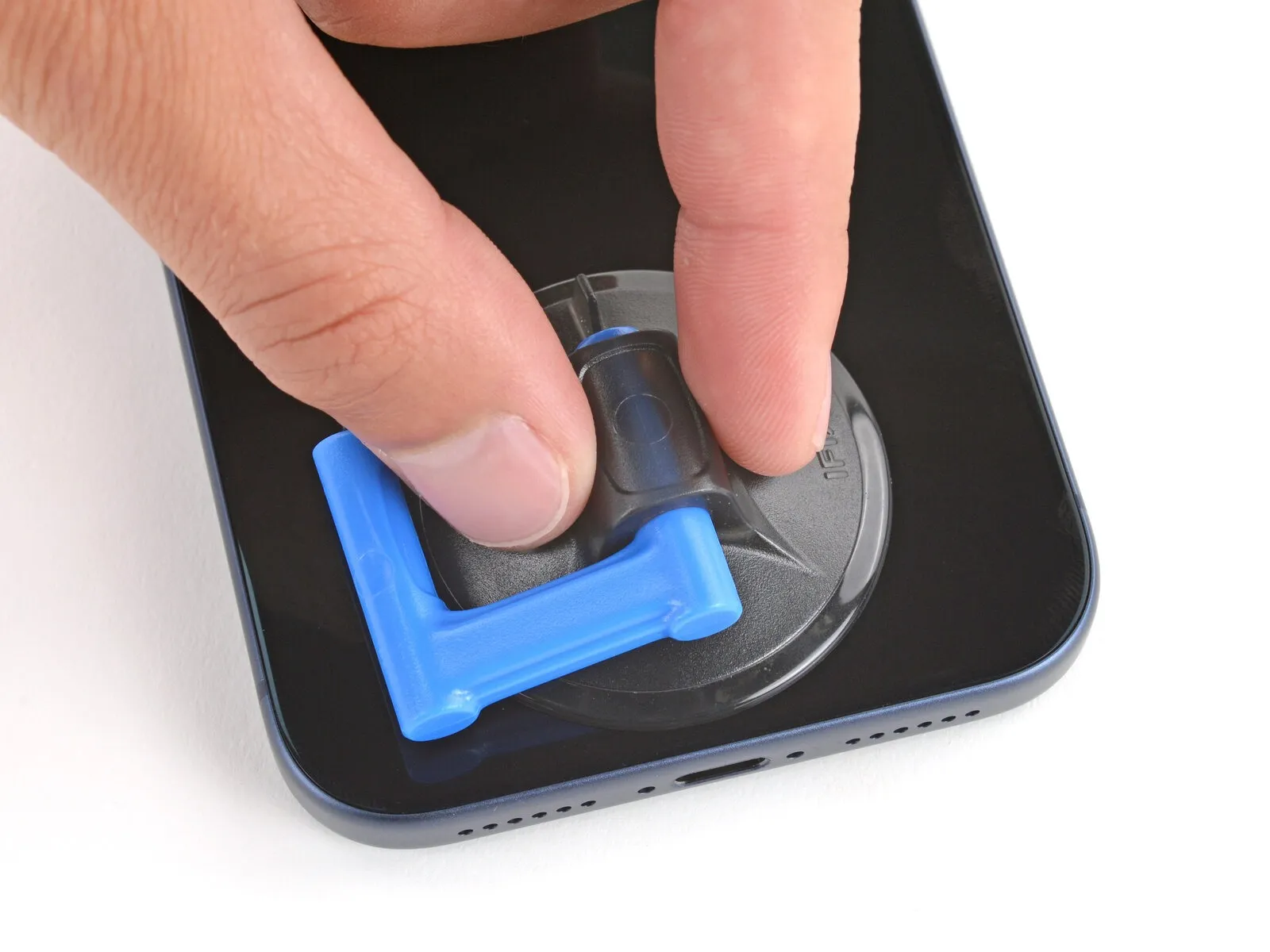

Secure a suction handle to the lower screen perimeter, positioning it as near the edge as feasible.
Step 7 | Screen bezel information


Prior to proceeding, confirm the precise placement for your prying tool.
- A plastic trim piece, situated beneath the screen's surface, rests upon the device's frame; ensure the tool's insertion is fully beneath this bezel.
- A joint exists where the plastic bezel meets the display; avoid tool insertion at this point to prevent unintended separation of these components, which would increase repair complexity.
Step 8 | Insert an opening pick


Applying consistent, considerable upward pressure to the suction cup's handle will separate the display screen from its surrounding frame.
Substantial effort may be required to achieve this separation; should difficulty arise, re-applying heat to the display screen and attempting the process again is recommended.
Carefully position the pointed end of a prying tool within the newly formed separation between the display and its frame.
Step 9 | Screen information

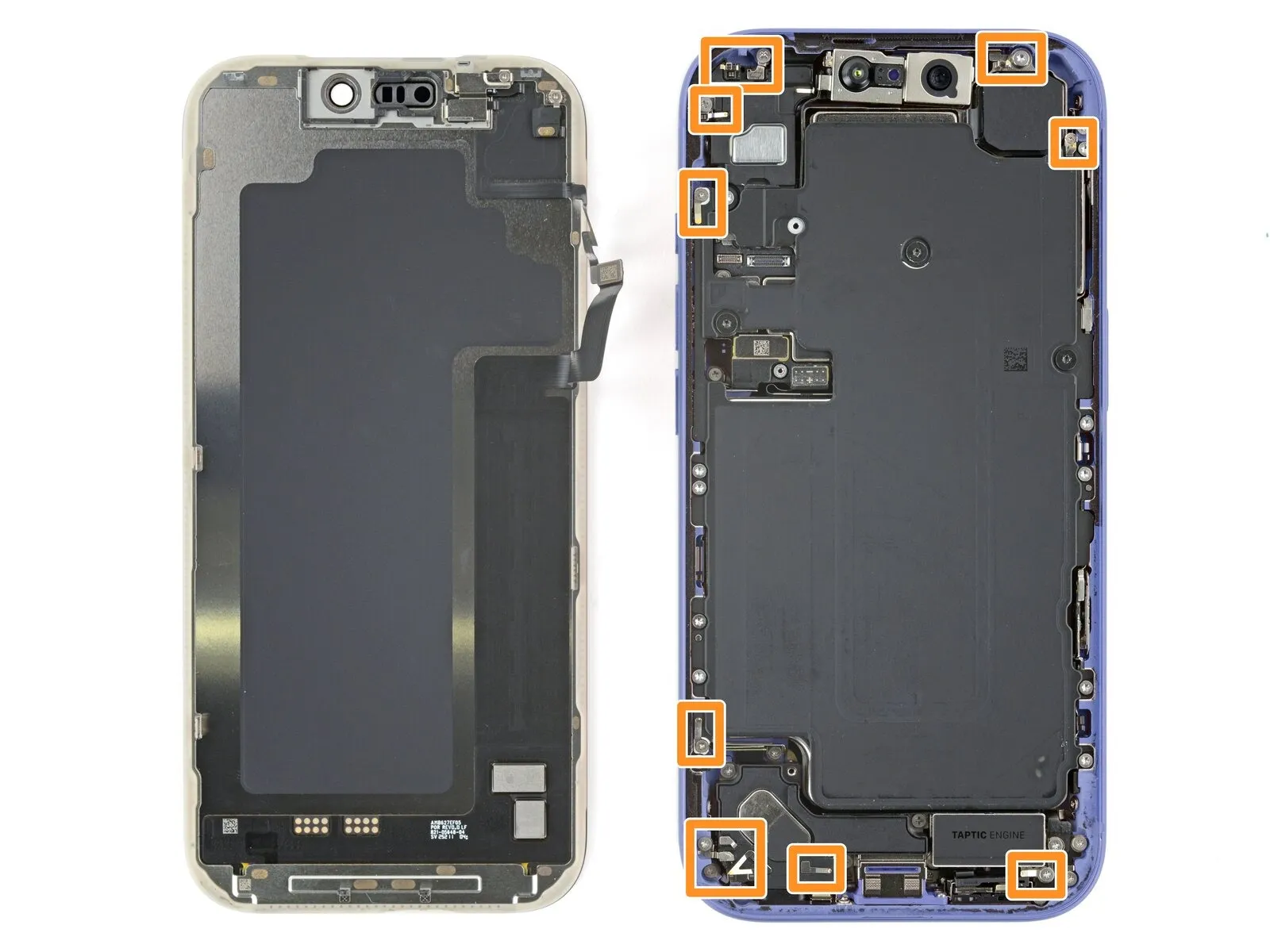
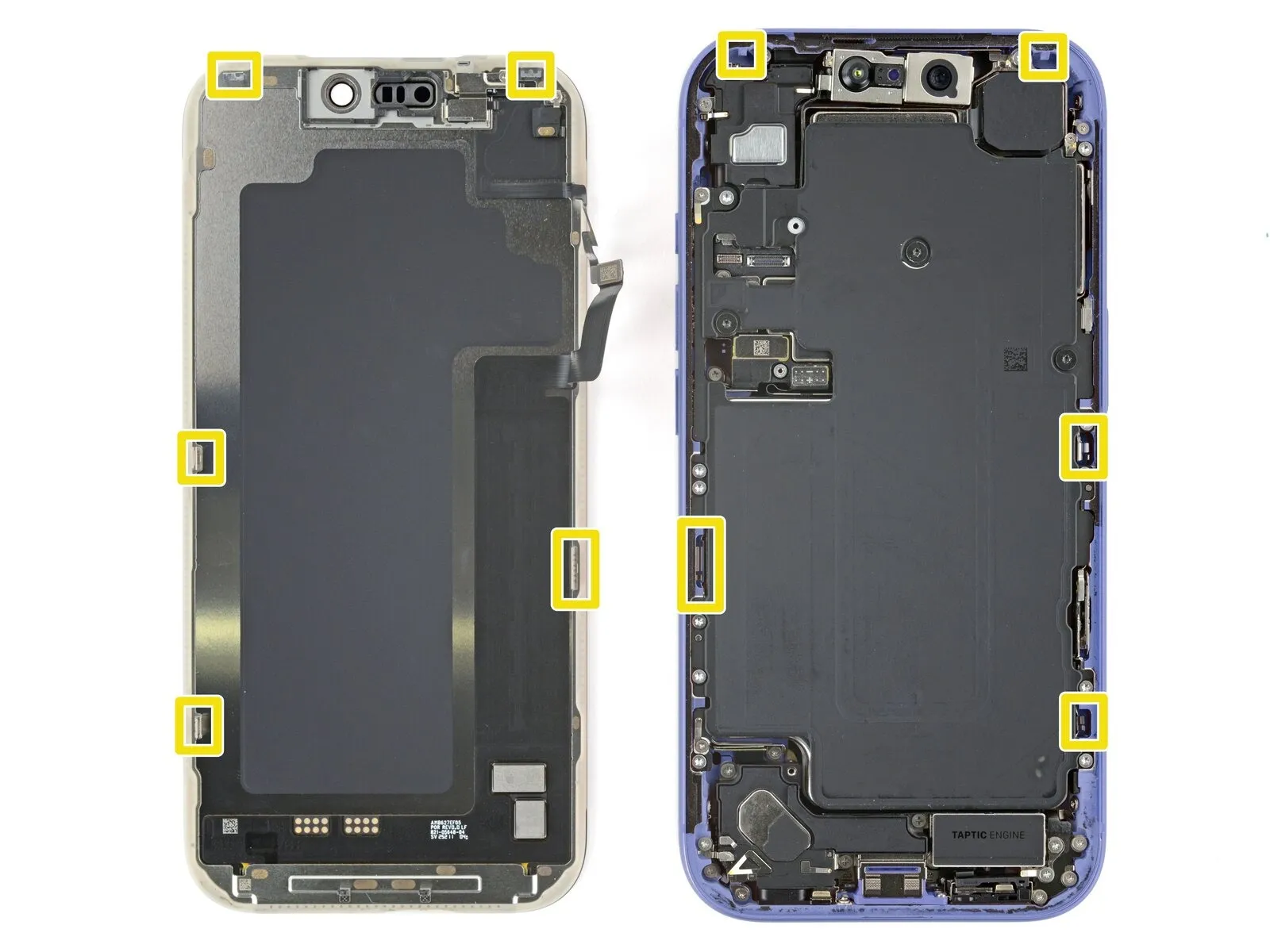
To prevent component damage, ensure the repair tool's insertion depth remains limited to a maximum of 3 millimeters beneath the display surface.Proximity to the volume and Action buttons places the screen and ambient light sensor cables in a vulnerable area.The phone's frame incorporates sensitive spring contacts positioned along its edges, demanding careful handling.
- Thin metal clips, securing the display, engage with matching slots situated on the phone's frame.
- Exercise caution to avoid unintended stress on these clips during the repair process.
- Maintaining a shallow insertion depth of the repair tool is crucial to prevent contact with and potential harm to these components.
Step 10 | Separate the bottom edge adhesive
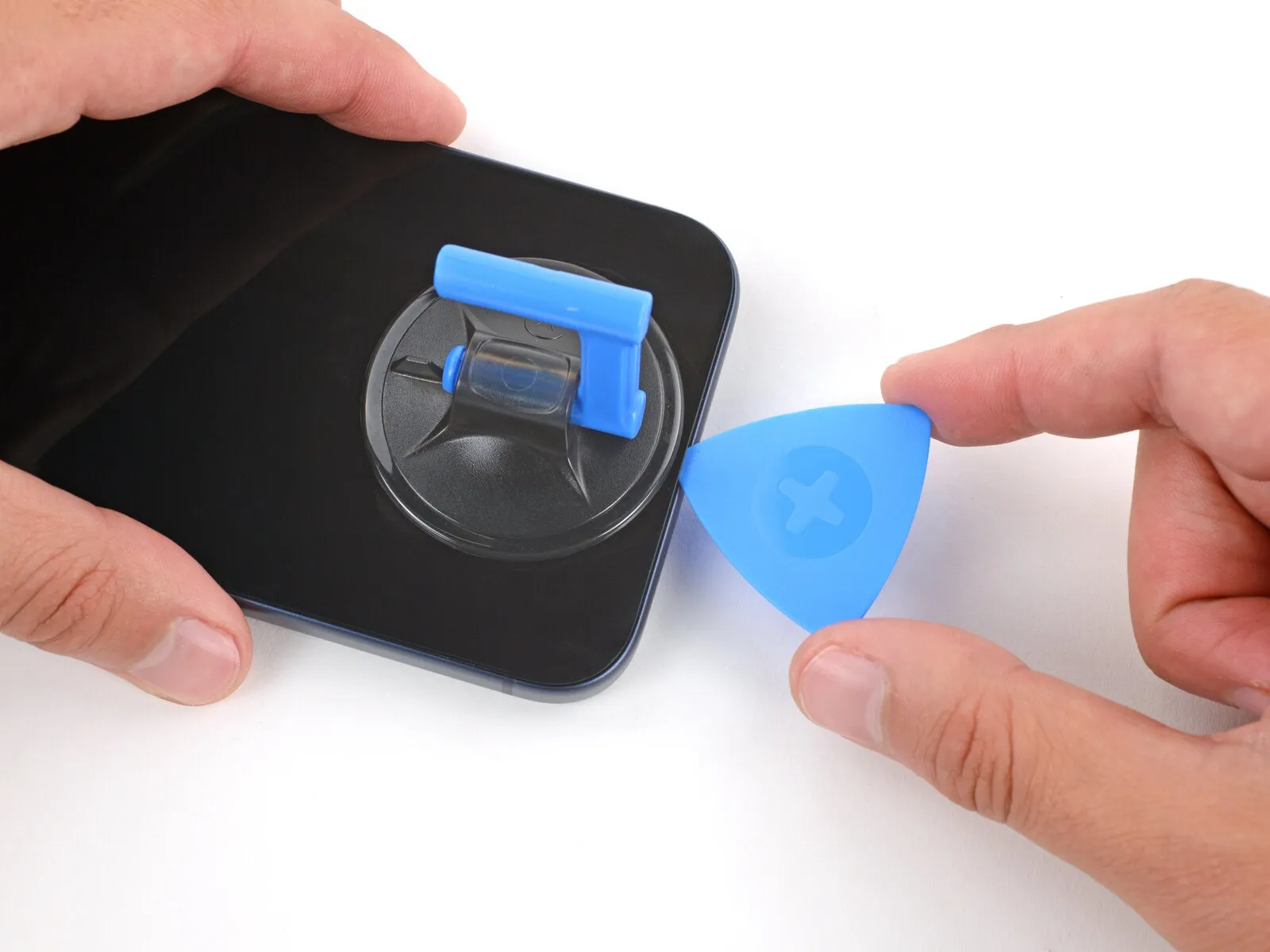

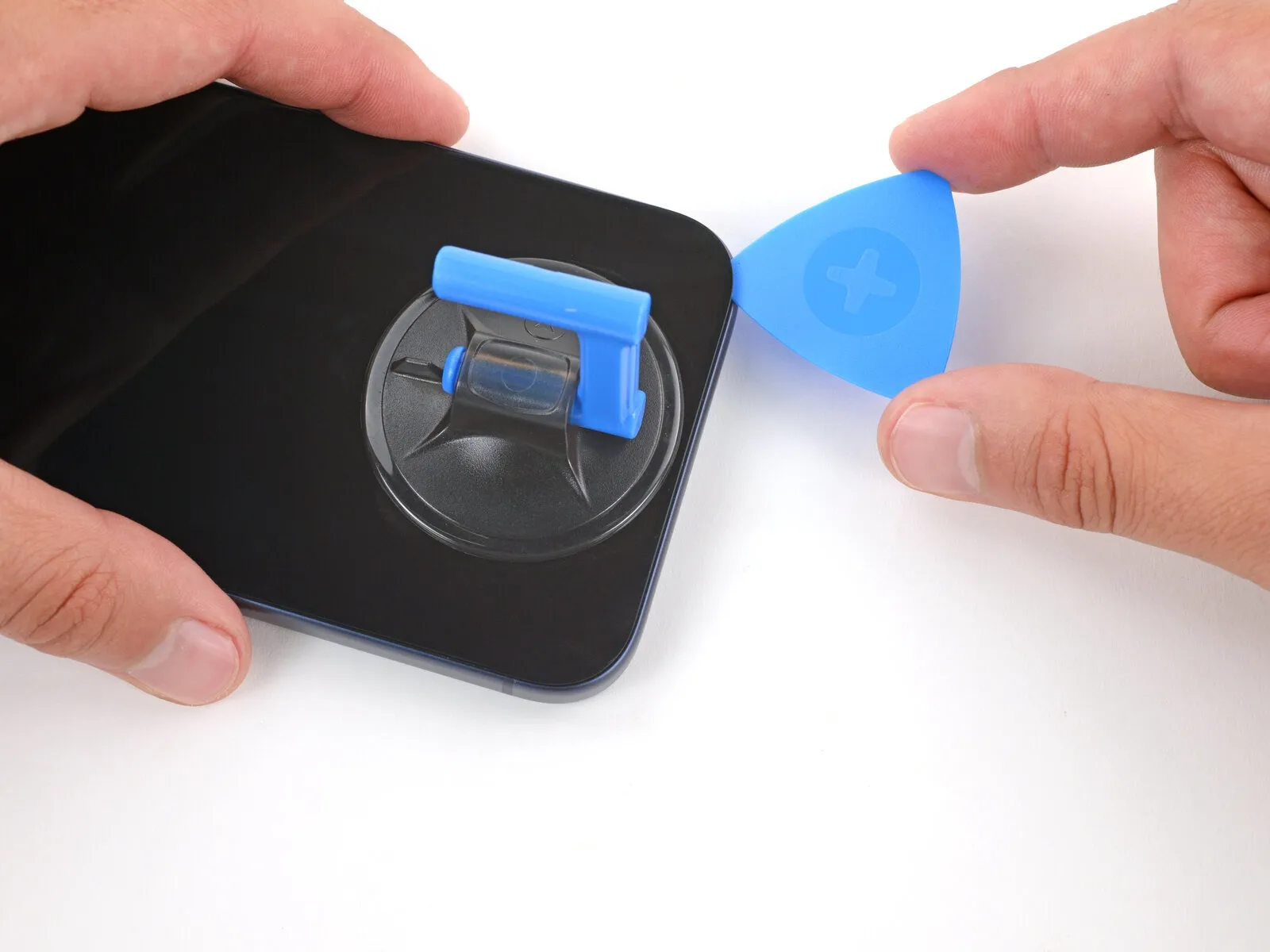
Utilize a specialized opening tool and carefully maneuver it along the lower perimeter to release the bonding agent.
Maintain the tool's position beneath the lower-right corner to inhibit the adhesive from re-attaching.
Step 11 | Remove the suction handle
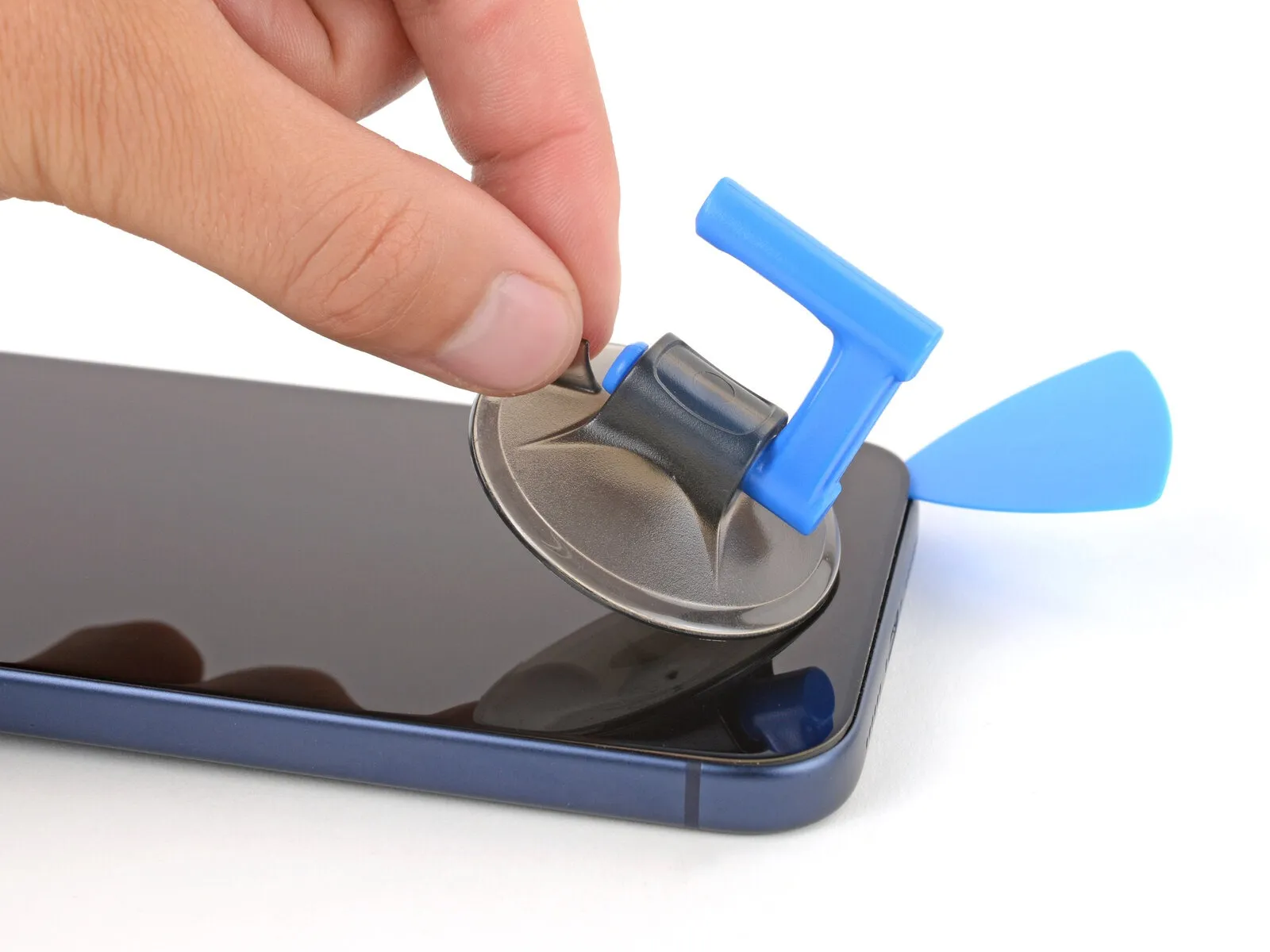
- Detach the suction cup from the display by actuating the small protrusion located on its surface.
Step 12 | Heat the right edge
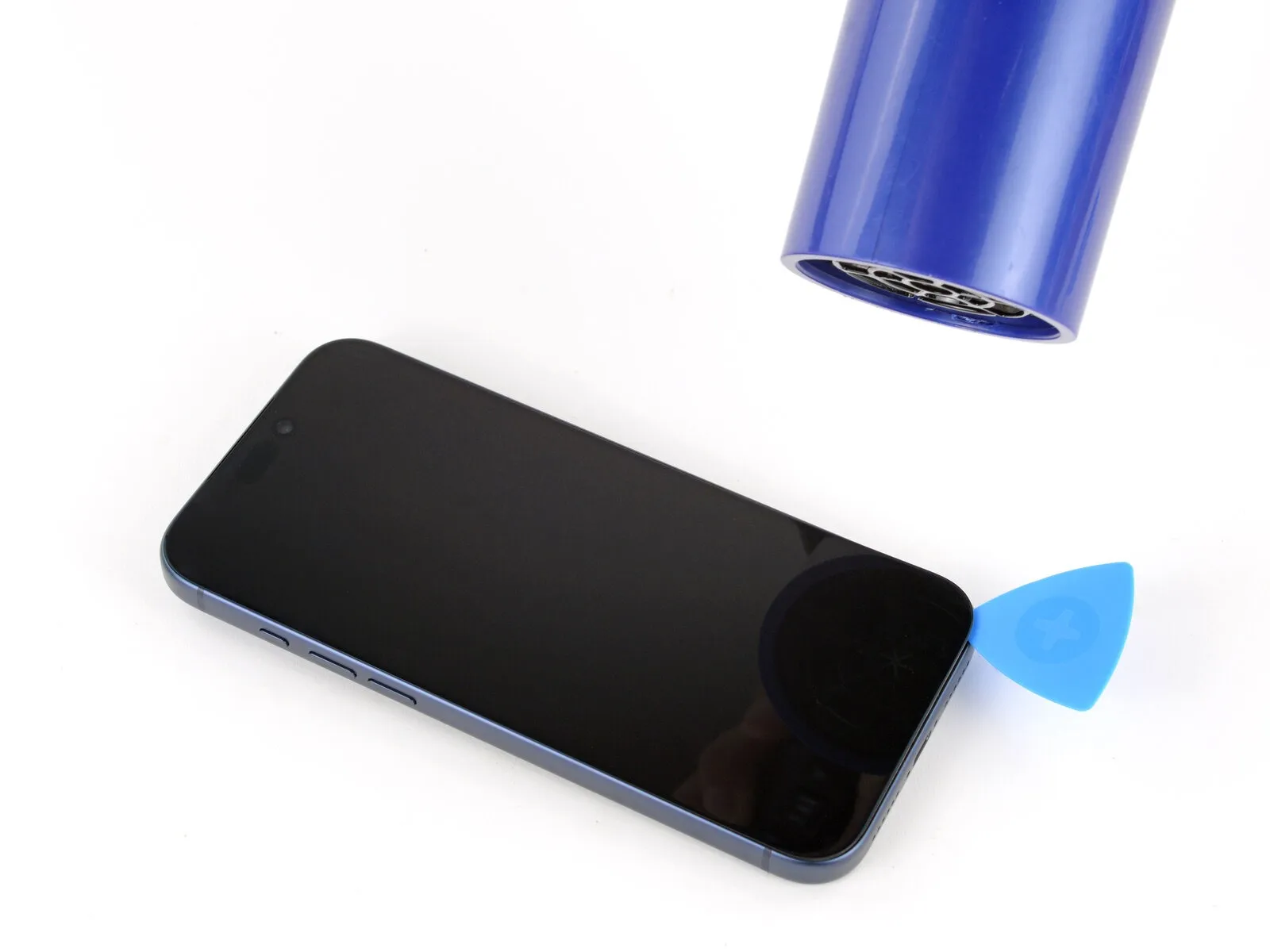

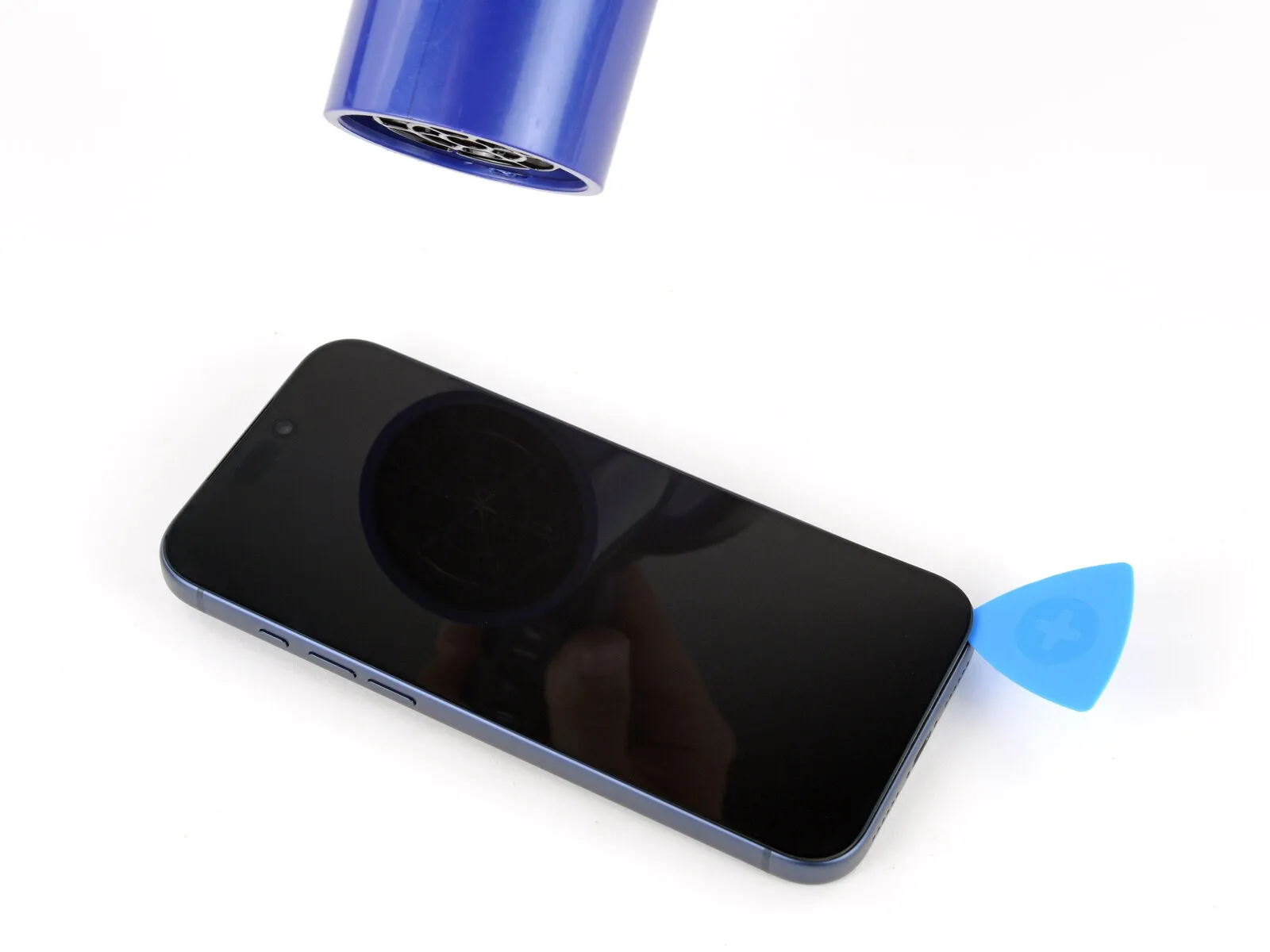
- Apply warmth to the right-hand perimeter of the screen assembly using a hair dryer or heat gun, ensuring the surface reaches a temperature just beyond comfortable touch.The purpose of this heating process is to soften the adhesive securing the screen.Exercise caution during this step to prevent damage to the display or surrounding components due to excessive heat.
Step 13 | Separate the right edge adhesive
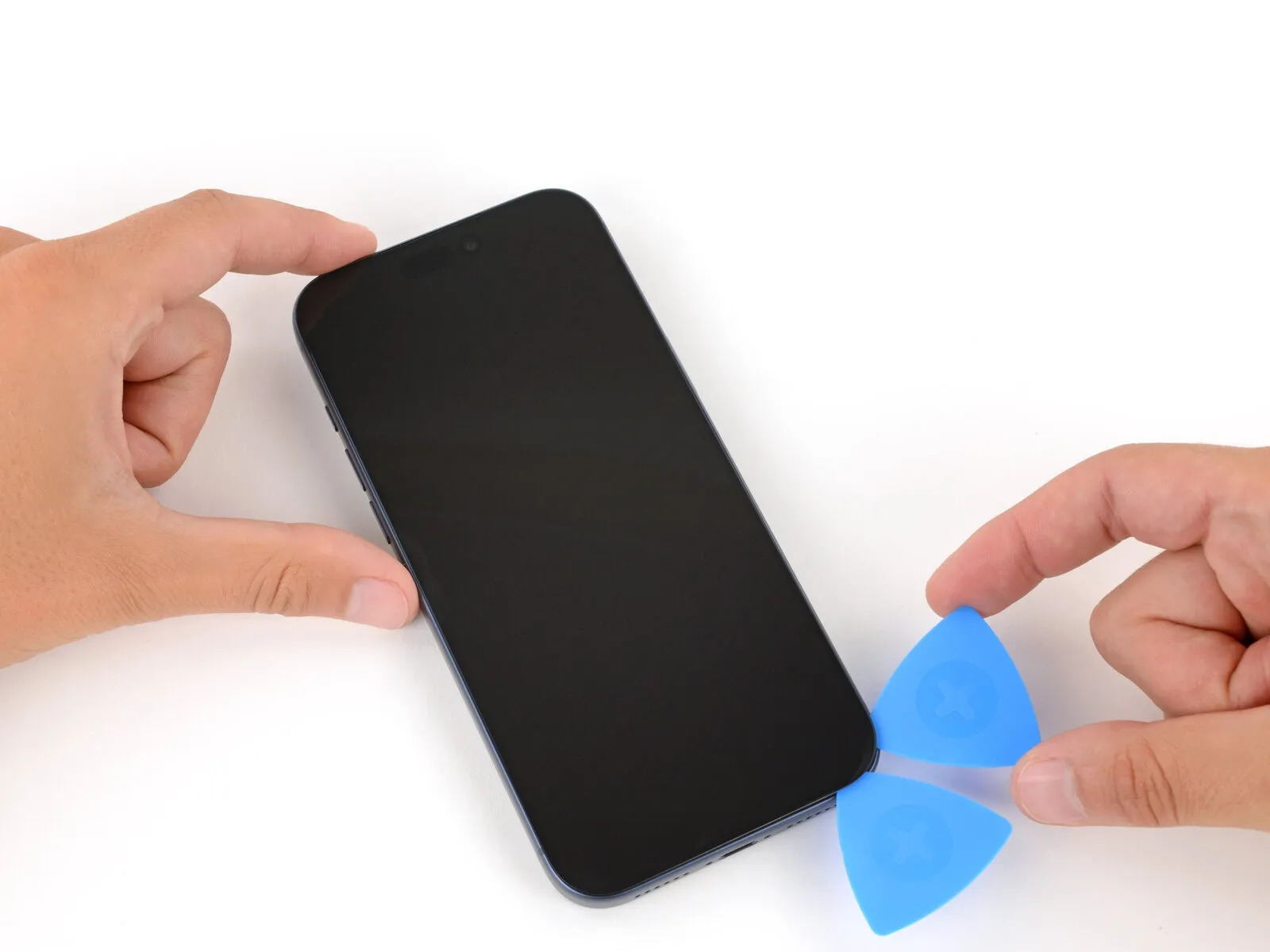
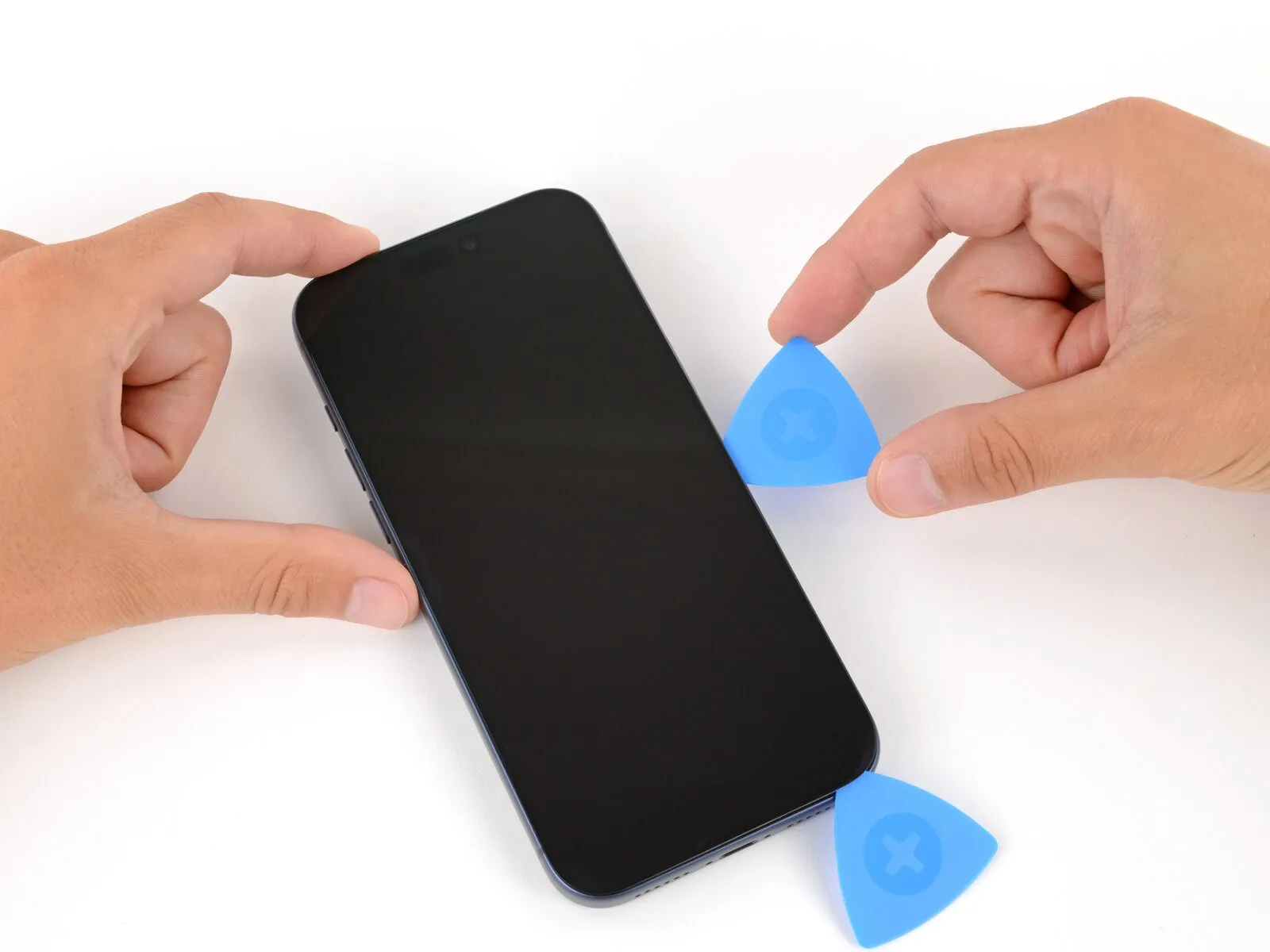
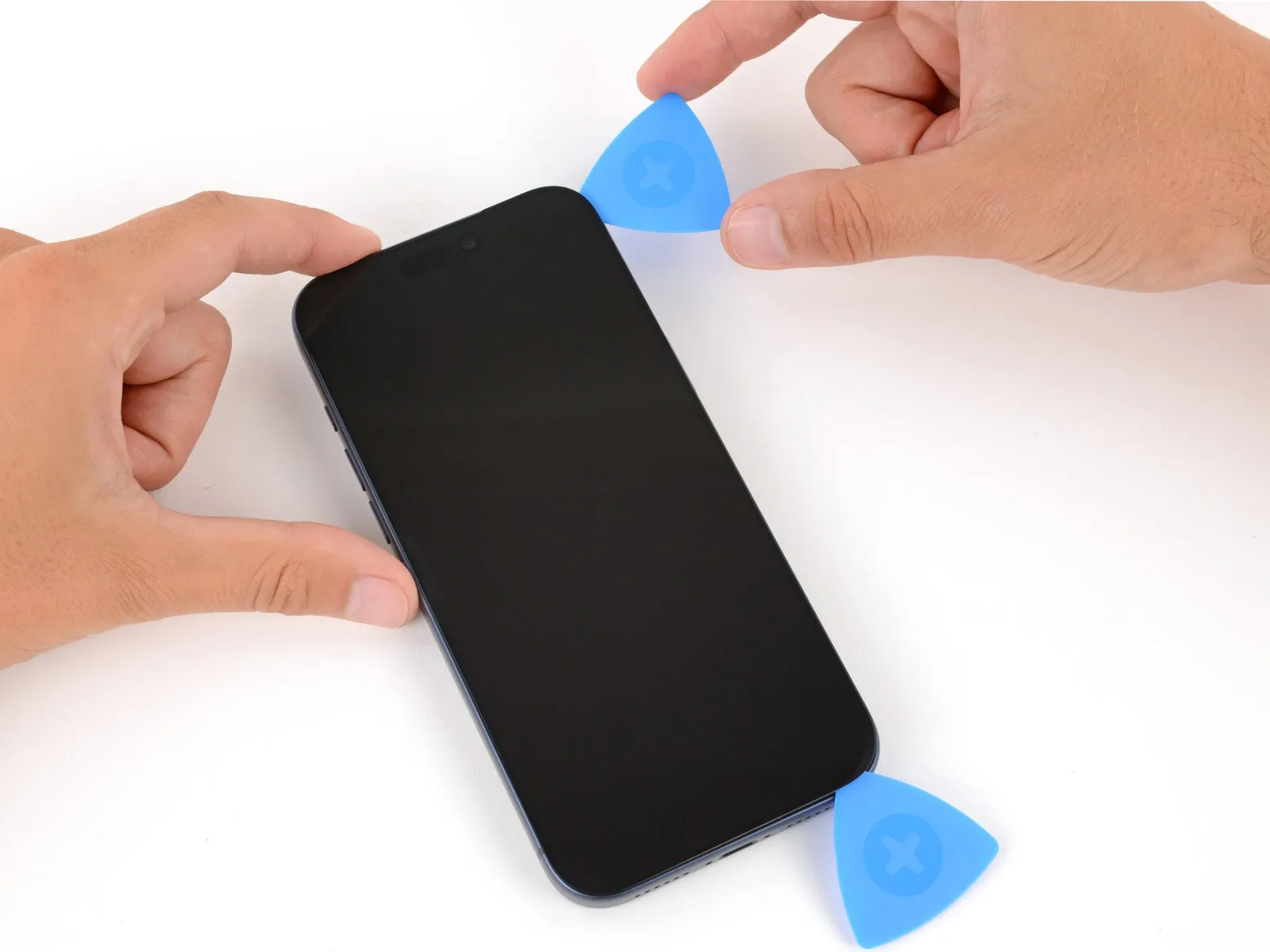
- Position a second opening pick beneath the lower-right corner of the display assembly.
Advance the pick along the right side to detach the adhesive and disengage the two securing clips.A slight upward force may be necessary to lever the screen and facilitate clip release.
Employ a prying action if required to free the clips from their housings.Maintain the initial pick's placement at the upper-right corner to inhibit adhesive re-bonding.The adhesive's separation is achieved through a sliding motion of the opening pick. - The two components become detached as the adhesive bond is broken and the clips are released.
Step 14 | Heat the top edge
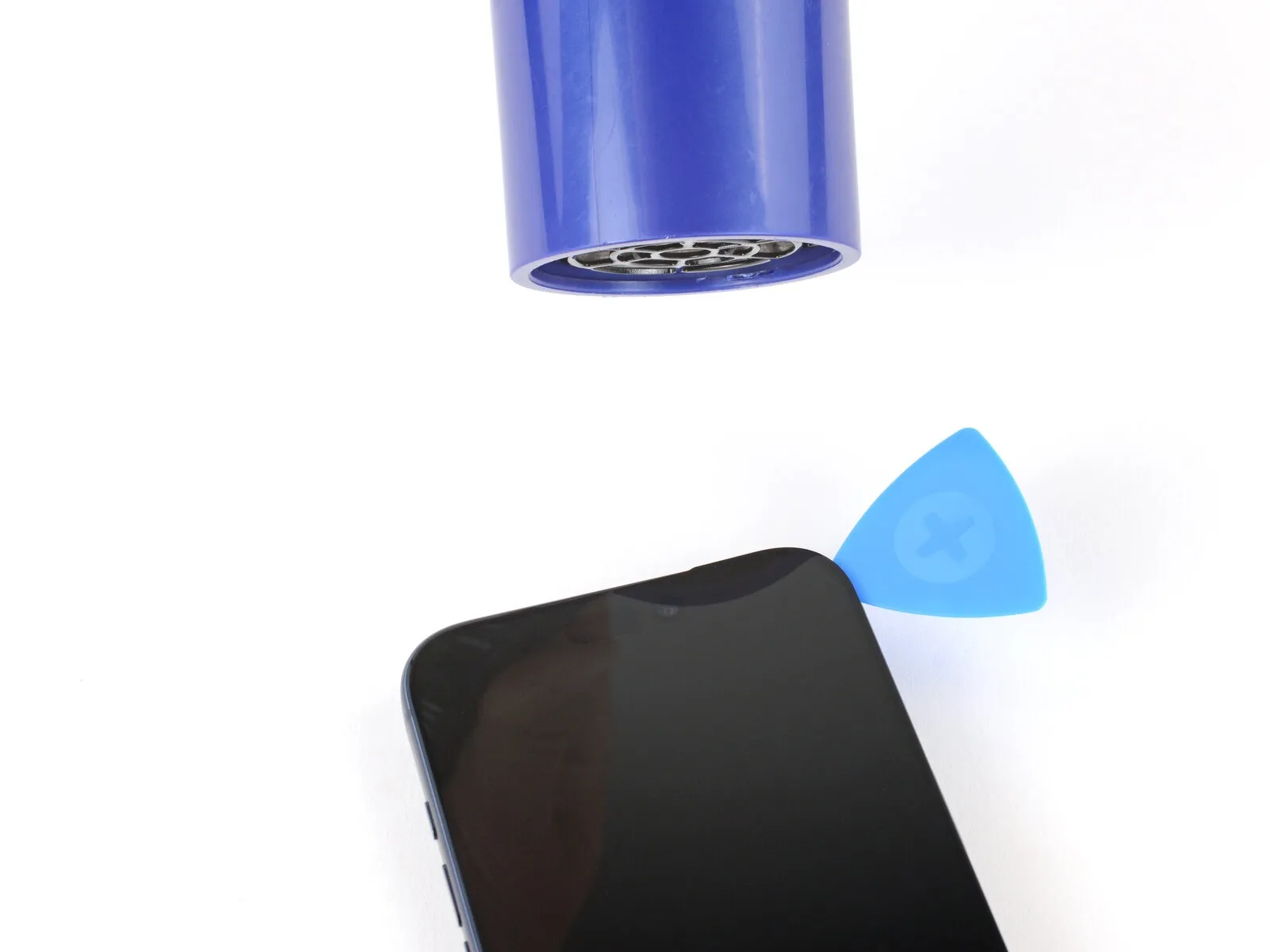
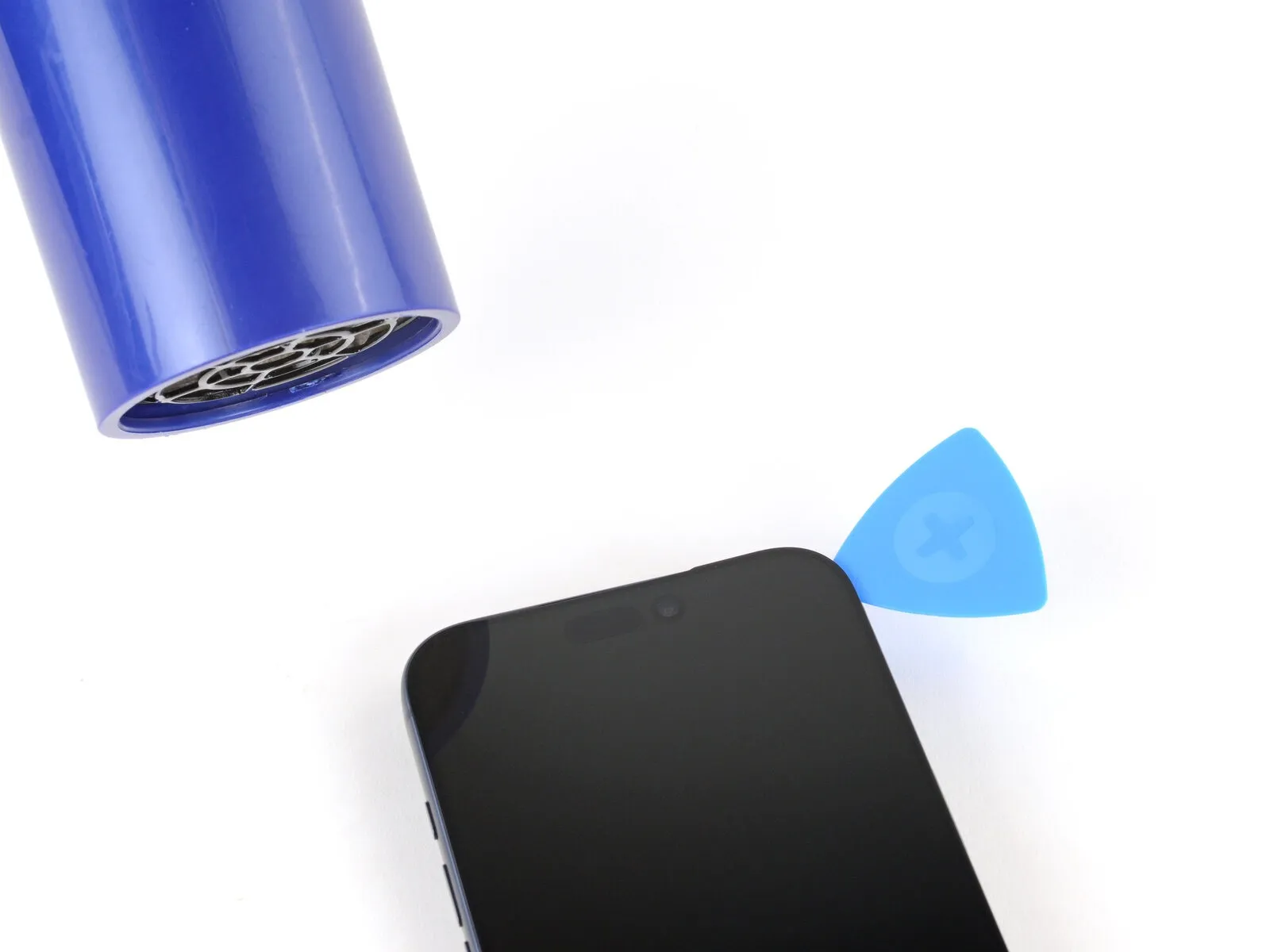
- Apply warmth to the screen's upper boundary utilizing a hair dryer or heat gun.Elevate the temperature of the screen's top edge by applying heat.Continue heating the screen's upper edge with a hair dryer or heat gun until the surface reaches a temperature just beyond comfortable touch.
Step 15 | Separate the top edge adhesive
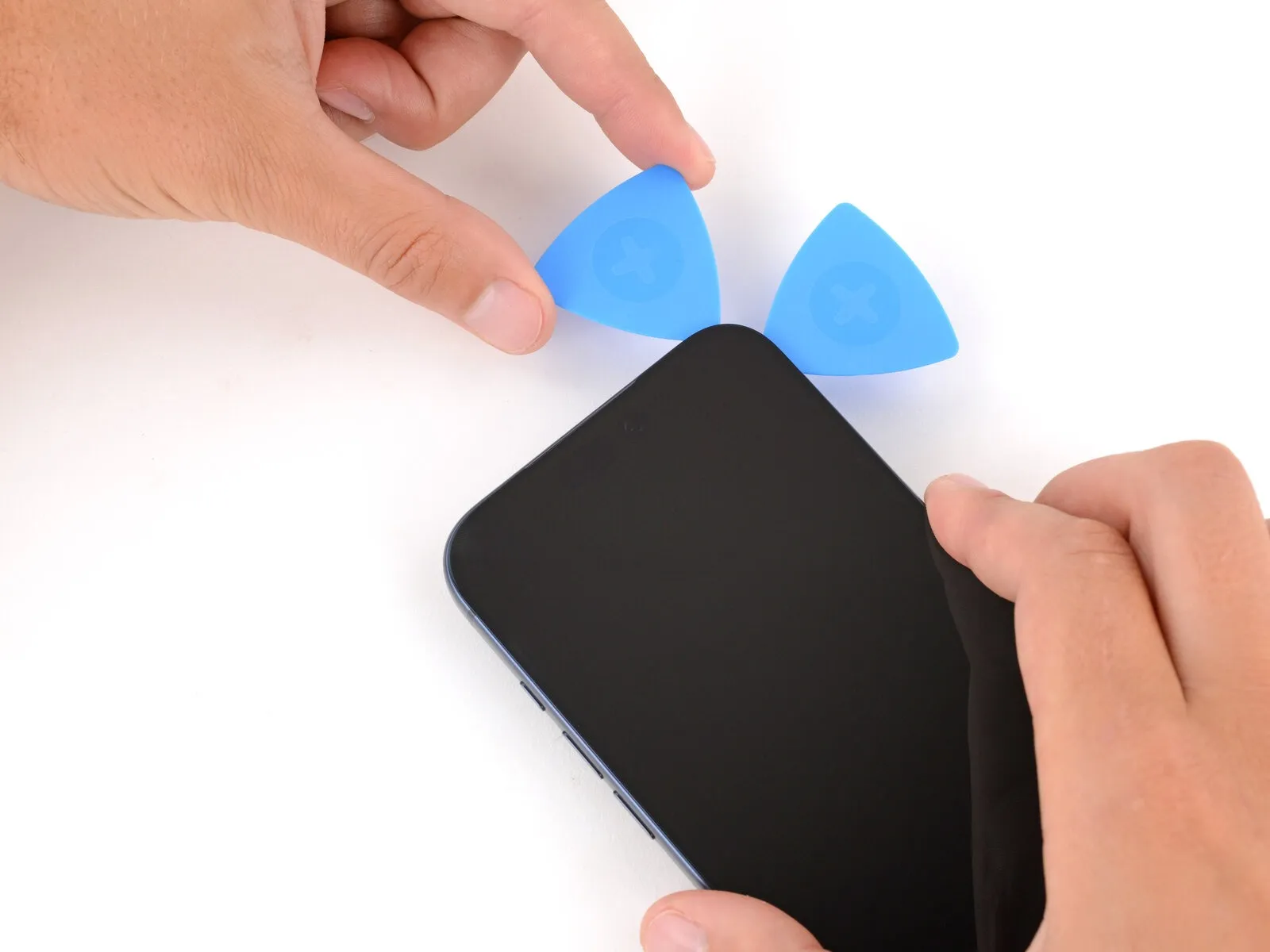

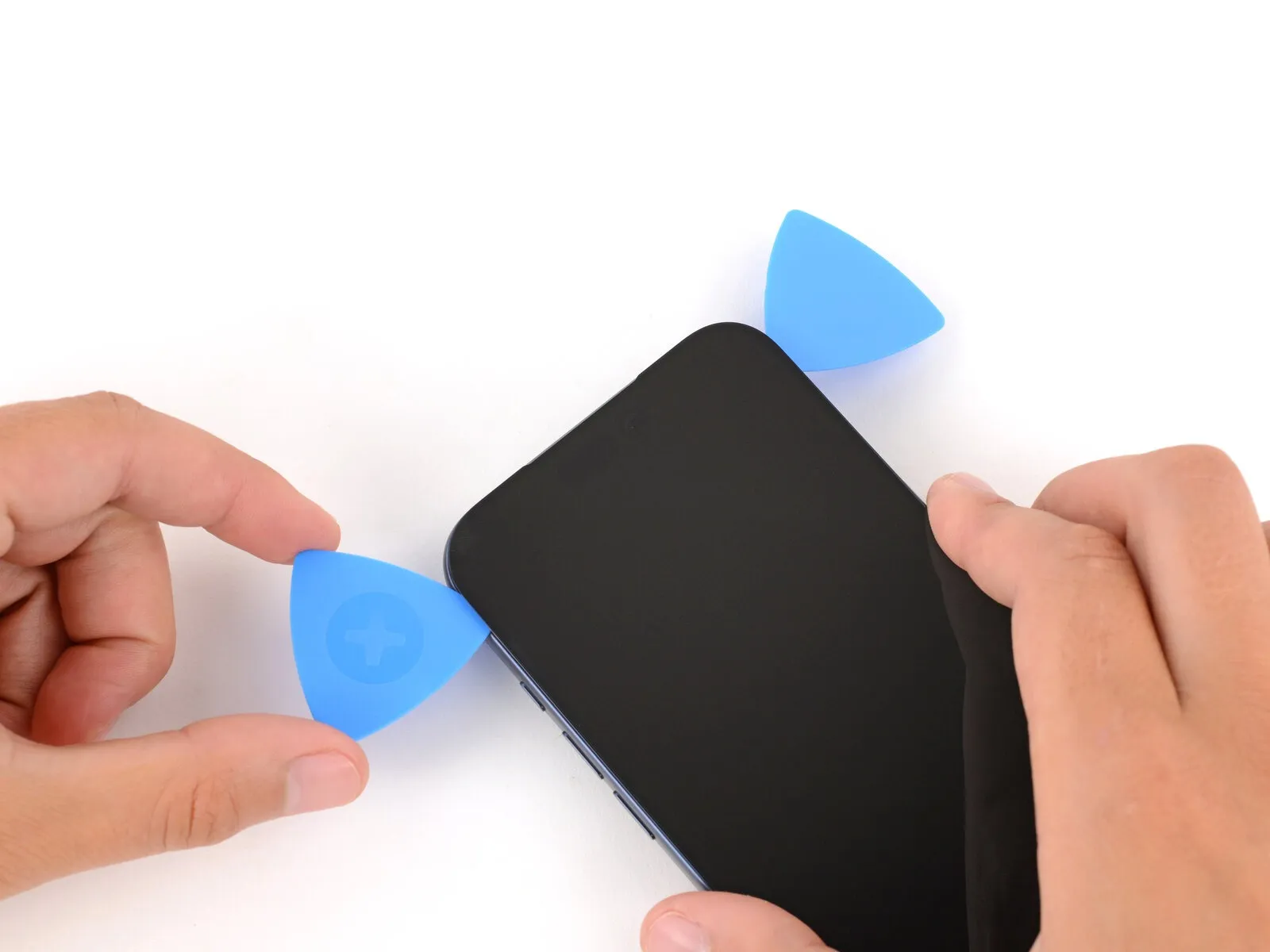
- Position a third opening pick beneath the screen's upper-right quadrant.
Moving the pick along the top perimeter, carefully maneuver it around the upper-left corner to detach the adhesive and disengage the two retaining clips.
Avoid advancing the pick further, as doing so risks potential damage to the ambient light sensor cable.
Maintain the pick's placement beneath the upper-left corner to inhibit adhesive re-adhesion.
Step 16 | Heat the left edge

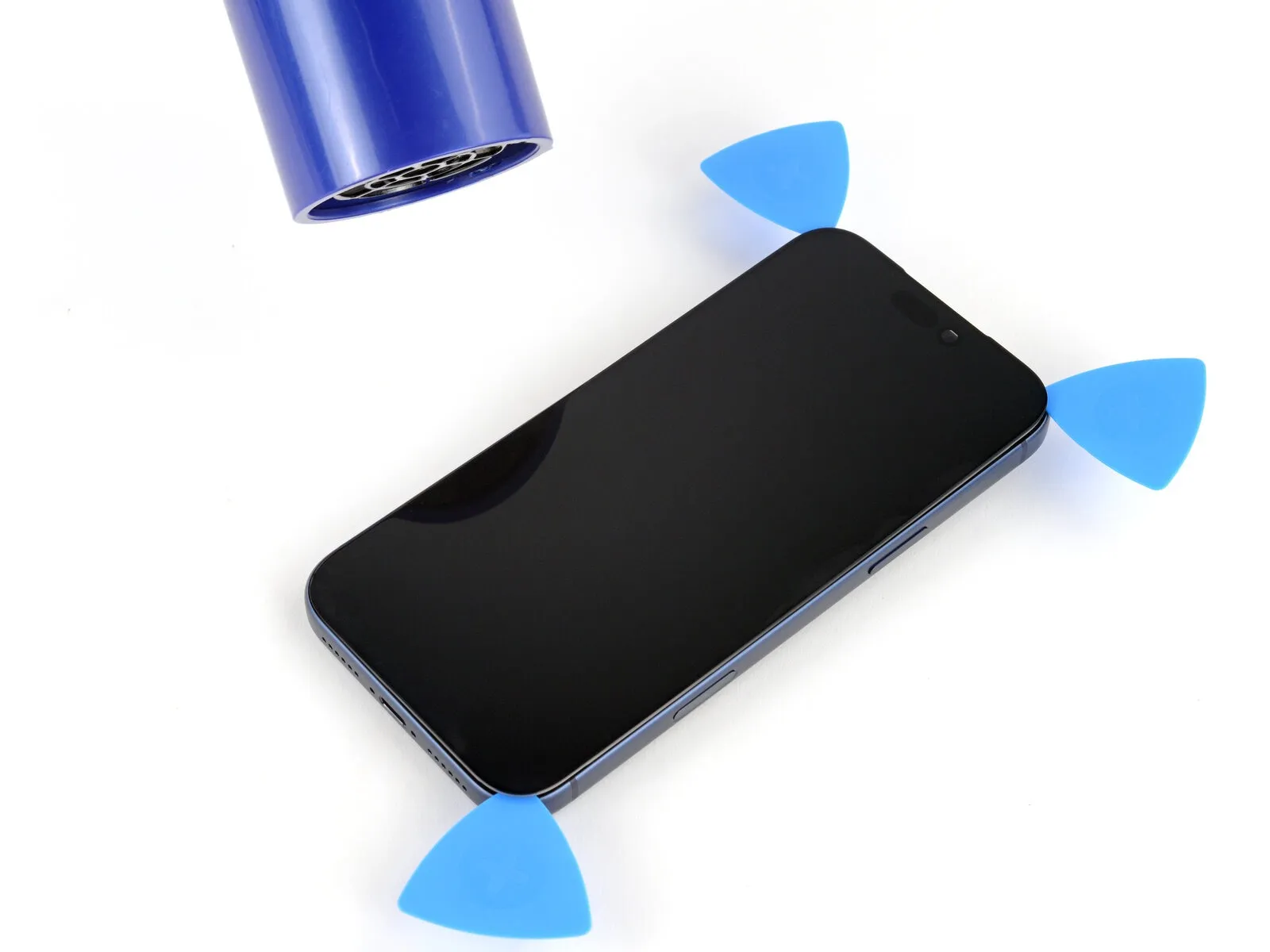
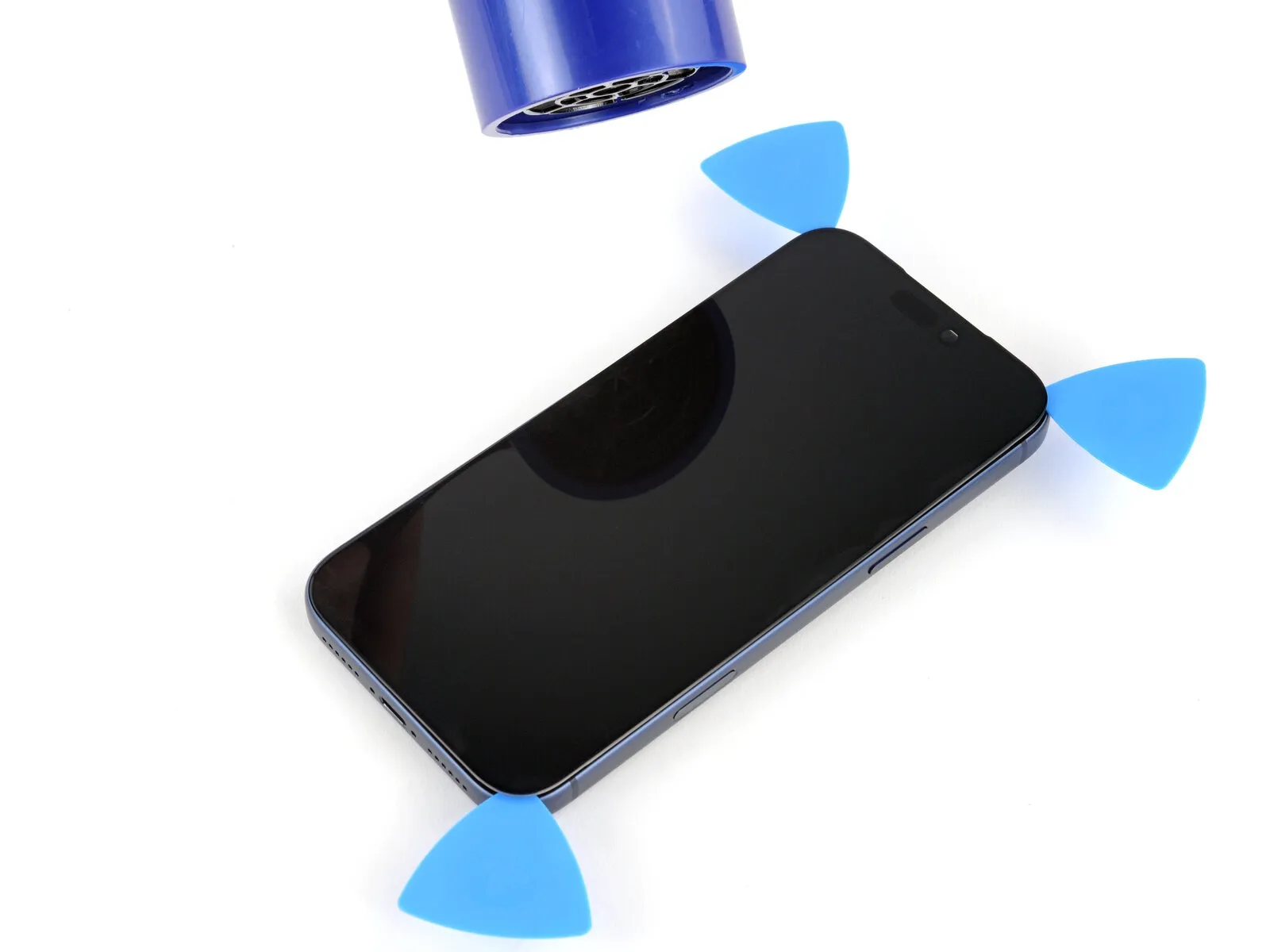
Applying warmth with a hair dryer or heat gun to the screen's left border is necessary.The targeted area should be warmed to a temperature just beyond comfortable touch.This process facilitates separation by softening the adhesive securing the screen.
Step 17 | Separate the left edge adhesive
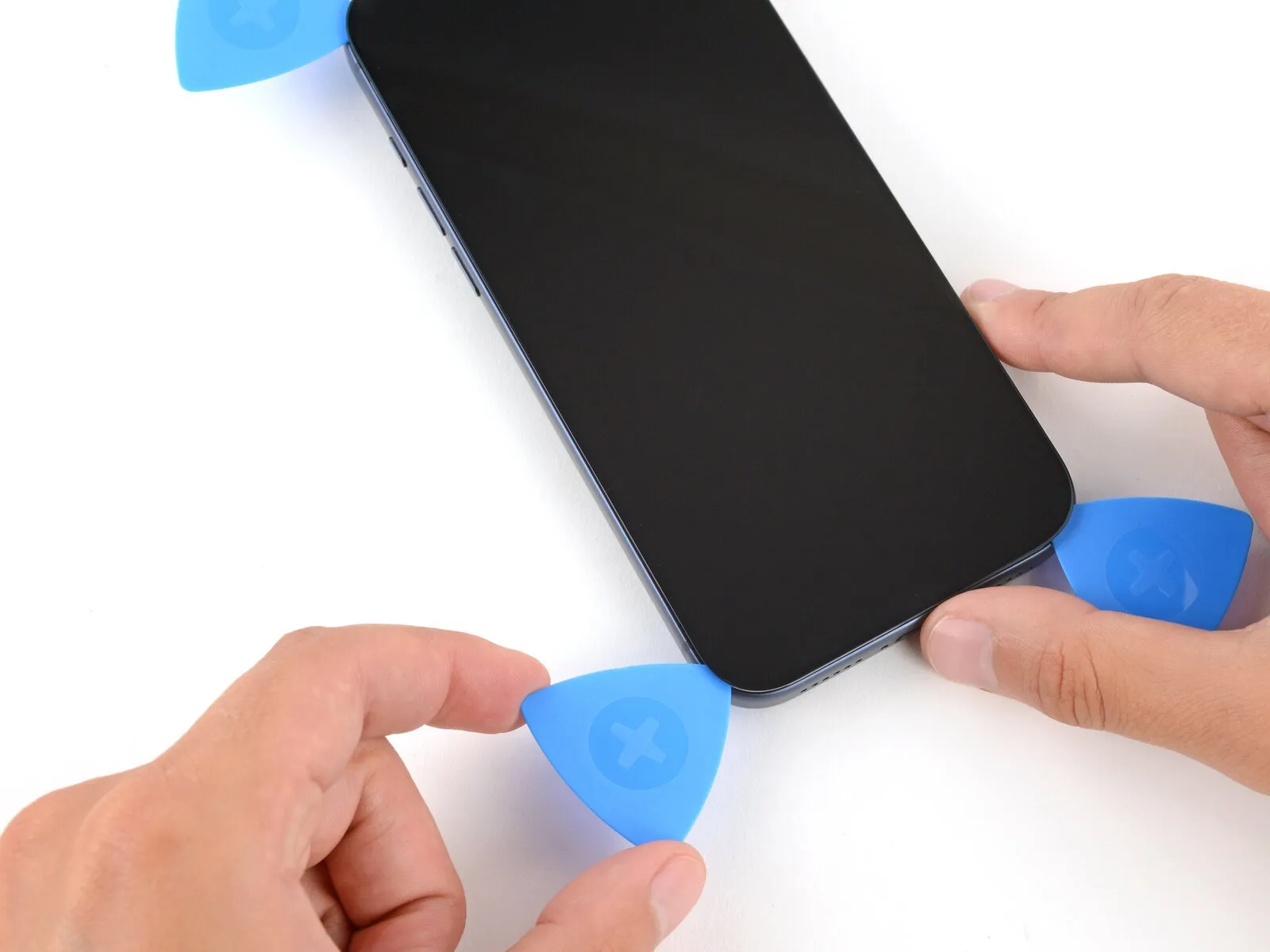
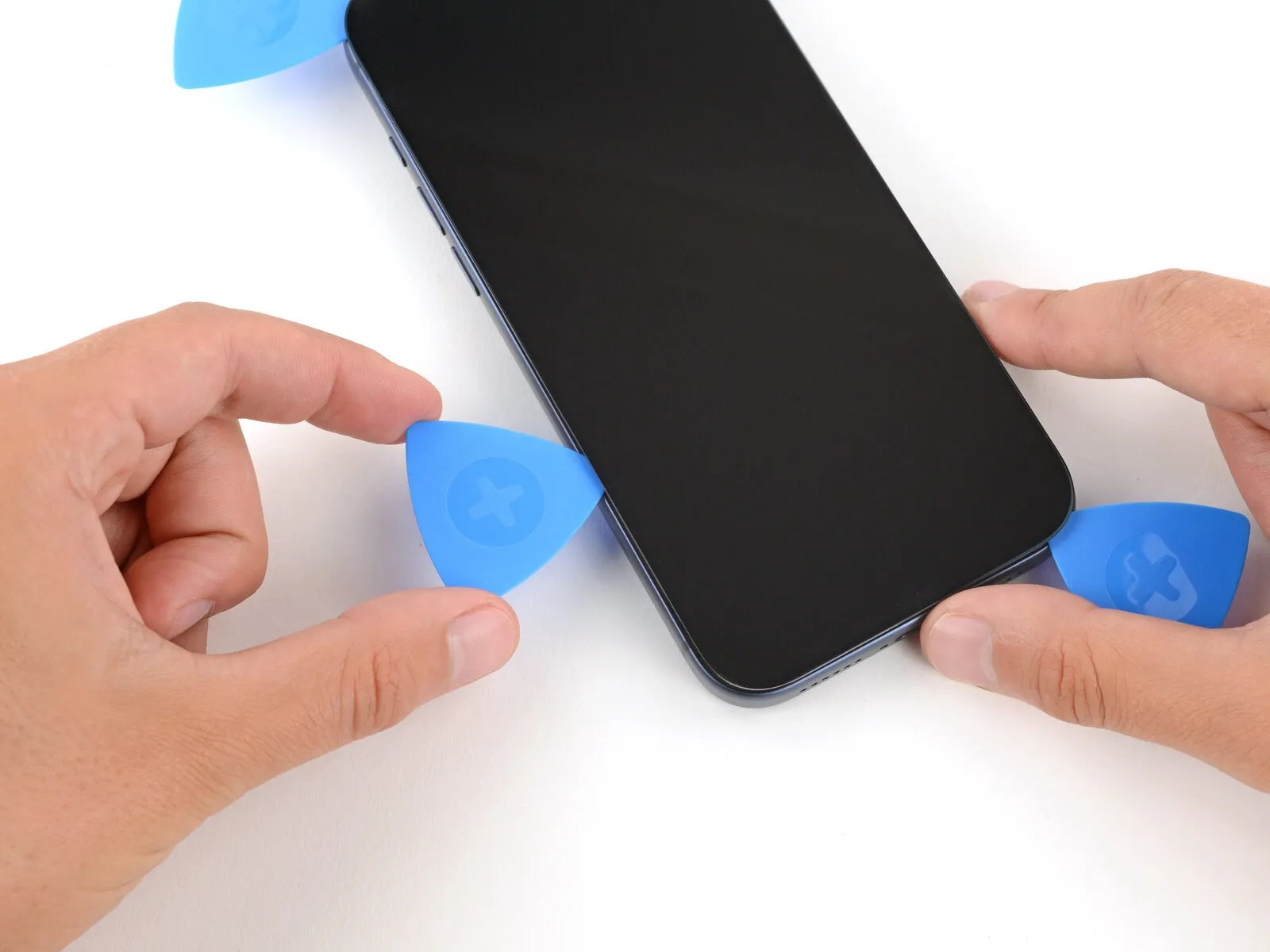
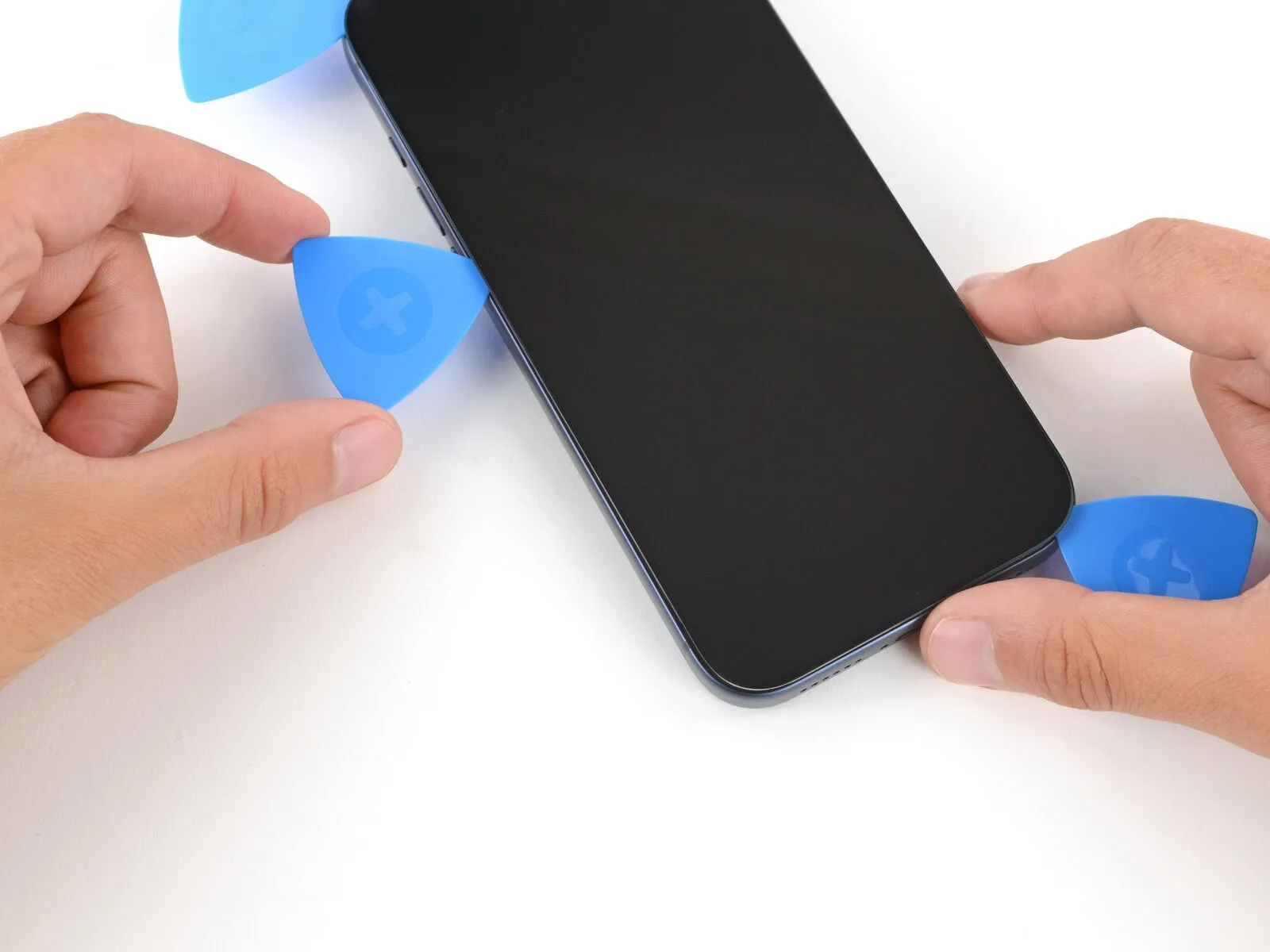
- Position a fourth opening pick beneath the lower-left corner of the display assembly.
- Advance the pick along the right side to detach the adhesive and disengage the retaining clip, pausing immediately prior to the volume up control.
- A slight upward lift of the display might be necessary to free the clip; avoid further pick advancement to prevent potential damage to the display cable.
Step 18 | Prop up the screen
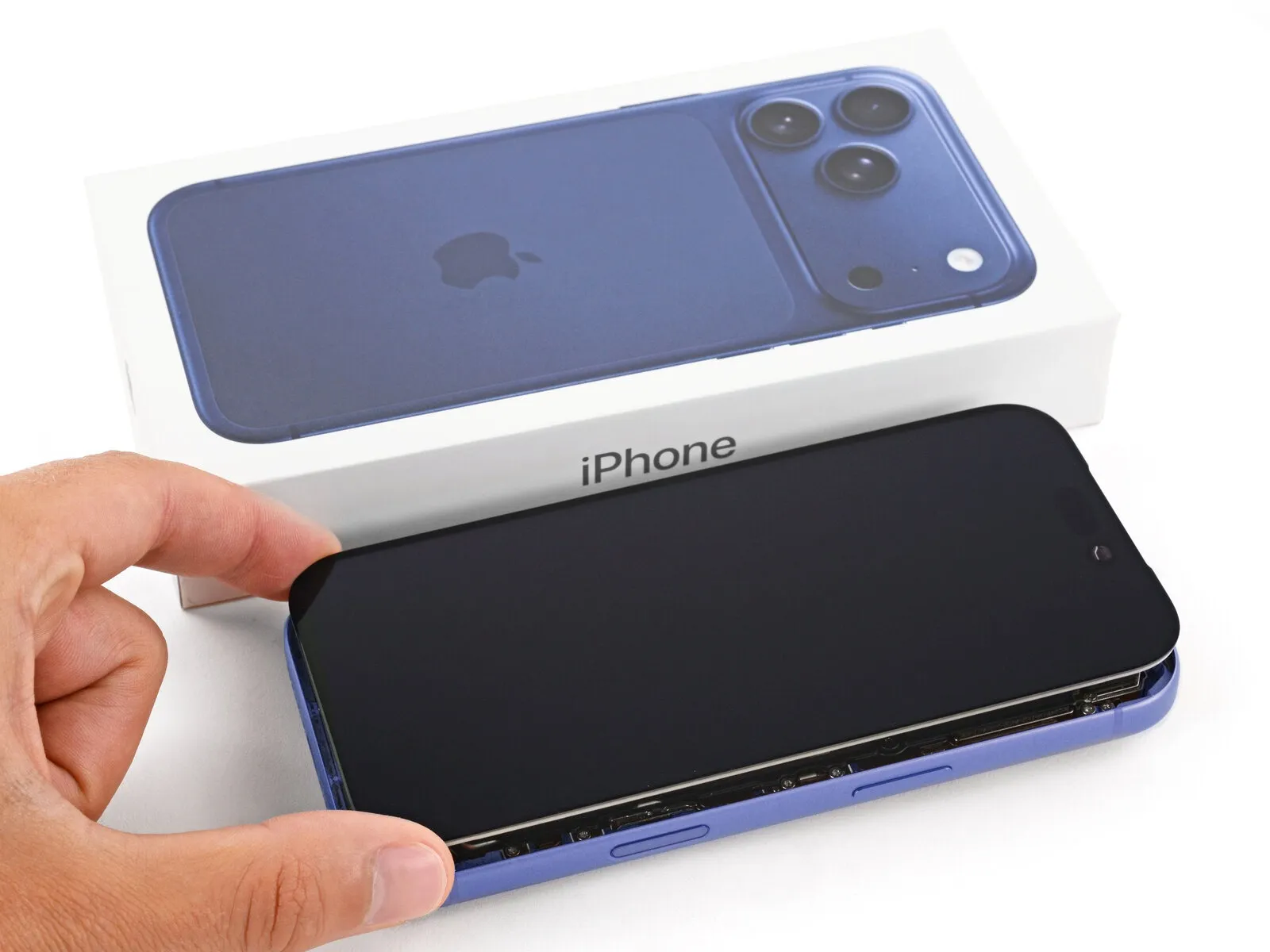
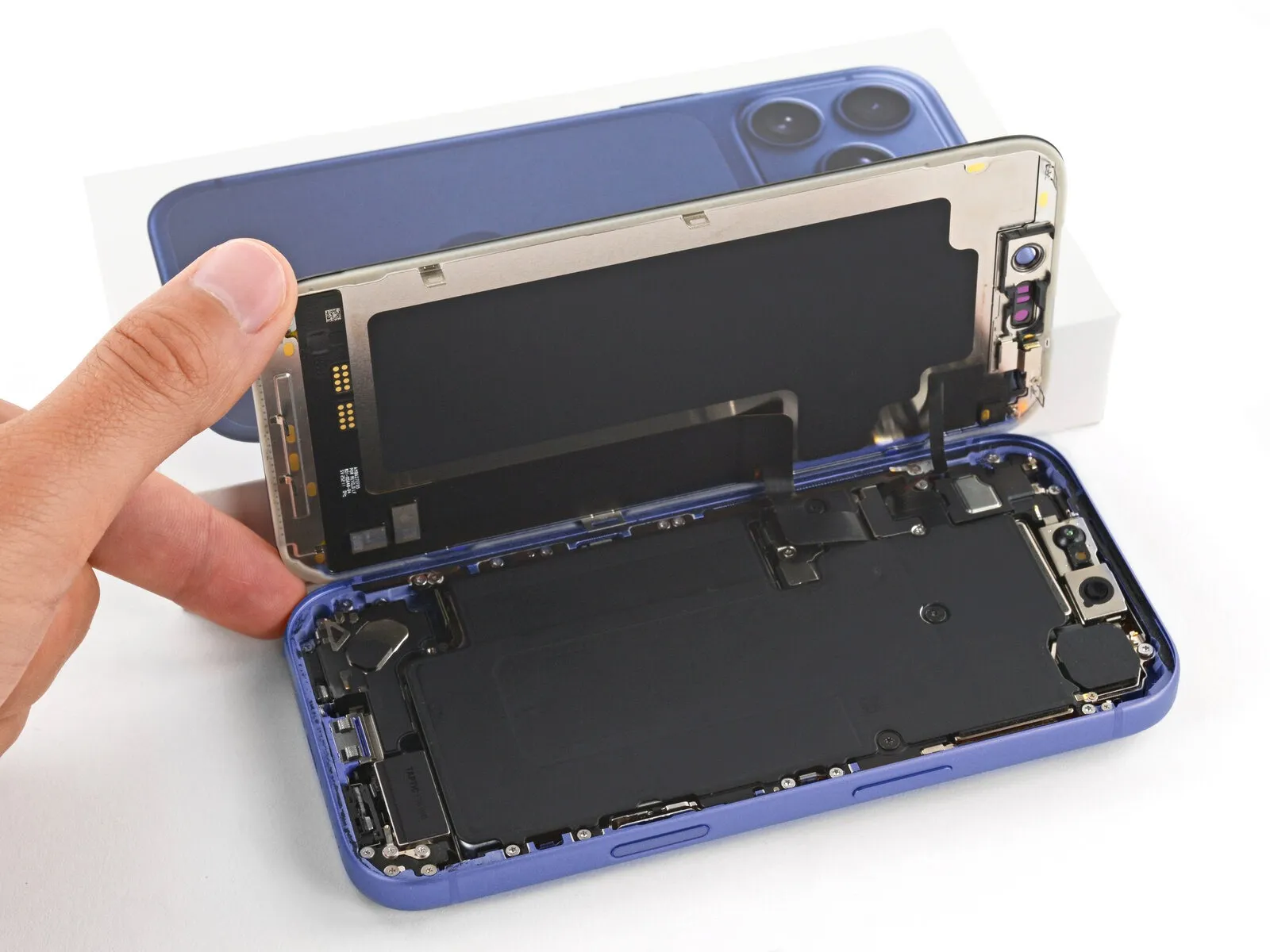
Ensure the display panel is fully disengaged from its surrounding structure; should resistance be encountered, re-examine the edges to release any lingering adhesive or retaining fasteners.
Elevate the display vertically and rotate it towards the left side, utilizing a stable support like a container or pile of literature to prevent cable tension.
As an alternative approach, the display can be positioned horizontally across the left surface.
Step 19 | Remove the cover screws

Carefully monitor the location of each screw during disassembly to ensure correct reinstallation.
Employ a specialized tool for the subsequent steps.A JIS 00 screwdriver is required for the following operations.The two cable covers are fastened with screws that necessitate this specific screwdriver type.
- A 1.4 mm screw secures the cover protecting the screen and front sensor cable.The battery cover is held in place by a 1.3 mm screw.iFixit-branded Phillips bits are specifically engineered to interface with JIS screws.
- Alternative Phillips drivers from other brands may be attempted, but doing so carries the potential for screw damage.Stripping the screw heads is a risk when using non-iFixit Phillips drivers.Proper screw head engagement is crucial to prevent damage during removal and installation.
Step 20 | Remove the covers

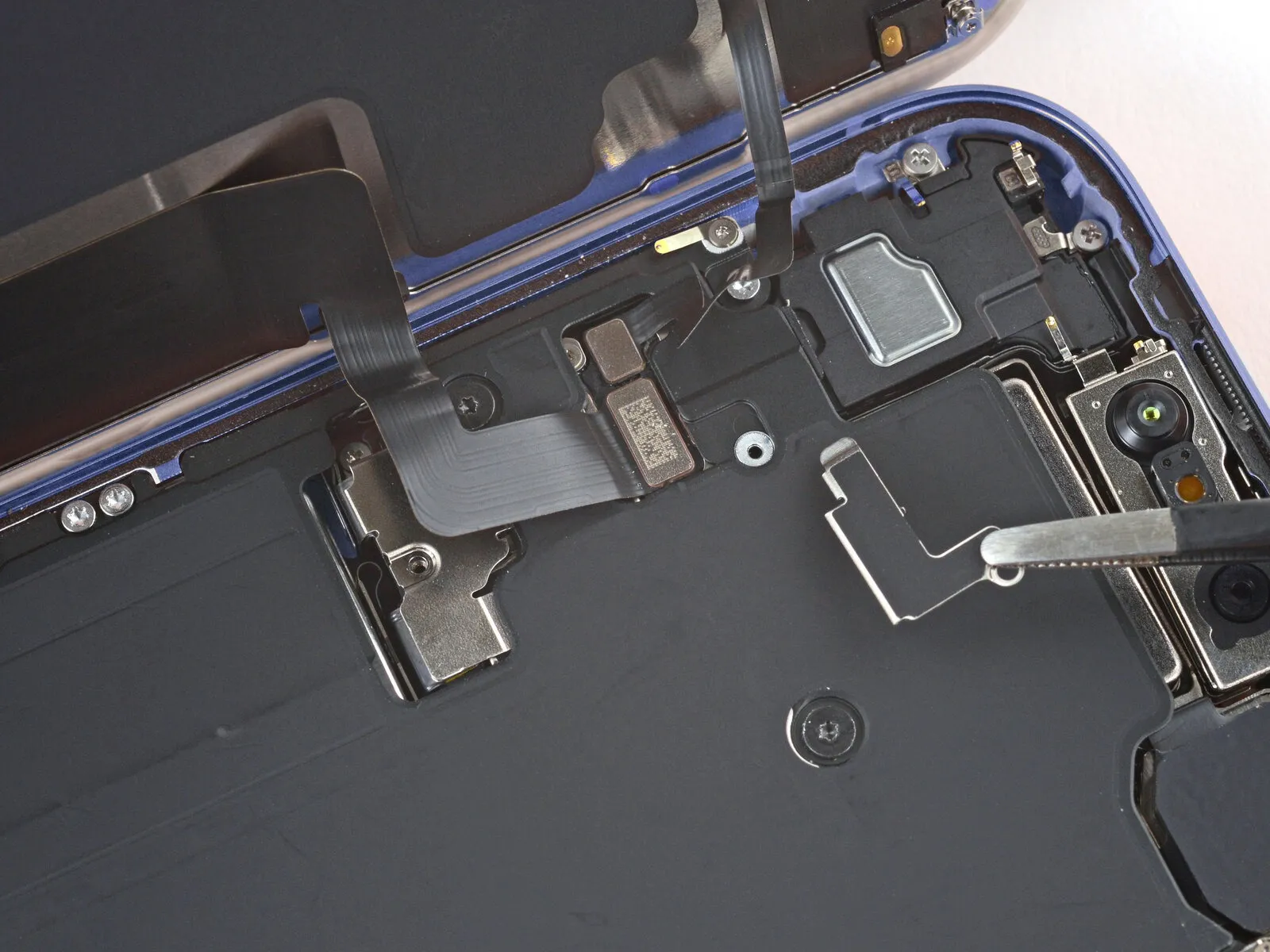
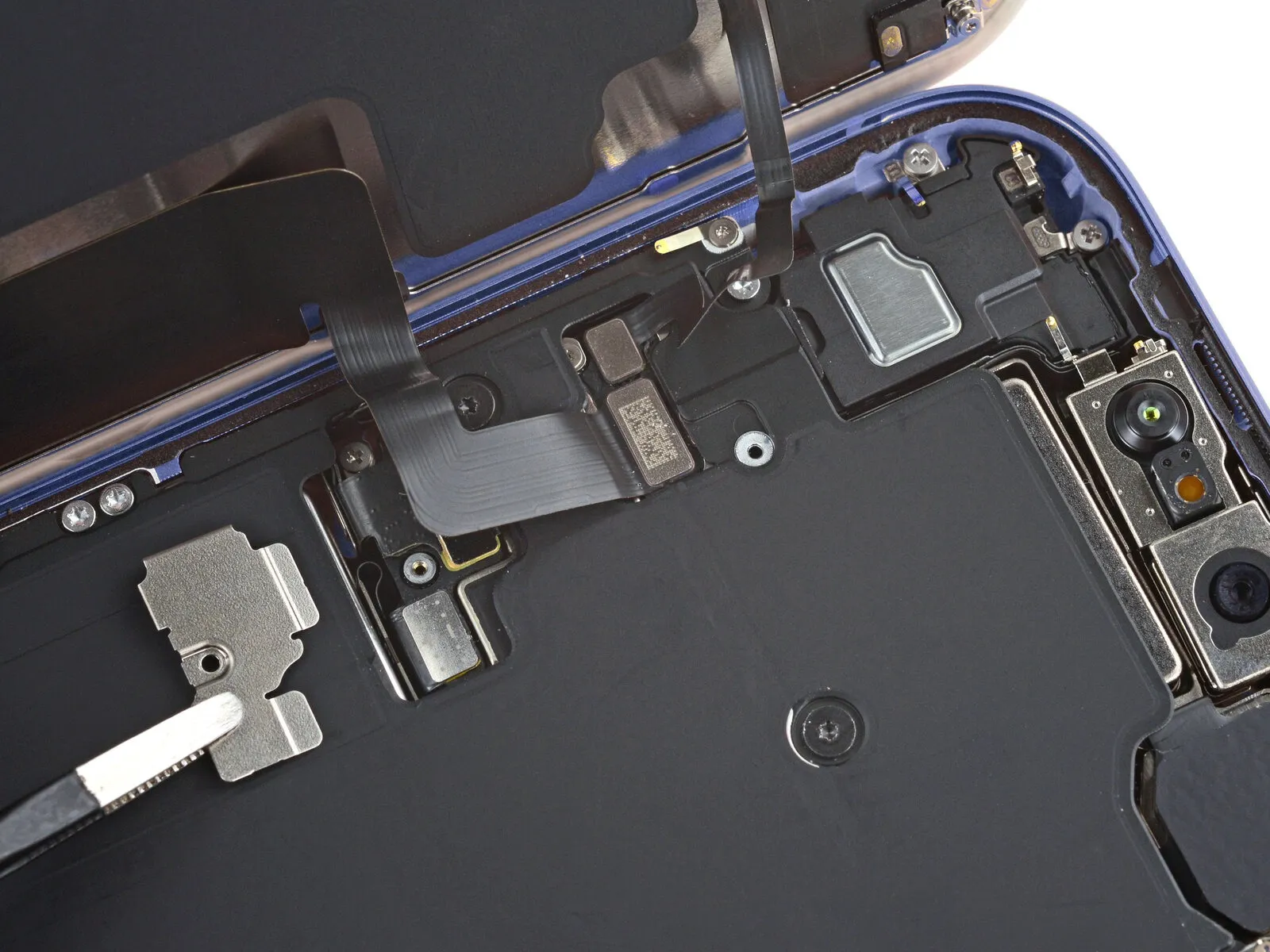
Detach the pair of protective housings.
Step 21 | Disconnect the battery
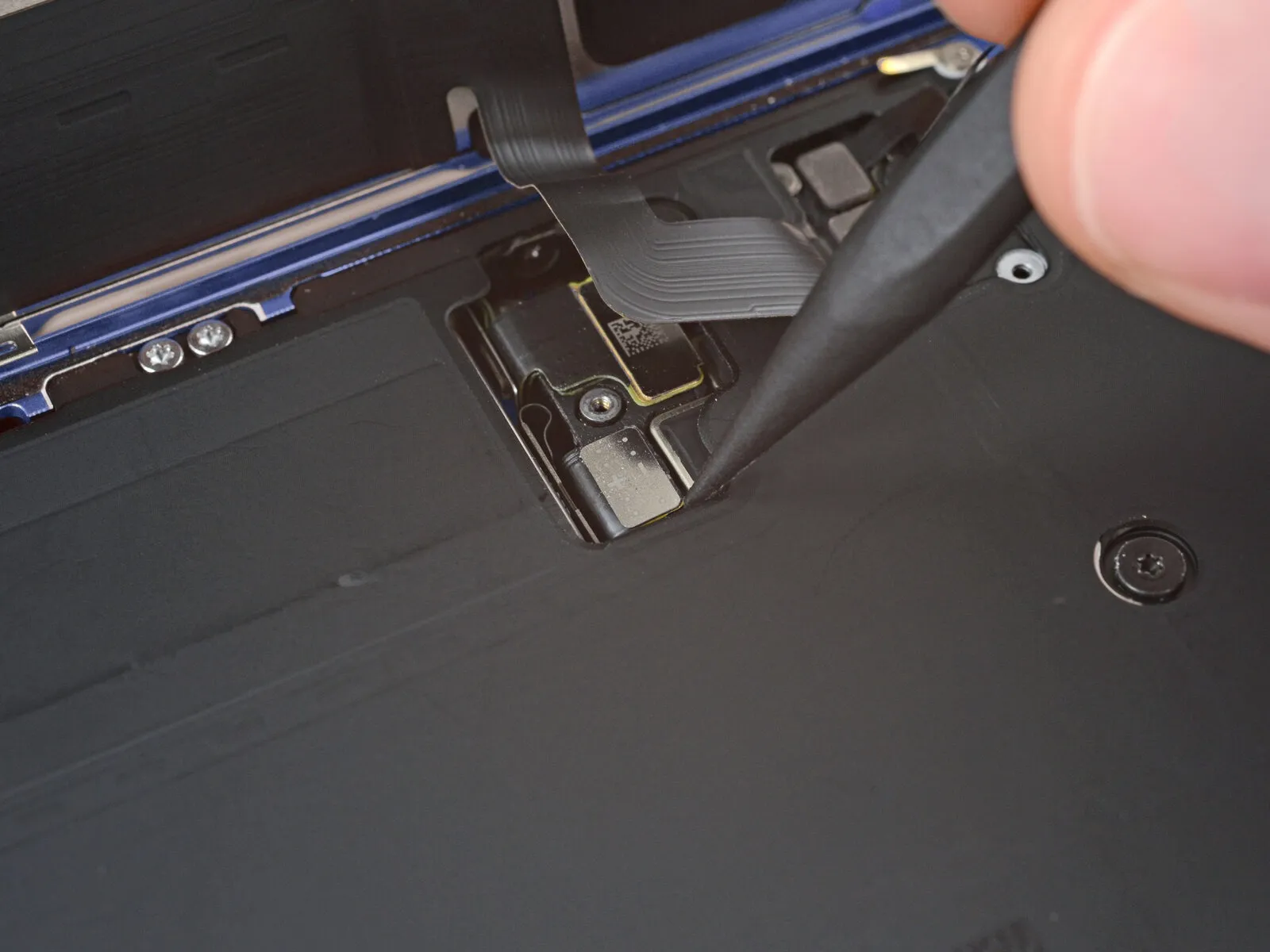
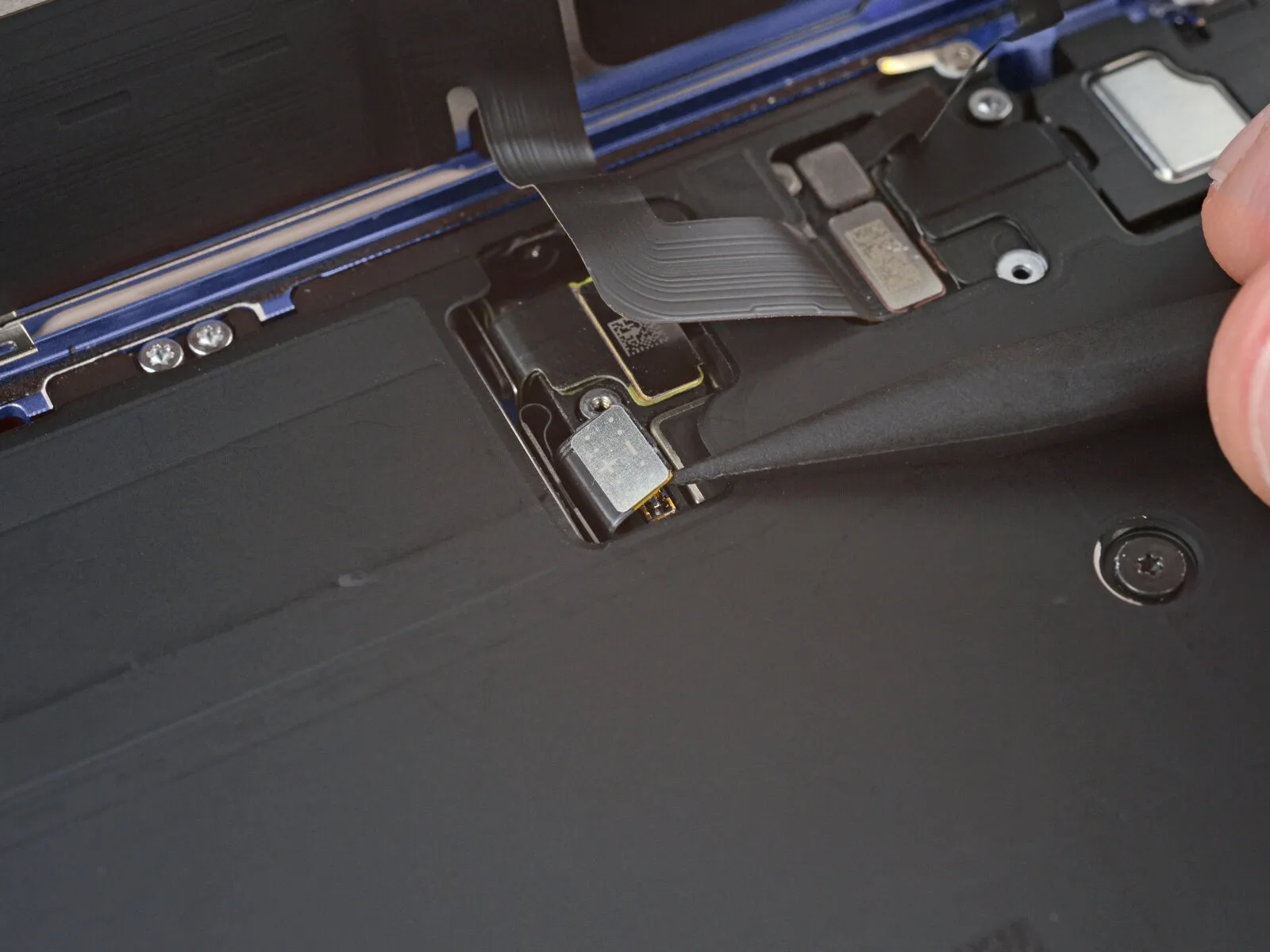
Employ the tip of a spudger to carefully lift and release the battery press connector's connection.The battery press connector must be detached by applying leverage with a spudger's pointed end.To separate the battery press connector, utilize a spudger and apply pressure at its tip.
Step 22 | Disconnect the screen


Employing the pointed end of a prying tool or a spudger, carefully lift and release the screen and ambient light sensor press connectors from their housings.The connectors securing the screen and ambient light sensor press must be detached by applying upward force with a specialized tool's tip.To separate the screen and ambient light sensor press connectors, utilize a prying tool or spudger, focusing force on its pointed end.
Step 23 | Remove the screen
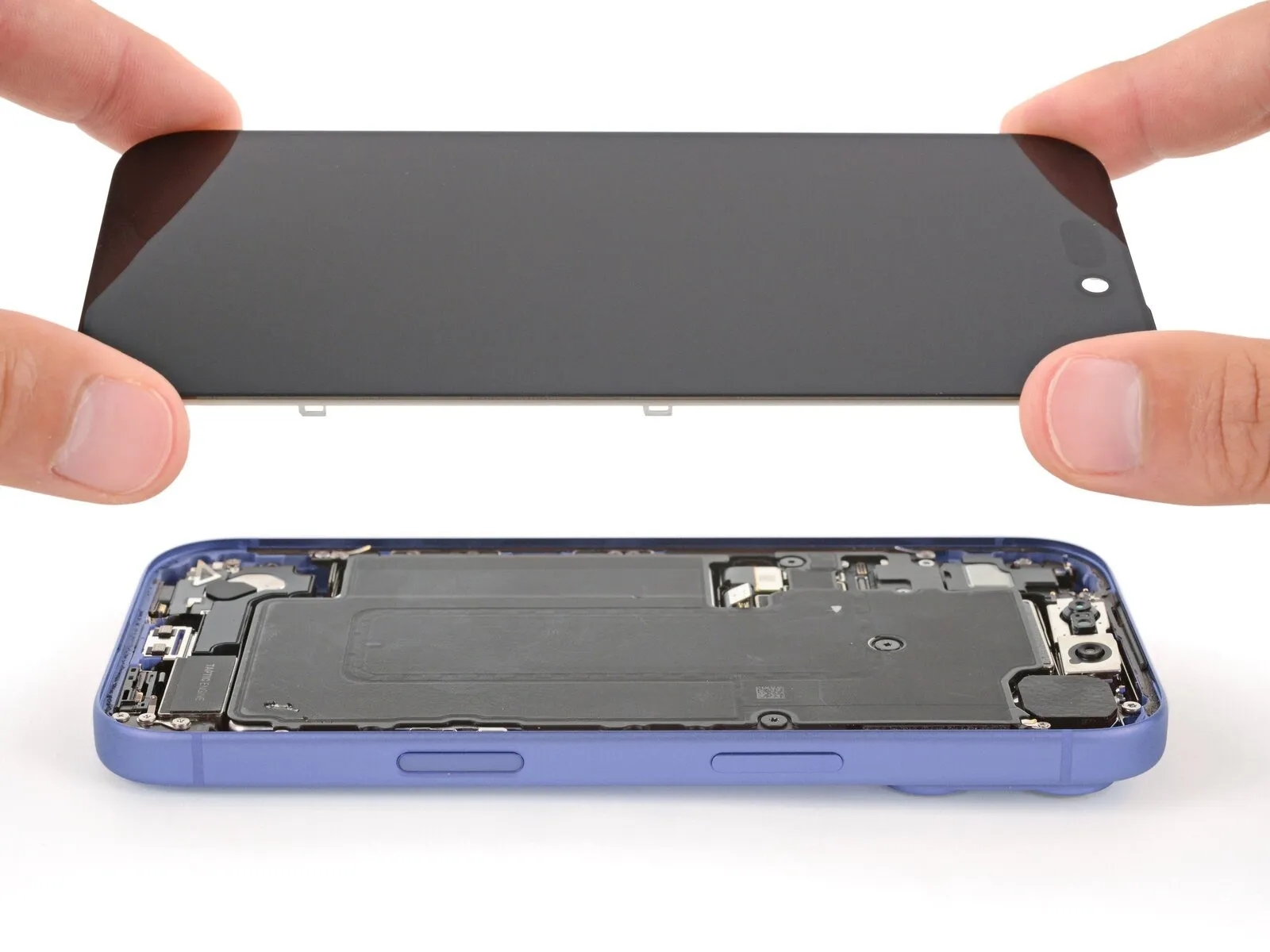
Detach the display panel.
Step 24 | Remove the battery tray screws
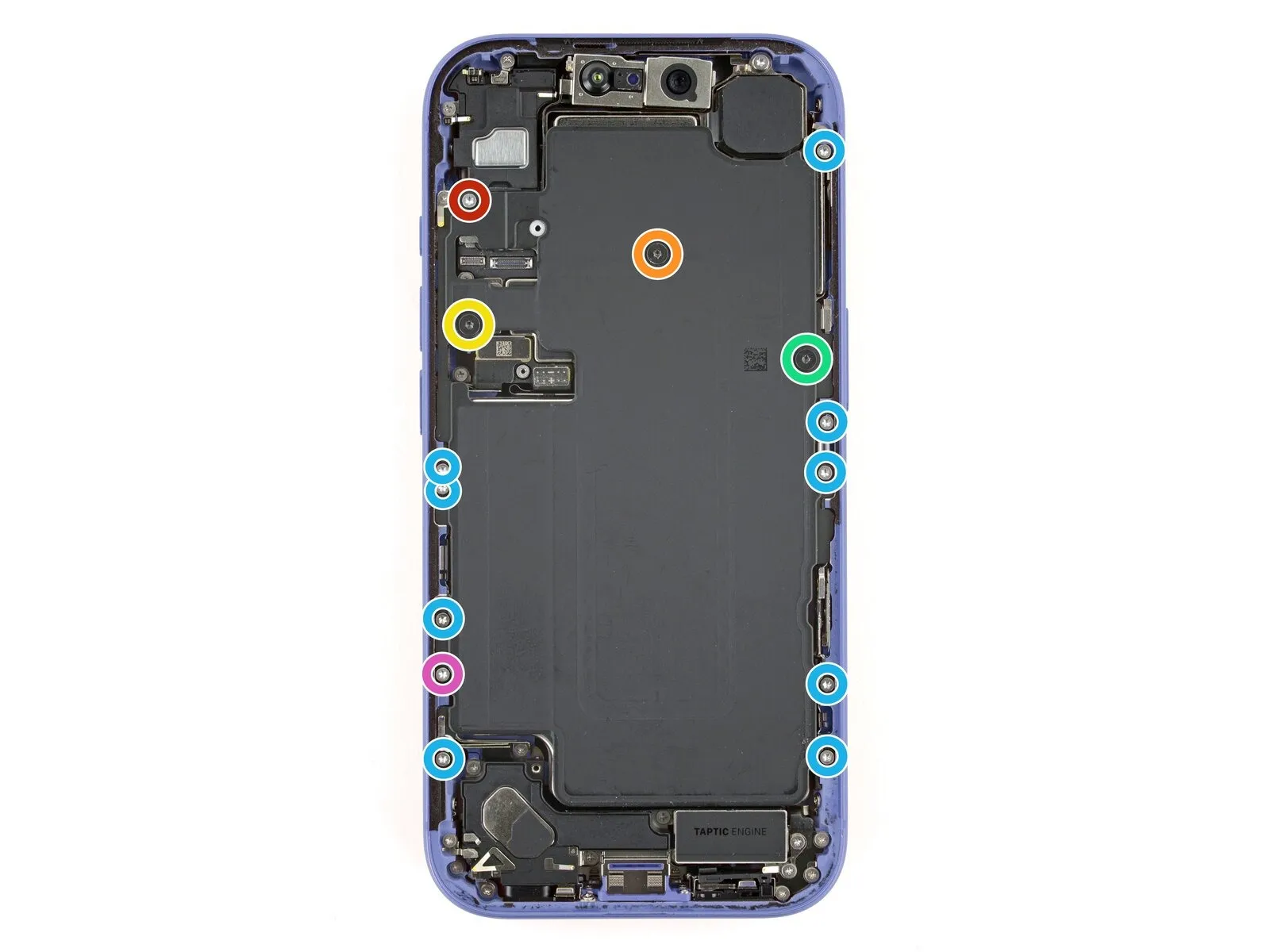
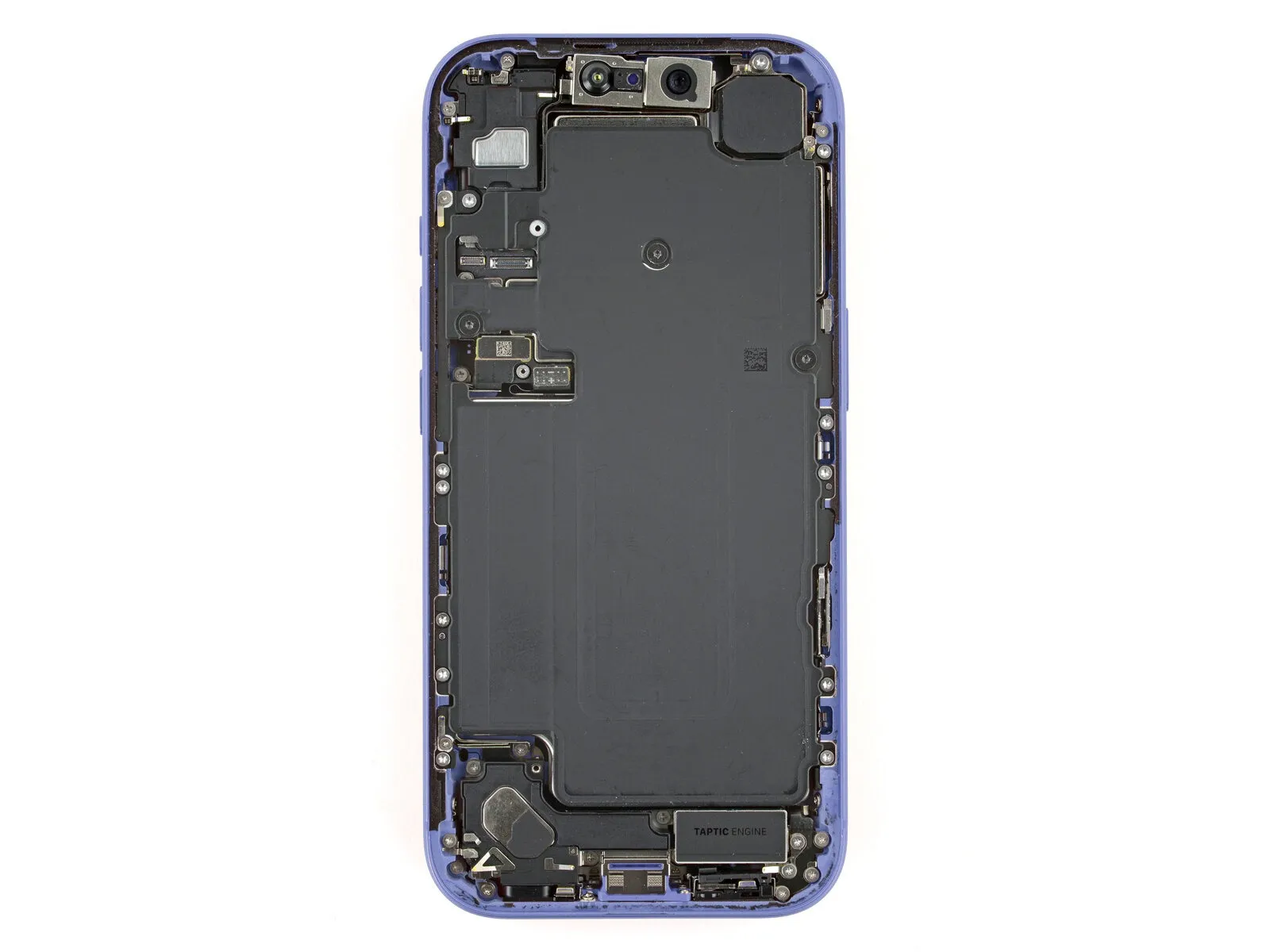
Employ a Torx Plus 4IP screwdriver for the disassembly of screws holding the battery tray in place.A single screw, measuring 7.5 millimeters in length, is present.A separate screw, with a length of 5.9 millimeters, is also required.
- Another screw, measuring 3.4 millimeters in length, must be removed.A fourth screw, with a length of 2.3 millimeters, needs to be detached.
- Nine screws, each with a length of 3.7 millimeters, are used for securing the tray.An additional screw, also measuring 3.7 millimeters in length, is included in the assembly.
- Certain iPhone versions, those incorporating a physical SIM card, lack this particular screw.To facilitate the removal process, the Torx Plus 4IP screwdriver is essential.
- The battery tray is fastened by a combination of screw lengths, necessitating careful identification.Accurate screw length differentiation is crucial for proper reassembly and avoiding damage.
- The presence or absence of the 3.7 mm screw depends on the iPhone's SIM card configuration.Ensure the correct Torx Plus 4IP screwdriver is used to prevent stripping the screw heads.
- Carefully note the location of each screw type during disassembly for accurate reinstallation.The battery tray's retention relies on the specified screw lengths and quantities.
Step 25 | Remove the battery

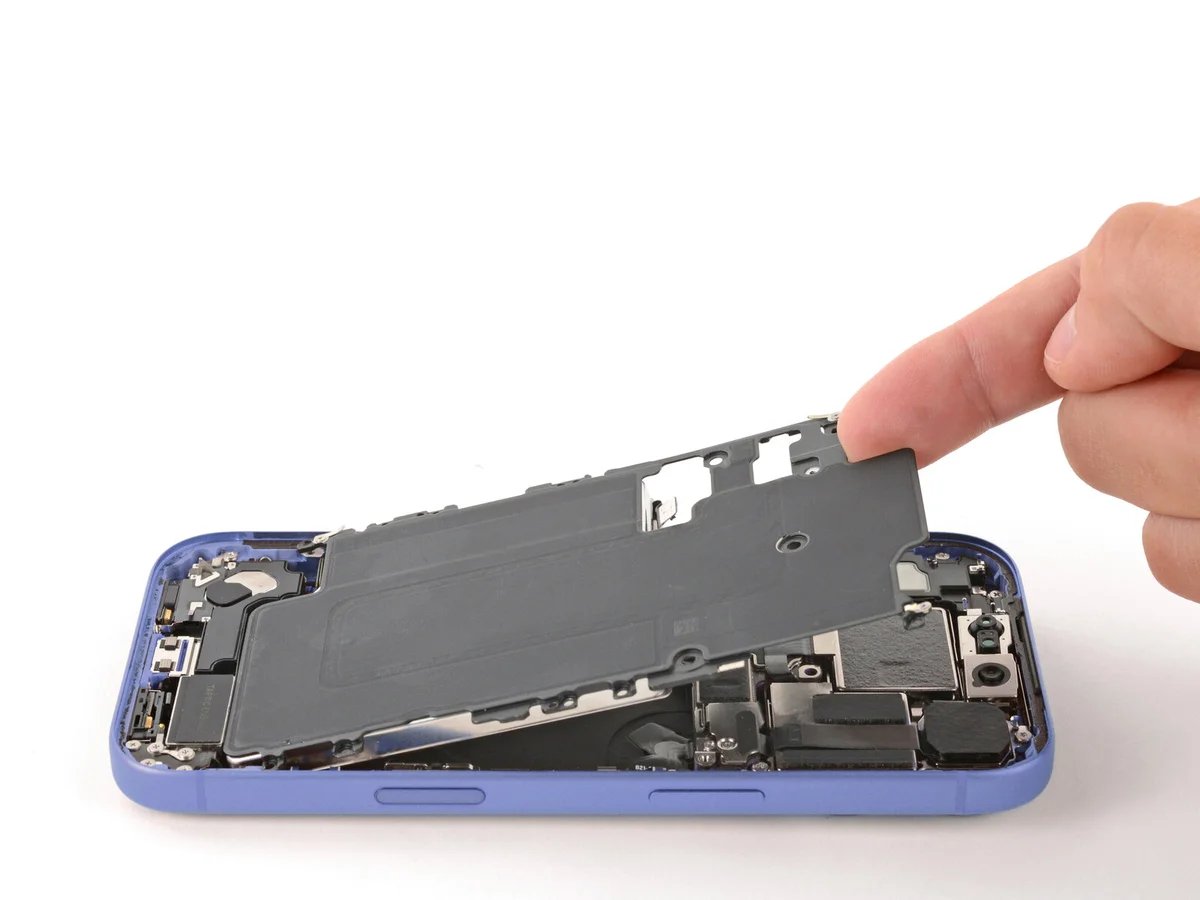
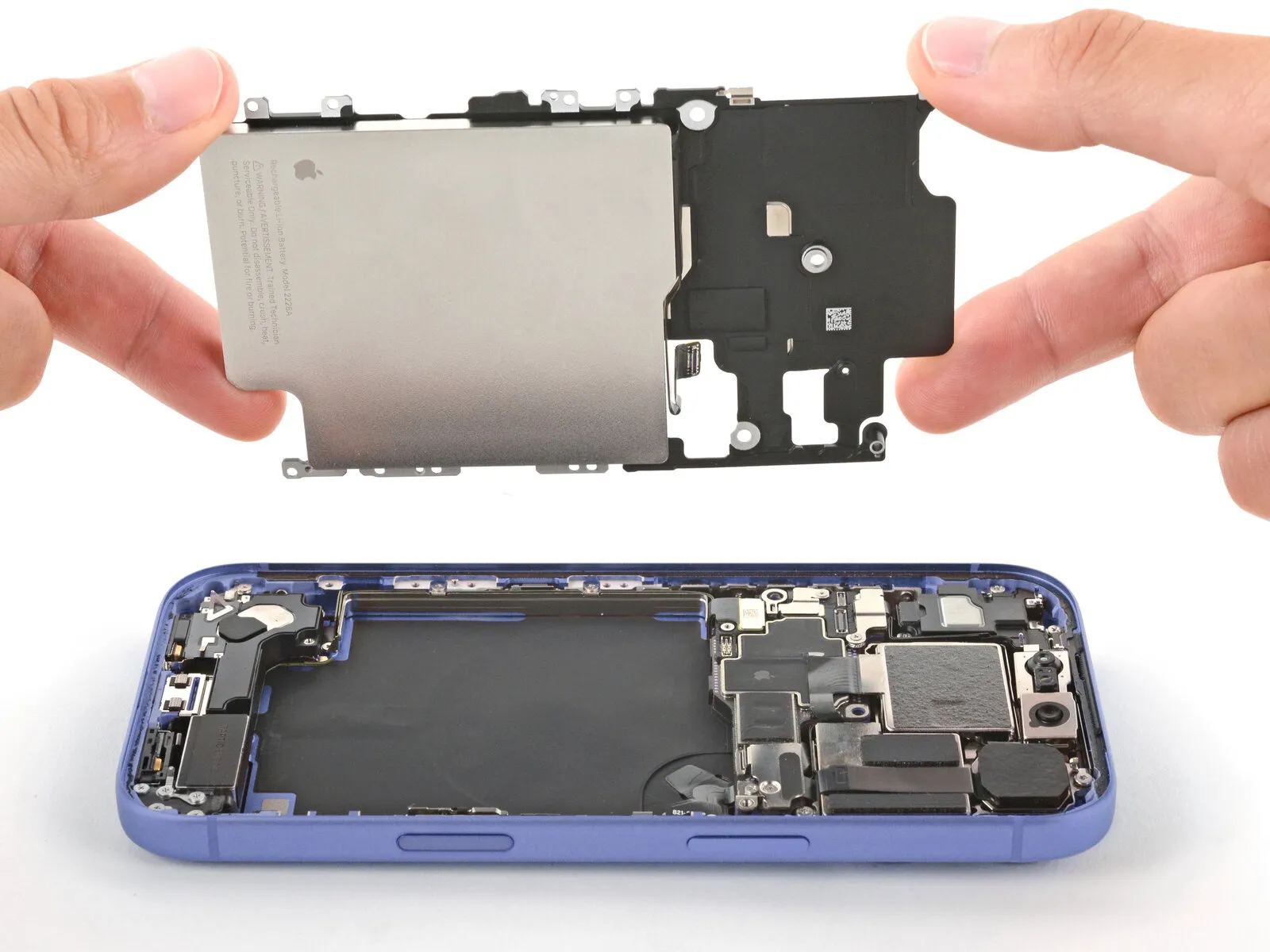
Employ a fingertip to elevate the battery compartment's upper-left corner, subsequently detaching the cover.
Exercise caution to prevent any smearing of the front-facing camera lens.
Step 26 | Remove the rear camera connector cover
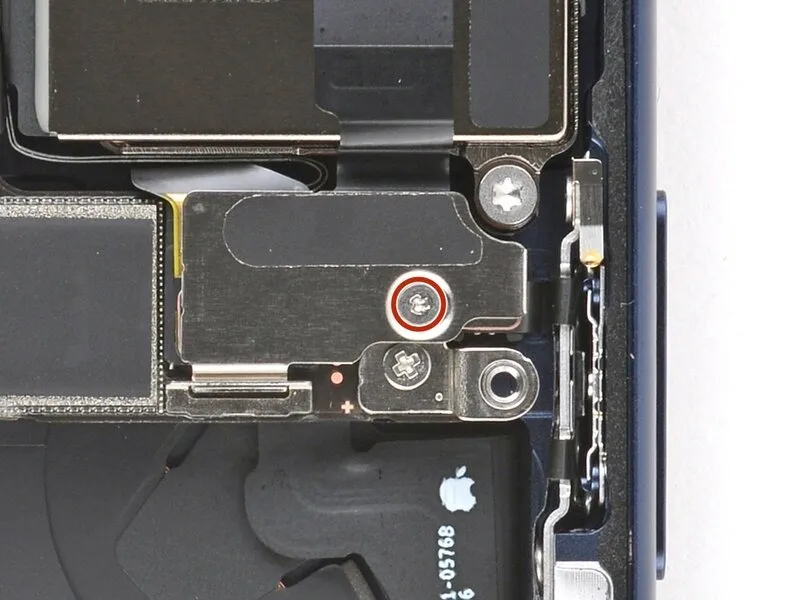

Employ a specialized tri-point Y000 screwdriver for disassembly.The screw, measuring 1.0 millimeters in length, requires a tri-point Y000 screwdriver for removal.A tri-point Y000 screwdriver is essential for accessing the rear camera connector cover.To detach the cover protecting the rear camera connector, utilize a tri-point Y000 screwdriver.The rear camera connector cover is fastened with a 1.0 mm screw, necessitating a tri-point Y000 screwdriver for its removal.
Step 27

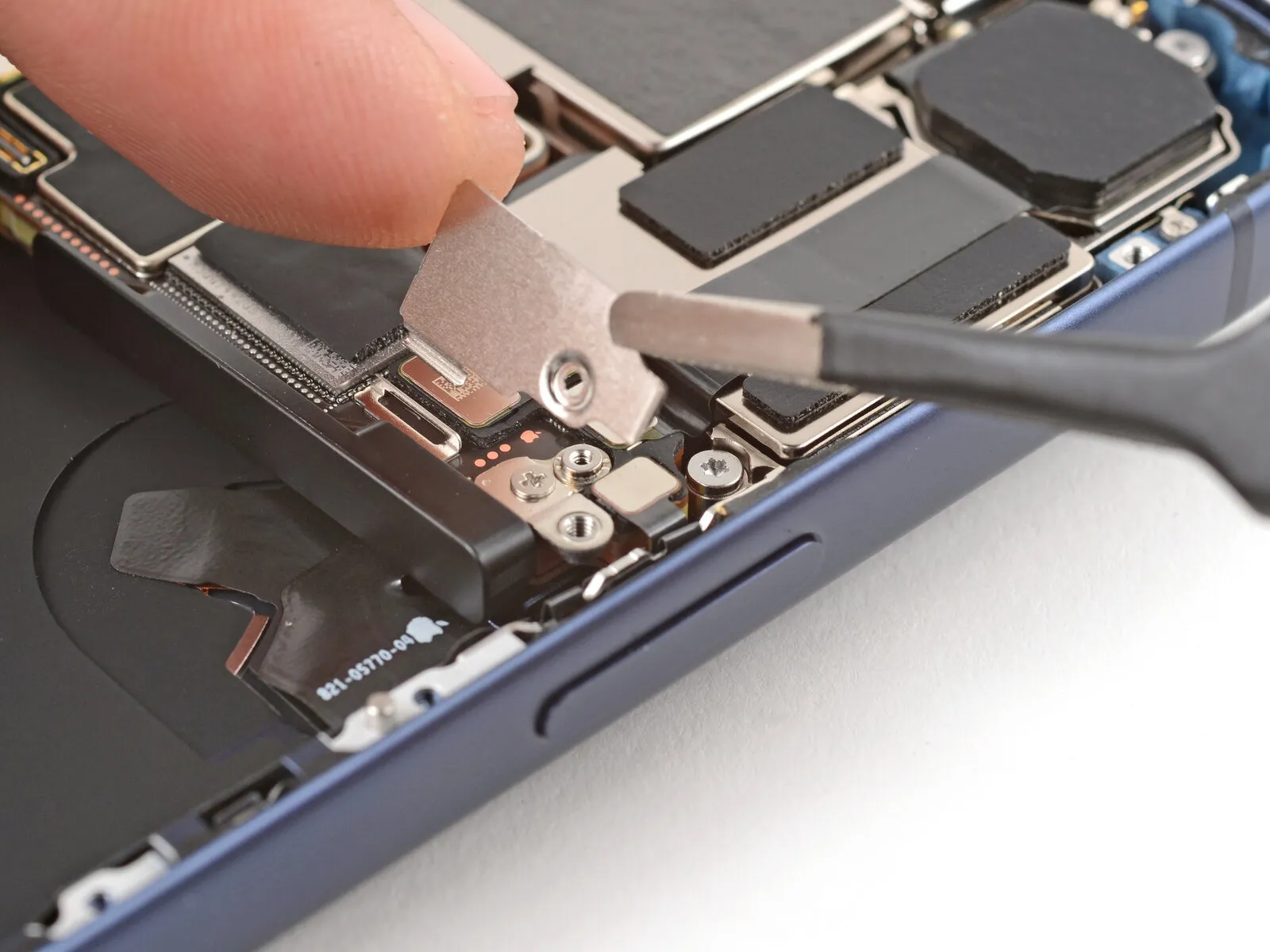
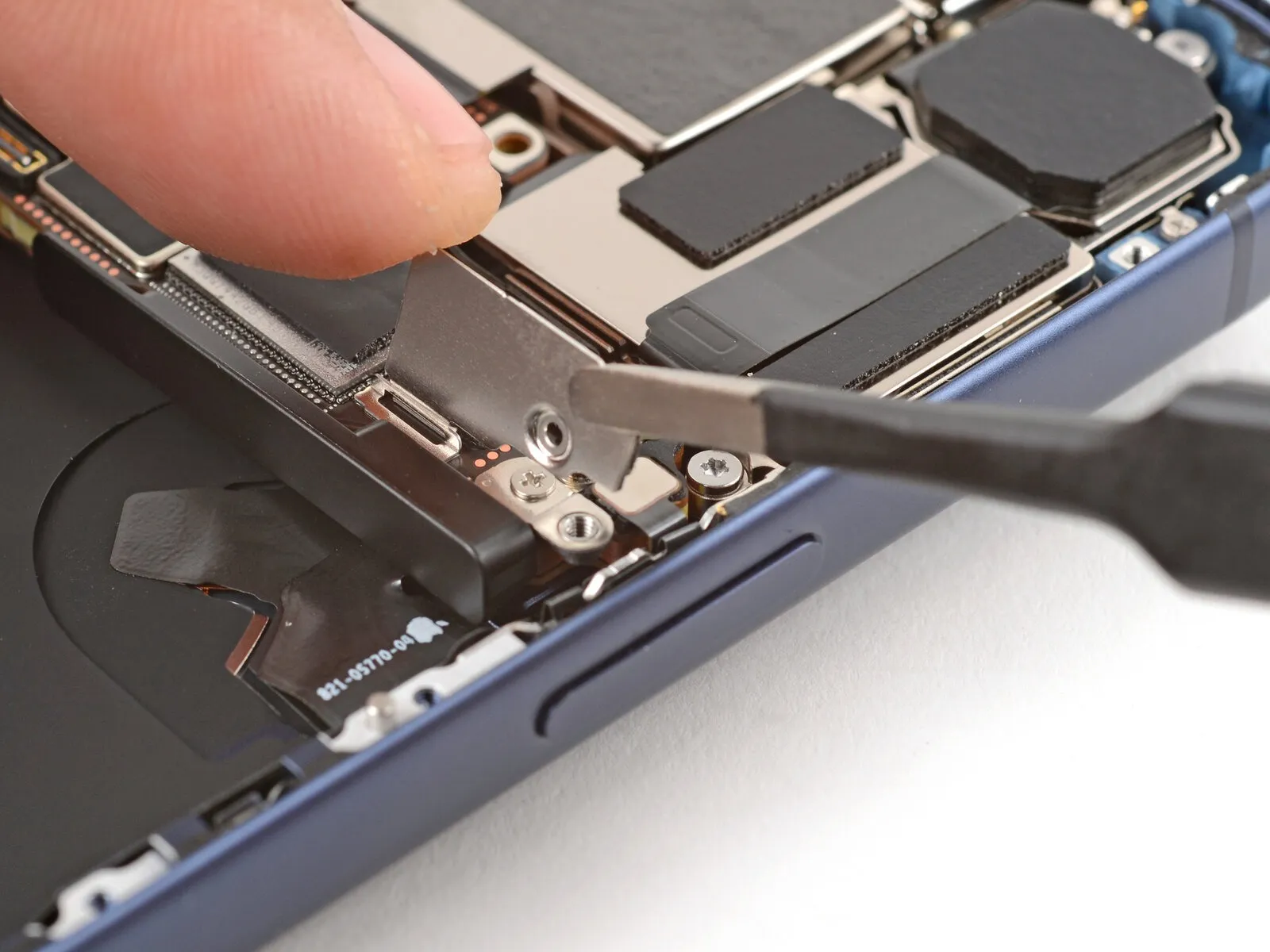
Employing tweezers, release the rear camera connector cover's latching mechanism from the logic board, subsequently detaching it.
Step 28 | Disconnect the rear camera assembly
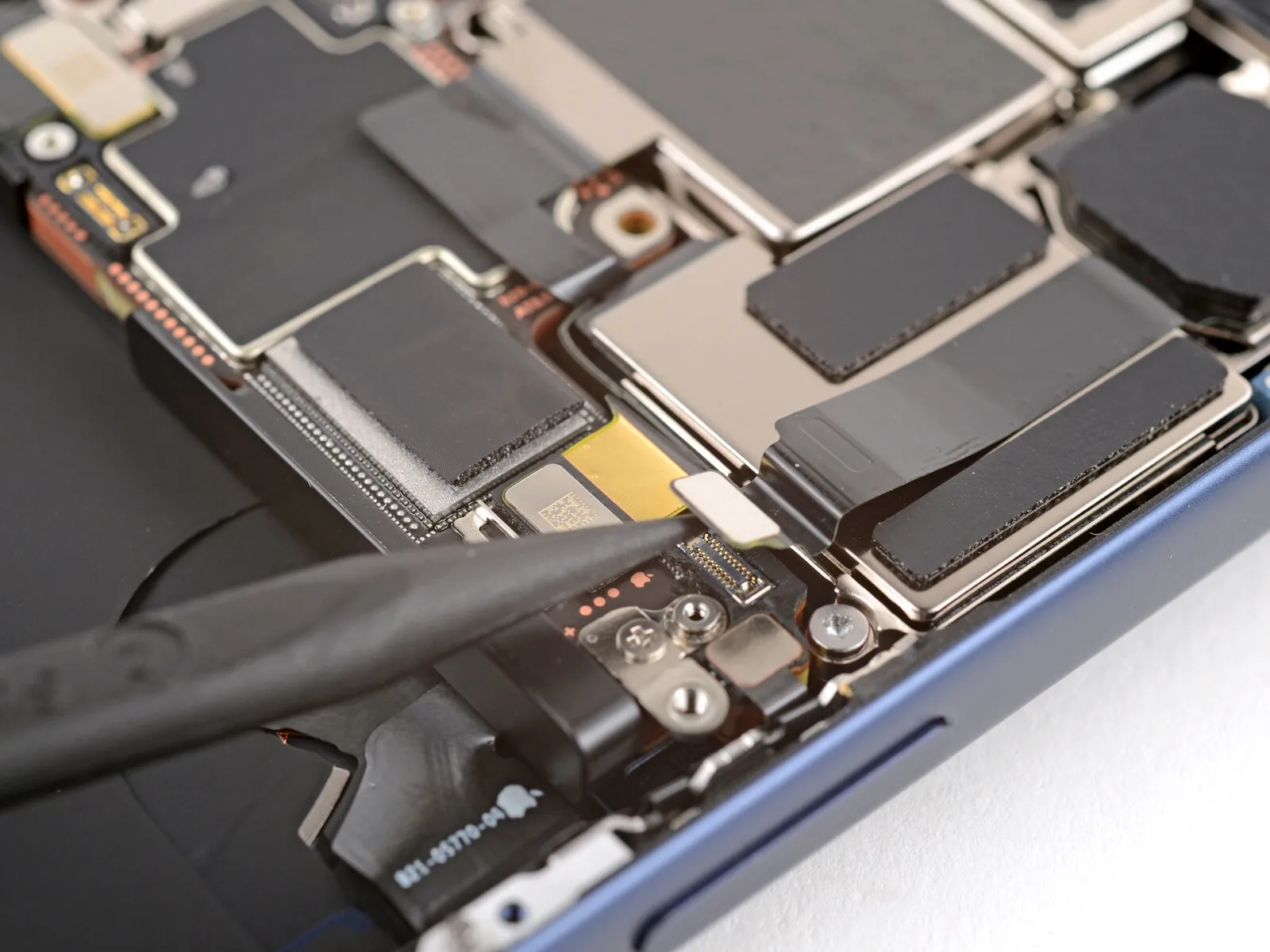
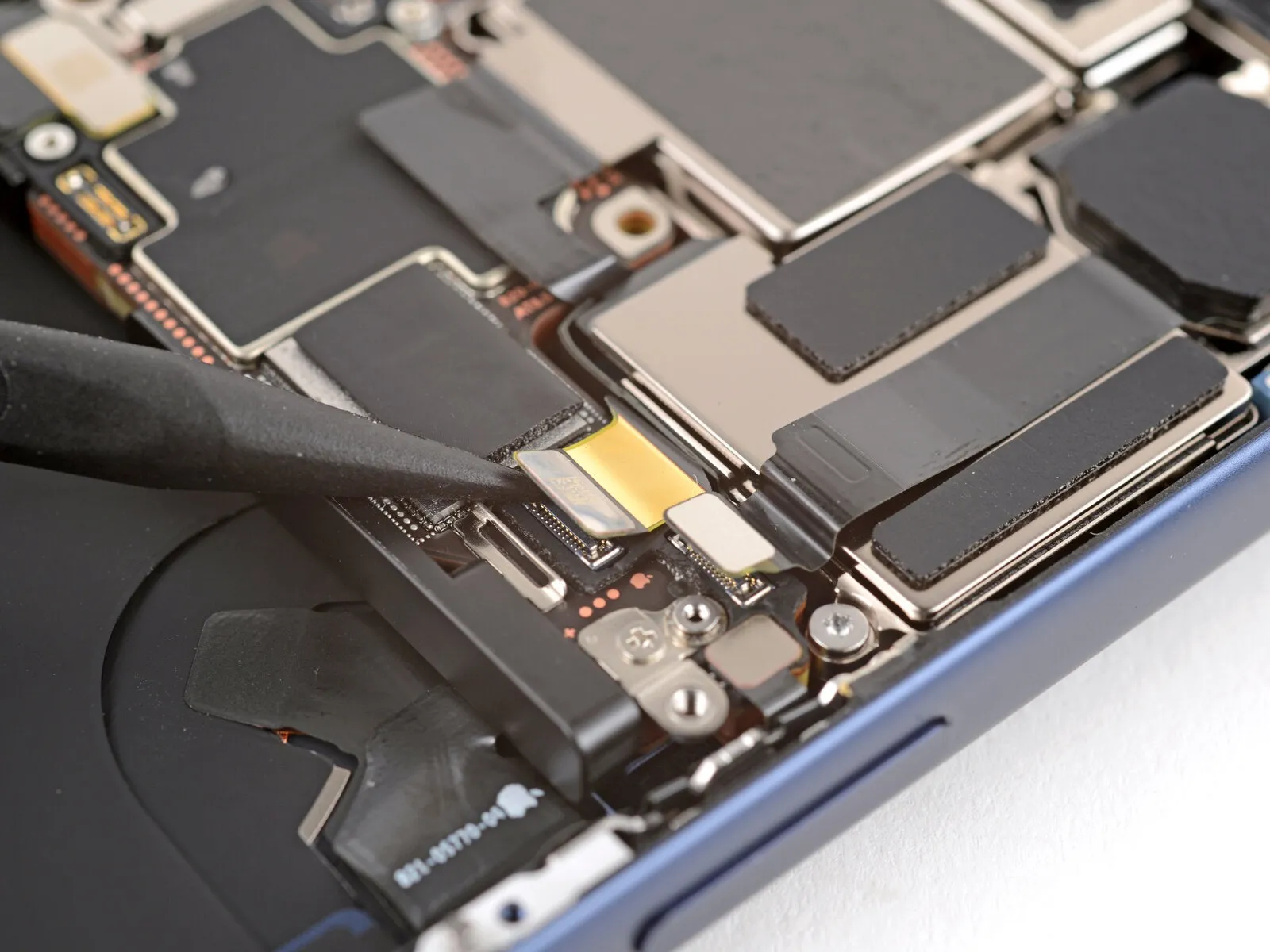
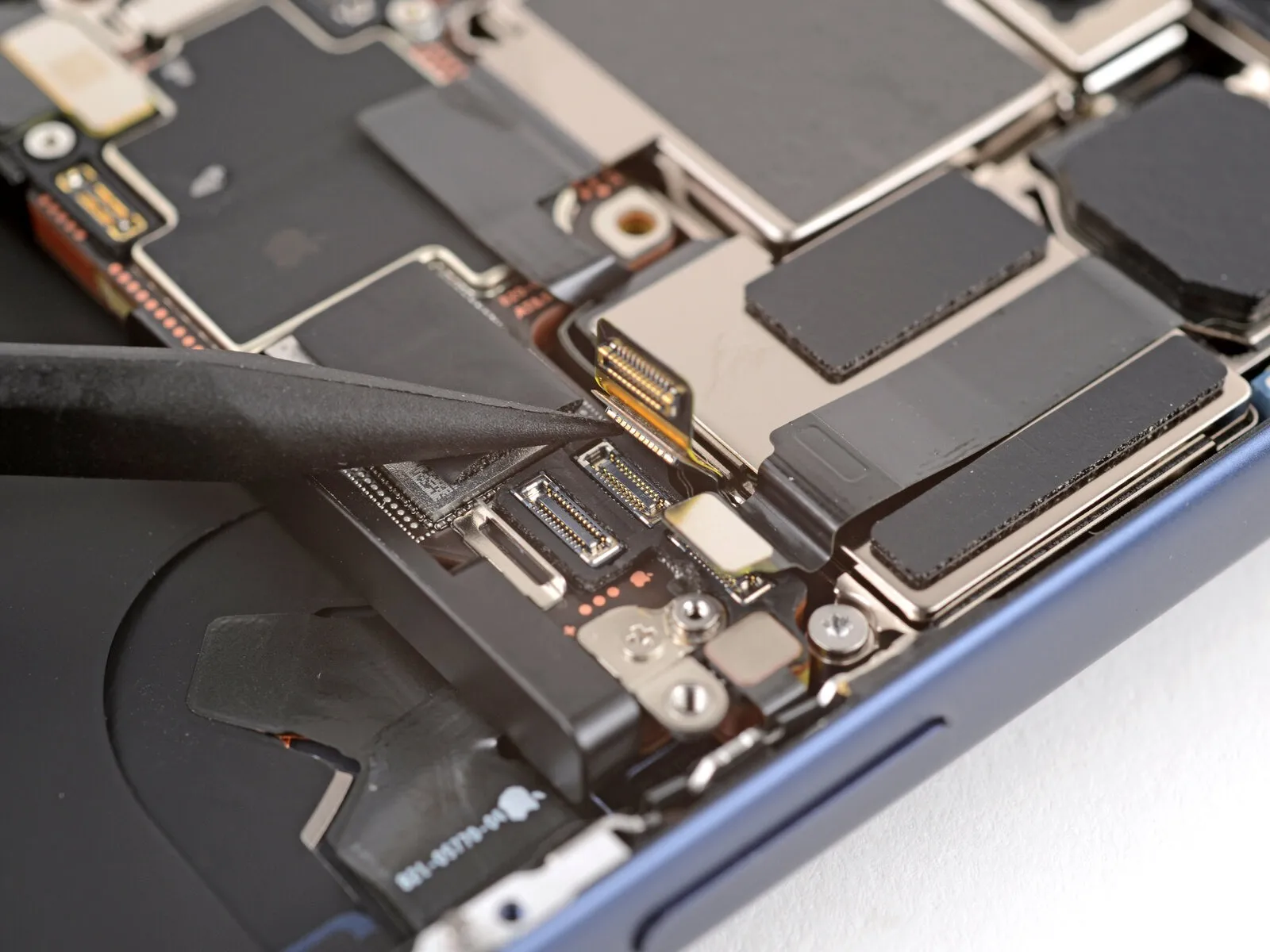
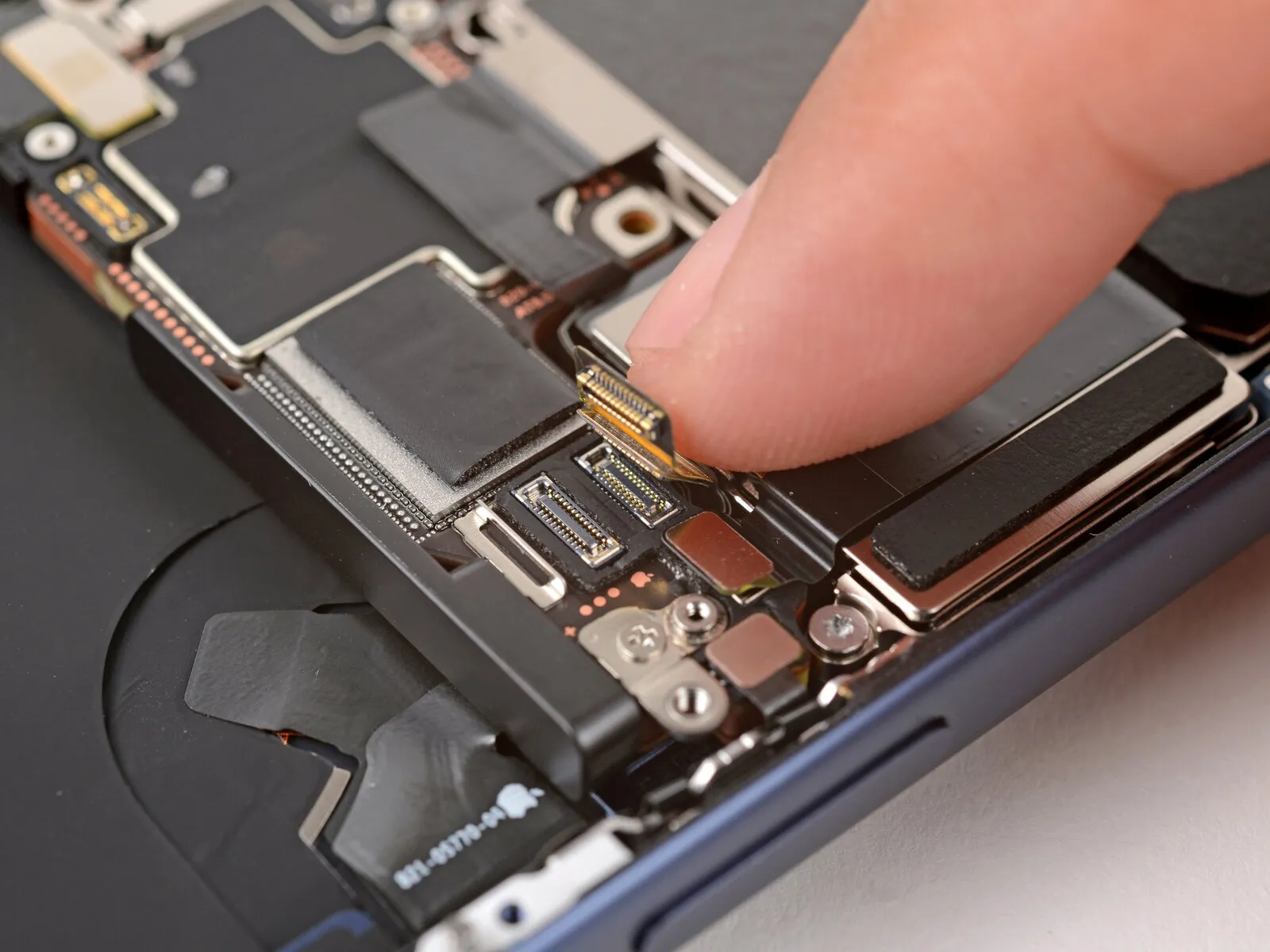
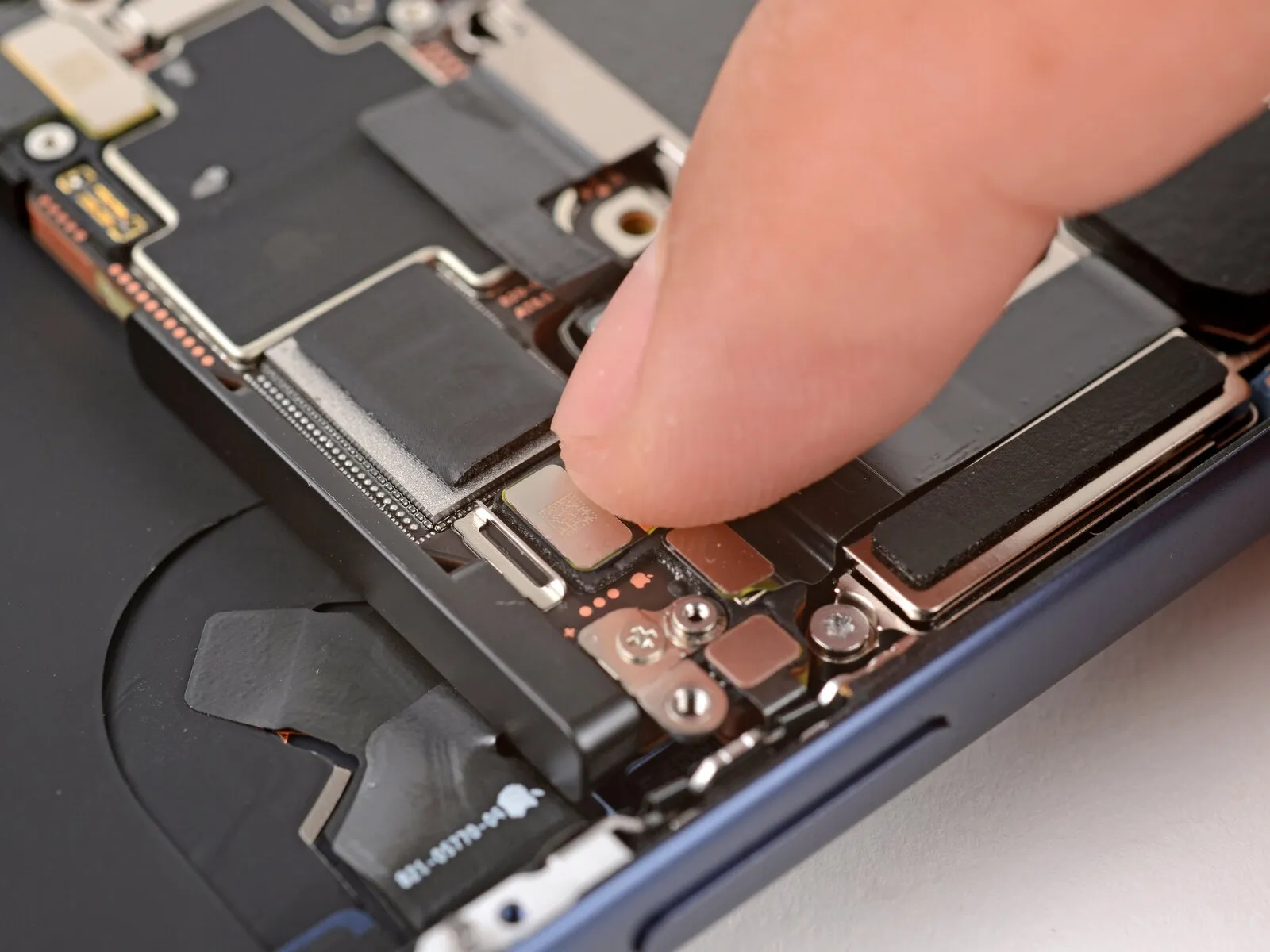
Employ the tip of a spudger to carefully lift and detach the three connectors securing the rear camera assembly, noting that one connector is positioned beneath another.To release the rear camera press connectors, utilize a spudger, applying force to separate them.During disconnection, observe that one of the three rear camera connectors is partially obscured by the placement of another.
Step 29 | Remove the rear camera assembly
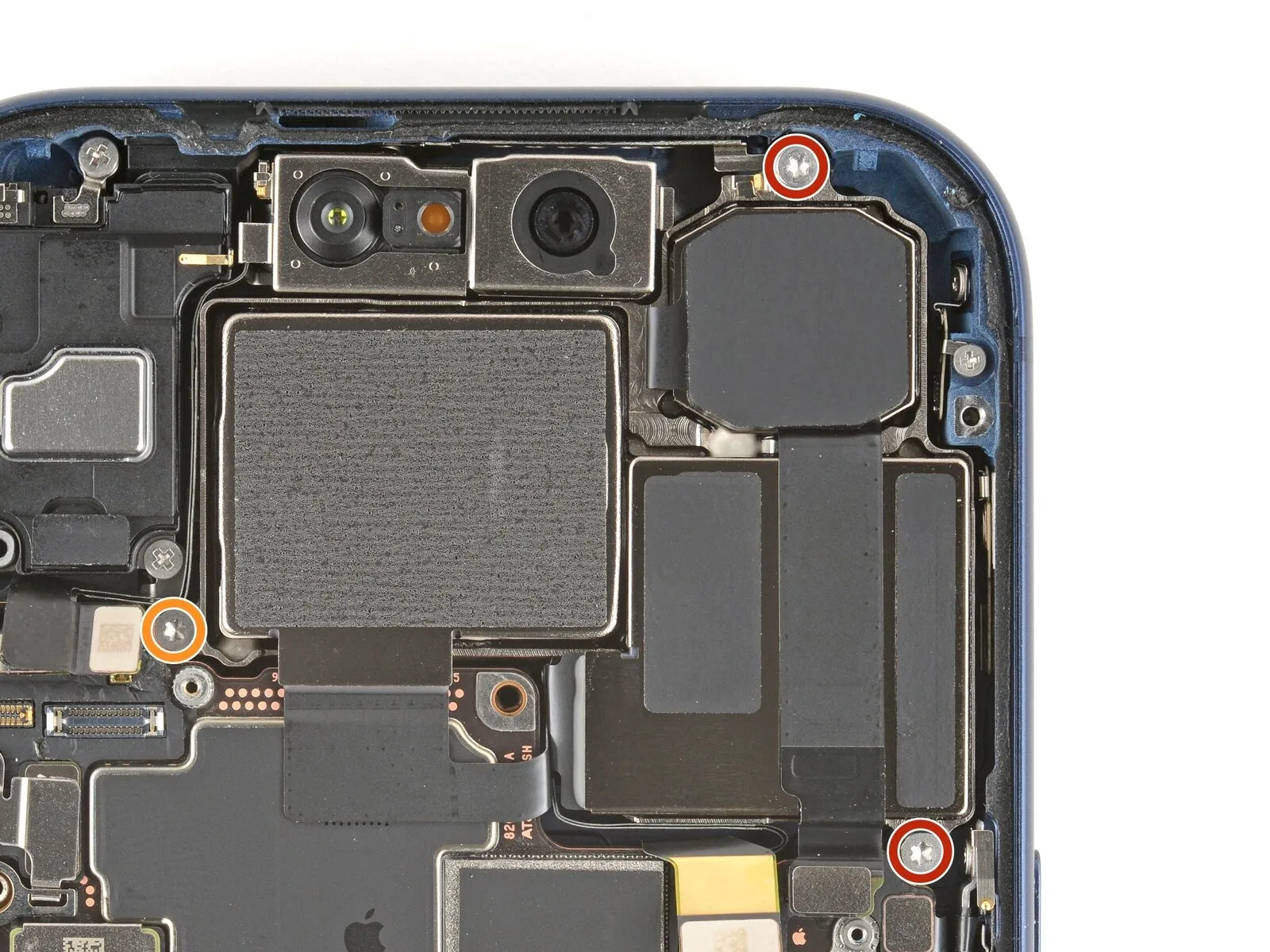
Employ a Torx Plus 4IP screwdriver for the disassembly process.The rear camera assembly is fastened with three screws requiring a Torx Plus 4IP screwdriver for removal.Two screws, each measuring 4.0 millimeters in length, are used in the camera assembly's retention.
- A single screw, possessing a length of 4.4 millimeters, also contributes to securing the camera.Carefully unscrew the three fasteners using the appropriate Torx Plus 4IP driver.
- The camera assembly's attachment relies on a combination of two 4.0 mm screws and one 4.4 mm screw.To detach the rear camera, utilize a Torx Plus 4IP screwdriver to loosen the three securing screws, noting their lengths of 4.0 mm and 4.4 mm.
Step 30
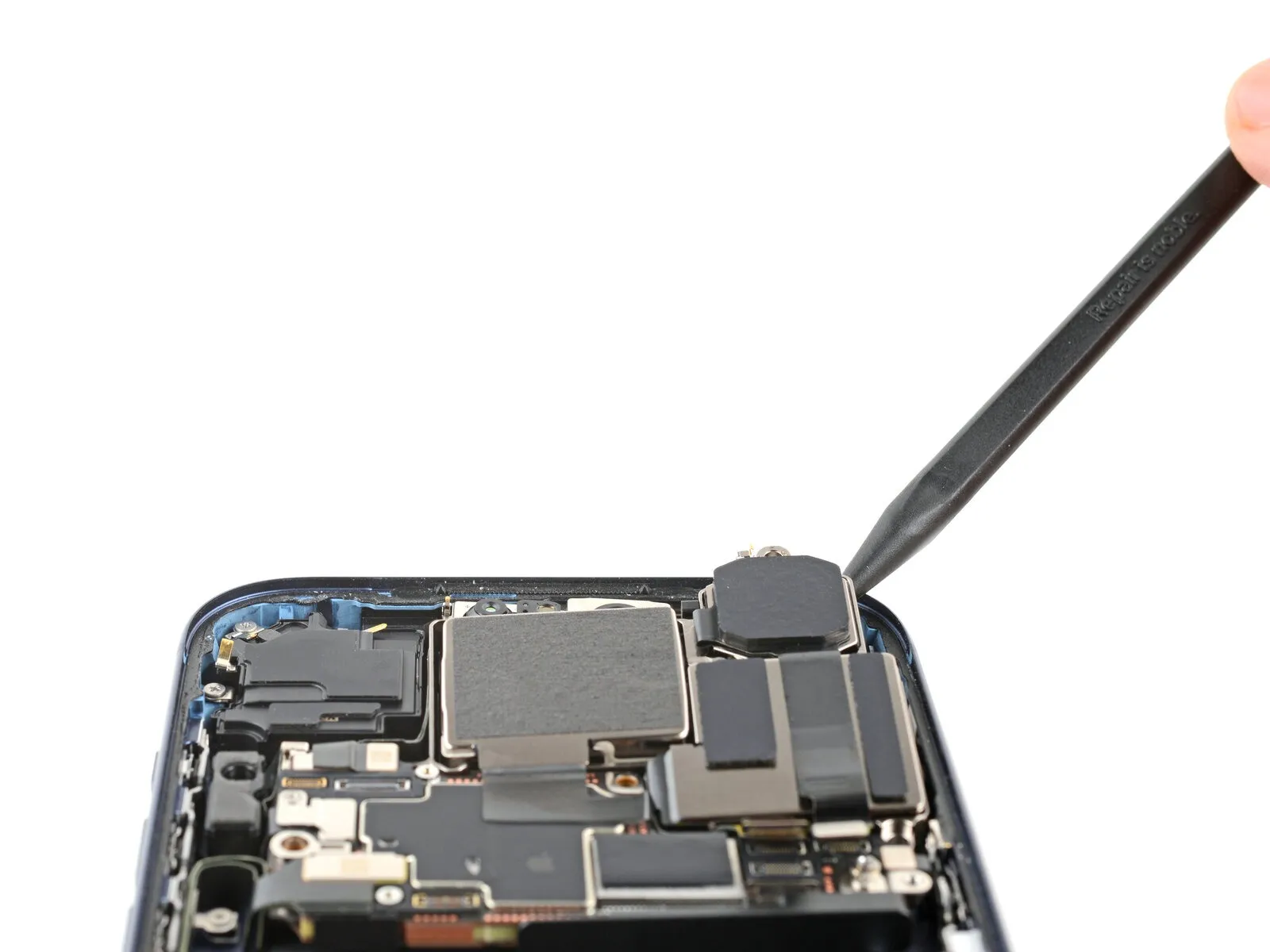

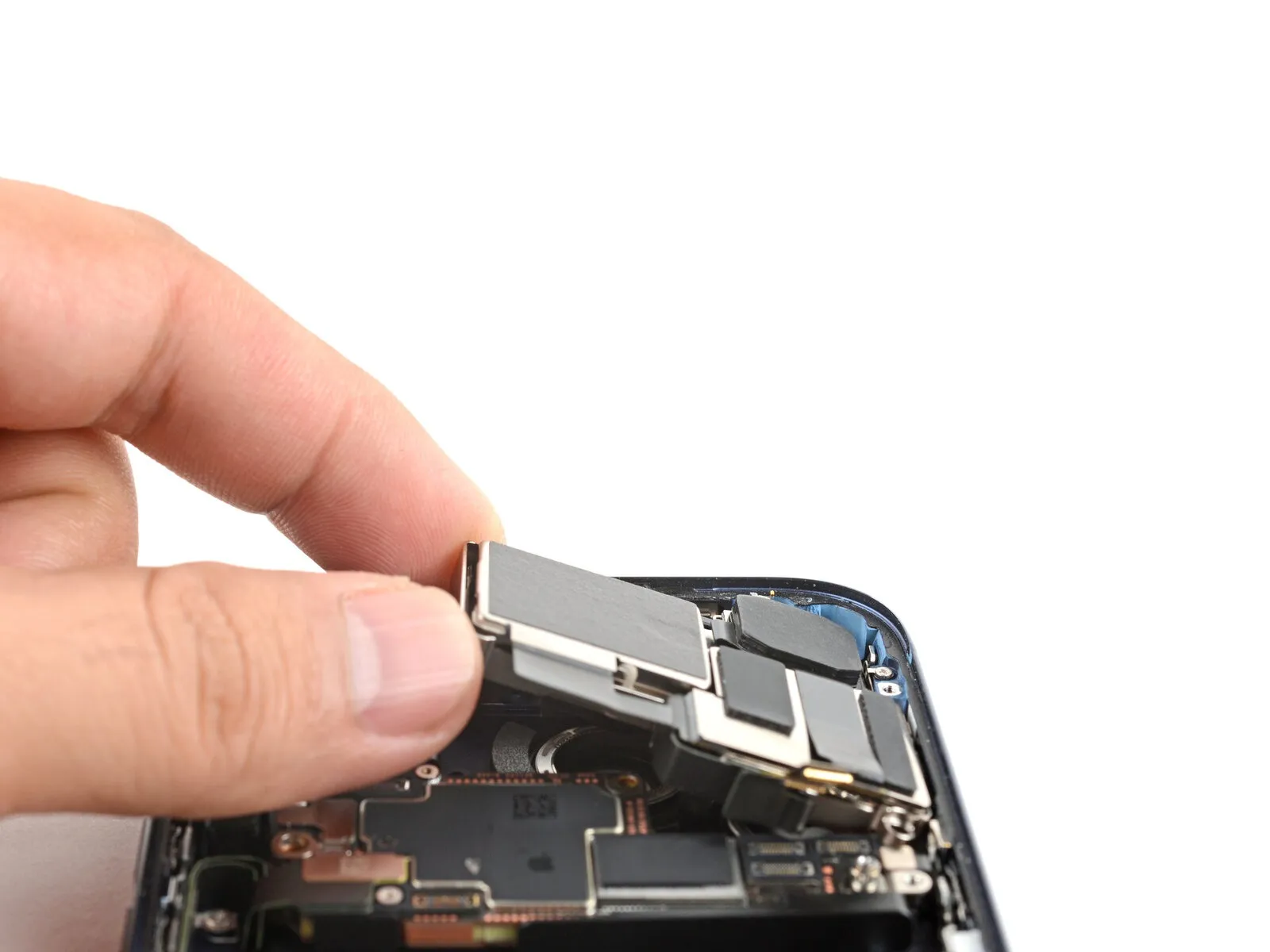
Employ the tip of a spudger to carefully lift the upper boundary of the rear camera component.Following the release, secure a firm grip on the assembly with your hands.Detach the camera unit from its position within the device.
Step 31 | Disassembly complete

Successful completion of the device's separation is acknowledged.The subsequent instructions detail the process of restoring your iPhone to its assembled state.
Due to variations across iPhone models, certain reassembly images might exhibit slight visual differences; nevertheless, the outlined procedure remains accurate for all supported iPhone versions.
Step 32 | Install the rear camera assembly

Position the rear camera component within its designated cavity.
Step 33
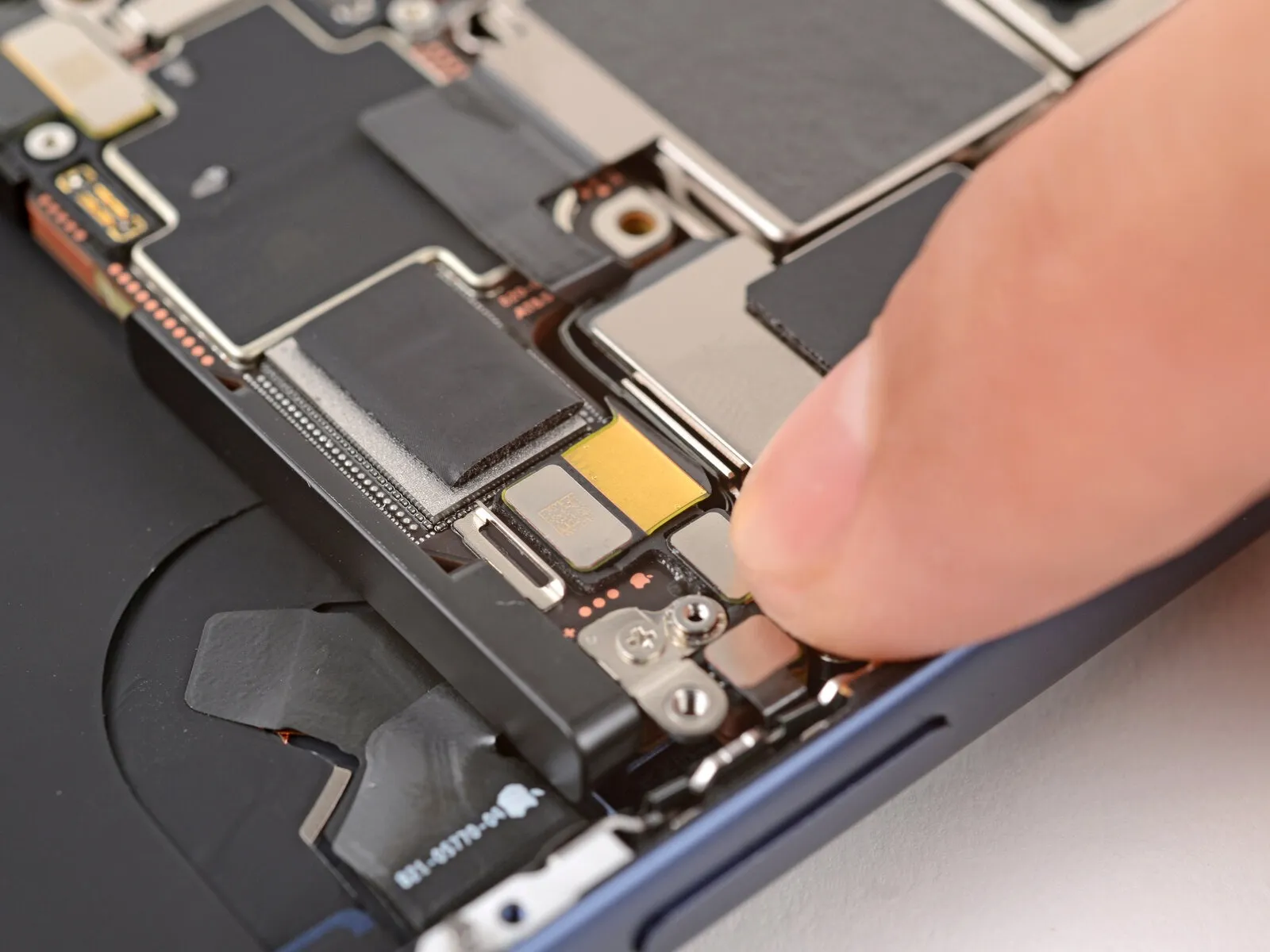
Step 34

- Employ a Torx Plus 4IP screwdriver for the installation of the three screws securing the rear camera assembly.Two screws, each measuring 4.0 millimeters in length, are required for this procedure.A single screw, with a length of 4.4 millimeters, is also necessary.
- Ensure correct placement of each screw within its designated aperture.
- Proper alignment is critical for secure fastening of the rear camera assembly.
- Failure to use the correct screw length or position could compromise the assembly's stability.
Step 35 | Install the rear camera connector cover
Step 36
- Employ a specialized tri-point screwdriver, specifically a Y000, for the installation process.Secure the camera connector cover with a screw measuring precisely 1.0 millimeters in length.The Y000 tri-point screwdriver is essential for manipulating the small screw.A screw of 1.0 mm length is required to properly affix the camera connector cover.To ensure proper fastening, utilize a Y000 tri-point screwdriver when installing the 1.0 mm camera connector cover screw.
Step 37 | Install the battery
- Position the battery tray correctly within its designated area.
Exercise caution to prevent any wires from becoming pinched or obstructed by the tray's placement.
Step 38 | Install the battery tray screws
- Employ a Torx Plus 4IP screwdriver for the battery tray screw installation process.A 7.5-millimeter-length screw is required for a specific attachment point.A 5.9-millimeter-length screw is necessary for another designated location.
- Secure another component with a 3.4-millimeter-length screw.A 2.3-millimeter-length screw is needed for a particular fastening task.
- Nine screws, each measuring 3.7 millimeters in length, are used in the assembly.An additional 3.7-millimeter-length screw is incorporated into the design.
- Models of the iPhone that incorporate a physical SIM card will not include this particular screw.To fasten the battery tray, a specialized Torx Plus 4IP screwdriver is essential.
- The battery tray is secured using a combination of screws with varying lengths.A screw of 7.5 mm is utilized for one of the mounting points.
- Another screw, measuring 5.9 mm, is needed for a different attachment.A 3.4 mm screw is required to secure a specific area.
- A shorter 2.3 mm screw is used for a particular fastening.Multiple screws, all 3.7 mm in length, are employed for the tray's securement.
Note that the 3.7 mm screw is absent on iPhone versions with a physical SIM.
Step 39 | Clean the frame
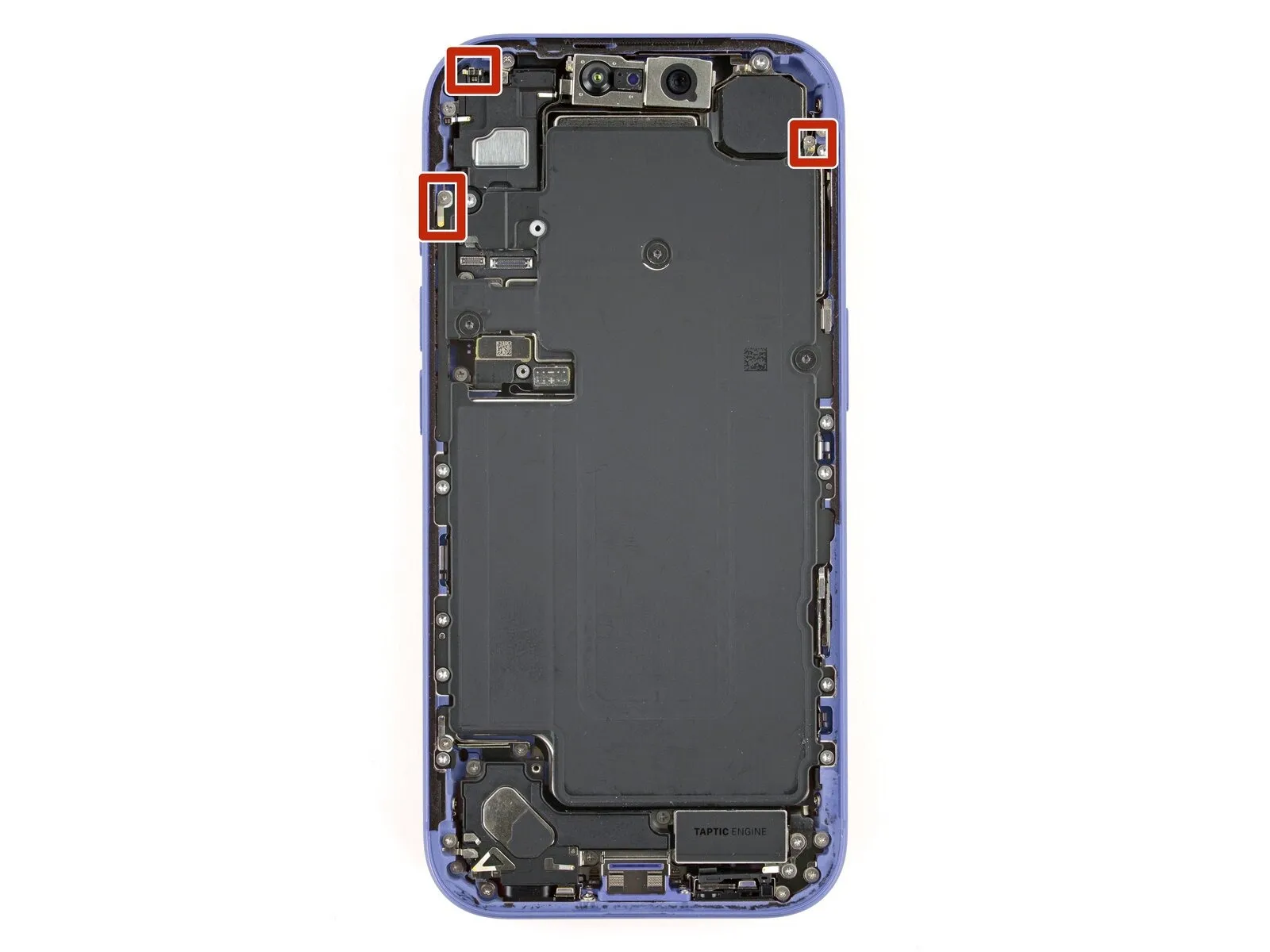

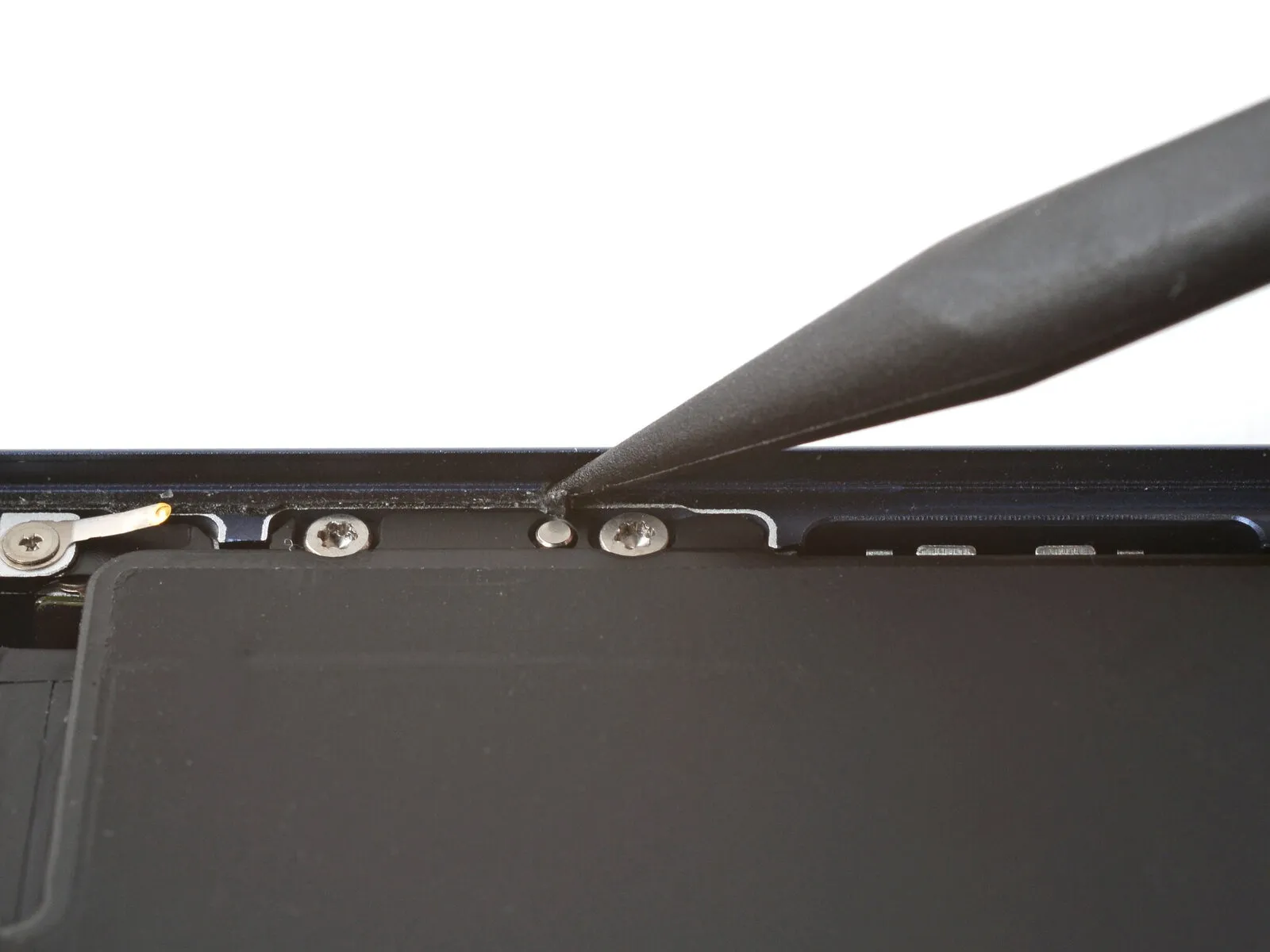
- Exercise caution while cleaning the frame, carefully avoiding damage to the delicate grounding clips; should a clip become displaced, restore its original shape with careful manipulation using your fingers or tweezers.
- Employ tweezers or your fingertips to detach sizable portions of adhesive material from the frame's edges.
- Utilize a spudger tool to eliminate any remaining adhesive residue adhered to the frame's surface.
- Should the adhesive prove difficult to remove, apply warmth via a hair dryer or heat gun and attempt removal once more.
Step 40

- Employ a lint-free cloth or coffee filter, moving in a single direction around the frame's edge, to remove adhesive remnants.
- Should the residue maintain a tacky texture, introduce a small quantity of isopropyl alcohol to the cloth and repeat the wiping process.
- Proceed deliberately during this step, as a thoroughly cleaned frame facilitates uniform application of the replacement adhesive, which is essential for a stronger bond.
Step 41 | Clean the screen
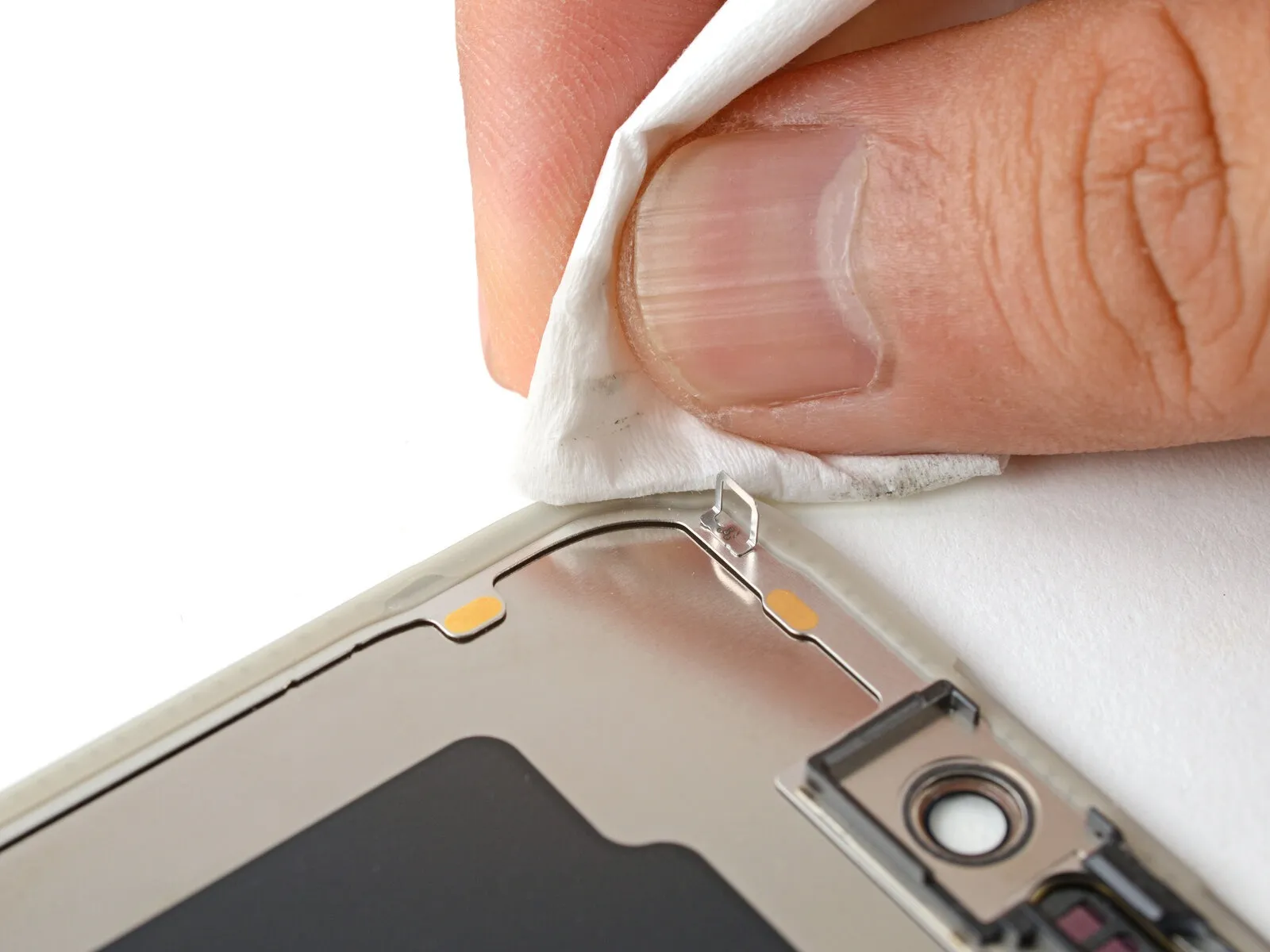
To facilitate adhesion when reinstalling a display, use a microfiber or lint-free cloth dampened with a small quantity of isopropyl alcohol possessing a concentration exceeding 90 percent.The purpose of this cleaning step is to thoroughly prepare the display's edge for the application of fresh adhesive.Wipe the display's perimeter with the alcohol-moistened cloth to remove any residue or contaminants.
Step 42 | Orient the replacement adhesive
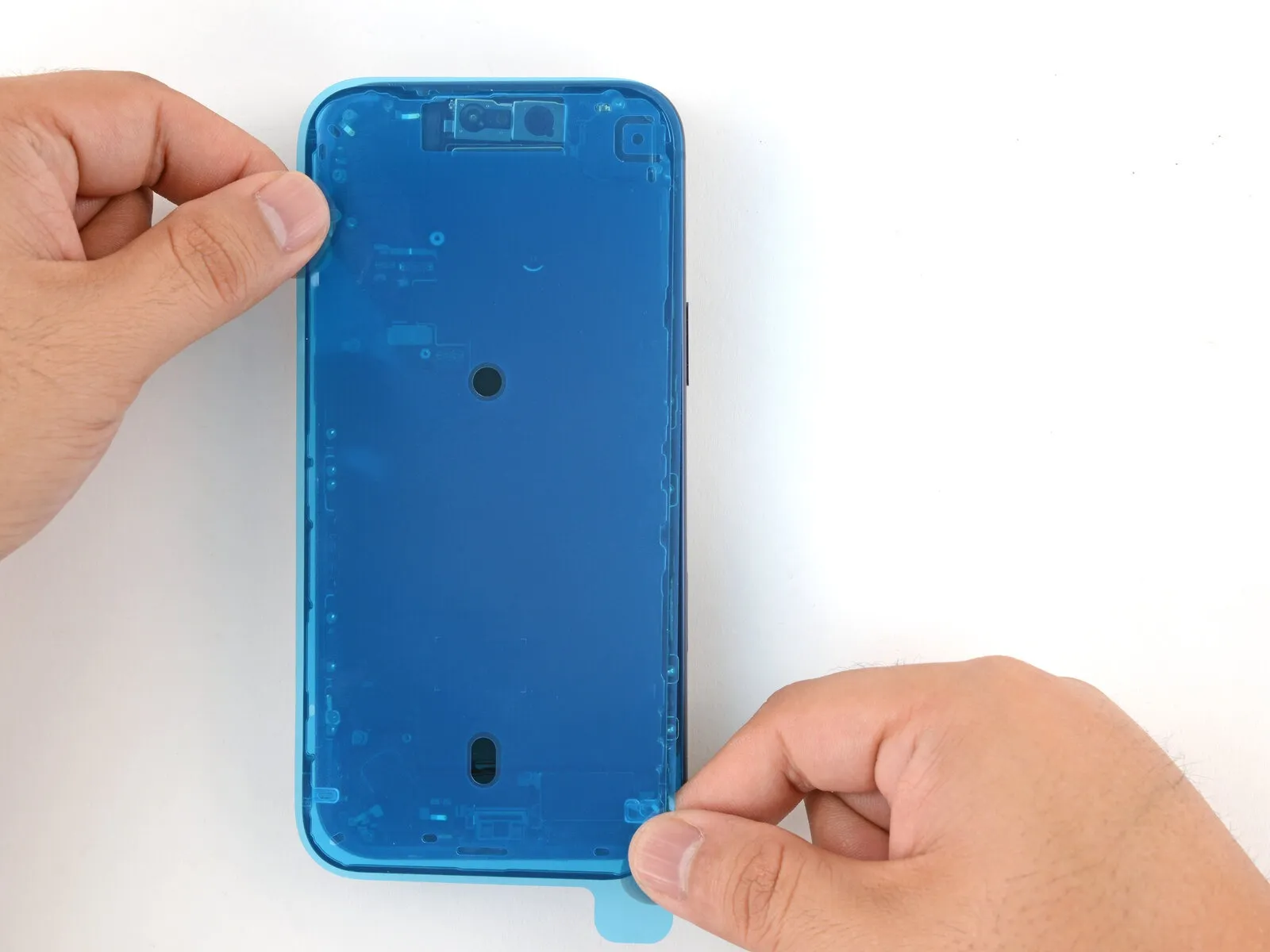
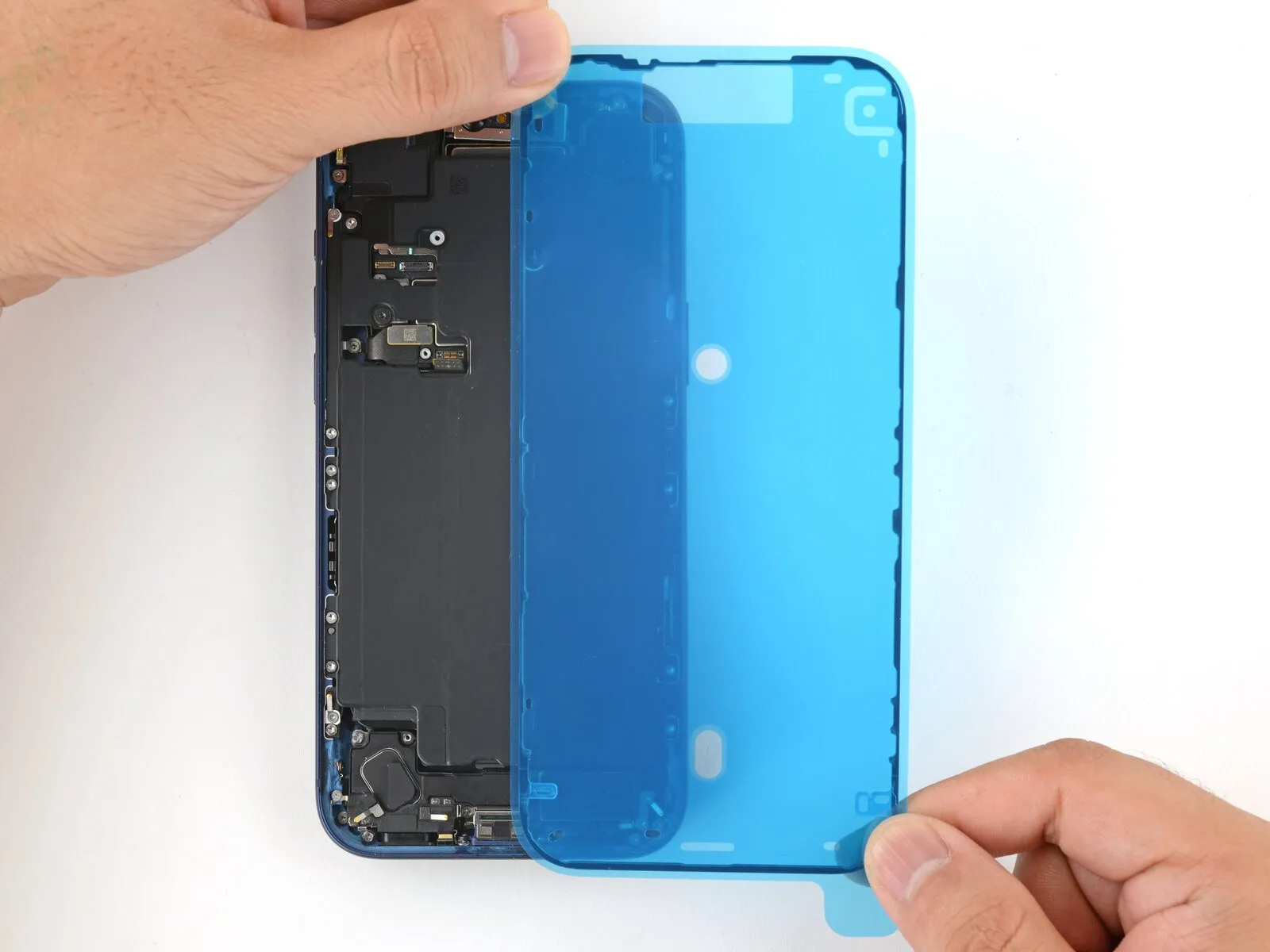
To ascertain the correct positioning of the adhesive layer, place it atop the frame's surface, ensuring that no protective films are removed.
- Employ frame elements like the camera aperture and the indentations situated on the superior and inferior borders to conceptualize the adhesive's final placement.
Step 43 | Apply the replacement adhesive
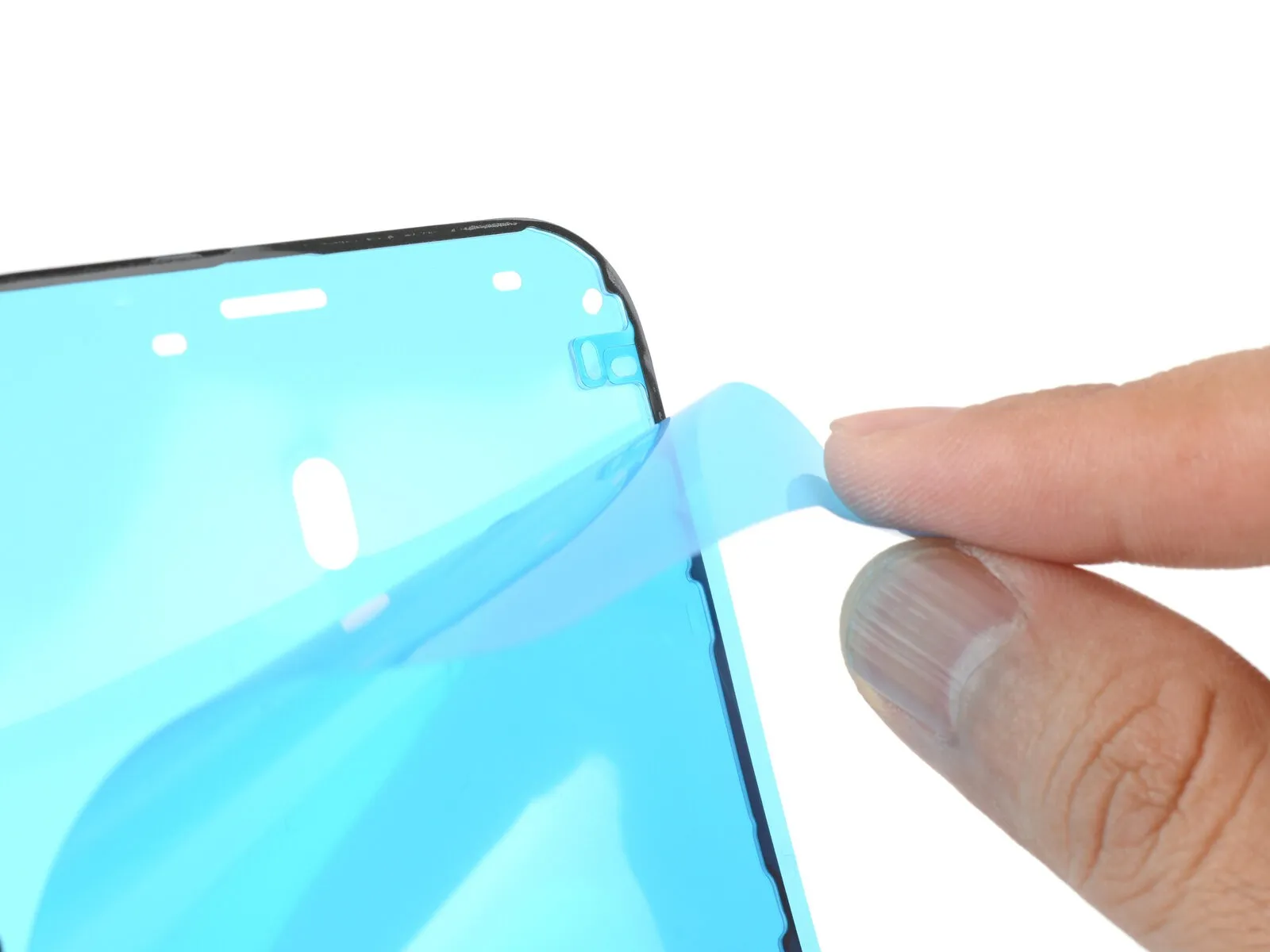
To reveal a portion of the adhesive, carefully lift the corner tab of the adhesive sheet's backing and remove a third of the liner.
- Because the revealed adhesive possesses a high degree of tackiness, prevent any unintended contact with surfaces until its application to the frame is prepared.
- Should your adhesive contain several layers of liners, remove only the topmost liner to expose the surface intended for adherence to the frame.
Step 44


After applying pressure to secure the adhesive, any adjustments to its position are impossible; complete removal and replacement with fresh adhesive will be necessary.
- Precisely match the visible perimeter of the adhesive strip to the matching boundary on the iPhone's chassis.
- With proper alignment achieved, apply a light, even pressure to adhere the exposed adhesive strip to the frame.
Step 45
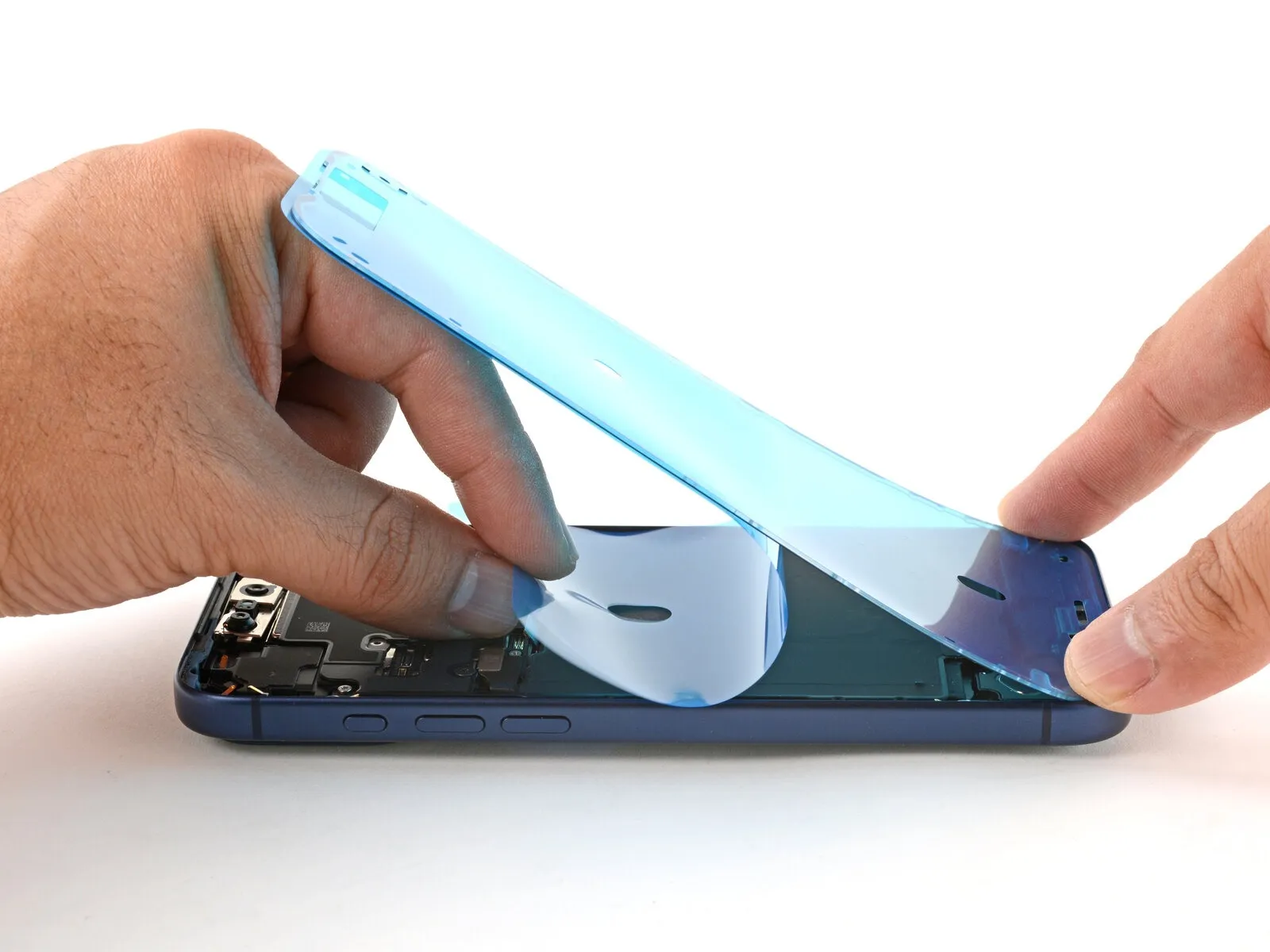
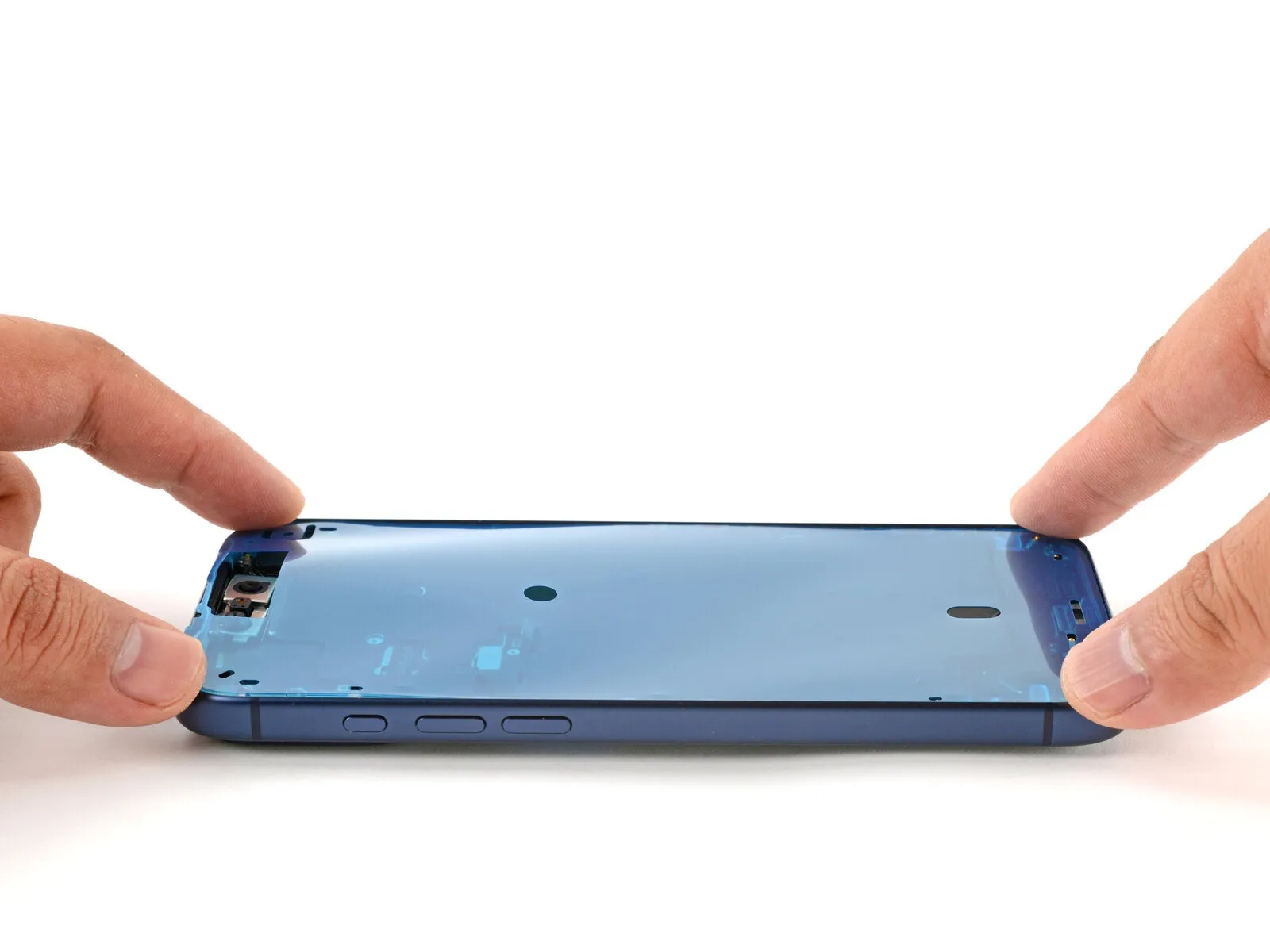

- Carefully detach the protective liner from the adhesive backing, ensuring firm contact between the adhesive and the surface.
- Proper alignment of the adhesive is indicated by a seamless fit of the edges within the frame's boundaries.
- To correct minor adhesive misplacement, delicately reposition the longer sides toward the frame's structure.
- Should creases or wrinkles appear on the adhesive, discard it and reapply a new set for optimal results.
- In the absence of replacement adhesive strips, the iPhone can be reassembled and used temporarily, acknowledging a reduction in its water resistance until a replacement is installed.
Step 46
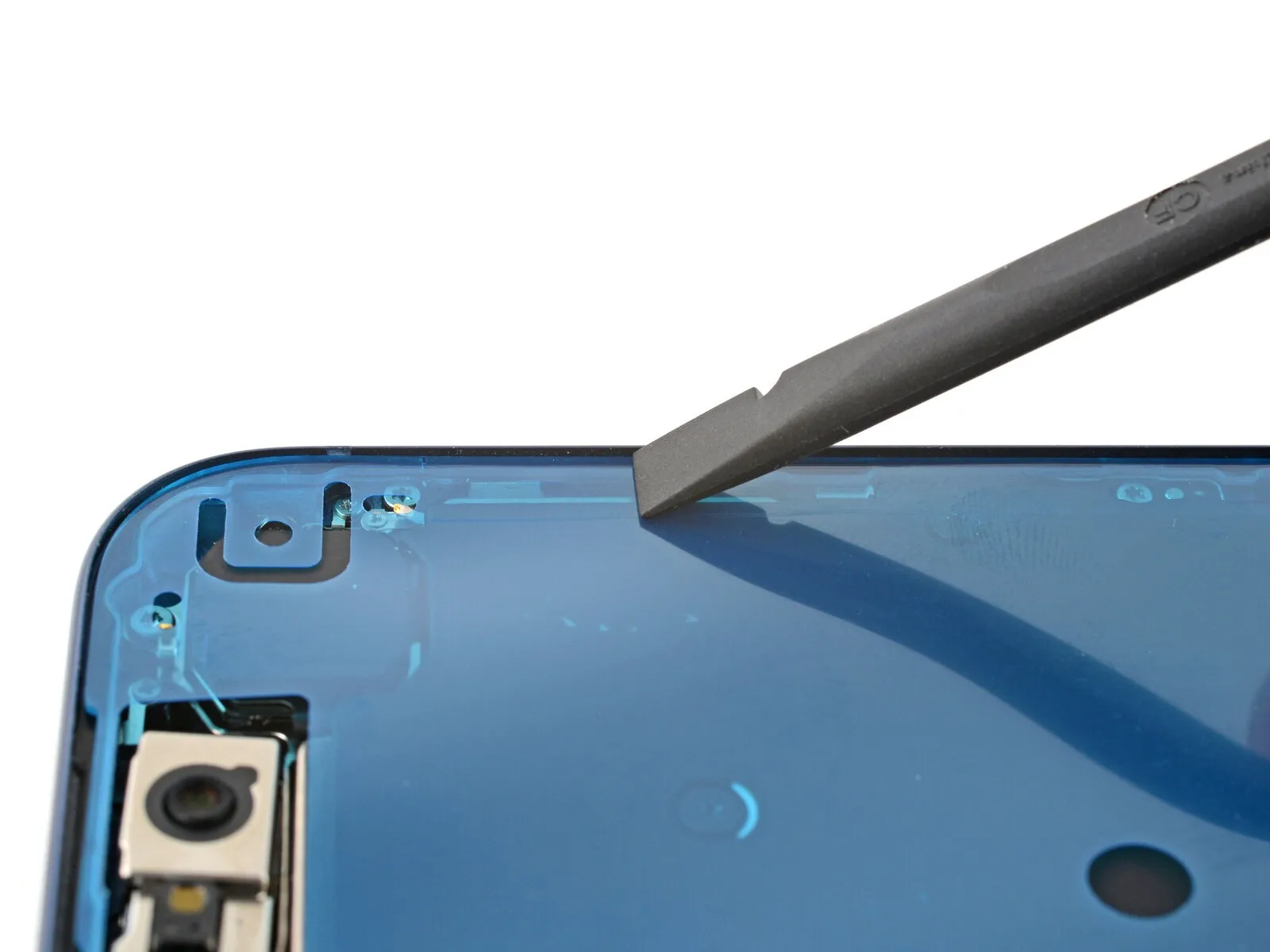
Employ a spudger to apply pressure to the adhesive sealant encompassing the complete edge of the iPhone; exercise caution near the delicate grounding connectors. Should a connector become displaced, carefully reposition it using your fingers or tweezers. Avoid excessive force, as this can distort and overextend the adhesive's properties.To release the adhesive bond surrounding the iPhone's frame, utilize a spudger, ensuring meticulous operation near the easily damaged grounding clips; if a clip is inadvertently moved, restore its position with your fingers or tweezers, and refrain from applying undue pressure to prevent adhesive stretching or deformation.
Step 47
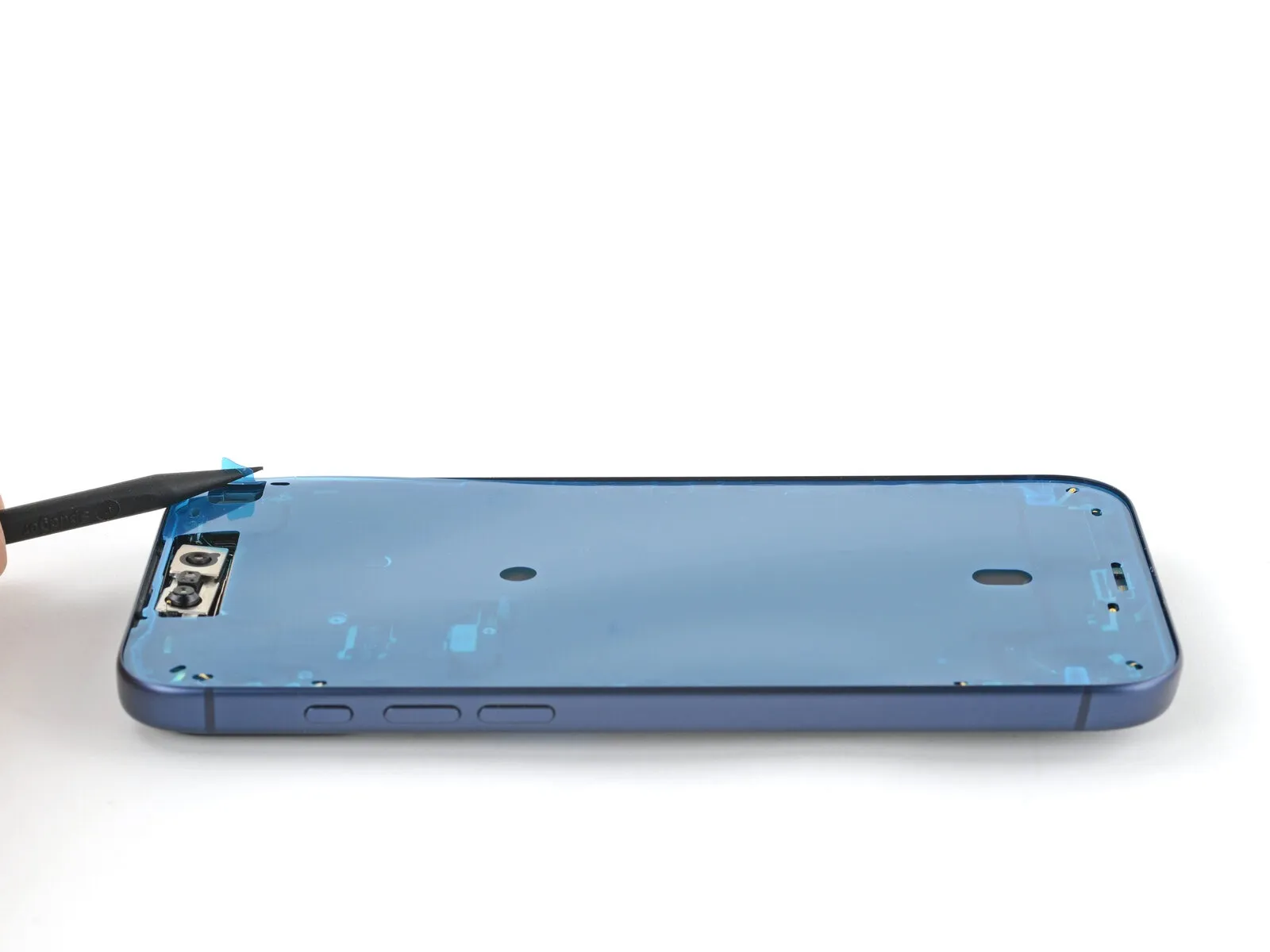
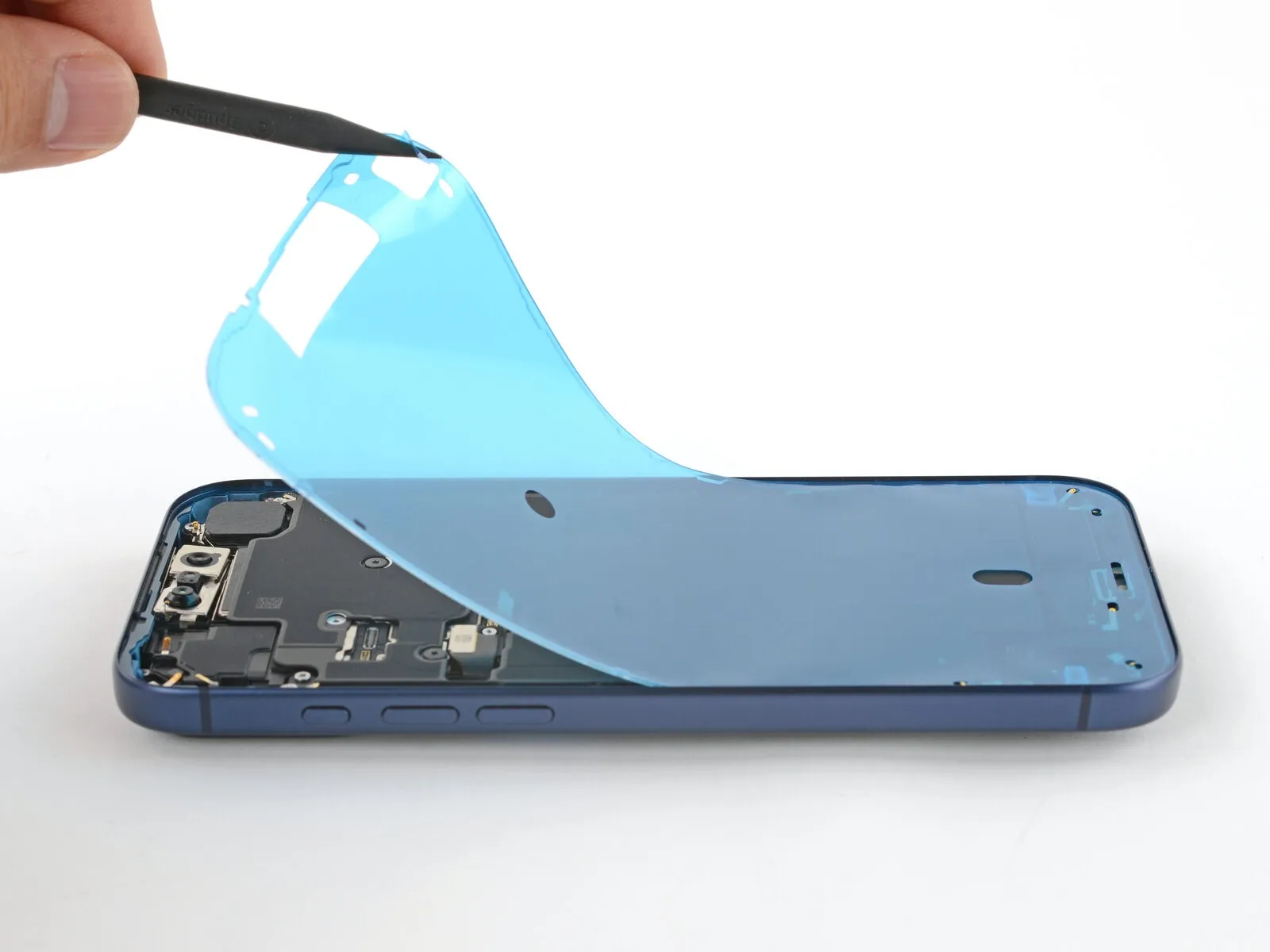
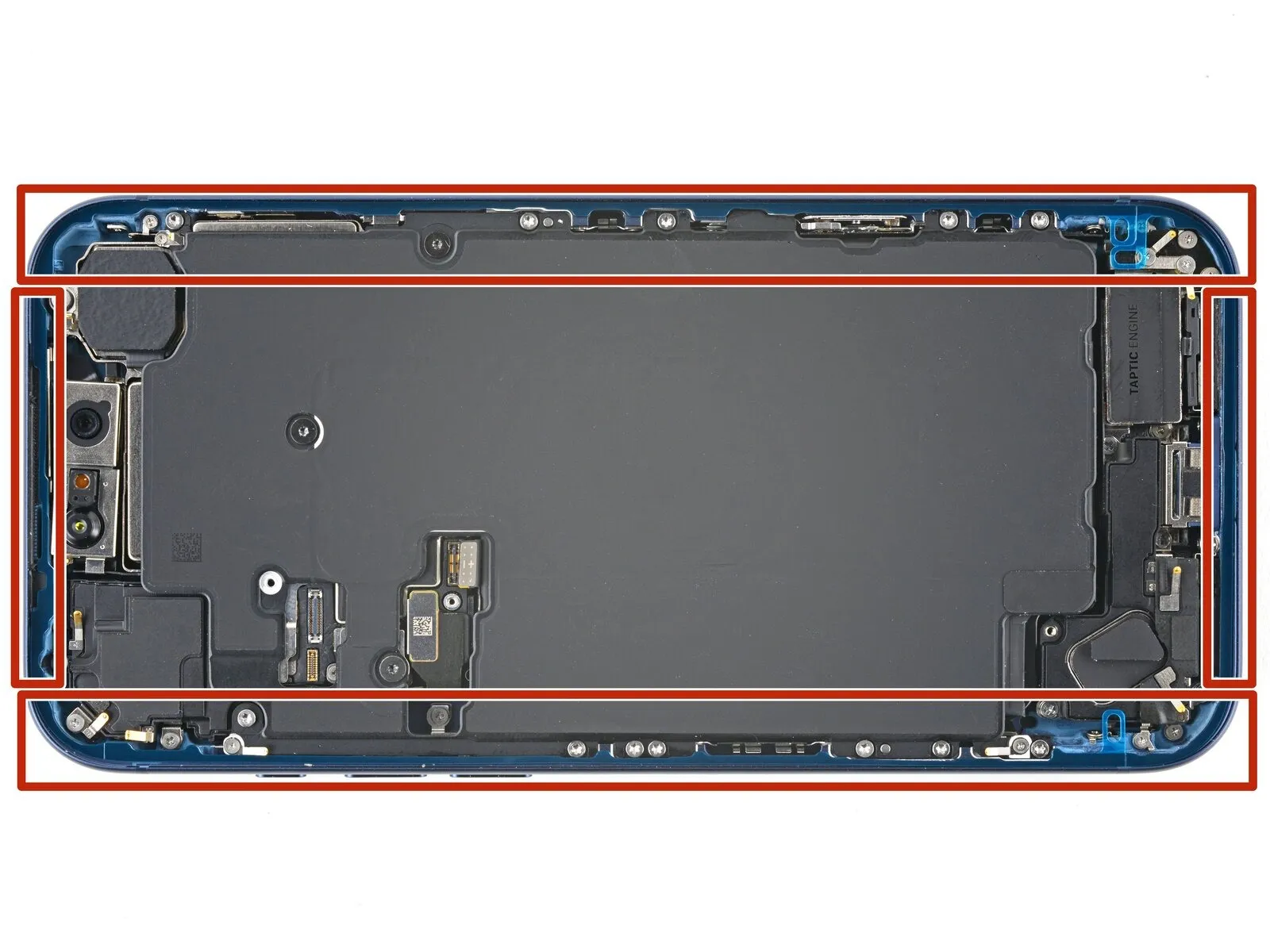
To detach the sizable front adhesive liner, grasp the integrated pull tab.The pull tab is typically situated within a corner of the liner; however, remaining liners along the edges should not be removed at this stage, as they serve to inhibit premature adhesion during reassembly of the iPhone.
Step 48 | Connect the screen
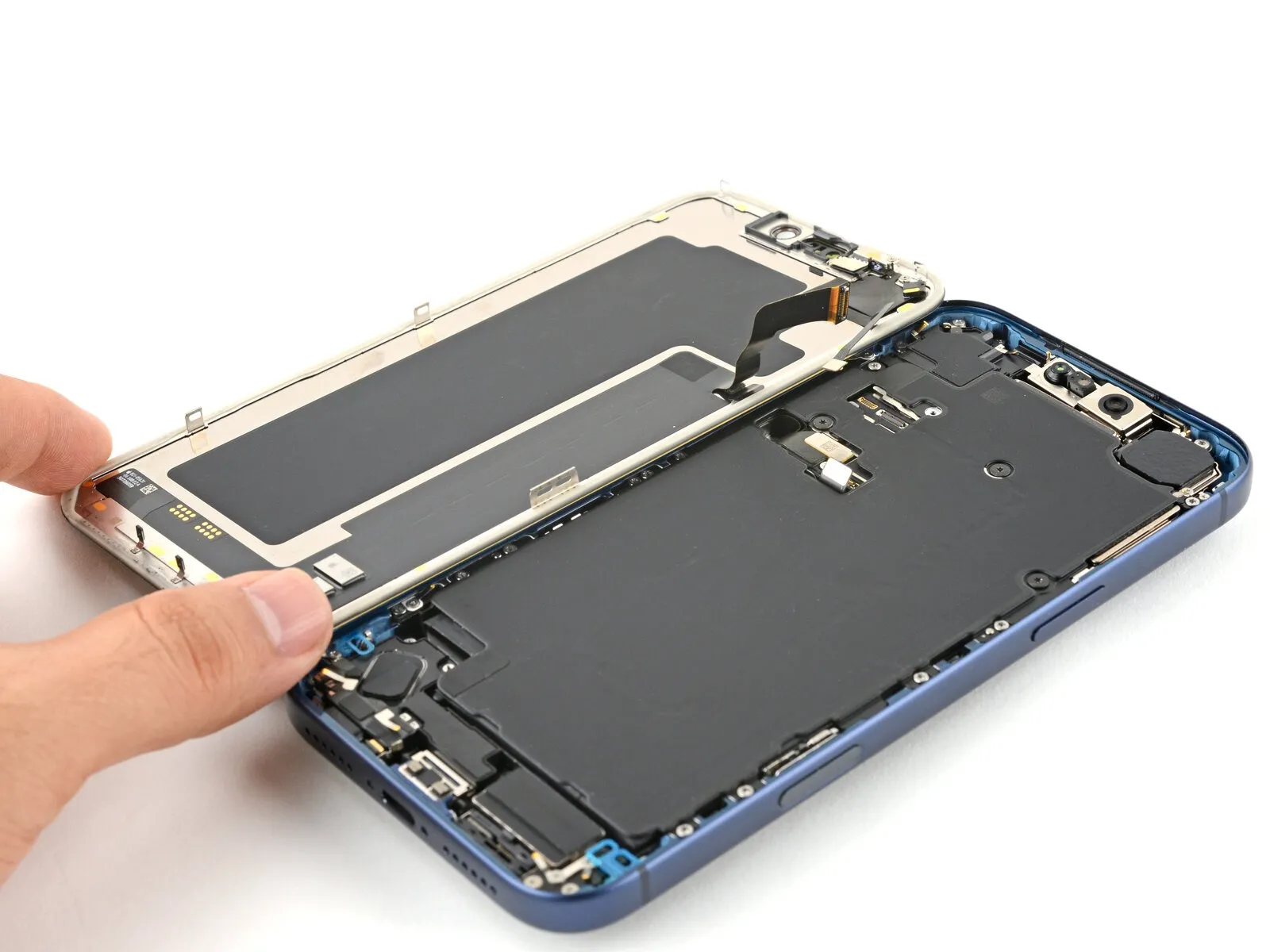
Position the iPhone display adjacent to the frame, ensuring sufficient cable length to connect to the logic board.
Step 49


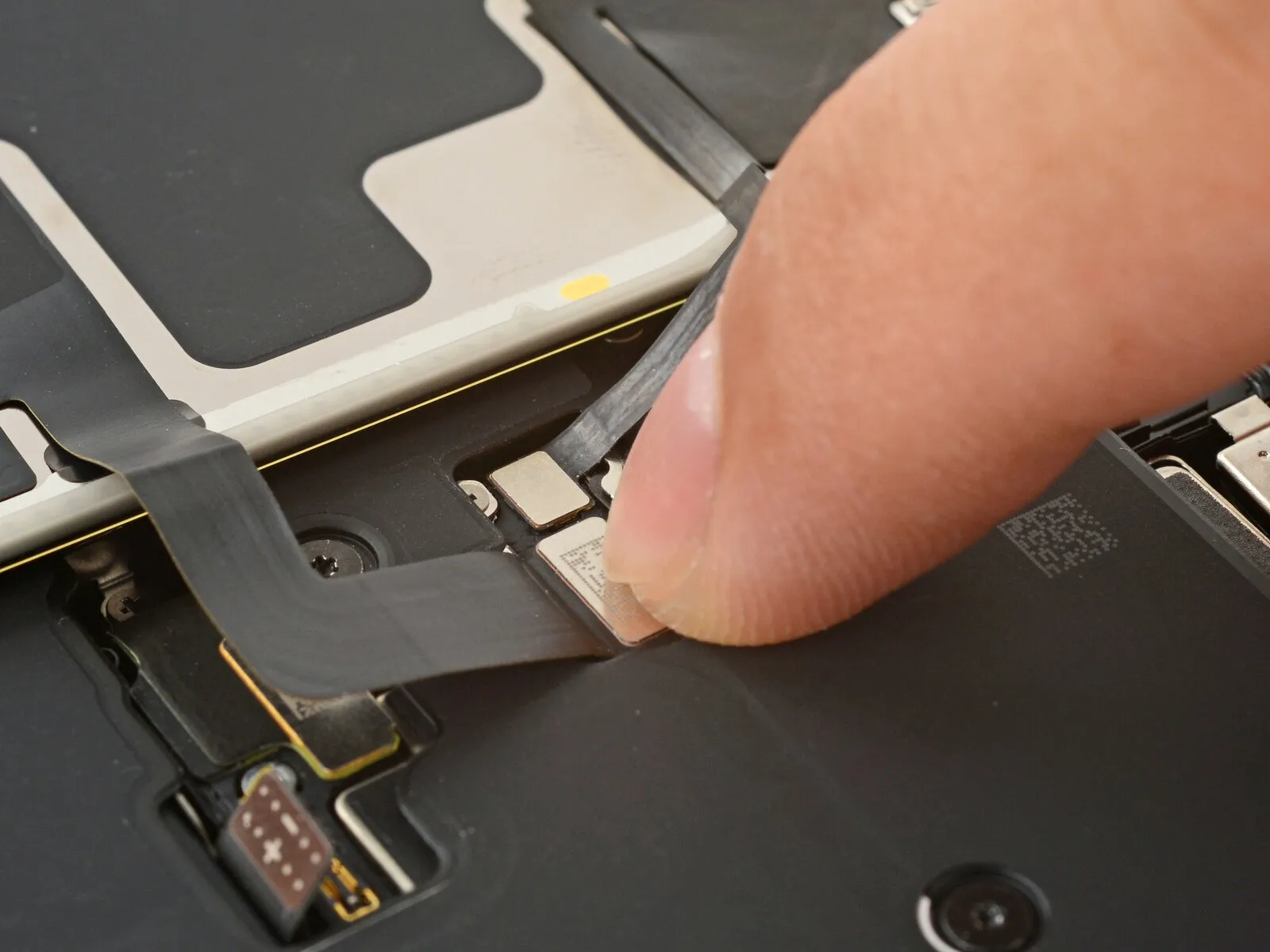
Employing a fingertip or the broad, planar edge of a spudger, establish a secure connection between the two screen connectors and the logic board; avoid applying excessive force during this process.Should difficulties arise when attempting to join the connectors, adjust their alignment and retry the connection, rather than applying undue pressure.
Step 50 | Connect the battery


Employing either a fingertip or the planar edge of a spudger tool, ensure the battery connector establishes a secure connection with the logic board through applied pressure.To achieve a reliable electrical link between the battery connector and the logic board, apply force using a finger or the broad, flat surface of a spudger.
Step 51 | Test your repair
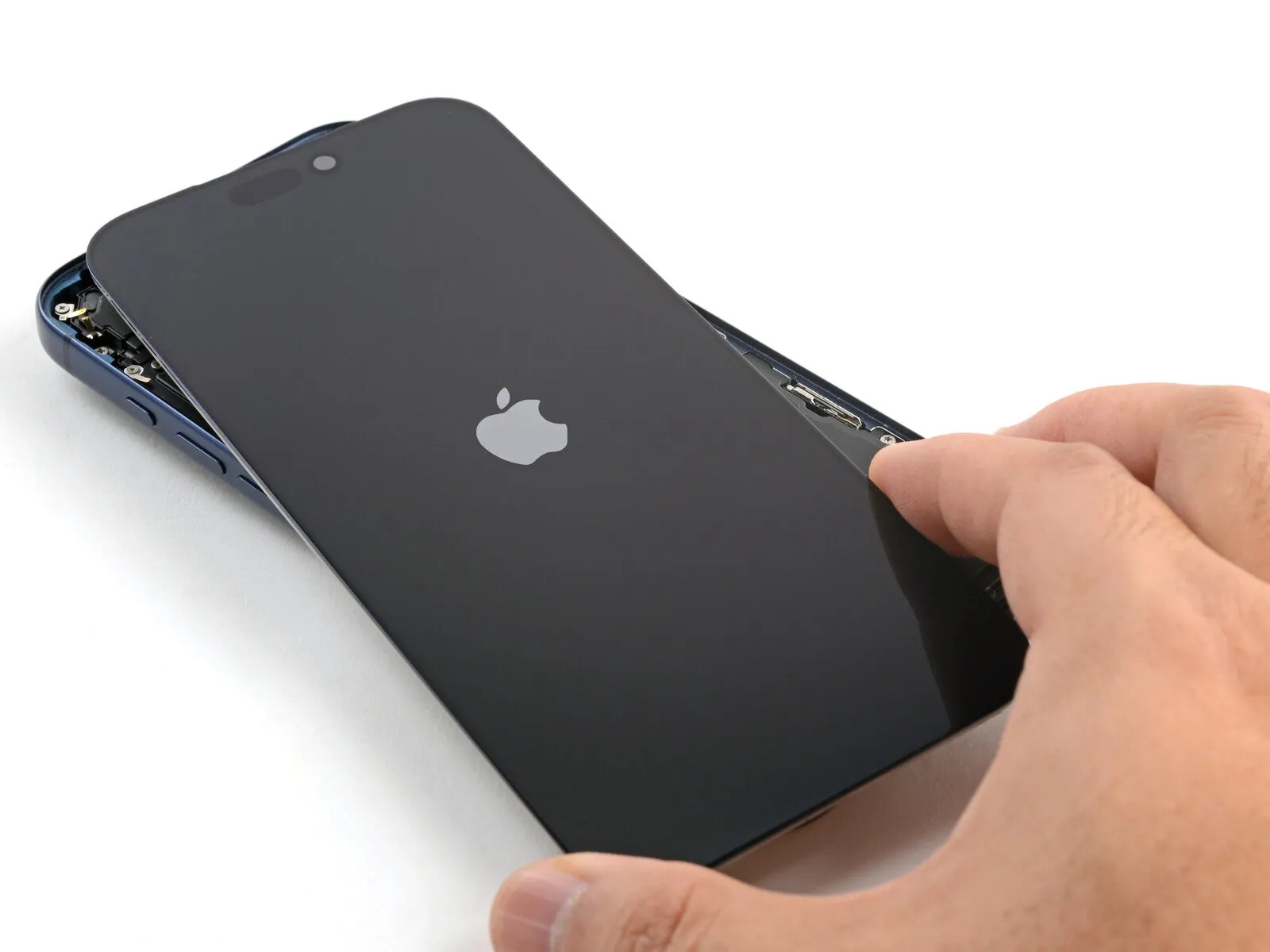
Prior to finalizing the iPhone enclosure, it's advisable to verify the functionality of the repair by initiating the device and confirming expected operation.
- Following the verification process, de-energize the device and proceed with the remaining reassembly steps.
- Should the iPhone fail to power on, establish a connection to an external power supply and attempt to activate it once more.
Step 52 | Install the battery connector cover
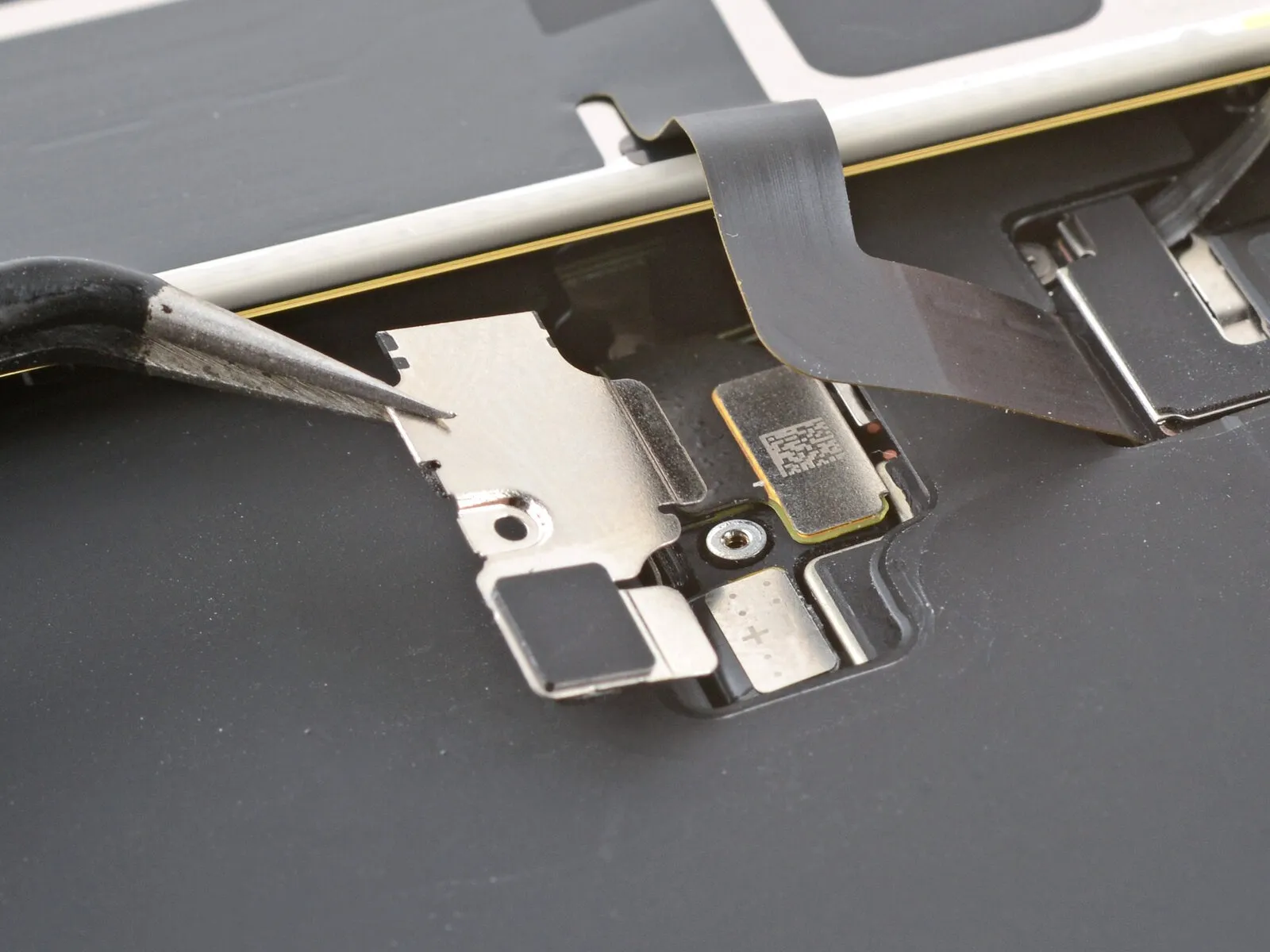
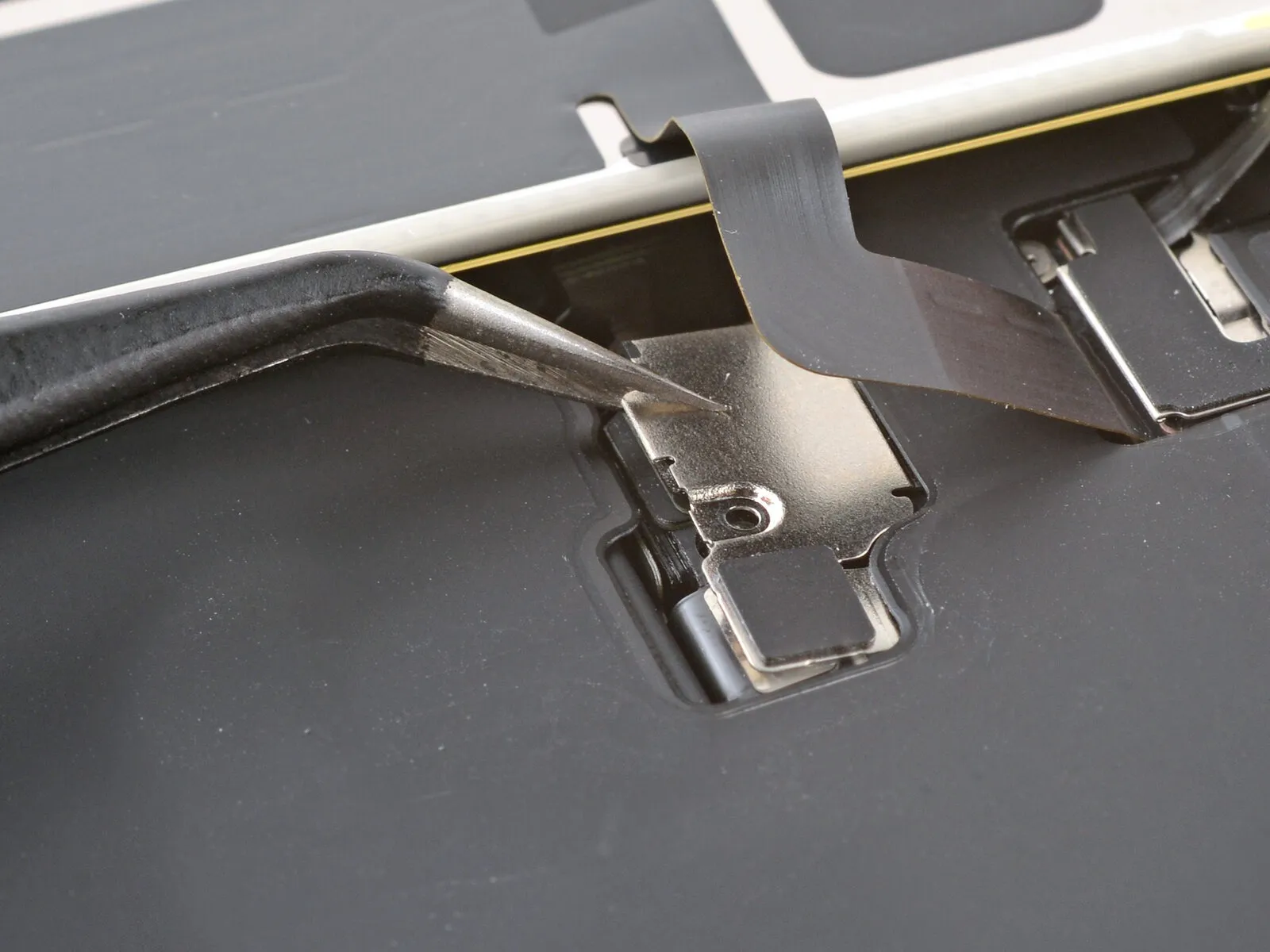
Carefully slide the upper border of the battery connector cover beneath the designated edge.
- Verify that each of the two tabs is securely positioned beneath the lip.
- Position the cover precisely using the screw aperture as a guide, then set it into its intended location.
Step 53
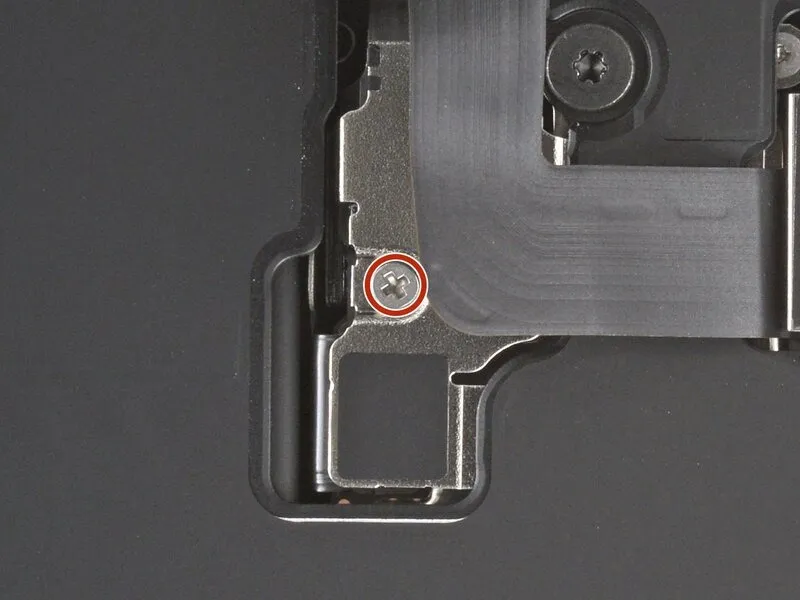
Employ a JIS 00 screwdriver for the installation process.A 1.2 mm screw length is required for proper fastening.The battery connector cover necessitates secure attachment.Utilize the screwdriver to engage the screw head.This screw secures the cover, maintaining its position.
Step 54 | Install the screen connector cover
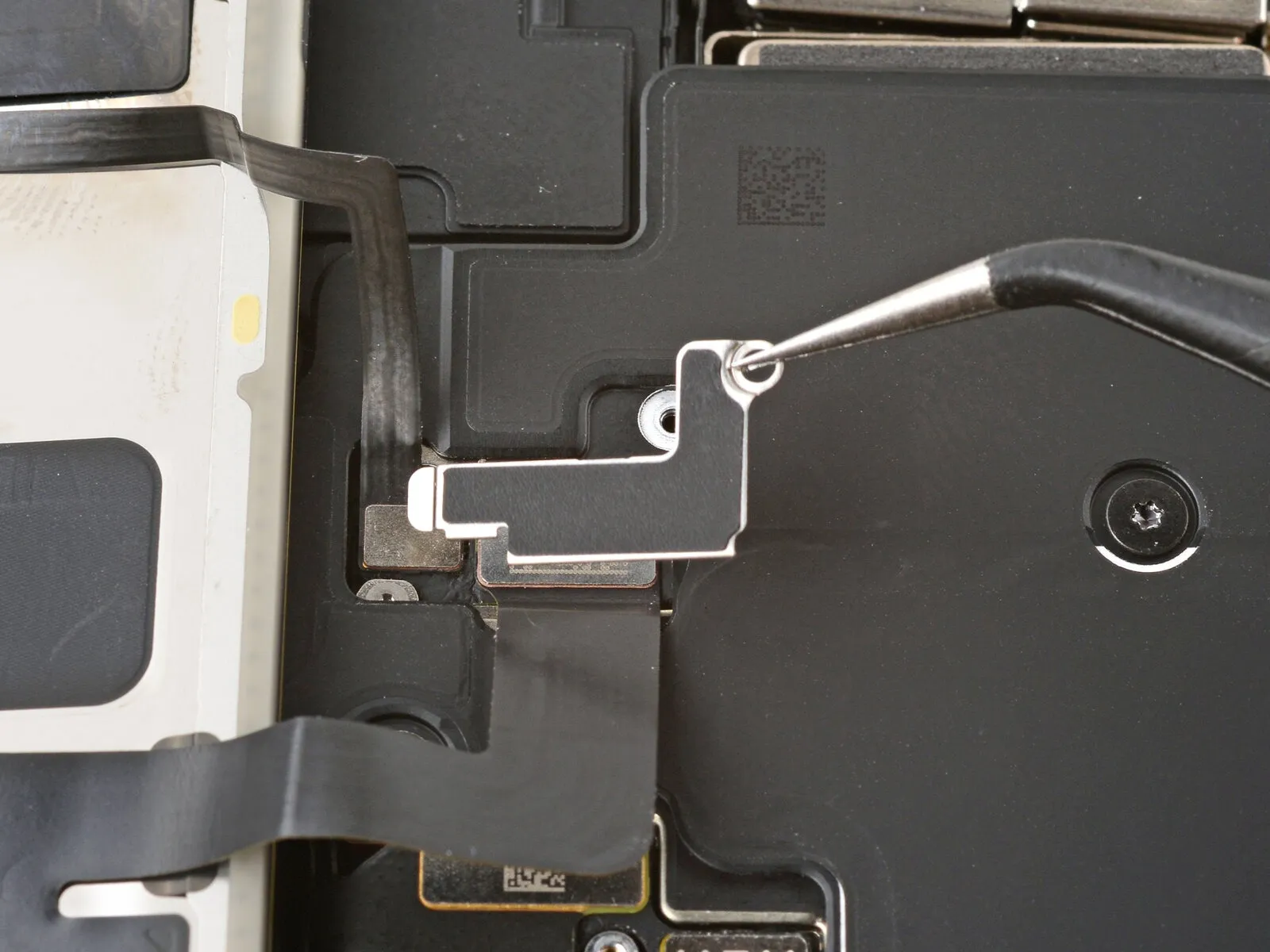
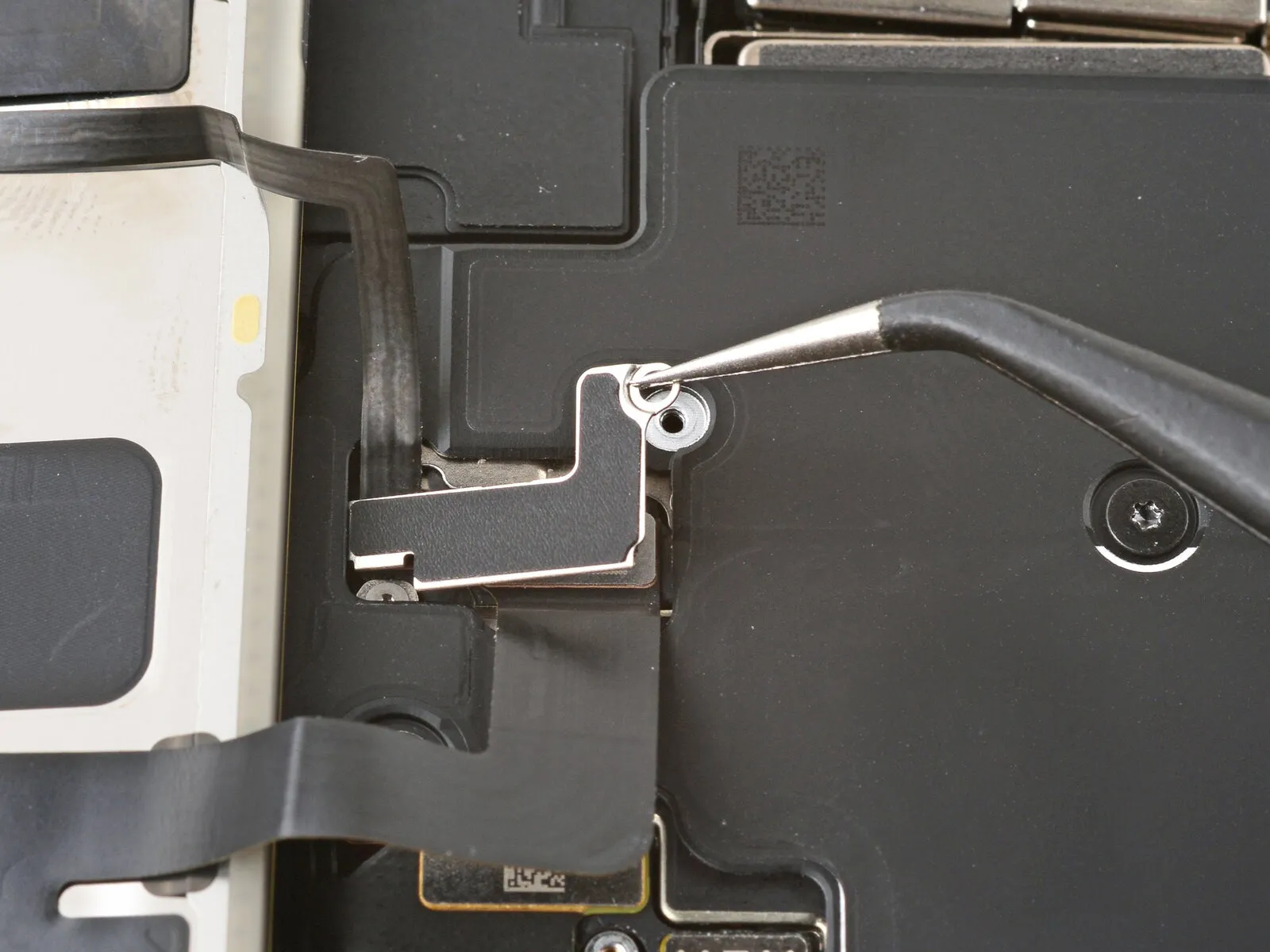

- To secure the screen connector cover, slide the left side beneath the designated notch.
- Position the cover precisely using the screw aperture as a guide, then set it down.
Step 55

Employ a JIS 00 screwdriver for the installation process.A 1.2 mm screw is required for fastening.The screw's purpose is to secure the screen connector cover.Properly utilize the JIS 00 screwdriver to ensure accurate installation.The screen connector cover is held in place with the specified screw length.
Step 56 | Remove the final adhesive liners


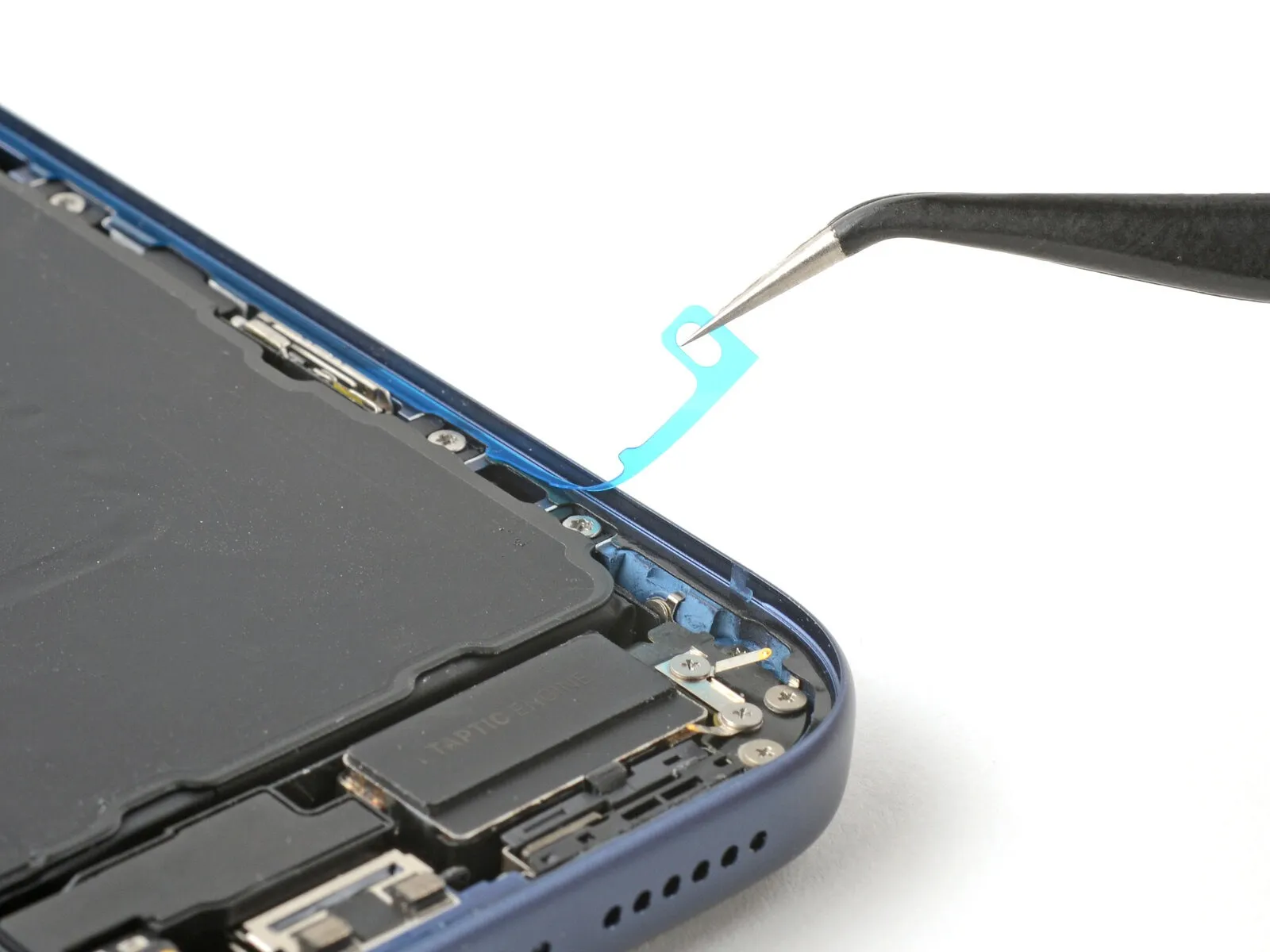
Maintain the display's stability by grasping it firmly with one hand.
- Employing either your fingertips or a spudger, carefully separate the adhesive-securing perimeter liners to reveal the bonding agent.
- Prevent any contact with the now-visible adhesive to avoid contamination.
- Thoroughly inspect the internal components, eliminating any detached liners to guarantee complete adhesive exposure.
Step 57 | Install the screen

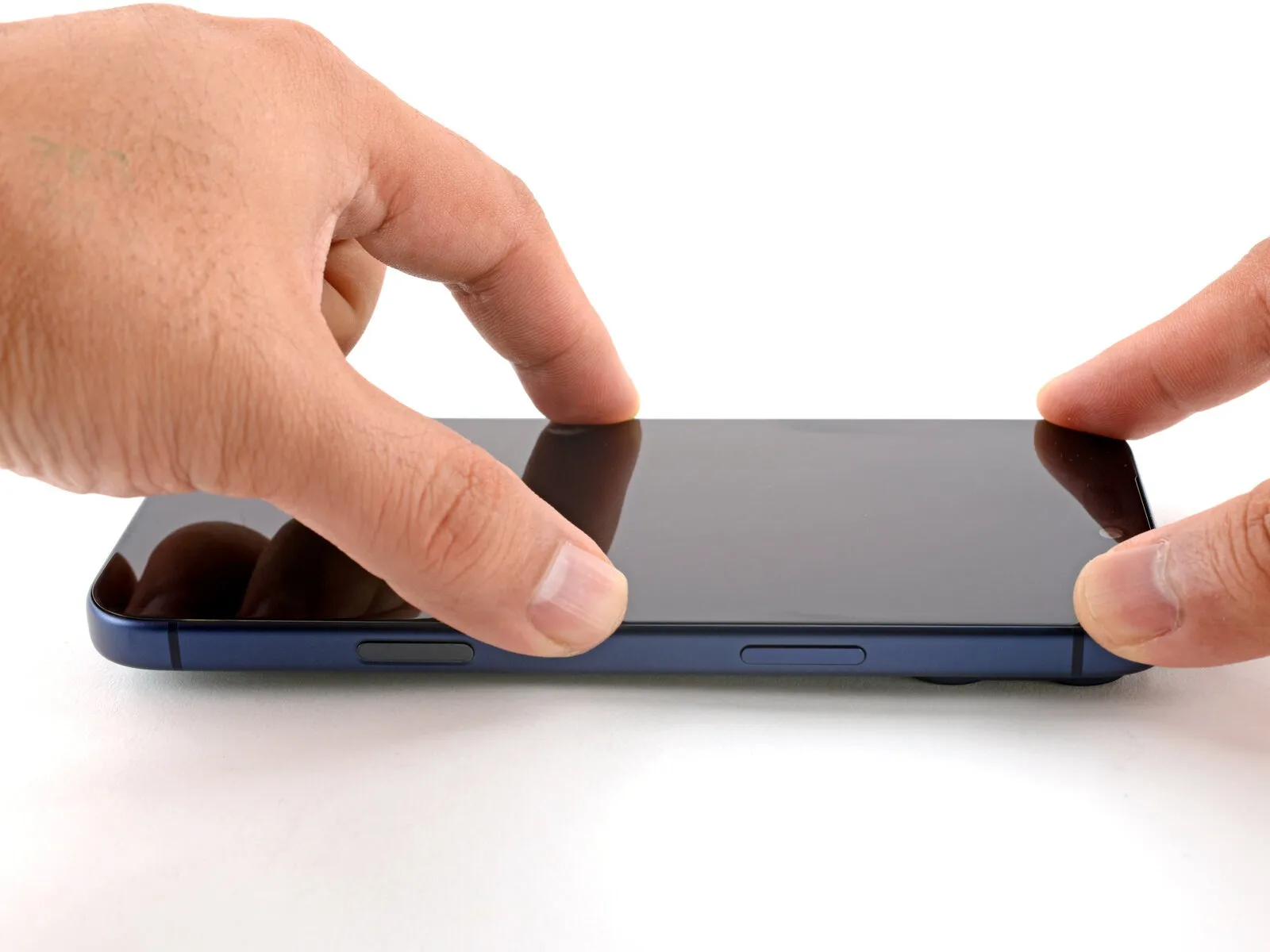
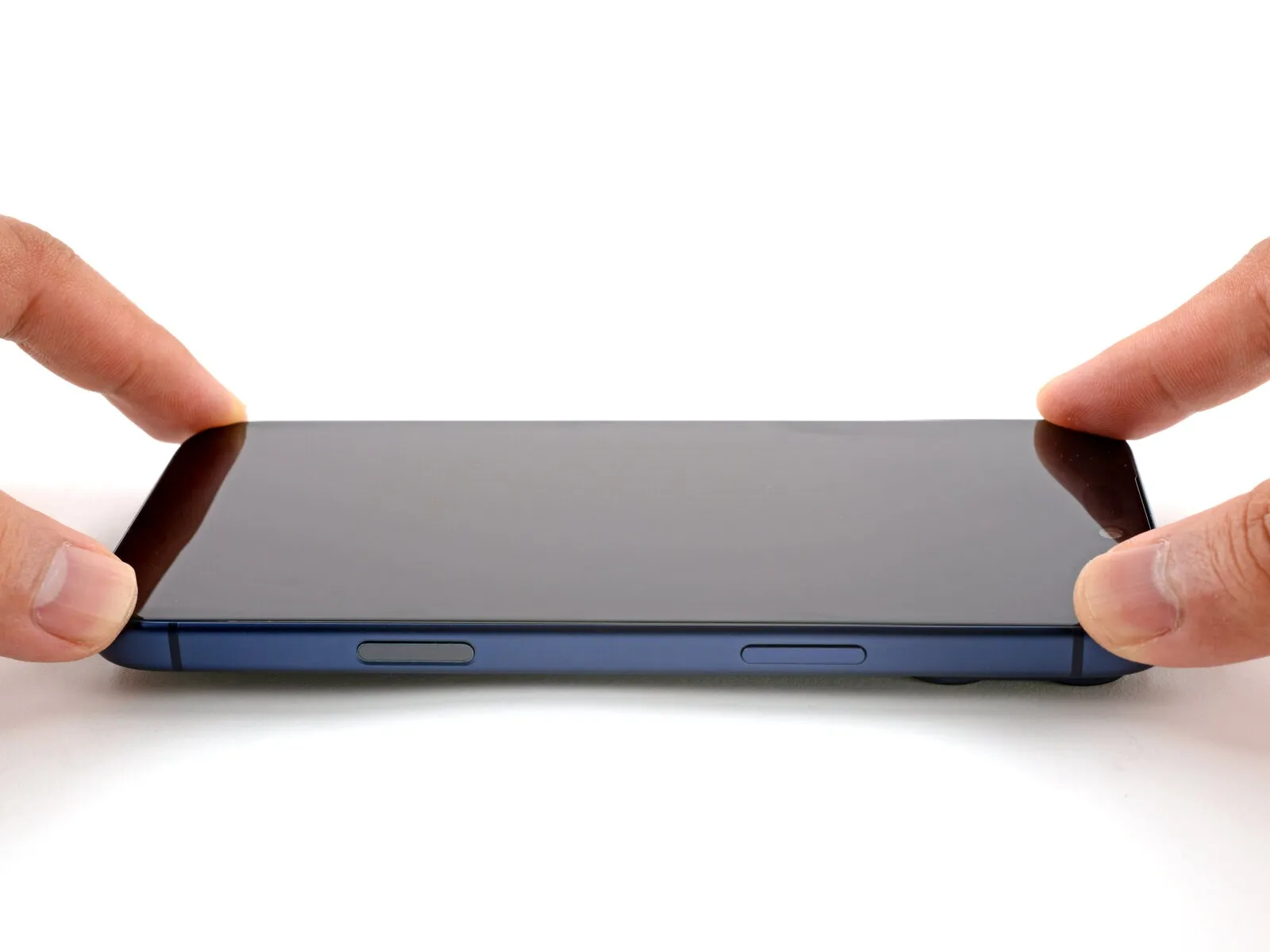
- Position the display assembly against the chassis, initiating the alignment from the uppermost section.
- Should you encounter opposition during placement, a retaining clip might be deformed and experiencing compression from the chassis.Carefully inspect the area of obstruction to identify and gently correct any clips that are not properly aligned.Verify that the display's border isn't compressing any flexible connectors.
- Ensure all necessary wires are free from obstruction.Confirm the integrity of all connections before proceeding.Apply even pressure across the display's borders to achieve a completely flat contact with the chassis.
- The screen must be perfectly aligned with the frame to ensure proper functionality and prevent damage.
Step 58
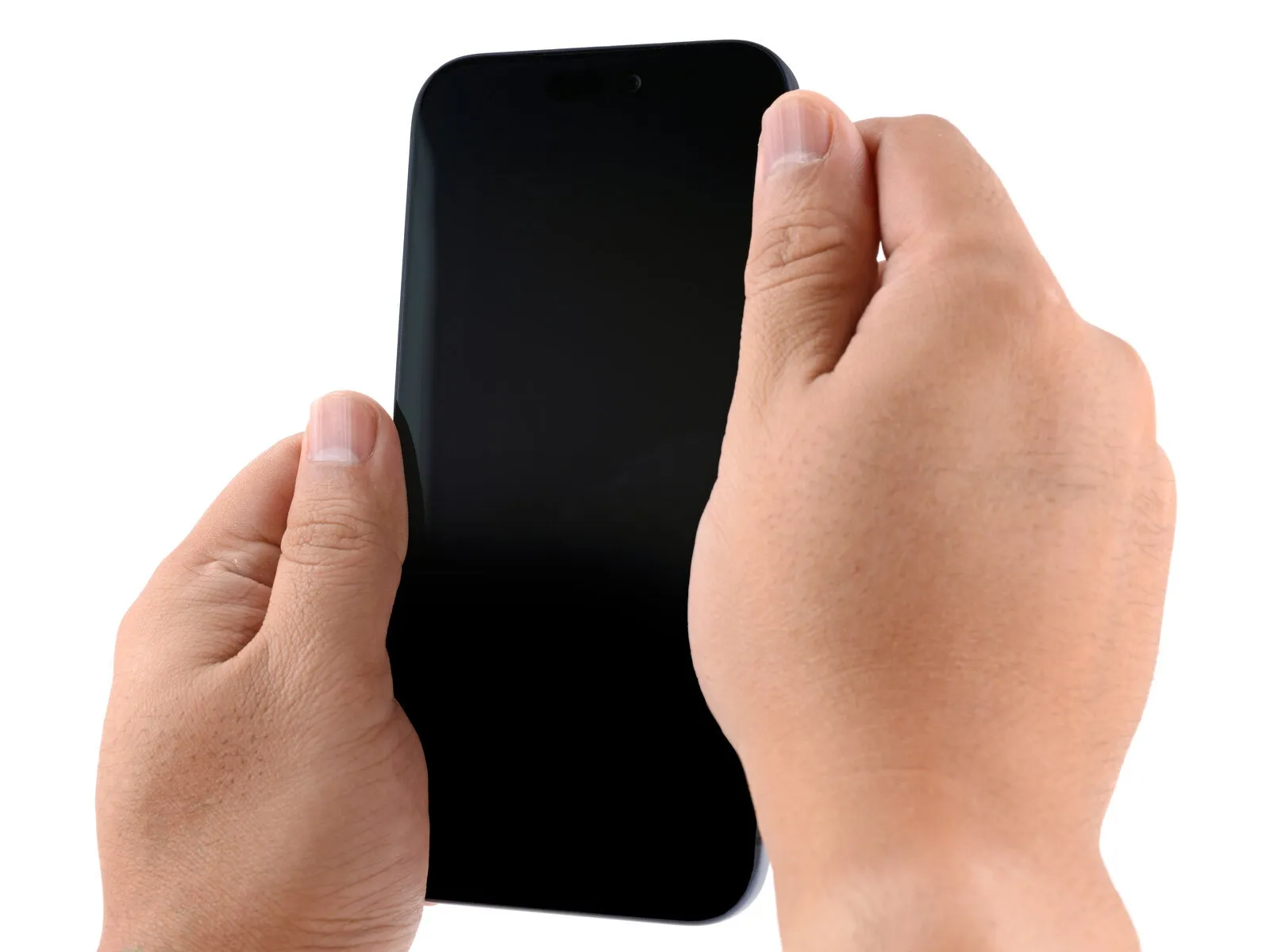
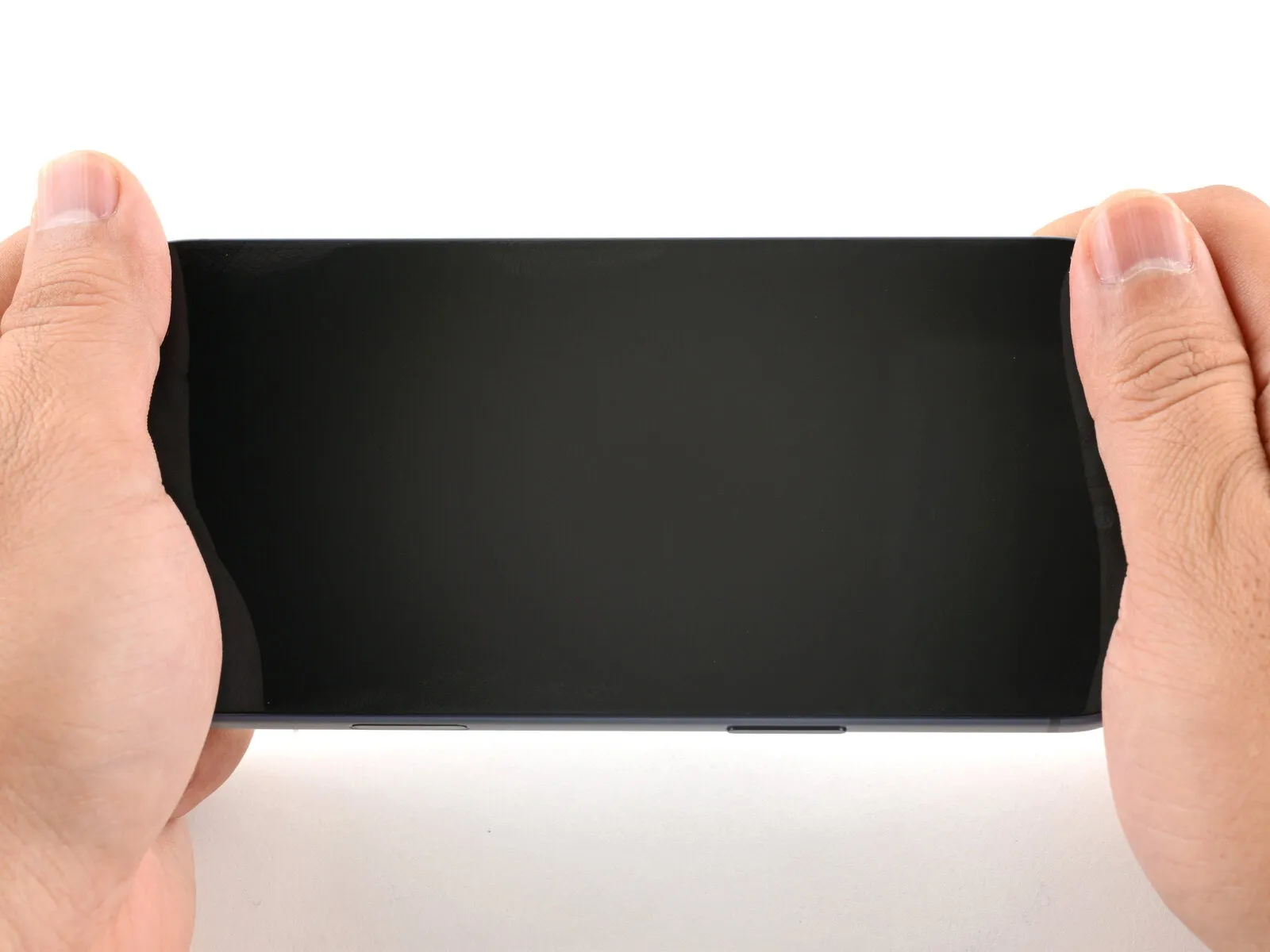
Apply consistent, substantial pressure encompassing the device's complete outer edge.
Step 59 | Apply heat to the perimeter
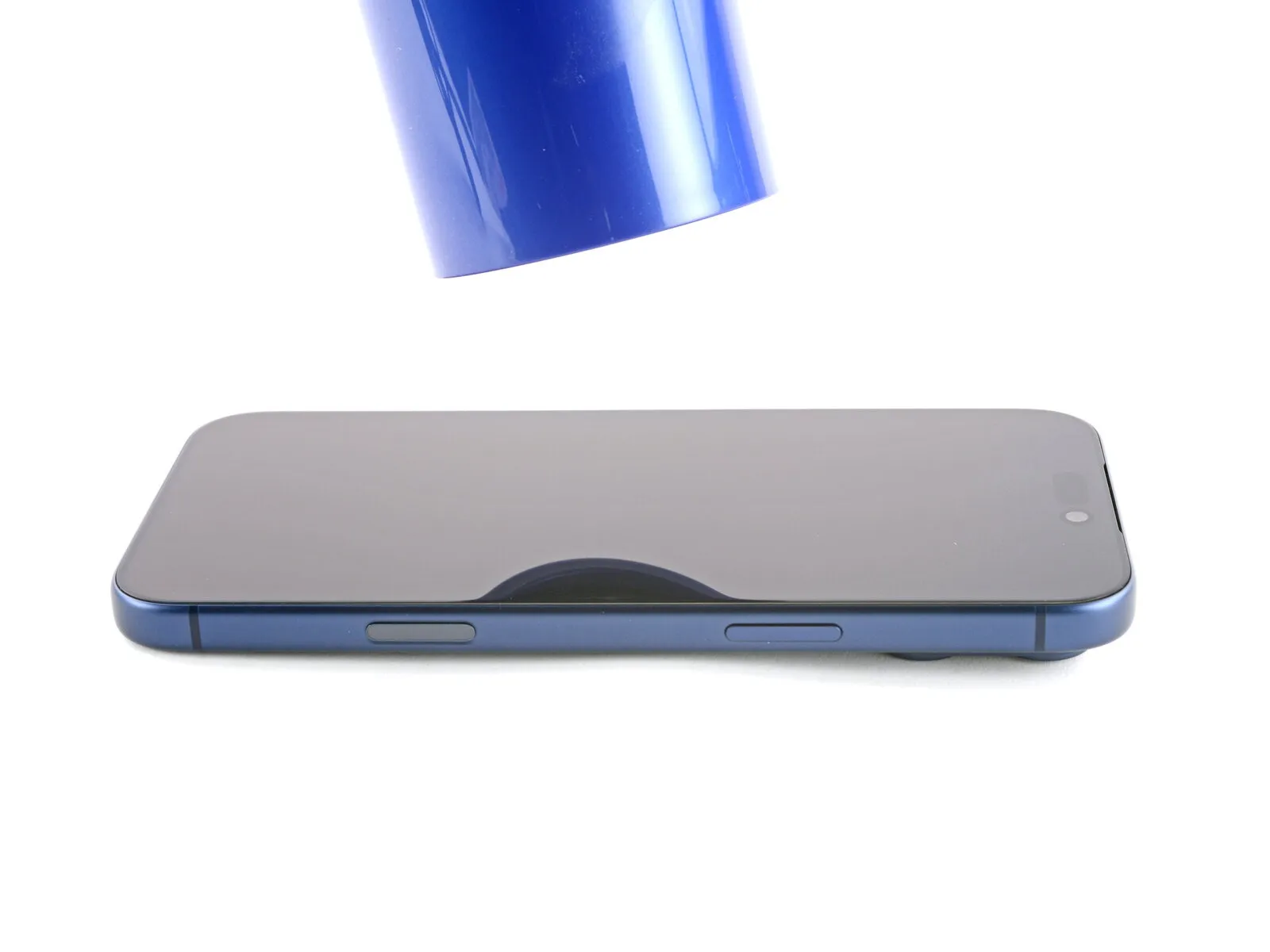
- Apply warmth around the display's edges utilizing a hair dryer or heat gun, ensuring the surface reaches a temperature just beyond comfortable touch.This thermal application diminishes the adhesive's strength, facilitating improved adhesion during reassembly.The increased temperature causes the adhesive to become pliable, promoting a more secure bond.
Step 60 | Install the pentalobe screws
Employ a P2 pentalobe screwdriver for the installation of the two screws.The screws each measure 7.5 millimeters in length.Securely fasten these screws to both sides of the charging port.