Fixing an iPhone 5 with disabled wireless switch
Prior to commencing any repair work, disconnect the device completely from all electrical power.
- To complete this repair, you will need the following tools:Utilize a Phillips head screwdriver.
Consult the user manual to find model-specific information and extra safety guidelines.
Step 1 | Fixing an iPhone 5 with disabled wireless switch
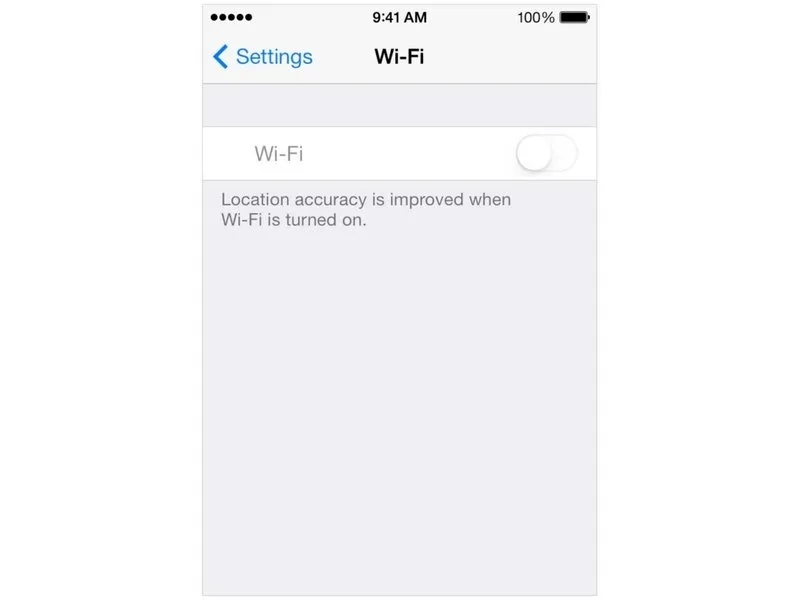
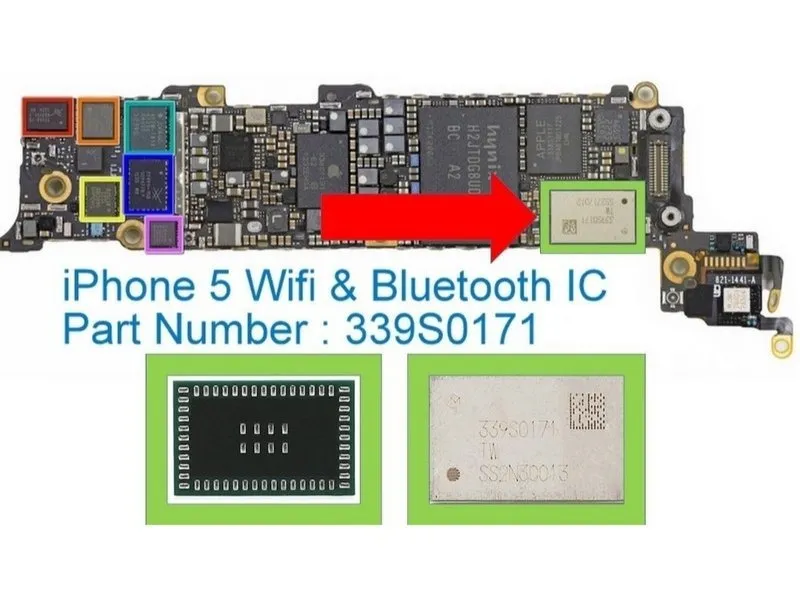
- Prior to proceeding with the steps outlined in this guide, attempt these troubleshooting approaches.
- To restore your device's connectivity configurations to their factory defaults, access and utilize the Network Settings reset function.
- Power cycle the device by holding the power button until the Apple logo reappears on the screen.
- Erase all data and settings on the iPhone, reverting it to its original out-of-the-box configuration.
- To adjust the device's clock, navigate to the Settings menu, then select Date & Time; switch the date and time setting to manual mode, and subsequently power cycle the iPhone.
- To proceed, detach the battery's terminals and then reattach them.
- Should the previously described actions not resolve the issue, continue with the subsequent procedure.