Fix iPhone X Stuck On Apple Logo/iTunes Error 4013
Prior to commencing any repair work, it is essential to disconnect the device from all electrical power to guarantee safety.
- Necessary tools for this procedure include:A Phillips head screwdriver is needed.
Should difficulties arise while performing the repair, refer to the manufacturer's provided instructions or obtain help from a qualified technician.
Step 1 | Fix iPhone X Stuck On Apple Logo/iTunes Error 4013
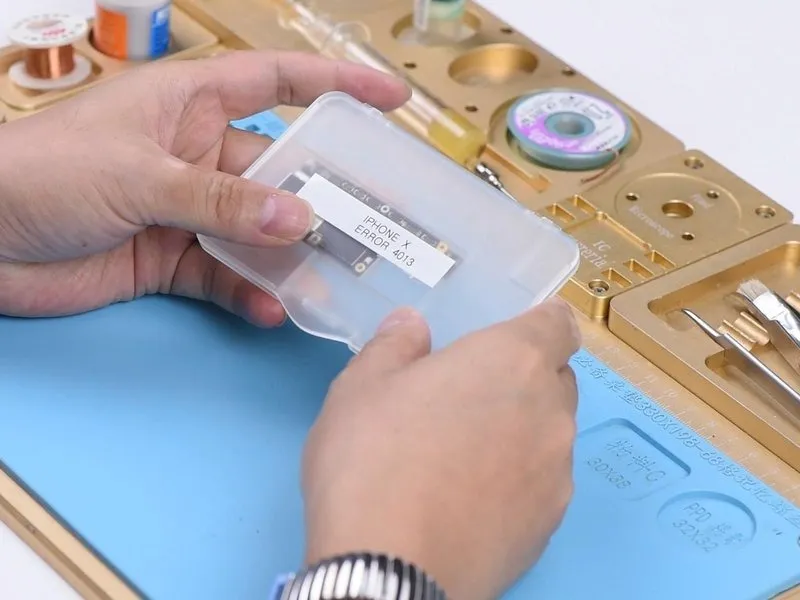

The following information is presented:Addressing an iPhone X experiencing Error 4013..
- Begin by thoroughly examining the motherboard for any visible physical defects.
- Confirm the motherboard's structural integrity, ensuring it exhibits no signs of bending or prior water exposure.
Step 2


Proceed with the motherboard installation and subsequent verification.
- Initiate the power button sequence; the device should then transition into recovery mode autonomously. This behavior indicates a restoration error on the motherboard, preventing standard system access.
Step 3
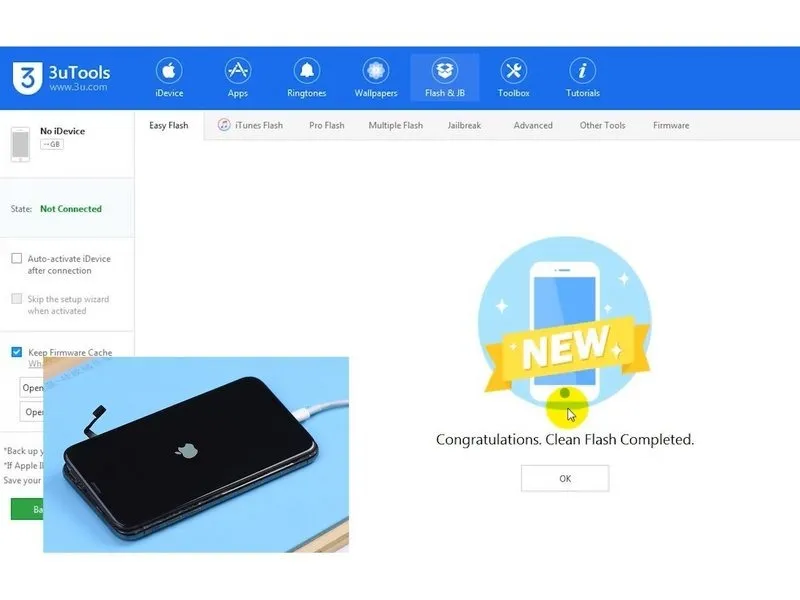
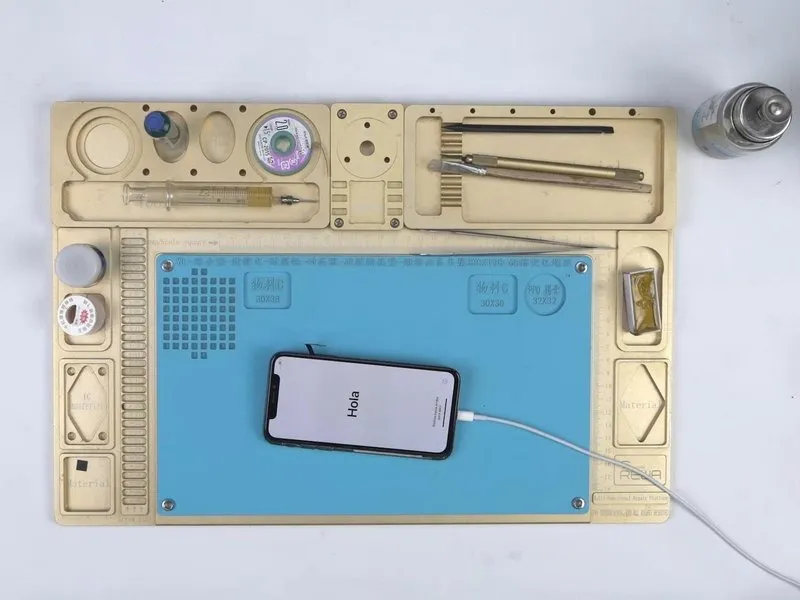
To rectify the device's functionality, we will proceed with a restoration process and subsequently verify the presence of error code 4013.
- Establish a connection between the mobile device and the host computer, then initiate the restoration procedure utilizing 3U Tools.
- Following the restoration, the device should operate within expected parameters, and activation should also proceed without issue.
Step 4
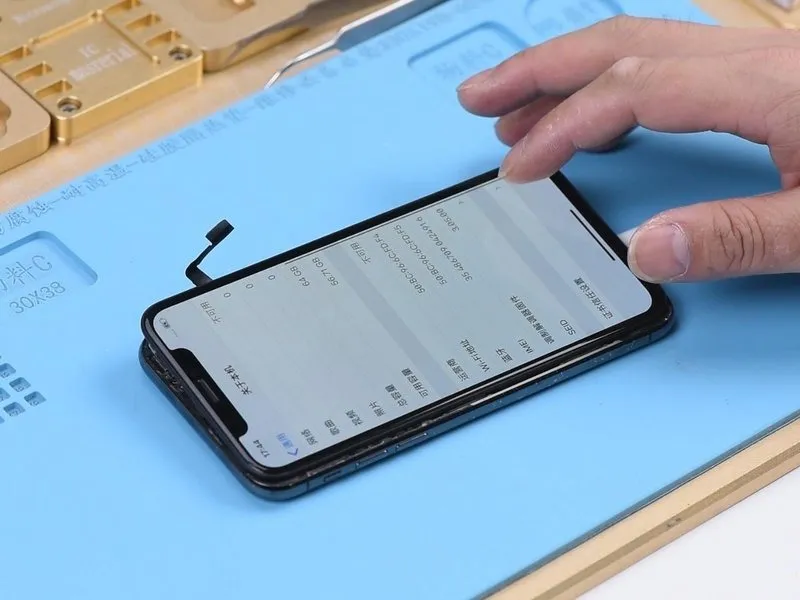

Navigate to the device's Settings menu, then select General, and finally About.
This section allows verification of baseband details; confirming the motherboard's functionality indicates the issue likely resides within a different component.
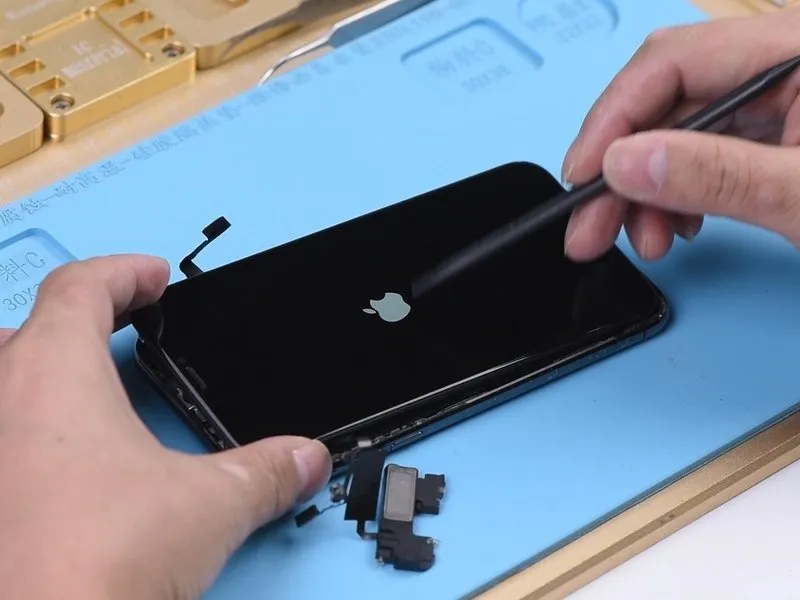
- Retrieve the earpiece speaker and sensor flex cable assembly, alongside the front camera flex cable assembly, which are currently installed.
Power on the device; the phone is exhibiting a persistent boot loop, displaying the Apple logo and repeatedly restarting.
Step 5
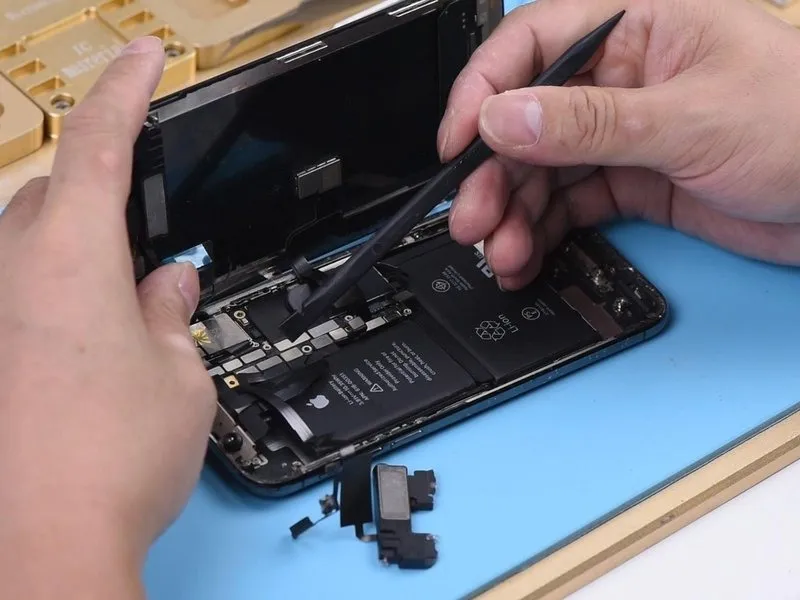
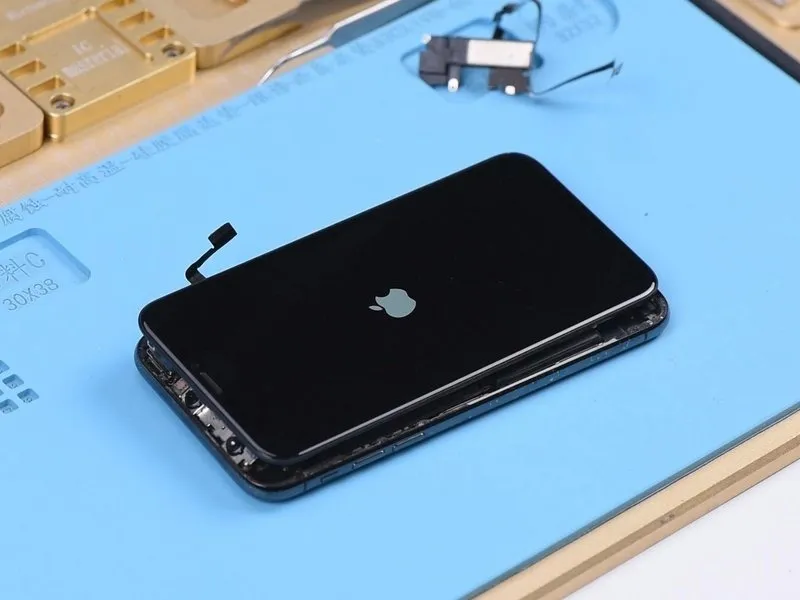
- Based on the observed symptoms, the issue likely stems from either the earpiece speaker and sensor flex cable or the front camera flex cable, necessitating a sequential diagnostic process.
- Carefully detach the earpiece speaker and sensor flex cable assembly.
- Activate the device by depressing the power button; successful power-on indicates the earpiece speaker and sensor flex cable is the source of the malfunction.
Step 6
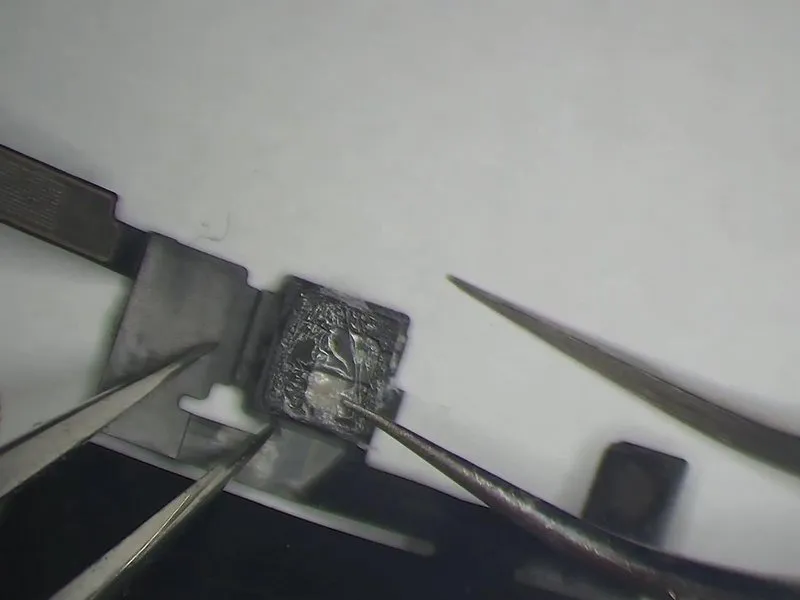
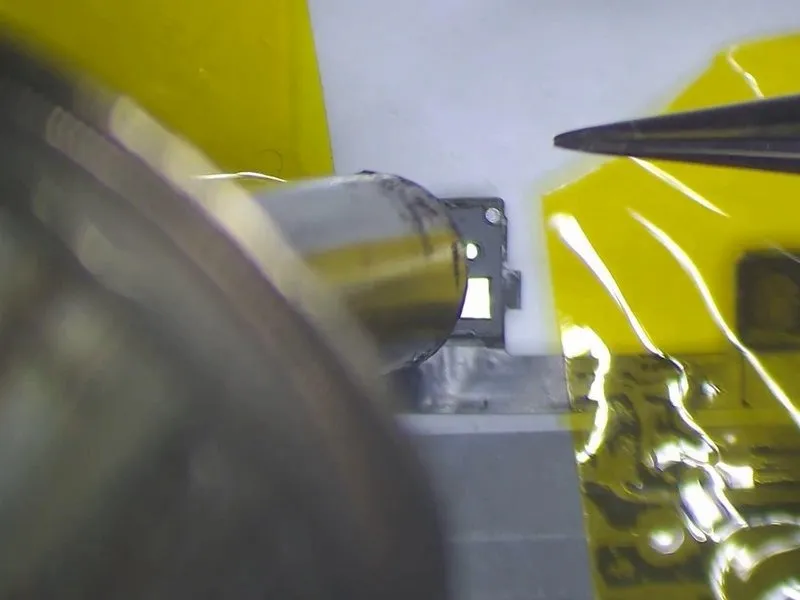

- Using a microscope, carefully examine the earpiece speaker and sensor flex cable for any defects.The flood illuminator moduleexhibits signs of mold contamination.
- Secure the earpiece speaker and sensor flex cable utilizing high-temperature tape; apply heat with a hot air gun, maintaining a temperature of 320°C and an airflow rate of 35.The flood illuminator moduleis observed to have
- a severely corroded bonding pad.
Step 7
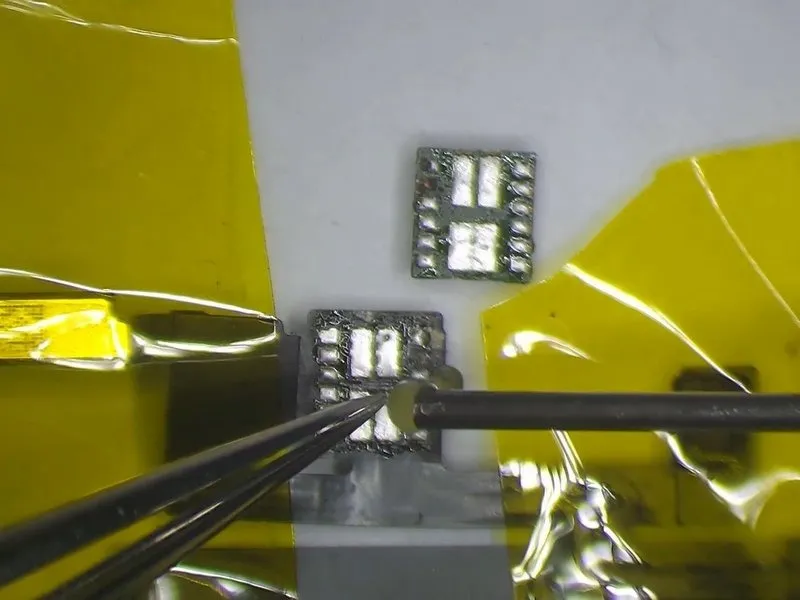

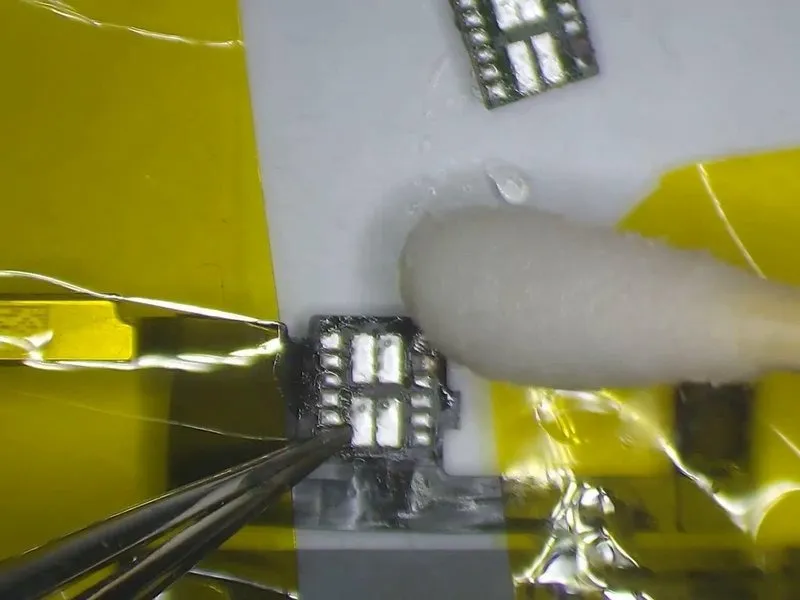
- To facilitate a strong connection, apply a flux paste to the bonding pad. Utilize a soldering iron, set to a temperature of 360°C, to meticulously clean the bonding pad. Subsequently, apply a medium-temperature solder paste specifically to the pad exhibiting significant corrosion. Following this, use a PCB cleaner to remove any residue.
- Proceed with applying flux paste to the illuminator module for lighting.. After applying medium-temperature solder paste to the severely corroded pad, clean the area with a PCB cleaner. Upon completion of this process, reapply flux paste to the bonding pad.
Step 8


- Acquire the Flood illuminator moduleEnsure proper alignment of the component. Utilize a hot air rework station, setting the temperature to 320 degrees Celsius and the airflow to 35 liters per minute. Following completion of the soldering process, allow a 2-minute cooling period.
Step 9
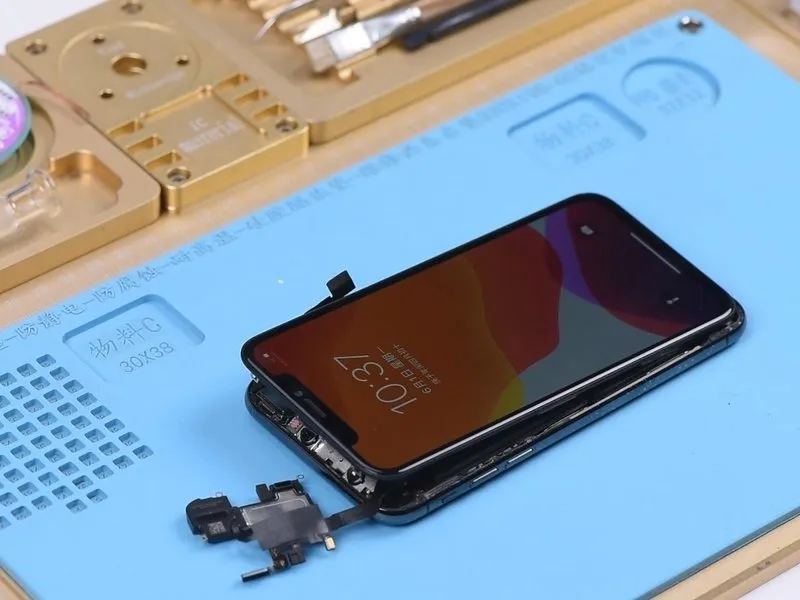

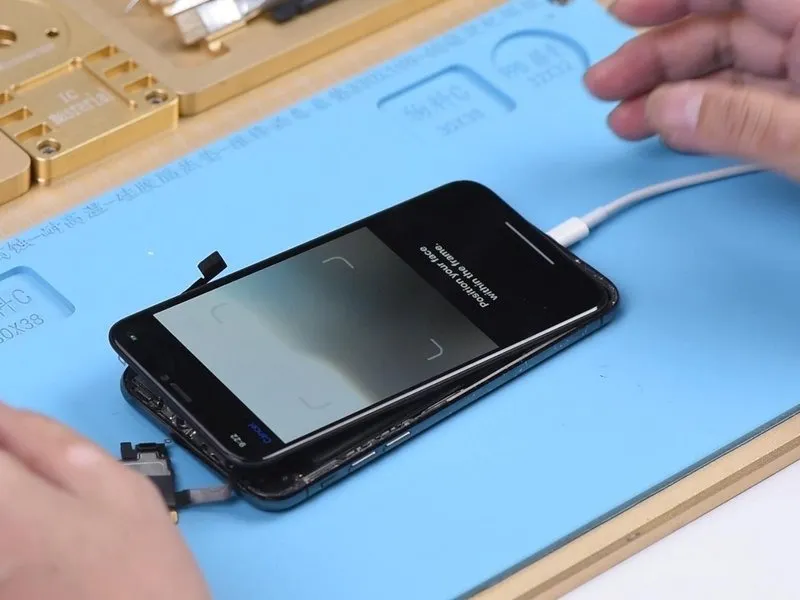
- Proceed with the installation of the earpiece speaker and the associated sensor flex cable.
- Establish a connection with the battery.
- Initiate the power button; the device should subsequently power on in its standard operational state.
Becausethe two flex cables were previously left disconnected during the restoration process, it is necessary to repeat the restoration procedure, ensuring both cables are properly connected. This action is essential for the proper functionality of Face ID. Subsequently, place the device into DFU mode and establish a connection with a computer.
- Utilize 3U Tools to perform the restoration; this should allow for a standard restoration process.
- Upon completion of the restoration, the device should boot into the operating system, and Face ID functionality should be restored.